# The Automations page at a glance
> Source: https://support.usebluehill.com/automations-automations-page-overview | Updated: 2026-10-27T18:49:55Z
## Open the Automations page
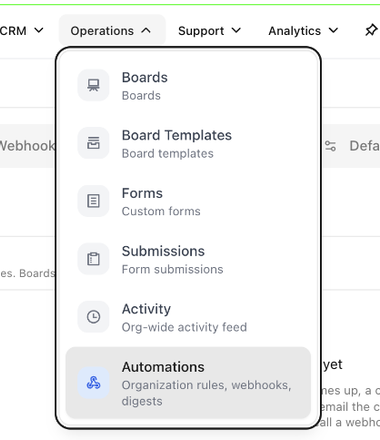
1. Open the **Operations** menu in the top navigation.
2. Choose **Automations** (described as *Organization rules, webhooks, digests*).
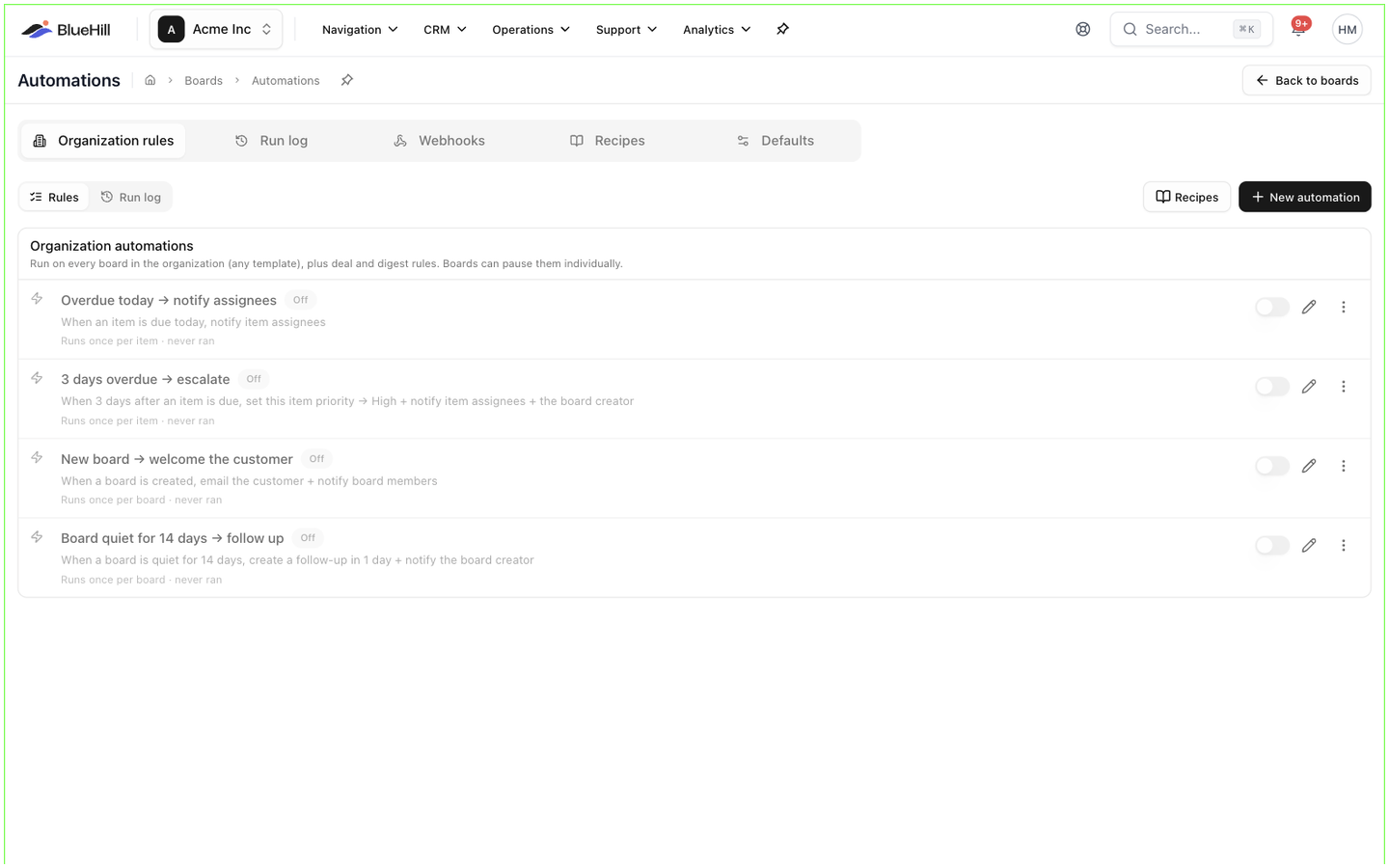
 The page is titled **Automations**, with the breadcrumb *Boards › Automations* and a **Back to boards** button that returns you to the Boards page.
 ## The five tabs
| Tab | What it holds |
|---|---|
| **Organization rules** | The rules that run on every board in the organization, plus customer, deal, form and digest rules. See [Where rules live](./automations-where-rules-live). |
| **Run log** | Every time an organization rule fired, with what each action did. See [Check the run log](./automations-run-log). |
| **Webhooks** | The endpoints that the *Send a webhook* action can call, and their deliveries. See [Webhooks](./automations-webhooks). |
| **Recipes** | Ready-made rule sets you can add in one go. See [Start from a recipe](./automations-recipes). |
| **Defaults** | The business hours profile and digest hour that rules use when they do not set their own. See [The Defaults tab](./automations-timing-and-digests#the-defaults-tab). |
The tab you are on is kept in the page address, so you can bookmark **Run log** or **Webhooks** directly and the browser's back button returns you to the previous tab.
## The Organization rules tab
Above the list sits a small **Rules** / **Run log** toggle, a **Recipes** button and **New automation**. The card underneath is headed **Organization automations** and explains itself: *Run on every board in the organization (any template), plus deal and digest rules. Boards can pause them individually.*
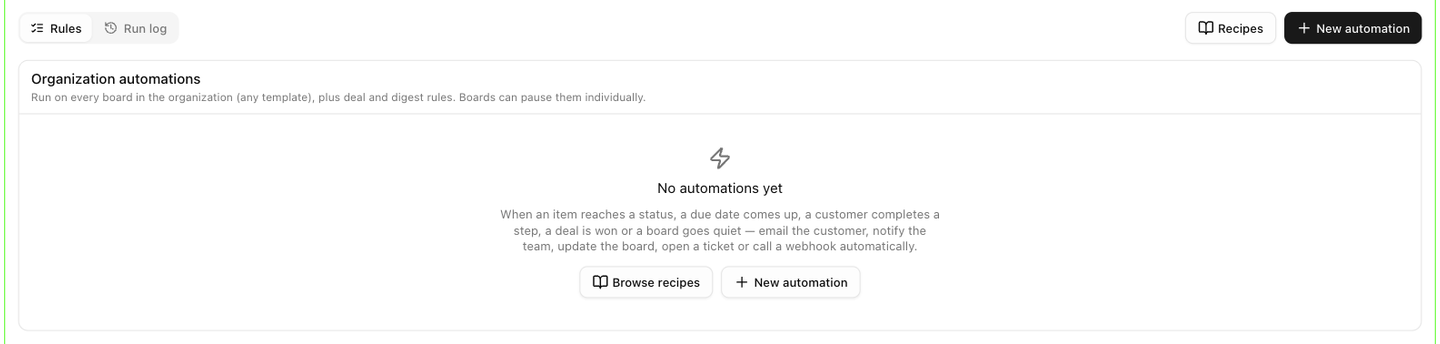
Until you add a rule, the card shows **No automations yet** with a short description of what automations can do, and two buttons: **Browse recipes** and **New automation**.
## The five tabs
| Tab | What it holds |
|---|---|
| **Organization rules** | The rules that run on every board in the organization, plus customer, deal, form and digest rules. See [Where rules live](./automations-where-rules-live). |
| **Run log** | Every time an organization rule fired, with what each action did. See [Check the run log](./automations-run-log). |
| **Webhooks** | The endpoints that the *Send a webhook* action can call, and their deliveries. See [Webhooks](./automations-webhooks). |
| **Recipes** | Ready-made rule sets you can add in one go. See [Start from a recipe](./automations-recipes). |
| **Defaults** | The business hours profile and digest hour that rules use when they do not set their own. See [The Defaults tab](./automations-timing-and-digests#the-defaults-tab). |
The tab you are on is kept in the page address, so you can bookmark **Run log** or **Webhooks** directly and the browser's back button returns you to the previous tab.
## The Organization rules tab
Above the list sits a small **Rules** / **Run log** toggle, a **Recipes** button and **New automation**. The card underneath is headed **Organization automations** and explains itself: *Run on every board in the organization (any template), plus deal and digest rules. Boards can pause them individually.*
Until you add a rule, the card shows **No automations yet** with a short description of what automations can do, and two buttons: **Browse recipes** and **New automation**.
 ## How to read a rule row
 Each rule is one row with three lines:
1. **The name**, followed by badges when they apply: **Off** when the rule is switched off, and **Needs attention** when something the rule relies on has been deleted or paused. Hover the badge to see why.
2. **The summary**, written for you from the rule's settings, for example *When 3 days after an item is due, set this item priority → High + notify item assignees + the board creator*. If the rule has no actions yet, it ends with *do nothing yet*.
3. **How it runs**: *Runs once per item* (or *per board*, *per deal*, *per customer*), *Runs every time*, or *Runs on schedule* for digests, followed by the number of runs so far (or *never ran*) and when it last ran.
At the right of the row:
- The **switch** turns the rule on or off without deleting it.
- The **pencil** opens the rule in the editor.
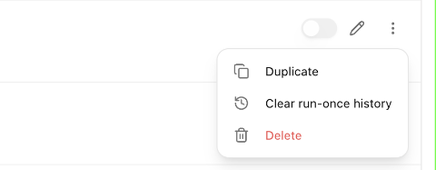
- The **⋮** menu holds **Duplicate**, **Clear run-once history** (only on rules that run once per item) and **Delete**.
Each rule is one row with three lines:
1. **The name**, followed by badges when they apply: **Off** when the rule is switched off, and **Needs attention** when something the rule relies on has been deleted or paused. Hover the badge to see why.
2. **The summary**, written for you from the rule's settings, for example *When 3 days after an item is due, set this item priority → High + notify item assignees + the board creator*. If the rule has no actions yet, it ends with *do nothing yet*.
3. **How it runs**: *Runs once per item* (or *per board*, *per deal*, *per customer*), *Runs every time*, or *Runs on schedule* for digests, followed by the number of runs so far (or *never ran*) and when it last ran.
At the right of the row:
- The **switch** turns the rule on or off without deleting it.
- The **pencil** opens the rule in the editor.
- The **⋮** menu holds **Duplicate**, **Clear run-once history** (only on rules that run once per item) and **Delete**.
 Rules that are switched off are dimmed. On a board or template, inherited rows show an **Organization** or **From template** badge and a link to **Edit in settings** or **Edit on template** instead of the switch and pencil. See [Where rules live](./automations-where-rules-live).
## Why a rule says "Needs attention"
The badge appears when the rule points at something that no longer exists or cannot be used, for example:
- a status, board status, column or column option was deleted
- a team member is gone, or a customer category, board group, template, form or sales group was deleted
- the webhook endpoint was deleted or is paused
- the business-hours profile was deleted, or a pipeline stage was removed
- a question is no longer on the form
Open the rule and pick a replacement for the missing value, then **Save changes**.
Next: [Where rules live](./automations-where-rules-live).
Rules that are switched off are dimmed. On a board or template, inherited rows show an **Organization** or **From template** badge and a link to **Edit in settings** or **Edit on template** instead of the switch and pencil. See [Where rules live](./automations-where-rules-live).
## Why a rule says "Needs attention"
The badge appears when the rule points at something that no longer exists or cannot be used, for example:
- a status, board status, column or column option was deleted
- a team member is gone, or a customer category, board group, template, form or sales group was deleted
- the webhook endpoint was deleted or is paused
- the business-hours profile was deleted, or a pipeline stage was removed
- a question is no longer on the form
Open the rule and pick a replacement for the missing value, then **Save changes**.
Next: [Where rules live](./automations-where-rules-live).