# Create and manage a rule
> Source: https://support.usebluehill.com/automations-create-a-rule | Updated: 2026-10-27T18:49:55Z
## Create a rule
1. Open the place the rule should live: **Operations → Automations** for an organization rule, a template's **Automations** tab, or a board's **⋮ → Automations**. See [Where rules live](./automations-where-rules-live).
2. Click **New automation**. The editor opens as a panel titled **New automation · organization** (or *· template*, *· board*).
3. Enter a **Name**, such as *Welcome email when kickoff completes*.
4. Under **1 · When**, choose the trigger. A short note under the picker explains when it fires; some triggers ask for settings such as a status or a number of days. See [Triggers](./automations-triggers).
5. Under **2 · If** (optional), click **Add condition** to narrow the rule. See [Conditions](./automations-conditions).
6. Under **3 · Then**, add one or more actions and fill in their settings. See [Actions](./automations-actions).
7. Under **4 · Timing**, decide whether to run right away or wait, whether to stay inside business hours or weekdays, and whether to run once per item. See [Timing, business hours and digests](./automations-timing-and-digests).
8. Check the **On** switch at the bottom of the panel, then click **Create automation**.
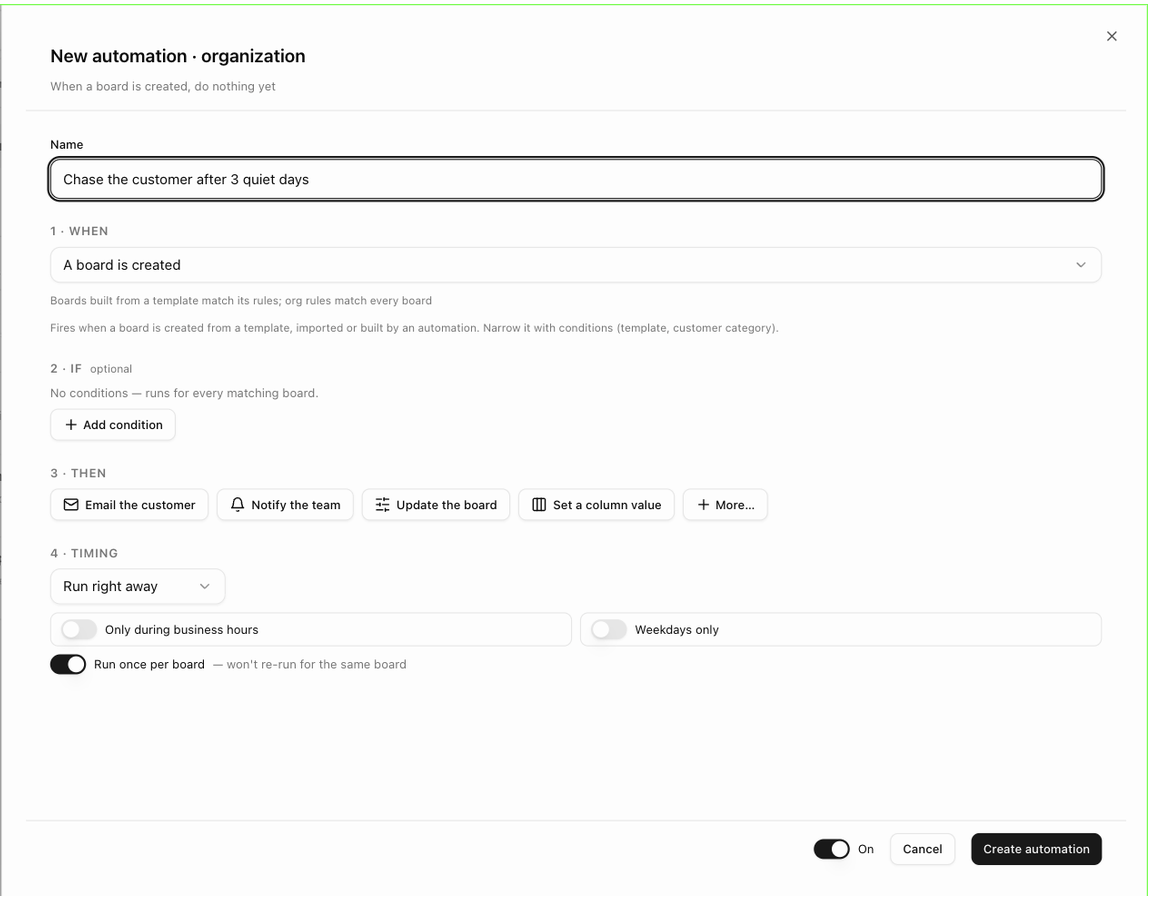 As you fill the editor in, the line under its title reads the rule back to you, for example *When a board is created, do nothing yet* becomes *When a board is created, email the customer + notify the team, during business hours*.
> **Tip:** leave **On** switched off while you are still drafting. You can create the rule, come back later and switch it on from the rules list.
## What the editor checks
**Create automation** (and **Save changes**) is refused until the rule is complete. The message tells you what is missing, for example:
- *Give the automation a name*
- *Choose the status that starts this automation*
- *Add at least one action*
- *Enter an email subject*, *Choose at least one recipient*, *Choose the webhook endpoint*
- *Unknown merge field {{x}}* when a placeholder in an email or note is misspelled
The editor also refuses rules that would loop, such as an action that sets the item to the very status that triggers the rule (*This would set the item to the status that triggers the rule (loop)*), and an **Archive the board** action on *A board is created*.
A rule can hold at most ten actions; a delay can be at most 30 days.
## Edit a rule
1. Click the **pencil** on the rule row. The panel opens as **Edit automation**.
2. Change what you need and click **Save changes**.
Runs that are already waiting keep the settings they started with; new events use the new settings.
## Switch a rule off and on
Use the **switch** on the rule row. BlueHill confirms with *Automation disabled* or *Automation enabled*. Switching a rule off cancels its waiting runs (the run log shows *the automation was switched off*) and dims the row; nothing else is lost.
The same **On** switch sits at the bottom of the editor.
## Duplicate a rule
Choose **Duplicate** from the row's **⋮** menu. The copy appears below the original, switched off, and BlueHill reminds you: *Automation duplicated below (off) — edit it, then switch it on.* Use this to build variations, for example the same reminder with a different delay.
## Let a run-once rule fire again
Rules set to **Run once per item** remember which items (or boards, deals, customers) they have already handled. To let them fire again, choose **Clear run-once history** from the **⋮** menu. BlueHill reports *Cleared — N item(s) can fire again* or *Nothing to clear*.
## Delete a rule
As you fill the editor in, the line under its title reads the rule back to you, for example *When a board is created, do nothing yet* becomes *When a board is created, email the customer + notify the team, during business hours*.
> **Tip:** leave **On** switched off while you are still drafting. You can create the rule, come back later and switch it on from the rules list.
## What the editor checks
**Create automation** (and **Save changes**) is refused until the rule is complete. The message tells you what is missing, for example:
- *Give the automation a name*
- *Choose the status that starts this automation*
- *Add at least one action*
- *Enter an email subject*, *Choose at least one recipient*, *Choose the webhook endpoint*
- *Unknown merge field {{x}}* when a placeholder in an email or note is misspelled
The editor also refuses rules that would loop, such as an action that sets the item to the very status that triggers the rule (*This would set the item to the status that triggers the rule (loop)*), and an **Archive the board** action on *A board is created*.
A rule can hold at most ten actions; a delay can be at most 30 days.
## Edit a rule
1. Click the **pencil** on the rule row. The panel opens as **Edit automation**.
2. Change what you need and click **Save changes**.
Runs that are already waiting keep the settings they started with; new events use the new settings.
## Switch a rule off and on
Use the **switch** on the rule row. BlueHill confirms with *Automation disabled* or *Automation enabled*. Switching a rule off cancels its waiting runs (the run log shows *the automation was switched off*) and dims the row; nothing else is lost.
The same **On** switch sits at the bottom of the editor.
## Duplicate a rule
Choose **Duplicate** from the row's **⋮** menu. The copy appears below the original, switched off, and BlueHill reminds you: *Automation duplicated below (off) — edit it, then switch it on.* Use this to build variations, for example the same reminder with a different delay.
## Let a run-once rule fire again
Rules set to **Run once per item** remember which items (or boards, deals, customers) they have already handled. To let them fire again, choose **Clear run-once history** from the **⋮** menu. BlueHill reports *Cleared — N item(s) can fire again* or *Nothing to clear*.
## Delete a rule
 1. Choose **Delete** from the row's **⋮** menu.
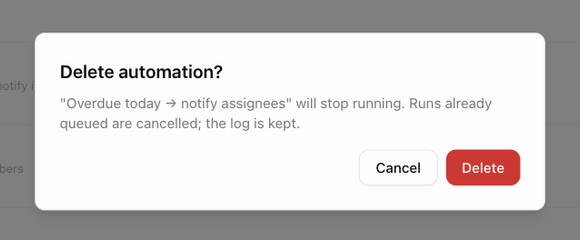
2. Confirm in the **Delete automation?** dialog. It reminds you that the rule *will stop running. Runs already queued are cancelled; the log is kept.*
Past runs stay in the run log so you can still see what the rule did.
## Fix a rule that "Needs attention"
A **Needs attention** badge on a row means the rule refers to something that was deleted, renamed away or paused, such as a status, a team member, a template, a board group or a webhook endpoint. Hover the badge for the reason, open the rule, replace the missing value and save. See [Why a rule says "Needs attention"](./automations-automations-page-overview#why-a-rule-says-needs-attention).
Next: [Triggers](./automations-triggers).
1. Choose **Delete** from the row's **⋮** menu.
2. Confirm in the **Delete automation?** dialog. It reminds you that the rule *will stop running. Runs already queued are cancelled; the log is kept.*
Past runs stay in the run log so you can still see what the rule did.
## Fix a rule that "Needs attention"
A **Needs attention** badge on a row means the rule refers to something that was deleted, renamed away or paused, such as a status, a team member, a template, a board group or a webhook endpoint. Hover the badge for the reason, open the rule, replace the missing value and save. See [Why a rule says "Needs attention"](./automations-automations-page-overview#why-a-rule-says-needs-attention).
Next: [Triggers](./automations-triggers).