# Email the customer
> Source: https://support.usebluehill.com/automations-email-the-customer | Updated: 2026-10-27T18:49:55Z
## Set up the action
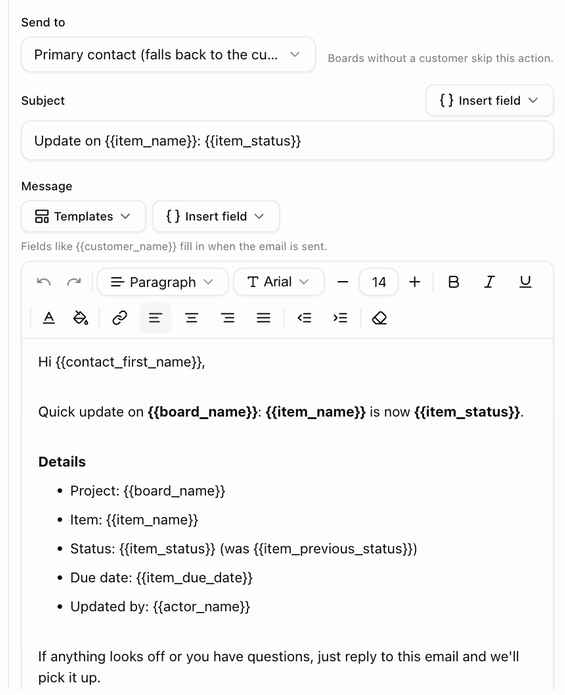 1. Under **3 · Then**, choose **Email the customer**.
2. Pick **Send to**: **Primary contact (falls back to the customer's email)** or **All customer contacts**. The primary contact is the contact marked primary on the customer record, otherwise the oldest contact with an email, otherwise the email on the record itself. *All customer contacts* sends one email to every active contact with an address, plus the record's own address.
3. Write the **Subject**. The action starts with *Update on {{item_name}}: {{item_status}}*; click **Insert field** to add a merge field such as *{{board_name}}*.
4. Write the **Message**. It starts with the **Status update (detailed)** template, which greets the recipient and lists the project, item, status, due date and who made the change. Edit it, or pick **Short note**, **Due-date reminder** or **Start blank** from the **Templates** menu; choosing one replaces the current text after you confirm with **Replace message**.
5. Optionally click **+ Add a button** and enter **Button text** (for example *Open the portal*) and a **Button link**. The link must be *https://* or a link merge field such as *{{portal_link}}*.
Boards without a customer skip this action, and the editor says so when you add it to a board that has no linked customer.
## Merge fields
1. Under **3 · Then**, choose **Email the customer**.
2. Pick **Send to**: **Primary contact (falls back to the customer's email)** or **All customer contacts**. The primary contact is the contact marked primary on the customer record, otherwise the oldest contact with an email, otherwise the email on the record itself. *All customer contacts* sends one email to every active contact with an address, plus the record's own address.
3. Write the **Subject**. The action starts with *Update on {{item_name}}: {{item_status}}*; click **Insert field** to add a merge field such as *{{board_name}}*.
4. Write the **Message**. It starts with the **Status update (detailed)** template, which greets the recipient and lists the project, item, status, due date and who made the change. Edit it, or pick **Short note**, **Due-date reminder** or **Start blank** from the **Templates** menu; choosing one replaces the current text after you confirm with **Replace message**.
5. Optionally click **+ Add a button** and enter **Button text** (for example *Open the portal*) and a **Button link**. The link must be *https://* or a link merge field such as *{{portal_link}}*.
Boards without a customer skip this action, and the editor says so when you add it to a board that has no linked customer.
## Merge fields
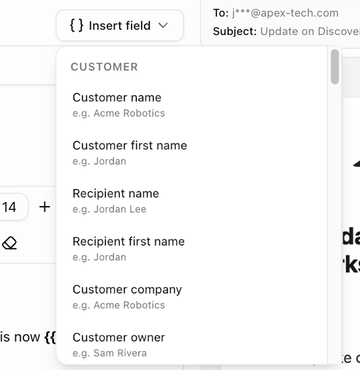 Merge fields are filled in when the email is sent. The **Insert field** menu groups them under **Customer**, **Item**, **Board** and **Other**, and shows an example value for each. The ones most often used in customer emails:
| Field | Fills in |
|---|---|
| **{{customer_name}}**, **{{customer_first_name}}** | The customer's name. |
| **{{contact_name}}**, **{{contact_first_name}}** | The name of the person receiving the email. |
| **{{customer_company}}**, **{{customer_owner_name}}** | The company, and the team member who owns the record. |
| **{{item_name}}**, **{{item_status}}**, **{{item_previous_status}}** | The item and its status. |
| **{{item_due_date}}**, **{{due_in_days}}**, **{{item_priority}}**, **{{item_assignees}}** | Item details. The due date reads *not set* when empty. |
| **{{board_name}}**, **{{board_status}}**, **{{board_progress}}**, **{{template_name}}** | Board details. |
| **{{portal_link}}** | A link to the customer portal. Use it as the button link. |
| **{{actor_name}}** | Who made the change, or *Automation* when nobody did. |
| **{{org_name}}**, **{{today}}** | Your organization's name and today's date. |
| **{{deal_name}}**, **{{quote_ref}}**, **{{deal_total}}** | Deal details, on deal triggers. |
| **{{form_name}}**, **{{ticket_ref}}**, **{{ticket_subject}}** | Form and ticket details, on the matching triggers. |
A misspelled field stops the rule saving with *Unknown merge field {{x}}*.
## Preview and send a test
Merge fields are filled in when the email is sent. The **Insert field** menu groups them under **Customer**, **Item**, **Board** and **Other**, and shows an example value for each. The ones most often used in customer emails:
| Field | Fills in |
|---|---|
| **{{customer_name}}**, **{{customer_first_name}}** | The customer's name. |
| **{{contact_name}}**, **{{contact_first_name}}** | The name of the person receiving the email. |
| **{{customer_company}}**, **{{customer_owner_name}}** | The company, and the team member who owns the record. |
| **{{item_name}}**, **{{item_status}}**, **{{item_previous_status}}** | The item and its status. |
| **{{item_due_date}}**, **{{due_in_days}}**, **{{item_priority}}**, **{{item_assignees}}** | Item details. The due date reads *not set* when empty. |
| **{{board_name}}**, **{{board_status}}**, **{{board_progress}}**, **{{template_name}}** | Board details. |
| **{{portal_link}}** | A link to the customer portal. Use it as the button link. |
| **{{actor_name}}** | Who made the change, or *Automation* when nobody did. |
| **{{org_name}}**, **{{today}}** | Your organization's name and today's date. |
| **{{deal_name}}**, **{{quote_ref}}**, **{{deal_total}}** | Deal details, on deal triggers. |
| **{{form_name}}**, **{{ticket_ref}}**, **{{ticket_subject}}** | Form and ticket details, on the matching triggers. |
A misspelled field stops the rule saving with *Unknown merge field {{x}}*.
## Preview and send a test
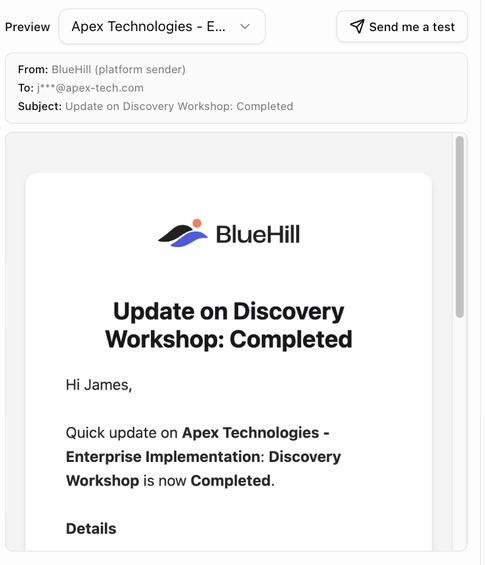 The **Preview** pane next to the editor renders the email as the customer will see it. Choose **Sample values** or a real board from the picker to fill the merge fields; the pane shows **From**, **To** and **Subject** above the message. When nobody would receive the email, **To** reads *nobody — reason*, which is the same reason the run log would show.
Click **Send me a test** to send the rendered email to your own address only. BlueHill confirms with *Test email sent to* your address.
## What the customer receives
The email carries your organization's branding from the deal-email settings: logo, brand colour, footer and reply-to address, sent from your verified sender when you have one. The optional button is labelled **View details** unless you set your own text. The footer reads *Powered by BlueHill*.
Replies go to your reply-to address; they do not change the item or board.
## When an email is skipped
The run log and the preview give the reason when an email cannot go out:
| Reason | What to do |
|---|---|
| *the board has no linked customer* | Link a customer to the board, or move the rule to a template whose boards have customers. |
| *the customer has no email address* | Add an email to the customer record or a contact. |
| *automated emails are paused for this customer* | The customer's **Automated emails** switch is off. See below. |
| *the contact opted out of email* | The primary contact has email switched off on their contact record. Choose **All customer contacts** to reach the others. |
| *the address is on the suppression list (bounced or unsubscribed)* | The address bounced or unsubscribed earlier. Check **Support settings → Suppressions**. |
| *the address is on your Do-Not-Mail list* | The address is on your organization's Do-Not-Mail list. |
| *automatic emails reach only your own addresses until your business is verified* | Complete business verification; until then automation emails go to internal addresses only. |
## Pause automated emails for one customer
The **Preview** pane next to the editor renders the email as the customer will see it. Choose **Sample values** or a real board from the picker to fill the merge fields; the pane shows **From**, **To** and **Subject** above the message. When nobody would receive the email, **To** reads *nobody — reason*, which is the same reason the run log would show.
Click **Send me a test** to send the rendered email to your own address only. BlueHill confirms with *Test email sent to* your address.
## What the customer receives
The email carries your organization's branding from the deal-email settings: logo, brand colour, footer and reply-to address, sent from your verified sender when you have one. The optional button is labelled **View details** unless you set your own text. The footer reads *Powered by BlueHill*.
Replies go to your reply-to address; they do not change the item or board.
## When an email is skipped
The run log and the preview give the reason when an email cannot go out:
| Reason | What to do |
|---|---|
| *the board has no linked customer* | Link a customer to the board, or move the rule to a template whose boards have customers. |
| *the customer has no email address* | Add an email to the customer record or a contact. |
| *automated emails are paused for this customer* | The customer's **Automated emails** switch is off. See below. |
| *the contact opted out of email* | The primary contact has email switched off on their contact record. Choose **All customer contacts** to reach the others. |
| *the address is on the suppression list (bounced or unsubscribed)* | The address bounced or unsubscribed earlier. Check **Support settings → Suppressions**. |
| *the address is on your Do-Not-Mail list* | The address is on your organization's Do-Not-Mail list. |
| *automatic emails reach only your own addresses until your business is verified* | Complete business verification; until then automation emails go to internal addresses only. |
## Pause automated emails for one customer
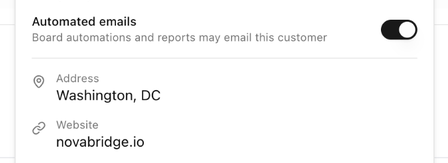 1. Open the customer record and click **Info** in the header.
2. In the **Customer Information** popover, find **Automated emails** under the email and phone.
3. Switch it off. The help text changes from *Board automations and reports may email this customer* to *Paused — board automations and reports skip this customer*, and the customer header shows a **No automated emails** badge.
Rules keep running for the customer's boards; only the email steps are skipped, and digests skip the customer too. You need permission to edit customers to change the switch.
Next: [Timing, business hours and digests](./automations-timing-and-digests).
1. Open the customer record and click **Info** in the header.
2. In the **Customer Information** popover, find **Automated emails** under the email and phone.
3. Switch it off. The help text changes from *Board automations and reports may email this customer* to *Paused — board automations and reports skip this customer*, and the customer header shows a **No automated emails** badge.
Rules keep running for the customer's boards; only the email steps are skipped, and digests skip the customer too. You need permission to edit customers to change the switch.
Next: [Timing, business hours and digests](./automations-timing-and-digests).