# Timing, business hours and digests
> Source: https://support.usebluehill.com/automations-timing-and-digests | Updated: 2026-10-27T18:49:55Z
## The Timing block
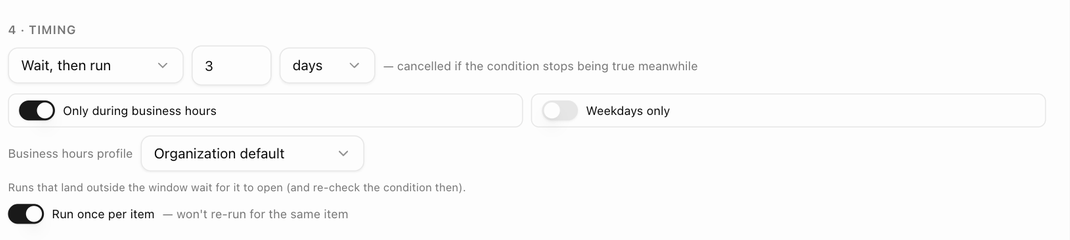 Section **4 · Timing** of the rule editor has four settings.
| Setting | What it does |
|---|---|
| **Run right away** / **Wait, then run** | Run as soon as the trigger fires, or wait a number of **hours** or **days** first (up to 30 days). A waiting run is *cancelled if the condition stops being true meanwhile*. |
| **Only during business hours** | Hold the run until the next open slot of a **Business hours profile**. Pick a profile or leave **Organization default**, which uses the profile set on the **Defaults** tab. If you have no profiles yet, the editor says *Set up business hours in Support settings → SLA first.* |
| **Weekdays only** | Hold a run that lands on a weekend until the next weekday morning. |
| **Run once per item** | Never fire again for the same item. On other triggers it reads **Run once per board**, **per deal**, **per customer** or **per submission**. |
With either window switched on, the editor reminds you: *Runs that land outside the window wait for it to open (and re-check the condition then).* Held runs appear in the run log as **Scheduled** with the reason *waiting out the delay*, *waiting for business hours* or *waiting for a weekday*. See [Check the run log](./automations-run-log).
Triggers that run on their own schedule (due dates, follow-up dates, inactivity, review overdue and digests) show *This trigger already runs on its own schedule* instead of the delay picker, and always run once per item.
## Delays in practice
- *An item enters a status* → **Wait, then run** 3 days → **Email the customer**: a gentle chase that is cancelled automatically if the item moves on in the meantime.
- *The board reaches 100 % complete* → wait 7 days → **Archive the board**: tidy up a week after go-live.
- *A prospect is created* → **Create a follow-up** in 2 days: no delay needed, because the follow-up itself carries the date.
## Run once per item
When **Run once per item** is on, the rule remembers every item (or board, deal, customer) it has handled and ignores repeat events for it. Use it for welcome emails, go-live congratulations and anything else that should only happen once. To let the rule fire again for items it already handled, choose **Clear run-once history** from the rule's **⋮** menu.
## Scheduled digests
A digest is a rule whose trigger is **Scheduled: overdue items digest** or **Scheduled: customer progress report**. Digest rules have no **If** or **Timing** sections; instead the editor notes that *Digests run on their cadence; each recipient gets at most one per day.*
1. Choose the trigger and its cadence: **Every day**, **Every weekday** or **Once a week** with a weekday, then the hour.
2. Add the only action available, **Send the digest email**, and pick a **Format**:
- **Each assignee gets their overdue items**: one email per team member listing their overdue items across the boards in scope.
- **Each board creator gets a per-board summary**: one email per board, sent to whoever created it.
- **Customer progress report**: one email per board to the customer's primary contact, with a progress bar, *X% complete · A of B items done*, and the sections **Recently completed**, **Coming up this week** and **Past due**. Only published items are listed.
3. Optionally set a **Subject** and **Intro**. Without them, BlueHill uses defaults such as *3 overdue items need your attention* or *Progress update: Onboarding is 60% complete*.
4. Choose whether to **Also notify in-app (bell)** (overdue digests) and whether to **Send even when there is nothing to report**. By default, an empty digest is not sent.
The **Preview** pane renders a real report when you pick a sample board, and **Send me a test** sends it to your own address.
Digest rules show *Runs on schedule* in the rules list, and each run appears in the run log with the reason *scheduled digest*. A customer whose **Automated emails** switch is off never receives a progress report.
## The Defaults tab
Section **4 · Timing** of the rule editor has four settings.
| Setting | What it does |
|---|---|
| **Run right away** / **Wait, then run** | Run as soon as the trigger fires, or wait a number of **hours** or **days** first (up to 30 days). A waiting run is *cancelled if the condition stops being true meanwhile*. |
| **Only during business hours** | Hold the run until the next open slot of a **Business hours profile**. Pick a profile or leave **Organization default**, which uses the profile set on the **Defaults** tab. If you have no profiles yet, the editor says *Set up business hours in Support settings → SLA first.* |
| **Weekdays only** | Hold a run that lands on a weekend until the next weekday morning. |
| **Run once per item** | Never fire again for the same item. On other triggers it reads **Run once per board**, **per deal**, **per customer** or **per submission**. |
With either window switched on, the editor reminds you: *Runs that land outside the window wait for it to open (and re-check the condition then).* Held runs appear in the run log as **Scheduled** with the reason *waiting out the delay*, *waiting for business hours* or *waiting for a weekday*. See [Check the run log](./automations-run-log).
Triggers that run on their own schedule (due dates, follow-up dates, inactivity, review overdue and digests) show *This trigger already runs on its own schedule* instead of the delay picker, and always run once per item.
## Delays in practice
- *An item enters a status* → **Wait, then run** 3 days → **Email the customer**: a gentle chase that is cancelled automatically if the item moves on in the meantime.
- *The board reaches 100 % complete* → wait 7 days → **Archive the board**: tidy up a week after go-live.
- *A prospect is created* → **Create a follow-up** in 2 days: no delay needed, because the follow-up itself carries the date.
## Run once per item
When **Run once per item** is on, the rule remembers every item (or board, deal, customer) it has handled and ignores repeat events for it. Use it for welcome emails, go-live congratulations and anything else that should only happen once. To let the rule fire again for items it already handled, choose **Clear run-once history** from the rule's **⋮** menu.
## Scheduled digests
A digest is a rule whose trigger is **Scheduled: overdue items digest** or **Scheduled: customer progress report**. Digest rules have no **If** or **Timing** sections; instead the editor notes that *Digests run on their cadence; each recipient gets at most one per day.*
1. Choose the trigger and its cadence: **Every day**, **Every weekday** or **Once a week** with a weekday, then the hour.
2. Add the only action available, **Send the digest email**, and pick a **Format**:
- **Each assignee gets their overdue items**: one email per team member listing their overdue items across the boards in scope.
- **Each board creator gets a per-board summary**: one email per board, sent to whoever created it.
- **Customer progress report**: one email per board to the customer's primary contact, with a progress bar, *X% complete · A of B items done*, and the sections **Recently completed**, **Coming up this week** and **Past due**. Only published items are listed.
3. Optionally set a **Subject** and **Intro**. Without them, BlueHill uses defaults such as *3 overdue items need your attention* or *Progress update: Onboarding is 60% complete*.
4. Choose whether to **Also notify in-app (bell)** (overdue digests) and whether to **Send even when there is nothing to report**. By default, an empty digest is not sent.
The **Preview** pane renders a real report when you pick a sample board, and **Send me a test** sends it to your own address.
Digest rules show *Runs on schedule* in the rules list, and each run appears in the run log with the reason *scheduled digest*. A customer whose **Automated emails** switch is off never receives a progress report.
## The Defaults tab
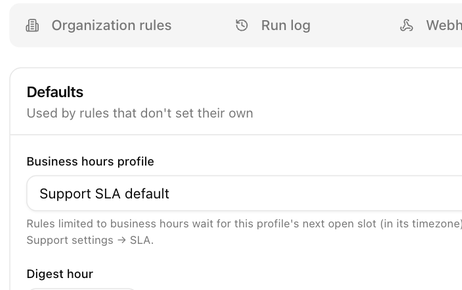 **Operations → Automations → Defaults** holds two settings that rules use when they do not set their own:
| Setting | What it does |
|---|---|
| **Business hours profile** | The profile used by rules whose business-hours window is set to **Organization default**. *Rules limited to business hours wait for this profile's next open slot (in its timezone). Profiles live in Support settings → SLA.* |
| **Digest hour** | *Suggested send time for new digest rules, in your organization's timezone.* The default is *8:00 am*. |
Click **Save defaults** after a change. Existing digest rules keep the hour they were created with.
Next: [Check the run log](./automations-run-log).
**Operations → Automations → Defaults** holds two settings that rules use when they do not set their own:
| Setting | What it does |
|---|---|
| **Business hours profile** | The profile used by rules whose business-hours window is set to **Organization default**. *Rules limited to business hours wait for this profile's next open slot (in its timezone). Profiles live in Support settings → SLA.* |
| **Digest hour** | *Suggested send time for new digest rules, in your organization's timezone.* The default is *8:00 am*. |
Click **Save defaults** after a change. Existing digest rules keep the hour they were created with.
Next: [Check the run log](./automations-run-log).