# Add and manage tasks
> Source: https://support.usebluehill.com/boards-add-and-manage-tasks | Updated: 2026-10-26T19:50:59Z
## Add a task
1. Open the board and click **Add Task** below the task table (or choose **Add Task** from a board card's **⋮** menu on the Boards page).
2. The **Add Task to Board** form opens with the **Task Name** field ready to type into. Fill in what you know; only the name is required.
3. Click **Create Task** at the bottom of the form. The task appears at the end of the table with a **Task created** confirmation.
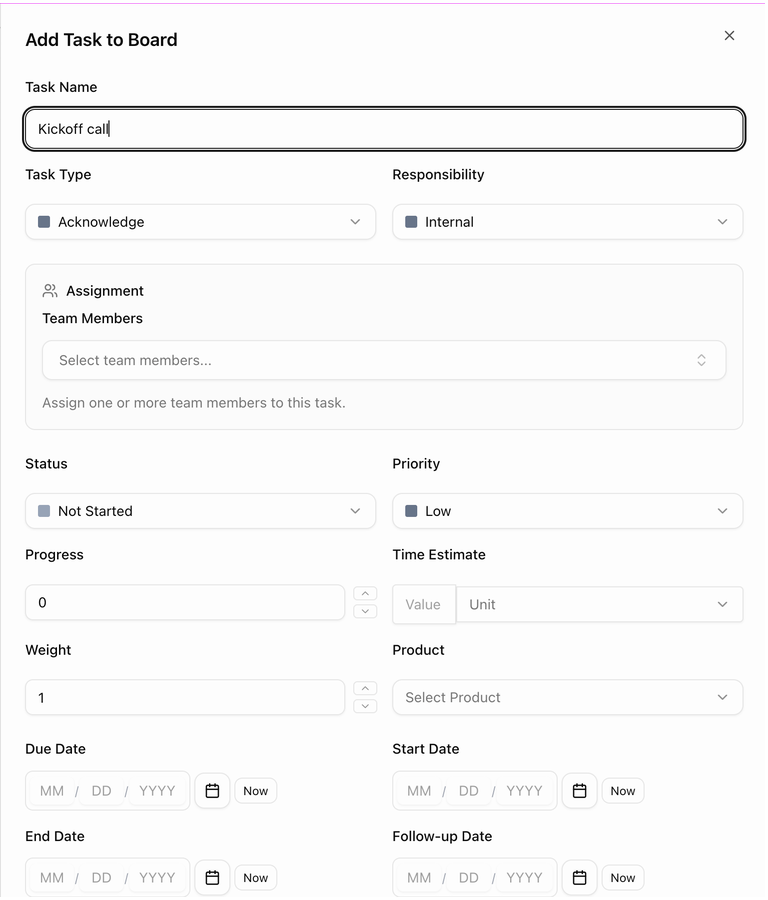 The form has these fields:
| Field | What it is for |
|---|---|
| **Task Name** | A short, clear name. |
| **Task Type** | What kind of step this is. See [Task types](#task-types). |
| **Responsibility** | **Customer** or **Internal**. See [Responsibility](#responsibility-customer-or-internal). |
| **Team Members** | The teammates assigned to the task (under **Assignment**). |
| **Status** and **Priority** | The starting status and priority. New tasks start as *Not Started* with *Low* priority. See [Statuses, priority and progress](./boards-statuses-priority-and-progress). |
| **Progress** | A starting percentage, usually left at 0. |
| **Time Estimate** | How long the task should take. |
| **Weight** | How much the task counts towards board progress. Leave it at the default unless some tasks matter more than others. |
| **Product** | The product the task relates to. |
| **Form** | The form the customer fills in. Only shown, and required, when the type is **Form**. |
| **Due Date**, **Start Date**, **End Date**, **Follow-up Date** | The task's dates. Type them in or use the calendar; **Now** fills in today. |
| **Description** | Longer instructions. The description is visible to the customer when the task is published. |
| **Files** | Attachments to include with the task. |
## Task types
| Type | Use it when |
|---|---|
| **Acknowledge** | The customer should confirm they have read or done something. This is the default for new tasks. |
| **Information** | The task is a step to complete or something to read. |
| **Form** | The customer should fill in a BlueHill form. Choose the form in the **Form** field. |
| **Upload** | The customer should upload documents. |
| **Download** | The customer should download a file you provide. |
| **Link** | The customer should visit a link. |
Form and upload tasks gain extra menu items once the customer responds: **View Form Response** and **View Uploaded Documents**.
## Responsibility: Customer or Internal
- **Internal** tasks are your team's work. They never appear in the customer portal.
- **Customer** tasks are steps the customer completes. Switch **Published** on to show the task in the portal, where the customer can mark it done. The task's **Portal Status** then tracks the customer's progress. See [Portal status](./boards-statuses-priority-and-progress#portal-status).
## Due dates on a board vs. in a template
On a board, a task's due date is a calendar date. In a template, a task can instead carry a **Delayed** due date (an amount of days, weeks or months after the board is created), which becomes a real date on every board built from the template. See [Add tasks to a template](./boards-board-templates#add-tasks-to-a-template). Leave the due date empty for a task that has no deadline.
## Quick add tasks
To add several tasks in one go:
1. Open the board menu (**⋮** in the board header) and choose **Quick add tasks**, or click the **Quick add tasks** icon on a board row in Detail view.
2. Fill in a row per task: **Task name**, **Status**, **Assignee** and **Due**.
3. Save. Every row becomes a task on the board. Open any of them later to add details.
## Add a subtask
Subtasks break a task into smaller steps and can go two levels deep.
- Open the parent task's **⋮** menu and choose **Add Subtask**. The **Add Subtask** form has the same fields as the Add Task form.
- Or click the **Quick Add** cell on the parent row for a one-line subtask.
- Or drag an existing task and drop it onto another task. See [Reorder or nest by dragging](./boards-board-page#reorder-or-nest-by-dragging).
A parent task's start and end dates and its progress are worked out from its subtasks.
## The task menu
The form has these fields:
| Field | What it is for |
|---|---|
| **Task Name** | A short, clear name. |
| **Task Type** | What kind of step this is. See [Task types](#task-types). |
| **Responsibility** | **Customer** or **Internal**. See [Responsibility](#responsibility-customer-or-internal). |
| **Team Members** | The teammates assigned to the task (under **Assignment**). |
| **Status** and **Priority** | The starting status and priority. New tasks start as *Not Started* with *Low* priority. See [Statuses, priority and progress](./boards-statuses-priority-and-progress). |
| **Progress** | A starting percentage, usually left at 0. |
| **Time Estimate** | How long the task should take. |
| **Weight** | How much the task counts towards board progress. Leave it at the default unless some tasks matter more than others. |
| **Product** | The product the task relates to. |
| **Form** | The form the customer fills in. Only shown, and required, when the type is **Form**. |
| **Due Date**, **Start Date**, **End Date**, **Follow-up Date** | The task's dates. Type them in or use the calendar; **Now** fills in today. |
| **Description** | Longer instructions. The description is visible to the customer when the task is published. |
| **Files** | Attachments to include with the task. |
## Task types
| Type | Use it when |
|---|---|
| **Acknowledge** | The customer should confirm they have read or done something. This is the default for new tasks. |
| **Information** | The task is a step to complete or something to read. |
| **Form** | The customer should fill in a BlueHill form. Choose the form in the **Form** field. |
| **Upload** | The customer should upload documents. |
| **Download** | The customer should download a file you provide. |
| **Link** | The customer should visit a link. |
Form and upload tasks gain extra menu items once the customer responds: **View Form Response** and **View Uploaded Documents**.
## Responsibility: Customer or Internal
- **Internal** tasks are your team's work. They never appear in the customer portal.
- **Customer** tasks are steps the customer completes. Switch **Published** on to show the task in the portal, where the customer can mark it done. The task's **Portal Status** then tracks the customer's progress. See [Portal status](./boards-statuses-priority-and-progress#portal-status).
## Due dates on a board vs. in a template
On a board, a task's due date is a calendar date. In a template, a task can instead carry a **Delayed** due date (an amount of days, weeks or months after the board is created), which becomes a real date on every board built from the template. See [Add tasks to a template](./boards-board-templates#add-tasks-to-a-template). Leave the due date empty for a task that has no deadline.
## Quick add tasks
To add several tasks in one go:
1. Open the board menu (**⋮** in the board header) and choose **Quick add tasks**, or click the **Quick add tasks** icon on a board row in Detail view.
2. Fill in a row per task: **Task name**, **Status**, **Assignee** and **Due**.
3. Save. Every row becomes a task on the board. Open any of them later to add details.
## Add a subtask
Subtasks break a task into smaller steps and can go two levels deep.
- Open the parent task's **⋮** menu and choose **Add Subtask**. The **Add Subtask** form has the same fields as the Add Task form.
- Or click the **Quick Add** cell on the parent row for a one-line subtask.
- Or drag an existing task and drop it onto another task. See [Reorder or nest by dragging](./boards-board-page#reorder-or-nest-by-dragging).
A parent task's start and end dates and its progress are worked out from its subtasks.
## The task menu
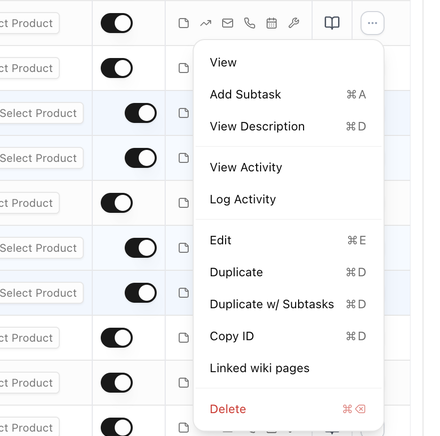 Every task row has a **⋮** menu in the **Actions** column (scroll the table to the right if you cannot see it). Several items show a keyboard shortcut next to them.
| Item | What it does |
|---|---|
| **View** | Opens the task panel. See [Task details, notes, activity and files](./boards-task-details-notes-and-files). |
| **Add Subtask** | Adds a subtask under this task. |
| **View Description** | Shows the task's description. |
| **View Activity** | Shows the task's activity feed. |
| **Log Activity** | Records a call, email, meeting or other activity against the task. |
| **View Form Response** | Shows the customer's answers (form tasks only). |
| **View Uploaded Documents** | Shows what the customer uploaded (upload tasks only). |
| **Edit** | Opens the full Edit Task form. |
| **Duplicate** / **Duplicate w/ Subtasks** | Makes a copy of the task, with or without its subtasks. |
| **Copy ID** | Copies the task's ID, handy when asking support for help. |
| **Linked wiki pages** | Attaches wiki pages to this task. |
| **Delete** | Deletes the task. |
## Duplicate a task
Choose **Duplicate** to copy the task itself, or **Duplicate w/ Subtasks** to copy the task and everything nested under it. The copy appears next to the original with the same values; rename it and adjust dates as needed.
## Delete a task
Choose **Delete** from the task menu, or select several tasks and use **Delete** in the bulk actions bar. Deleting a parent task also deletes its subtasks. Deleted tasks cannot be recovered, so archive the board instead if you want to keep a record.
Next: [Task details, notes, activity and files](./boards-task-details-notes-and-files).
Every task row has a **⋮** menu in the **Actions** column (scroll the table to the right if you cannot see it). Several items show a keyboard shortcut next to them.
| Item | What it does |
|---|---|
| **View** | Opens the task panel. See [Task details, notes, activity and files](./boards-task-details-notes-and-files). |
| **Add Subtask** | Adds a subtask under this task. |
| **View Description** | Shows the task's description. |
| **View Activity** | Shows the task's activity feed. |
| **Log Activity** | Records a call, email, meeting or other activity against the task. |
| **View Form Response** | Shows the customer's answers (form tasks only). |
| **View Uploaded Documents** | Shows what the customer uploaded (upload tasks only). |
| **Edit** | Opens the full Edit Task form. |
| **Duplicate** / **Duplicate w/ Subtasks** | Makes a copy of the task, with or without its subtasks. |
| **Copy ID** | Copies the task's ID, handy when asking support for help. |
| **Linked wiki pages** | Attaches wiki pages to this task. |
| **Delete** | Deletes the task. |
## Duplicate a task
Choose **Duplicate** to copy the task itself, or **Duplicate w/ Subtasks** to copy the task and everything nested under it. The copy appears next to the original with the same values; rename it and adjust dates as needed.
## Delete a task
Choose **Delete** from the task menu, or select several tasks and use **Delete** in the bulk actions bar. Deleting a parent task also deletes its subtasks. Deleted tasks cannot be recovered, so archive the board instead if you want to keep a record.
Next: [Task details, notes, activity and files](./boards-task-details-notes-and-files).