# Automations
> Source: https://support.usebluehill.com/boards-automations | Updated: 2026-10-26T19:50:59Z
## Where automations live
| Scope | Where | Runs on |
|---|---|---|
| **One board** | Board menu **⋮ → Automations**, or the **Automations** tab of the Edit Board panel | That board only. |
| **A template** | **Operations → Board Templates → *template* → Automations** | Every board created from the template. |
| **The organization** | **Operations → Automations** | Every board, plus customer, deal and form events. |
A form's **Workflow** tab holds rules that react to form submissions in the same way.
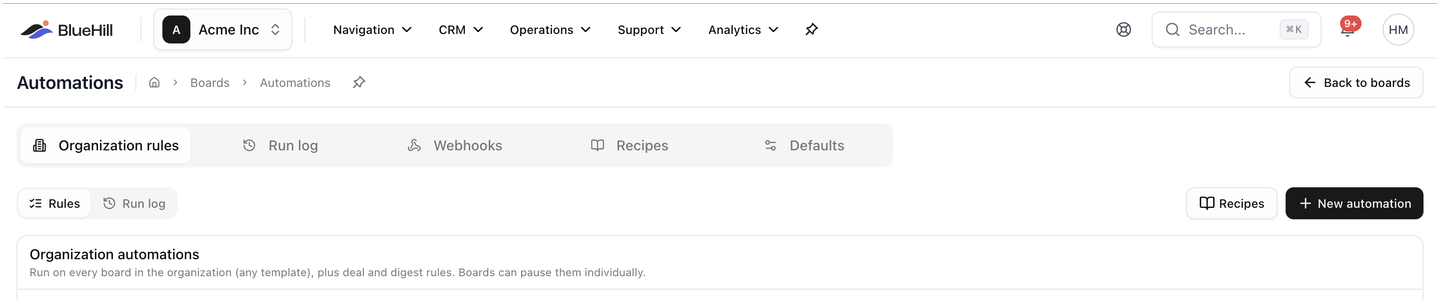 **Operations → Automations** has five tabs: **Organization rules**, **Run log**, **Webhooks**, **Recipes** and **Defaults**. The **Organization automations** list on the first tab runs on every board in the organization, whatever its template, plus deal and digest rules; individual boards can pause them. **Back to boards** returns you to the Boards page.
## Anatomy of a rule
**Operations → Automations** has five tabs: **Organization rules**, **Run log**, **Webhooks**, **Recipes** and **Defaults**. The **Organization automations** list on the first tab runs on every board in the organization, whatever its template, plus deal and digest rules; individual boards can pause them. **Back to boards** returns you to the Boards page.
## Anatomy of a rule
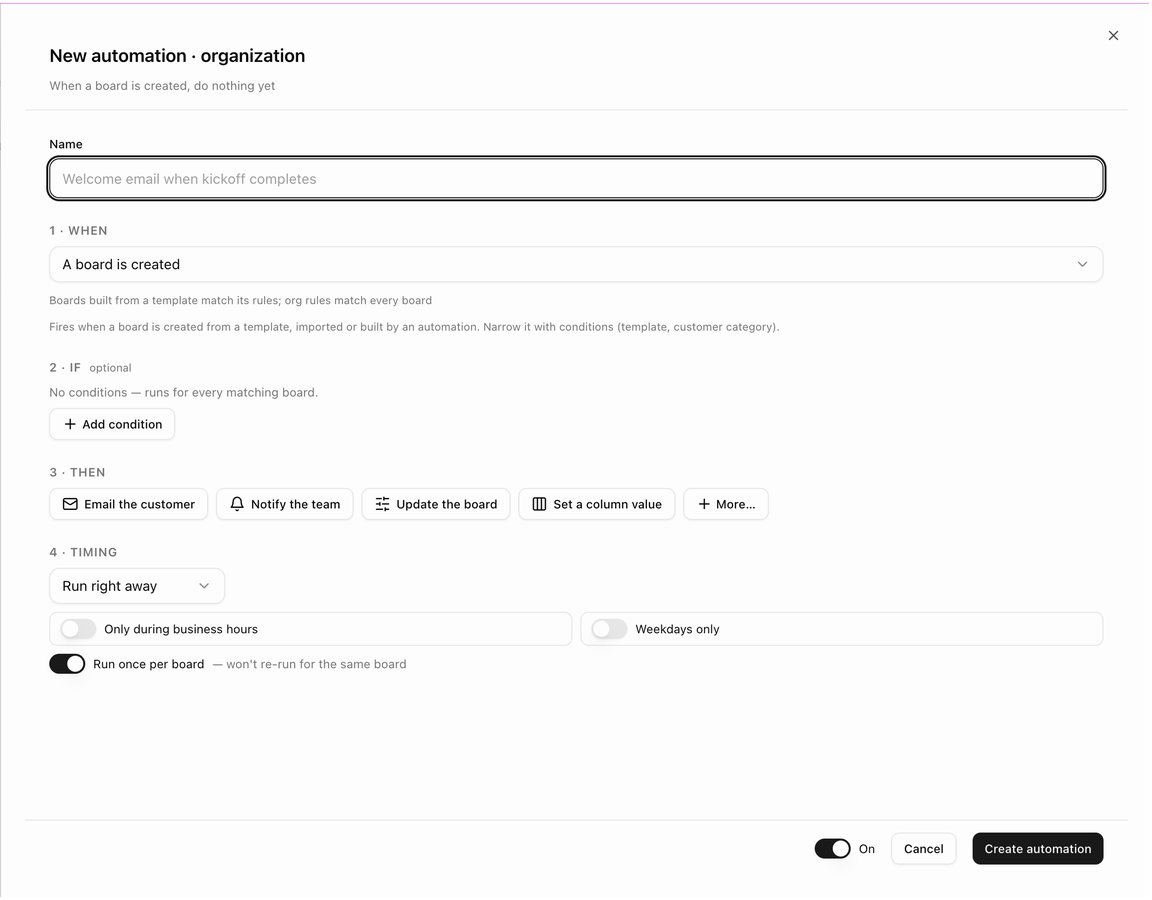 Every rule has a **Name** and the same four numbered parts. As you fill them in, the editor's subtitle reads the rule back to you, for example *When a board is created, do nothing yet*.
1. **When**: the trigger, such as *A board is created* or *An item enters a status*. A short note under the trigger explains when it fires and how to narrow it.
2. **If** (optional): conditions that must be true, such as the item's priority or the board's template. Click **Add condition**. Conditions are grouped; a rule runs when **any** group matches, and every condition inside a group must match. With no conditions, the rule runs for every matching board or item.
3. **Then**: one or more actions, run in order. The most common ones are offered as buttons (**Email the customer**, **Notify the team**, **Update the board**, **Set a column value**); **More...** lists the rest. Drag to reorder them.
4. **Timing**: **Run right away** or **Wait, then run** after a delay; **Only during business hours**; **Weekdays only**; and **Run once per board** (or per item), which stops the rule re-running for the same board or item.
The **On** switch next to **Create automation** (or **Save changes**) turns the rule on or off without deleting it.
## Triggers
**Items (tasks)**
- An item enters a status
- An item's due date is near or past
- An item's due date changes
- An assignee is added to or removed from an item
- A select column changes
- An item is added to a board
- The customer completes an item in the portal
- A note is added
- An item's priority changes
- A linked support ticket is resolved
- An item has had no activity for N days
- An item's follow-up date arrives
**Boards**
- The board's status changes
- A board is created
- The board reaches a % complete
- A board has had no activity for N days
- A board follow-up date arrives
**Customers and deals** (organization rules)
- A customer or prospect is created
- A prospect is converted to a customer
- A deal or quote is accepted
**Forms**
- A form linked to an item is submitted
- A form submission is received
- A submission's review stage changes
- A review step is overdue
**Scheduled digests**
- Scheduled: overdue items digest
- Scheduled: customer progress report
## Actions
**Customer**
- **Email the customer**, with merge fields such as the customer name, board name and task name. Preview the email and send yourself a test before switching the rule on.
- **Add a customer category**, **Assign the customer owner**, **Set the pipeline stage**
- **Create or merge a customer from the submission** (form rules)
**Team**
- **Notify the team** (in-app notification and email to chosen teammates, the board members, the customer owner or the record creator)
- **Open a support ticket**
- **Create a follow-up**
**Board and items**
- **Update the board** (for example change its status, or add it to a board group)
- **Set a column value**, **Set priority**, **Set the due date**
- **Publish to the portal**
- **Archive the board**
- **Create a board from a template**
- **Start the review chain** (forms)
- **Send the digest email**
**Integrations**
- **Send a webhook** to an endpoint you have set up on the **Webhooks** tab.
## Start from a recipe
Every rule has a **Name** and the same four numbered parts. As you fill them in, the editor's subtitle reads the rule back to you, for example *When a board is created, do nothing yet*.
1. **When**: the trigger, such as *A board is created* or *An item enters a status*. A short note under the trigger explains when it fires and how to narrow it.
2. **If** (optional): conditions that must be true, such as the item's priority or the board's template. Click **Add condition**. Conditions are grouped; a rule runs when **any** group matches, and every condition inside a group must match. With no conditions, the rule runs for every matching board or item.
3. **Then**: one or more actions, run in order. The most common ones are offered as buttons (**Email the customer**, **Notify the team**, **Update the board**, **Set a column value**); **More...** lists the rest. Drag to reorder them.
4. **Timing**: **Run right away** or **Wait, then run** after a delay; **Only during business hours**; **Weekdays only**; and **Run once per board** (or per item), which stops the rule re-running for the same board or item.
The **On** switch next to **Create automation** (or **Save changes**) turns the rule on or off without deleting it.
## Triggers
**Items (tasks)**
- An item enters a status
- An item's due date is near or past
- An item's due date changes
- An assignee is added to or removed from an item
- A select column changes
- An item is added to a board
- The customer completes an item in the portal
- A note is added
- An item's priority changes
- A linked support ticket is resolved
- An item has had no activity for N days
- An item's follow-up date arrives
**Boards**
- The board's status changes
- A board is created
- The board reaches a % complete
- A board has had no activity for N days
- A board follow-up date arrives
**Customers and deals** (organization rules)
- A customer or prospect is created
- A prospect is converted to a customer
- A deal or quote is accepted
**Forms**
- A form linked to an item is submitted
- A form submission is received
- A submission's review stage changes
- A review step is overdue
**Scheduled digests**
- Scheduled: overdue items digest
- Scheduled: customer progress report
## Actions
**Customer**
- **Email the customer**, with merge fields such as the customer name, board name and task name. Preview the email and send yourself a test before switching the rule on.
- **Add a customer category**, **Assign the customer owner**, **Set the pipeline stage**
- **Create or merge a customer from the submission** (form rules)
**Team**
- **Notify the team** (in-app notification and email to chosen teammates, the board members, the customer owner or the record creator)
- **Open a support ticket**
- **Create a follow-up**
**Board and items**
- **Update the board** (for example change its status, or add it to a board group)
- **Set a column value**, **Set priority**, **Set the due date**
- **Publish to the portal**
- **Archive the board**
- **Create a board from a template**
- **Start the review chain** (forms)
- **Send the digest email**
**Integrations**
- **Send a webhook** to an endpoint you have set up on the **Webhooks** tab.
## Start from a recipe
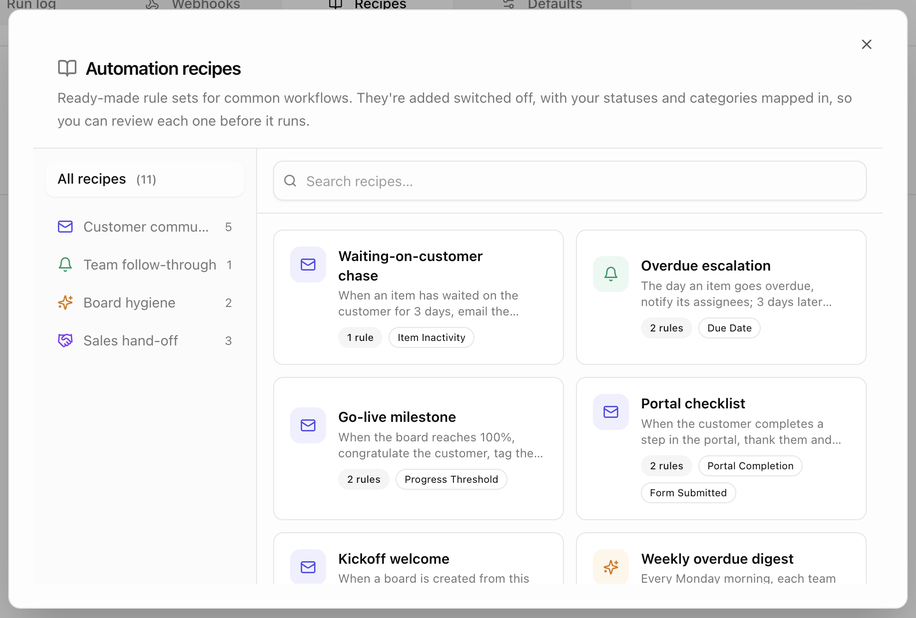 The **Recipes** button (and the **Recipes** tab on the organization page) opens **Automation recipes**: ready-made rule sets for common workflows, grouped into **Customer communication**, **Team follow-through**, **Board hygiene** and **Sales hand-off**. Examples include *Waiting-on-customer chase*, *Overdue escalation*, *Go-live milestone*, *Portal checklist*, *Kickoff welcome* and *Weekly overdue digest*. Each card says how many rules it adds and what triggers them.
1. Open **Recipes**, browse a category or search, and pick a recipe.
2. Review the rules it will add. Your own statuses and categories are mapped in automatically.
3. Add it. Recipes are added **switched off**, so nothing runs until you review each rule and turn it on.
## Create a rule for one board
1. Open the board, click **⋮** in the header and choose **Automations**.
2. Click **New automation**.
3. Choose the trigger under **When**.
4. Optional: add conditions under **If**.
5. Add actions under **Then** and fill in their settings.
6. Set the **Timing**.
7. Switch the rule **On** and click **Create automation**.
Each rule row shows whether it runs once per item or every time, and has a switch to pause it, plus **Edit**, **Duplicate**, **Clear run-once history** and **Delete**.
## Template and organization rules on a board
The **Recipes** button (and the **Recipes** tab on the organization page) opens **Automation recipes**: ready-made rule sets for common workflows, grouped into **Customer communication**, **Team follow-through**, **Board hygiene** and **Sales hand-off**. Examples include *Waiting-on-customer chase*, *Overdue escalation*, *Go-live milestone*, *Portal checklist*, *Kickoff welcome* and *Weekly overdue digest*. Each card says how many rules it adds and what triggers them.
1. Open **Recipes**, browse a category or search, and pick a recipe.
2. Review the rules it will add. Your own statuses and categories are mapped in automatically.
3. Add it. Recipes are added **switched off**, so nothing runs until you review each rule and turn it on.
## Create a rule for one board
1. Open the board, click **⋮** in the header and choose **Automations**.
2. Click **New automation**.
3. Choose the trigger under **When**.
4. Optional: add conditions under **If**.
5. Add actions under **Then** and fill in their settings.
6. Set the **Timing**.
7. Switch the rule **On** and click **Create automation**.
Each rule row shows whether it runs once per item or every time, and has a switch to pause it, plus **Edit**, **Duplicate**, **Clear run-once history** and **Delete**.
## Template and organization rules on a board
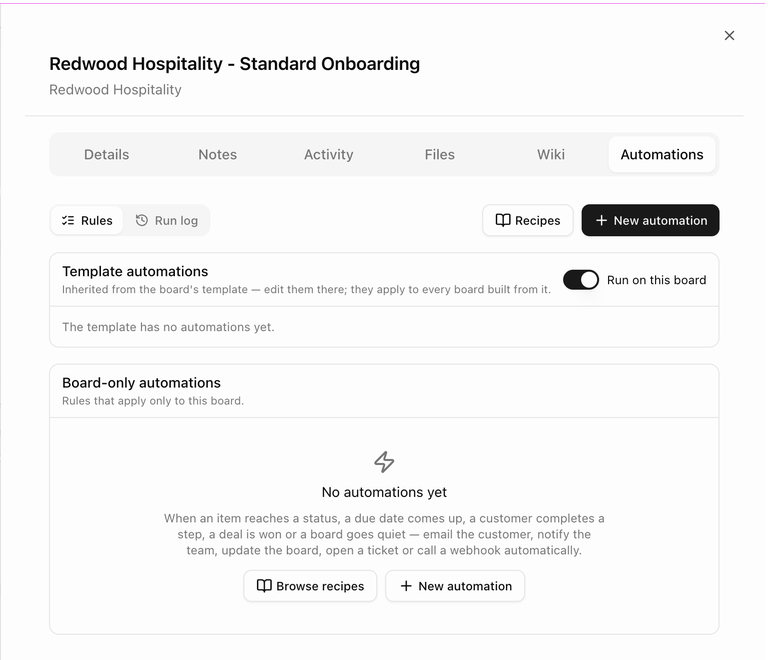 A board's Automations tab has a **Rules** / **Run log** toggle, a **Recipes** button and **New automation**, and shows up to three groups of rules:
- **Template automations**, inherited from the board's template. Edit them on the template; they apply to every board built from it.
- **Organization automations**, inherited from **Operations → Automations** (shown when your organization has rules).
- **Board-only automations**, which apply only to this board. Until you add one, the section shows **No automations yet** with **Browse recipes** and **New automation** buttons.
Each inherited group has a **Run on this board** switch. Turn it off to pause those rules on this board without touching the template or the organization. The tab then says **Paused on this board**.
If the board has no customer, actions that email the customer are skipped and the tab says so.
## Check the run log
Switch from **Rules** to **Run log** on any Automations tab (or open the **Run log** tab under **Operations → Automations**) to see every time a rule fired. Each run shows its status (**queued**, **pending**, **done**, **failed**, **skipped** or **cancelled**) and what each action did. Open a run to **Cancel** a pending run or **Retry failed steps**.
## Webhooks and Defaults
- **Webhooks**: add the endpoints that the **Send a webhook** action can call, send a test ping, and manage signing secrets.
- **Defaults**: set the **Business hours profile** used by *Only during business hours*, and the **Digest hour** at which scheduled digests are sent.
To stop automation emails to one customer, open the customer record and switch off **Automated emails**.
Next: [FAQ and troubleshooting](./boards-faq-and-troubleshooting).
A board's Automations tab has a **Rules** / **Run log** toggle, a **Recipes** button and **New automation**, and shows up to three groups of rules:
- **Template automations**, inherited from the board's template. Edit them on the template; they apply to every board built from it.
- **Organization automations**, inherited from **Operations → Automations** (shown when your organization has rules).
- **Board-only automations**, which apply only to this board. Until you add one, the section shows **No automations yet** with **Browse recipes** and **New automation** buttons.
Each inherited group has a **Run on this board** switch. Turn it off to pause those rules on this board without touching the template or the organization. The tab then says **Paused on this board**.
If the board has no customer, actions that email the customer are skipped and the tab says so.
## Check the run log
Switch from **Rules** to **Run log** on any Automations tab (or open the **Run log** tab under **Operations → Automations**) to see every time a rule fired. Each run shows its status (**queued**, **pending**, **done**, **failed**, **skipped** or **cancelled**) and what each action did. Open a run to **Cancel** a pending run or **Retry failed steps**.
## Webhooks and Defaults
- **Webhooks**: add the endpoints that the **Send a webhook** action can call, send a test ping, and manage signing secrets.
- **Defaults**: set the **Business hours profile** used by *Only during business hours*, and the **Digest hour** at which scheduled digests are sent.
To stop automation emails to one customer, open the customer record and switch off **Automated emails**.
Next: [FAQ and troubleshooting](./boards-faq-and-troubleshooting).