# Board templates
> Source: https://support.usebluehill.com/boards-board-templates | Updated: 2026-10-26T19:50:59Z
## Open Board Templates
Open **Operations → Board Templates**. The page lists every template in your workspace as a table: a colour swatch and **Name**, the **Description**, the **Board Groups** new boards are filed into (click **— click to add** to set them), and the number of **Tasks**. **View** opens a template, and the **⋮** button next to it holds the template's actions. Switch between **Active** and **Archived** templates, search, filter, and use **Views** and **Columns** just as on the Boards page.
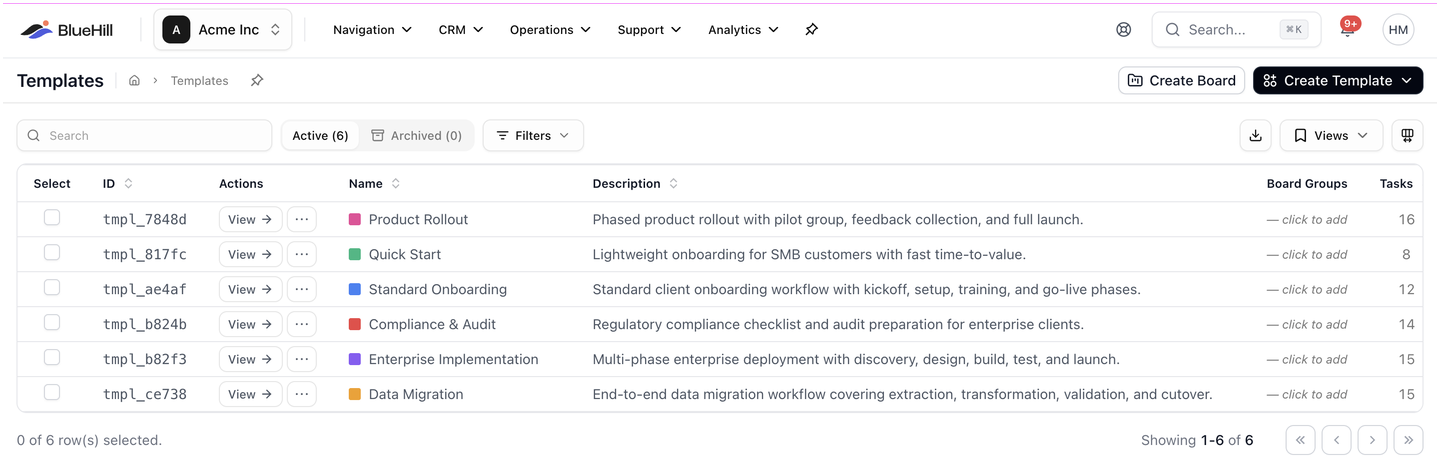 The header has two buttons: **Create Board**, which creates a board from any template, and **Create Template**, which opens a menu of ways to start a new template.
 ## Create a template
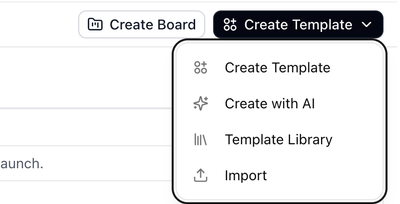
The **Create Template** menu offers four ways to start:
**Create Template**
1. Choose **Create Template**.
2. Enter a **Template Name** and **Description**.
3. Save, then add tasks on the template page.
**Create with AI**
If you already have the process written down, let BlueHill draft the template from it.
1. Choose **Create with AI**. The **Create a template with AI** dialog opens.
2. Paste the text of your process, or drop a **.docx**, **.txt** or **.md** file onto the dialog.
3. Under **What to generate**, tick **Steps** and, if you want, **Automations**.
4. Click to draft. On the review screen you can:
- Edit the template **name** and **description**.
- Adjust each step's priority, owner type and due-date offset.
- Match any **owners named in the text** to teammates.
- Review drafted **automations**. They are added switched off so nothing runs until you check them. Anything the AI could not turn into a rule is listed under **Skipped automations**.
5. Apply. Nothing is saved until you do. Then choose **Open template** or **Review automations**.
On an existing template, **Add with AI** drafts more steps and rules into that template.
**Template Library**
Choose **Template Library** to copy a ready-made template into your workspace. Templates are grouped by category and list their **Stages**. See [Start from the Template Library](./boards-create-a-board#start-from-the-template-library).
**Import from Monday.com**
Choose **Import** to build a template from a Monday.com export.
## The template page
## Create a template
The **Create Template** menu offers four ways to start:
**Create Template**
1. Choose **Create Template**.
2. Enter a **Template Name** and **Description**.
3. Save, then add tasks on the template page.
**Create with AI**
If you already have the process written down, let BlueHill draft the template from it.
1. Choose **Create with AI**. The **Create a template with AI** dialog opens.
2. Paste the text of your process, or drop a **.docx**, **.txt** or **.md** file onto the dialog.
3. Under **What to generate**, tick **Steps** and, if you want, **Automations**.
4. Click to draft. On the review screen you can:
- Edit the template **name** and **description**.
- Adjust each step's priority, owner type and due-date offset.
- Match any **owners named in the text** to teammates.
- Review drafted **automations**. They are added switched off so nothing runs until you check them. Anything the AI could not turn into a rule is listed under **Skipped automations**.
5. Apply. Nothing is saved until you do. Then choose **Open template** or **Review automations**.
On an existing template, **Add with AI** drafts more steps and rules into that template.
**Template Library**
Choose **Template Library** to copy a ready-made template into your workspace. Templates are grouped by category and list their **Stages**. See [Start from the Template Library](./boards-create-a-board#start-from-the-template-library).
**Import from Monday.com**
Choose **Import** to build a template from a Monday.com export.
## The template page
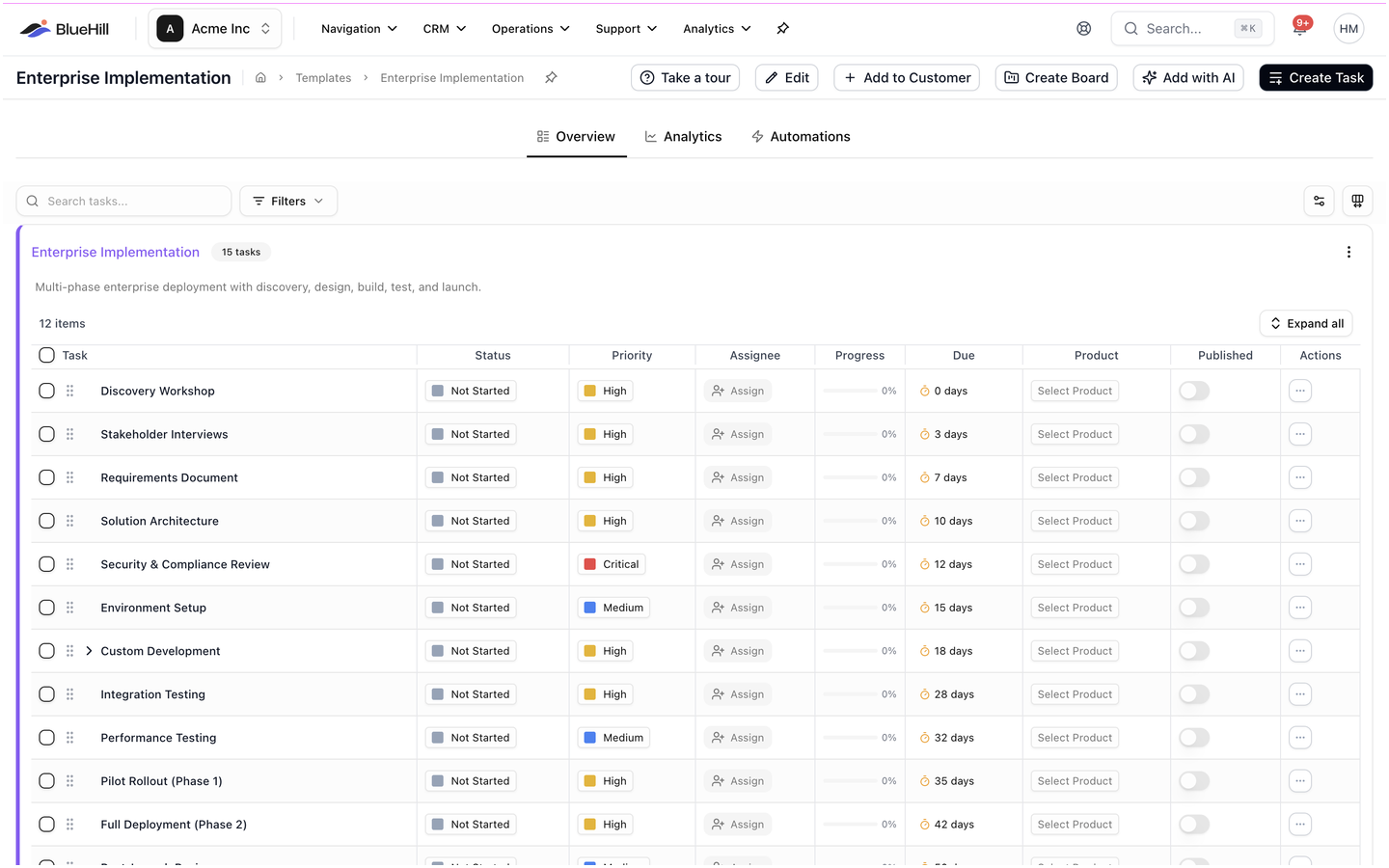 Click **View** on a template to open it. The page has three tabs:
- **Overview**: the template's tasks, with search, **Filters** and **Columns**, and the template's custom fields (gear icon). The task list works like a board's: expand subtasks with **Expand all**, and the **Due** column shows each task's offset, such as *3 days* or *7 days*, rather than a calendar date.
- **Analytics**: how the boards created from this template are performing.
- **Automations**: rules that run on every board created from this template. See [Automations](./boards-automations).
The header buttons are **Take a tour**, **Edit**, **Add to Customer**, **Create Board**, **Add with AI** and **Create Task**. The **⋮** menu on the task card adds **Download Template** (a spreadsheet of the tasks) and **Import Tasks**.
## Add tasks to a template
1. On the **Overview** tab, click **Create Task** or **+ Add Task**.
2. Fill in the task:
| Field | Notes |
|---|---|
| **Task Name** and **Description** | Shown on every board created from the template. |
| **Status** and **Priority** | The values each new board starts with. |
| **Type** | Information, Form, Acknowledge, Upload, Download or Link. See [Task types](./boards-add-and-manage-tasks#task-types). |
| **Product** | The product the task relates to. |
| **Owner** | **Internal**, **Customer** or **External**. |
| **Team Member** | The default assignee on new boards. Members chosen when creating the board are assigned as well. |
| **Form** | The form to use for a Form task. |
| **Due date mode** | **Fixed Date** (the same calendar date on every board), **Delayed** (an **Amount** of **Days**, **Weeks** or **Months** after the board is created, which is what most templates use), or **Manual** (set the date on each board). |
3. Save. Add subtasks from a task's menu, just as on a board.
Templates can also have **Custom Fields**, which every board created from the template inherits.
## Edit template settings
Click **Edit** in the template header to change:
- **Name** and **Description**.
- **Color**. Boards created from the template show their name in this colour on the Boards page.
- **Customer category**, to suggest the template for customers in that category.
- **Default Board Groups**. Every board created from the template is added to these groups automatically. See [Board groups](./boards-find-and-organize-boards#board-groups).
## Create boards from a template
- **Create Board** on the template page opens **Create Board from Template**. Choose a customer, or leave it empty for an internal board.
- **Add to Customer** creates a board from this template for several customers at once. Pick the customers and confirm.
- **New Board → From Template** on the Boards page does the same from the other direction. See [Create a board from a template](./boards-create-a-board#create-a-board-from-a-template).
Changing a template later does not change boards already created from it.
## Save an existing board as a template
Open the customer's **Boards** tab, open the board's **⋮** menu and choose **Save as Template**. See [Save a board as a template](./boards-manage-a-board#save-a-board-as-a-template).
## Template analytics
The **Analytics** tab reports on the boards created from the template, so you can see which steps take longest and where boards tend to stall.
## Template automations
Rules on the **Automations** tab run on every board created from the template, unless a board switches them off with **Run on this board**. See [Automations](./boards-automations).
Next: [Automations](./boards-automations).
Click **View** on a template to open it. The page has three tabs:
- **Overview**: the template's tasks, with search, **Filters** and **Columns**, and the template's custom fields (gear icon). The task list works like a board's: expand subtasks with **Expand all**, and the **Due** column shows each task's offset, such as *3 days* or *7 days*, rather than a calendar date.
- **Analytics**: how the boards created from this template are performing.
- **Automations**: rules that run on every board created from this template. See [Automations](./boards-automations).
The header buttons are **Take a tour**, **Edit**, **Add to Customer**, **Create Board**, **Add with AI** and **Create Task**. The **⋮** menu on the task card adds **Download Template** (a spreadsheet of the tasks) and **Import Tasks**.
## Add tasks to a template
1. On the **Overview** tab, click **Create Task** or **+ Add Task**.
2. Fill in the task:
| Field | Notes |
|---|---|
| **Task Name** and **Description** | Shown on every board created from the template. |
| **Status** and **Priority** | The values each new board starts with. |
| **Type** | Information, Form, Acknowledge, Upload, Download or Link. See [Task types](./boards-add-and-manage-tasks#task-types). |
| **Product** | The product the task relates to. |
| **Owner** | **Internal**, **Customer** or **External**. |
| **Team Member** | The default assignee on new boards. Members chosen when creating the board are assigned as well. |
| **Form** | The form to use for a Form task. |
| **Due date mode** | **Fixed Date** (the same calendar date on every board), **Delayed** (an **Amount** of **Days**, **Weeks** or **Months** after the board is created, which is what most templates use), or **Manual** (set the date on each board). |
3. Save. Add subtasks from a task's menu, just as on a board.
Templates can also have **Custom Fields**, which every board created from the template inherits.
## Edit template settings
Click **Edit** in the template header to change:
- **Name** and **Description**.
- **Color**. Boards created from the template show their name in this colour on the Boards page.
- **Customer category**, to suggest the template for customers in that category.
- **Default Board Groups**. Every board created from the template is added to these groups automatically. See [Board groups](./boards-find-and-organize-boards#board-groups).
## Create boards from a template
- **Create Board** on the template page opens **Create Board from Template**. Choose a customer, or leave it empty for an internal board.
- **Add to Customer** creates a board from this template for several customers at once. Pick the customers and confirm.
- **New Board → From Template** on the Boards page does the same from the other direction. See [Create a board from a template](./boards-create-a-board#create-a-board-from-a-template).
Changing a template later does not change boards already created from it.
## Save an existing board as a template
Open the customer's **Boards** tab, open the board's **⋮** menu and choose **Save as Template**. See [Save a board as a template](./boards-manage-a-board#save-a-board-as-a-template).
## Template analytics
The **Analytics** tab reports on the boards created from the template, so you can see which steps take longest and where boards tend to stall.
## Template automations
Rules on the **Automations** tab run on every board created from the template, unless a board switches them off with **Run on this board**. See [Automations](./boards-automations).
Next: [Automations](./boards-automations).