# Create a board
> Source: https://support.usebluehill.com/boards-create-a-board | Updated: 2026-10-26T19:50:59Z
## Before you start
Decide two things:
- **Customer or internal?** Link the board to a customer when the work is for that customer. The board then appears on the customer's **Boards** tab, and customer-owned tasks can be published to the customer portal. Leave the customer empty for internal work.
- **Blank or from a template?** A blank board starts with no tasks (or with tasks suggested by AI). A board from a template starts with that template's tasks already in place. For repeatable work such as onboarding, a template keeps every board consistent. See [Board templates](./boards-board-templates).
 ## Create a blank board
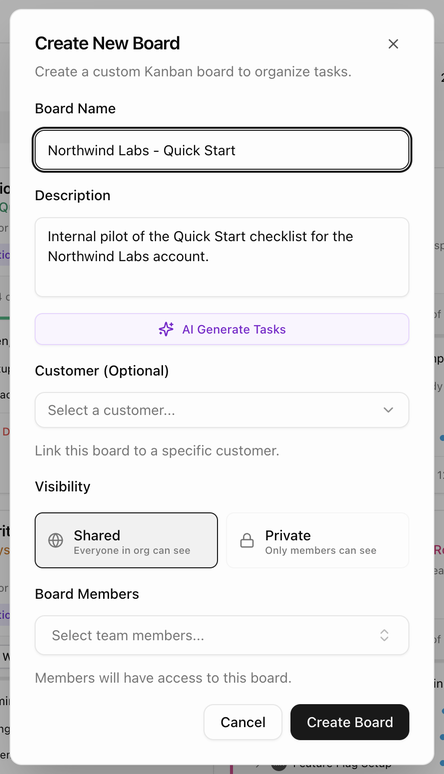
1. Click **New Board**. The **Create New Board** dialog opens.
2. Enter a **Board Name** (for example *Q1 Onboarding*) and an optional **Description**.
3. Optional: click **AI Generate Tasks** to let BlueHill suggest tasks and subtasks from the name and description. Edit or remove any suggestion before you continue, or click **Regenerate Tasks** for a new set. If nothing can be generated, try a more descriptive name or description.
4. Optional: choose a **Customer** to link the board to a customer record.
5. Choose the **Visibility**: **Shared** (everyone in the organization can see the board) or **Private** (only board members can see it).
6. Add **Board Members**. Members get access to the board.
7. Click **Create Board** (or **Create Board with N Tasks** when AI tasks are included).
## Create a blank board
1. Click **New Board**. The **Create New Board** dialog opens.
2. Enter a **Board Name** (for example *Q1 Onboarding*) and an optional **Description**.
3. Optional: click **AI Generate Tasks** to let BlueHill suggest tasks and subtasks from the name and description. Edit or remove any suggestion before you continue, or click **Regenerate Tasks** for a new set. If nothing can be generated, try a more descriptive name or description.
4. Optional: choose a **Customer** to link the board to a customer record.
5. Choose the **Visibility**: **Shared** (everyone in the organization can see the board) or **Private** (only board members can see it).
6. Add **Board Members**. Members get access to the board.
7. Click **Create Board** (or **Create Board with N Tasks** when AI tasks are included).
 A customer board opens on the customer's **Boards** tab. An internal board opens on its own page.
## Create a board from a template
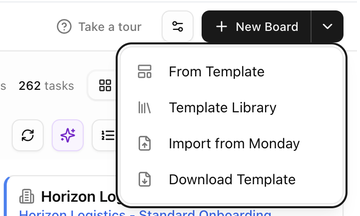
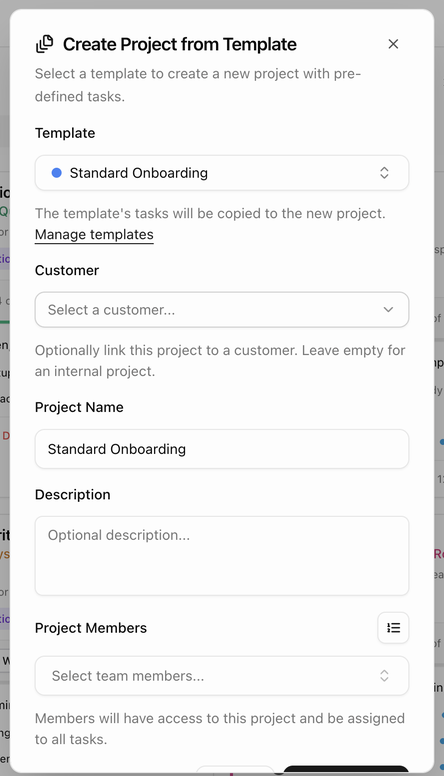
1. Click the arrow next to **New Board** and choose **From Template**. The **Create Project from Template** dialog opens. (This dialog uses the word *project*; the result is a board like any other.)
2. Choose a **Template**. Start typing to search. The template's tasks will be copied to the new board. The **Manage templates** link takes you to Board Templates if you need to change one first.
3. Choose a **Customer**, or leave it empty for an internal board.
4. The **Project Name** is filled in from the template name. Change it if you like, and add a **Description**.
5. Add **Project Members**. They get access to the board and are assigned to all of its tasks. Click the **Assignment Queue** icon next to the field to get suggestions. See [Fill members with the Assignment Queue](#fill-members-with-the-assignment-queue).
6. Click **Create Project**.
A customer board opens on the customer's **Boards** tab. An internal board opens on its own page.
## Create a board from a template
1. Click the arrow next to **New Board** and choose **From Template**. The **Create Project from Template** dialog opens. (This dialog uses the word *project*; the result is a board like any other.)
2. Choose a **Template**. Start typing to search. The template's tasks will be copied to the new board. The **Manage templates** link takes you to Board Templates if you need to change one first.
3. Choose a **Customer**, or leave it empty for an internal board.
4. The **Project Name** is filled in from the template name. Change it if you like, and add a **Description**.
5. Add **Project Members**. They get access to the board and are assigned to all of its tasks. Click the **Assignment Queue** icon next to the field to get suggestions. See [Fill members with the Assignment Queue](#fill-members-with-the-assignment-queue).
6. Click **Create Project**.
 ## Start from the Template Library
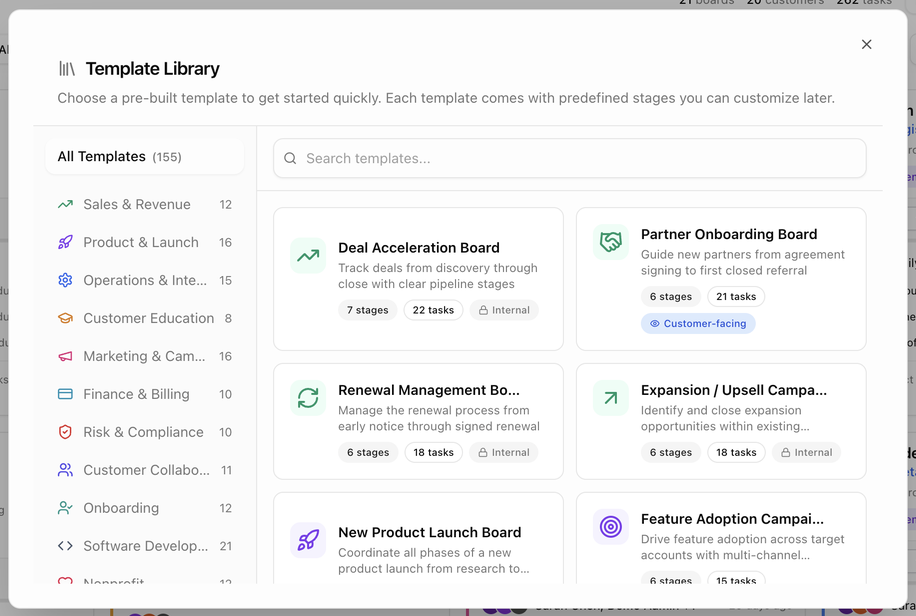
The Template Library holds more than 150 ready-made templates for common workflows, grouped by category: Sales & Revenue, Product & Launch, Operations & Internal, Customer Education, Marketing & Campaigns, Finance & Billing, Risk & Compliance, Customer Collaboration, Onboarding, Software Development, Nonprofit and Association. Each card shows how many stages and tasks the template contains and whether it is **Internal** or **Customer-facing**.
1. Click the arrow next to **New Board** and choose **Template Library**.
2. Browse by category or search, then pick a template.
3. BlueHill saves a copy of it to your **Board Templates**, then opens the **Create Project from Template** dialog with that template selected.
4. Finish the dialog as described above.
## Start from the Template Library
The Template Library holds more than 150 ready-made templates for common workflows, grouped by category: Sales & Revenue, Product & Launch, Operations & Internal, Customer Education, Marketing & Campaigns, Finance & Billing, Risk & Compliance, Customer Collaboration, Onboarding, Software Development, Nonprofit and Association. Each card shows how many stages and tasks the template contains and whether it is **Internal** or **Customer-facing**.
1. Click the arrow next to **New Board** and choose **Template Library**.
2. Browse by category or search, then pick a template.
3. BlueHill saves a copy of it to your **Board Templates**, then opens the **Create Project from Template** dialog with that template selected.
4. Finish the dialog as described above.
 ## Import a board from Monday
If your team is moving from Monday.com:
1. Click the arrow next to **New Board** and choose **Import from Monday**.
2. Pick the **Template** the imported tasks should map to.
3. Upload your **Monday.com Export File**.
4. Match any custom fields and choose the customer the board belongs to.
5. Start the import. The results screen reports boards created, tasks updated, notes imported, interactions and members assigned.
## Fill members with the Assignment Queue
The **Assignment Queue** suggests who should take the next board. It is available from the Boards page toolbar and from the **From Template** dialog, and offers three methods:
- **Least Busy** suggests the team member with the fewest open tasks.
- **Round Robin** takes turns through the team.
- **Template Match** suggests people who usually work on boards from this template.
## Download Template
**Download Template** in the **New Board** menu gives you a blank task spreadsheet. Fill it in and import it into an existing board with **Import from Template** on the board page, or with **Import Tasks** in a board card's menu. See [Export and import tasks](./boards-board-page#export-and-import-tasks).
## What to do next
- Add tasks and subtasks: [Add and manage tasks](./boards-add-and-manage-tasks).
- Add or change members: [Members and assignees](./boards-manage-a-board#members-and-assignees).
- Check which automations will run on the board: [Automations](./boards-automations).
## Import a board from Monday
If your team is moving from Monday.com:
1. Click the arrow next to **New Board** and choose **Import from Monday**.
2. Pick the **Template** the imported tasks should map to.
3. Upload your **Monday.com Export File**.
4. Match any custom fields and choose the customer the board belongs to.
5. Start the import. The results screen reports boards created, tasks updated, notes imported, interactions and members assigned.
## Fill members with the Assignment Queue
The **Assignment Queue** suggests who should take the next board. It is available from the Boards page toolbar and from the **From Template** dialog, and offers three methods:
- **Least Busy** suggests the team member with the fewest open tasks.
- **Round Robin** takes turns through the team.
- **Template Match** suggests people who usually work on boards from this template.
## Download Template
**Download Template** in the **New Board** menu gives you a blank task spreadsheet. Fill it in and import it into an existing board with **Import from Template** on the board page, or with **Import Tasks** in a board card's menu. See [Export and import tasks](./boards-board-page#export-and-import-tasks).
## What to do next
- Add tasks and subtasks: [Add and manage tasks](./boards-add-and-manage-tasks).
- Add or change members: [Members and assignees](./boards-manage-a-board#members-and-assignees).
- Check which automations will run on the board: [Automations](./boards-automations).