# Find, filter and organize boards
> Source: https://support.usebluehill.com/boards-find-and-organize-boards | Updated: 2026-10-26T19:50:59Z
## Search boards
Type in **Search boards...** to narrow the list as you type. Search matches the board name, its description, and the linked customer's company or contact name. Clear the box to see every board again.
## Board type, Active or Archived, and Mine
- **All / Customer / Internal** limits the list to customer boards, internal boards, or both.
- **Active / Archived** switches between boards in use and boards you have archived. Archived boards can be restored from the **Archived** tab. See [Archive and restore a board](./boards-manage-a-board#archive-and-restore-a-board).
- **Mine** shows only boards you are a member of. Switch it off to see everyone's boards again.
## Use the Filters panel
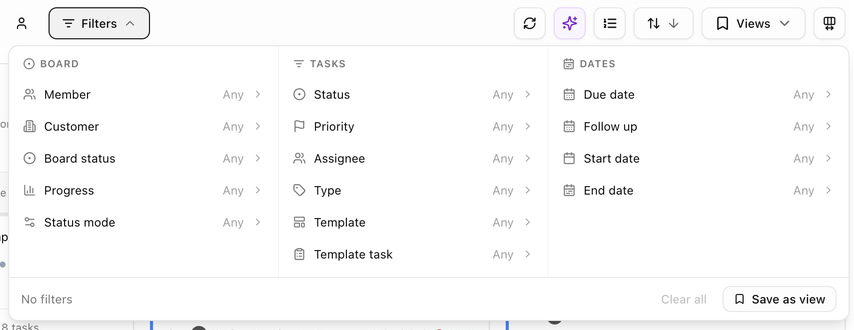 Click **Filters** to open the panel. Filters are grouped in three sections. Pick as many as you need; the list updates as you go and shows **Showing X of Y boards**.
**Board filters**
| Filter | What it matches |
|---|---|
| **Member** | Boards where the chosen people are members. Switch the mode to **Board** (board members only), **Task** (task assignees only) or **Both**. Tick **Include inactive members** to list people who have left the team. |
| **Customer** | Boards linked to the chosen customers. Hidden when the board type is **Internal**. |
| **Team** | Boards with members from a team. Shown when your workspace uses teams. |
| **Board status** | Boards in the chosen statuses, such as *On Track* or *Stalled*. |
| **Progress %** | Boards whose progress falls inside a range. |
| **Status mode** | Boards whose status is worked out automatically (**Auto**) or set by hand (**Manual**). |
**Task filters**
| Filter | What it matches |
|---|---|
| **Status**, **Priority**, **Type** | Boards that contain at least one task with that value. |
| **Product** | Boards with a task for that product. Shown when your workspace uses products. |
| **Assignee** | Boards with a task assigned to the chosen people. Tick **Include inactive** to list people who have left. |
| **Template** | Boards created from the chosen templates. |
| **Template task** | Boards that contain a specific task from a template. |
As soon as you choose a task filter, a **Whole board / Matching tasks** switch appears. **Matching tasks** (the default) hides tasks that do not match inside each board, so you see only the work you asked for. **Whole board** keeps every task visible.
**Date filters**
**Due date**, **Follow up**, **Start date** and **End date** each take a date range or a quick preset:
| Filter | Presets |
|---|---|
| Due date | Overdue, Due Today, Future, Previous, This Week, This Month, Next Month, No Due Date |
| Follow up | Overdue, Today, Future, Previous, This Week, This Month, Next Month, No Follow Up |
| Start date | Started, Starts Today, Future, Previous, This Week, This Month, Next Month, No Start Date |
| End date | Past End, Ends Today, Future, Previous, This Week, This Month, Next Month, No End Date |
**Clear everything**
The footer of the panel shows which filters are active (or **No filters**). **Clear all** removes them. The **×** button that appears next to the **Filters** button on the toolbar goes further: it also resets the board type, the **Mine** toggle, the search box and the sort order.
## Sort boards
Open **Sort** and choose a field. The default is **Date created**, newest first. Other choices:
- **Customer**, **Name**, **Last updated**, **Progress**, **Task count**.
- In the **Dates** group: first or last **start date**, **end date**, **due date** and **follow-up** across the board's tasks.
Boards without a customer always sort after boards that have one.
## Save and reuse a view
A view is a saved combination of filters, sort and columns.
1. Set up the filters, sort and columns you want.
2. Click **Save as view** in the footer of the Filters panel, or open **Views** on the toolbar and save the current setup with a name.
3. Pick the view from the **Views** menu whenever you need it. Views you save here are also available on board pages and on each customer's **Boards** tab.
## Choose columns (Detail view)
In **Detail** view, open **Columns** to show, hide and reorder the columns of the task tables. The **Task** column always stays first and **Actions** always stays last.
## Board groups
Click **Filters** to open the panel. Filters are grouped in three sections. Pick as many as you need; the list updates as you go and shows **Showing X of Y boards**.
**Board filters**
| Filter | What it matches |
|---|---|
| **Member** | Boards where the chosen people are members. Switch the mode to **Board** (board members only), **Task** (task assignees only) or **Both**. Tick **Include inactive members** to list people who have left the team. |
| **Customer** | Boards linked to the chosen customers. Hidden when the board type is **Internal**. |
| **Team** | Boards with members from a team. Shown when your workspace uses teams. |
| **Board status** | Boards in the chosen statuses, such as *On Track* or *Stalled*. |
| **Progress %** | Boards whose progress falls inside a range. |
| **Status mode** | Boards whose status is worked out automatically (**Auto**) or set by hand (**Manual**). |
**Task filters**
| Filter | What it matches |
|---|---|
| **Status**, **Priority**, **Type** | Boards that contain at least one task with that value. |
| **Product** | Boards with a task for that product. Shown when your workspace uses products. |
| **Assignee** | Boards with a task assigned to the chosen people. Tick **Include inactive** to list people who have left. |
| **Template** | Boards created from the chosen templates. |
| **Template task** | Boards that contain a specific task from a template. |
As soon as you choose a task filter, a **Whole board / Matching tasks** switch appears. **Matching tasks** (the default) hides tasks that do not match inside each board, so you see only the work you asked for. **Whole board** keeps every task visible.
**Date filters**
**Due date**, **Follow up**, **Start date** and **End date** each take a date range or a quick preset:
| Filter | Presets |
|---|---|
| Due date | Overdue, Due Today, Future, Previous, This Week, This Month, Next Month, No Due Date |
| Follow up | Overdue, Today, Future, Previous, This Week, This Month, Next Month, No Follow Up |
| Start date | Started, Starts Today, Future, Previous, This Week, This Month, Next Month, No Start Date |
| End date | Past End, Ends Today, Future, Previous, This Week, This Month, Next Month, No End Date |
**Clear everything**
The footer of the panel shows which filters are active (or **No filters**). **Clear all** removes them. The **×** button that appears next to the **Filters** button on the toolbar goes further: it also resets the board type, the **Mine** toggle, the search box and the sort order.
## Sort boards
Open **Sort** and choose a field. The default is **Date created**, newest first. Other choices:
- **Customer**, **Name**, **Last updated**, **Progress**, **Task count**.
- In the **Dates** group: first or last **start date**, **end date**, **due date** and **follow-up** across the board's tasks.
Boards without a customer always sort after boards that have one.
## Save and reuse a view
A view is a saved combination of filters, sort and columns.
1. Set up the filters, sort and columns you want.
2. Click **Save as view** in the footer of the Filters panel, or open **Views** on the toolbar and save the current setup with a name.
3. Pick the view from the **Views** menu whenever you need it. Views you save here are also available on board pages and on each customer's **Boards** tab.
## Choose columns (Detail view)
In **Detail** view, open **Columns** to show, hide and reorder the columns of the task tables. The **Task** column always stays first and **Actions** always stays last.
## Board groups
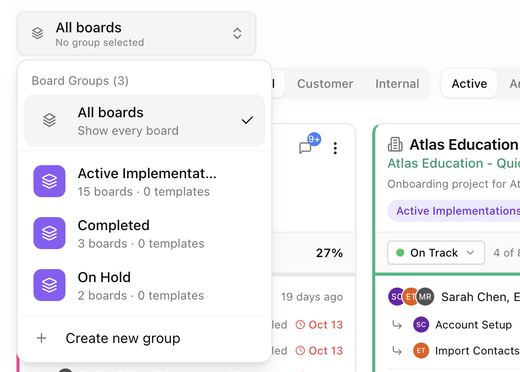 Board groups collect related boards, for example *Active Implementations*, *Completed* and *On Hold*. The switcher at the left of the toolbar controls which group you are working in.
**Switch groups**
1. Click the switcher (it starts on **All boards**). The menu lists every group with how many boards and templates belong to it.
2. Choose a group. The page now shows only boards in that group.
3. Choose **All boards** to show every board again.
**Create a group**
1. Open the switcher and choose **Create new group**.
2. Enter a **Name** and an optional **Description**.
3. Pick a **Color** and an **Icon** so the group is easy to spot at a glance.
4. Save. The new group appears in the switcher.
**Manage a group**
Click the gear next to a group in the switcher to rename it, change its colour or icon, and choose which templates and board statuses belong to it.
**Put a board in a group**
Open the board's **Edit Board** panel and use the **Board Groups** field on the **Details** tab. A board can belong to several groups. Templates can also add every board they create to default groups. See [Edit template settings](./boards-board-templates#edit-template-settings).
## AI Portfolio Summary
Click the sparkle icon (**AI Portfolio Summary**) to get a written summary of the boards you are looking at. It reports the number of boards, average progress, task counts, completed, blocked and overdue tasks, then lists **Highlights**, **Concerns** and **Suggested Next Steps**. Managers also see a **Team Workload** section. The summary respects your current filters, so filter first to summarise one customer or one group.
## Refresh
Click **Refresh** to reload the list after a teammate makes changes. Boards also update on their own when you return to the page.
Next: [Create a board](./boards-create-a-board).
Board groups collect related boards, for example *Active Implementations*, *Completed* and *On Hold*. The switcher at the left of the toolbar controls which group you are working in.
**Switch groups**
1. Click the switcher (it starts on **All boards**). The menu lists every group with how many boards and templates belong to it.
2. Choose a group. The page now shows only boards in that group.
3. Choose **All boards** to show every board again.
**Create a group**
1. Open the switcher and choose **Create new group**.
2. Enter a **Name** and an optional **Description**.
3. Pick a **Color** and an **Icon** so the group is easy to spot at a glance.
4. Save. The new group appears in the switcher.
**Manage a group**
Click the gear next to a group in the switcher to rename it, change its colour or icon, and choose which templates and board statuses belong to it.
**Put a board in a group**
Open the board's **Edit Board** panel and use the **Board Groups** field on the **Details** tab. A board can belong to several groups. Templates can also add every board they create to default groups. See [Edit template settings](./boards-board-templates#edit-template-settings).
## AI Portfolio Summary
Click the sparkle icon (**AI Portfolio Summary**) to get a written summary of the boards you are looking at. It reports the number of boards, average progress, task counts, completed, blocked and overdue tasks, then lists **Highlights**, **Concerns** and **Suggested Next Steps**. Managers also see a **Team Workload** section. The summary respects your current filters, so filter first to summarise one customer or one group.
## Refresh
Click **Refresh** to reload the list after a teammate makes changes. Boards also update on their own when you return to the page.
Next: [Create a board](./boards-create-a-board).