# Task details, notes, activity and files
> Source: https://support.usebluehill.com/boards-task-details-notes-and-files | Updated: 2026-10-26T19:50:59Z
## Open the task panel
Choose **View** from a task's **⋮** menu. The task panel slides in from the right, headed **View and edit task details**, with five tabs: **Details**, **Notes**, **Activity**, **Wiki** and **Files**.
## Details tab
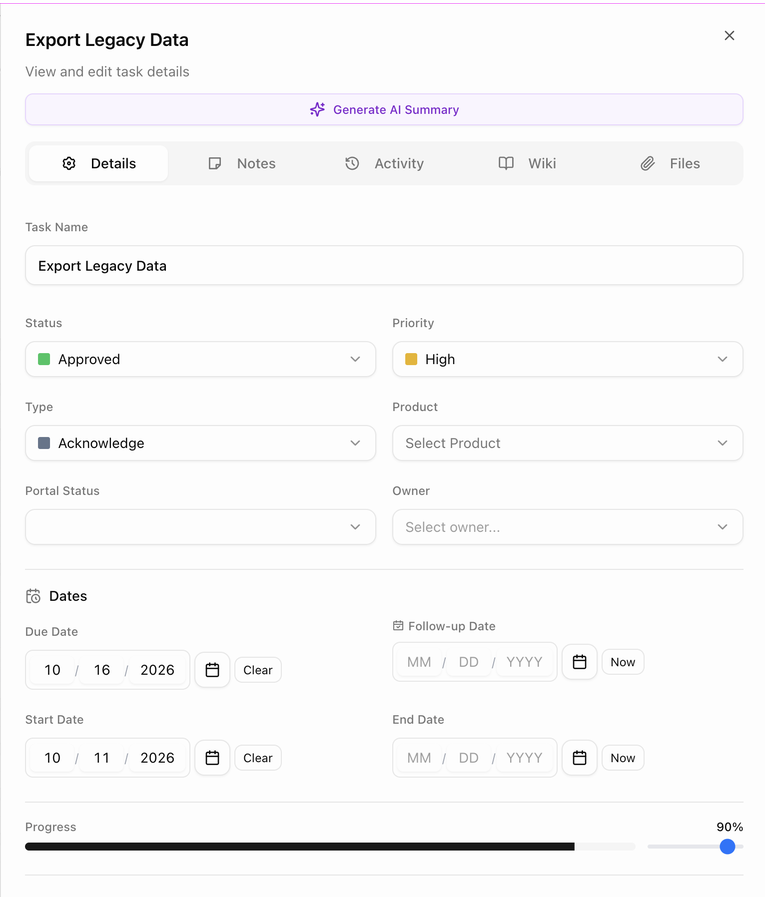 There is no Save button. Each field saves as soon as you change it. Text and number fields save when you click away from them, and the progress slider saves when you let go. A **Saving...** banner shows while a change is being stored.
| Field | What it is |
|---|---|
| **Task Name** | The name shown in the table. |
| **Status**, **Priority**, **Type**, **Product** | The same values as the table columns. |
| **Portal Status** | The customer's progress on a published task: *Not Started*, *In Progress*, *Pending Confirmation* or *Complete*. |
| **Owner** | **Customer** or **Internal**. |
| **Dates** | **Due Date**, **Follow-up Date**, **Start Date** and **End Date**, each with a calendar picker and a **Clear** or **Now** shortcut. |
| **Progress** | A slider from 0 to 100. Scroll down for the fields below. |
| **Assigned Team Members** | The teammates responsible for the task. |
| **Linked tickets** | Support tickets connected to this task. |
| **Published to Portal** | Switch it on to show a customer task in the portal. |
| **Time Estimate** | An amount in **Minutes**, **Hours**, **Days** or **Weeks**. |
| **Task Information** | Read-only: the customer, the board, when the task was created and when it was last updated. |
## Change a due date
Change the **Due Date** in the Details tab, in the table, or in the Edit Task form. If your organization has turned on **Due date change reason** (optional or required), a dialog asks why the date moved. The reason is recorded in the task's activity so everyone can see why the plan changed.
## Notes tab
There is no Save button. Each field saves as soon as you change it. Text and number fields save when you click away from them, and the progress slider saves when you let go. A **Saving...** banner shows while a change is being stored.
| Field | What it is |
|---|---|
| **Task Name** | The name shown in the table. |
| **Status**, **Priority**, **Type**, **Product** | The same values as the table columns. |
| **Portal Status** | The customer's progress on a published task: *Not Started*, *In Progress*, *Pending Confirmation* or *Complete*. |
| **Owner** | **Customer** or **Internal**. |
| **Dates** | **Due Date**, **Follow-up Date**, **Start Date** and **End Date**, each with a calendar picker and a **Clear** or **Now** shortcut. |
| **Progress** | A slider from 0 to 100. Scroll down for the fields below. |
| **Assigned Team Members** | The teammates responsible for the task. |
| **Linked tickets** | Support tickets connected to this task. |
| **Published to Portal** | Switch it on to show a customer task in the portal. |
| **Time Estimate** | An amount in **Minutes**, **Hours**, **Days** or **Weeks**. |
| **Task Information** | Read-only: the customer, the board, when the task was created and when it was last updated. |
## Change a due date
Change the **Due Date** in the Details tab, in the table, or in the Edit Task form. If your organization has turned on **Due date change reason** (optional or required), a dialog asks why the date moved. The reason is recorded in the task's activity so everyone can see why the plan changed.
## Notes tab
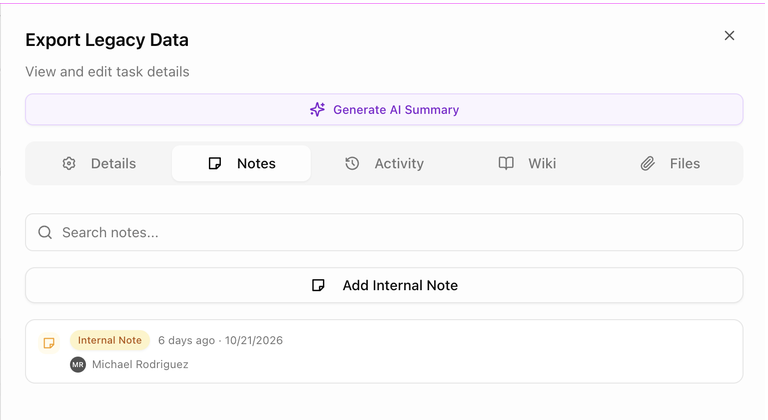 Notes are internal. Customers never see them.
1. Click **Add Internal Note**. Existing notes are listed underneath with an **Internal Note** badge, the date and the author.
2. Write the note. The editor supports formatting, checklists and **@mentions**. Type **@** and a teammate's name to mention them; they get a notification.
3. Optional: use **Select team members to notify...** to email the note to specific teammates. The form tells you how many people will receive it.
4. Save the note.
- Use the search box to find a note on a busy task.
- You can edit or delete your own notes, and resend a note's notification to someone who missed it.
- An amber dot on the **Notes** tab means you have an unsaved note. If you close the panel, BlueHill asks before discarding it.
## Activity tab
The Activity tab is a timeline of everything that has happened on the task: status changes, due-date changes, notes, files, logged calls and meetings, and automation runs. Filter the feed by type to find what you need.
Click **Log Activity** to record a call, email, meeting or other interaction against the task. Logged activities can carry attachments and time spent.
## Wiki tab
The Wiki tab lists wiki pages linked to this task, plus any pages linked to the whole board. Use it to keep procedures and reference material next to the work.
## Files tab
Notes are internal. Customers never see them.
1. Click **Add Internal Note**. Existing notes are listed underneath with an **Internal Note** badge, the date and the author.
2. Write the note. The editor supports formatting, checklists and **@mentions**. Type **@** and a teammate's name to mention them; they get a notification.
3. Optional: use **Select team members to notify...** to email the note to specific teammates. The form tells you how many people will receive it.
4. Save the note.
- Use the search box to find a note on a busy task.
- You can edit or delete your own notes, and resend a note's notification to someone who missed it.
- An amber dot on the **Notes** tab means you have an unsaved note. If you close the panel, BlueHill asks before discarding it.
## Activity tab
The Activity tab is a timeline of everything that has happened on the task: status changes, due-date changes, notes, files, logged calls and meetings, and automation runs. Filter the feed by type to find what you need.
Click **Log Activity** to record a call, email, meeting or other interaction against the task. Logged activities can carry attachments and time spent.
## Wiki tab
The Wiki tab lists wiki pages linked to this task, plus any pages linked to the whole board. Use it to keep procedures and reference material next to the work.
## Files tab
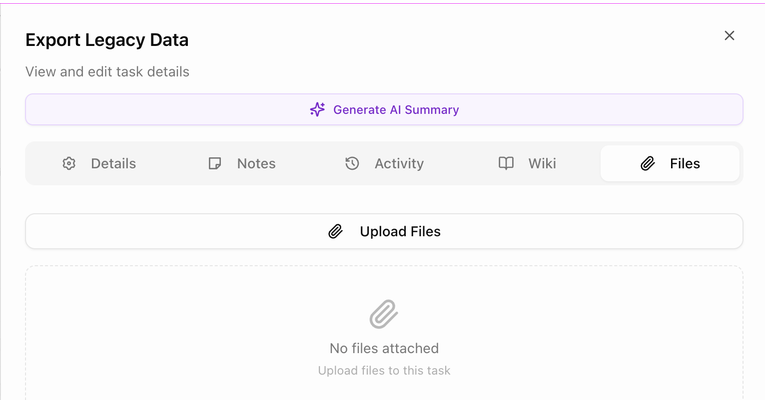 1. Click **Upload Files** and choose the files. (A task with nothing attached shows **No files attached**.)
2. Pick the **Visibility**:
- **Internal**: team only.
- **Shared**: visible to the customer in the portal.
- **Customer**: marks the file as uploaded by the customer.
3. Upload. You can change a file's visibility later from its details.
Open a file's details to comment on it. Comments show a **Customer** or **Team** badge so you can tell who said what. Use **Reply** to answer and **Delete** to remove your own comment.
## Generate an AI summary
Click **Generate AI Summary** at the top of the panel. BlueHill reads the task's notes and activity and writes a short **AI Summary** with **Key Points** and **Suggested Next Steps**. The footer tells you how many notes and activities it used. Click **Refresh** to regenerate after new activity.
Next: [Statuses, priority and progress](./boards-statuses-priority-and-progress).
1. Click **Upload Files** and choose the files. (A task with nothing attached shows **No files attached**.)
2. Pick the **Visibility**:
- **Internal**: team only.
- **Shared**: visible to the customer in the portal.
- **Customer**: marks the file as uploaded by the customer.
3. Upload. You can change a file's visibility later from its details.
Open a file's details to comment on it. Comments show a **Customer** or **Team** badge so you can tell who said what. Use **Reply** to answer and **Delete** to remove your own comment.
## Generate an AI summary
Click **Generate AI Summary** at the top of the panel. BlueHill reads the task's notes and activity and writes a short **AI Summary** with **Key Points** and **Suggested Next Steps**. The footer tells you how many notes and activities it used. Click **Refresh** to regenerate after new activity.
Next: [Statuses, priority and progress](./boards-statuses-priority-and-progress).