# Branding, addresses and brands
> Source: https://support.usebluehill.com/customer-portal-branding-and-domains | Updated: 2026-10-27T13:54:45Z
## The portal uses your help center's branding
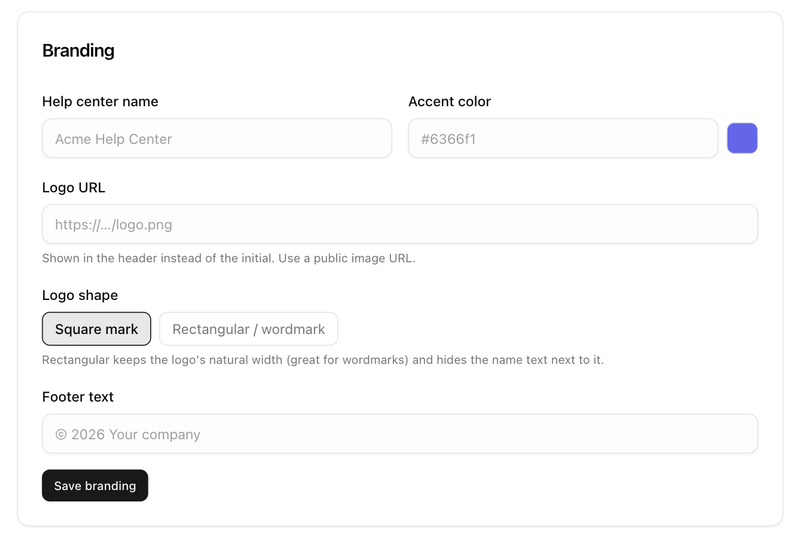
There are no separate portal branding settings. The portal is the signed-in part of your help center, so it takes everything from **Support → Support settings → Help center → Branding**:
| Field | Where the portal uses it |
|---|---|
| **Help center name** | The header, browser tab titles and the **Join** and **Create your account** pages. Without one, the portal shows your workspace name. |
| **Accent color** | Buttons, links and the customer's own message bubbles in a ticket. |
| **Logo URL** and **Logo shape** | The header logo. A *Square mark* sits next to the name; a *Rectangular / wordmark* logo replaces it. Without a logo, the first letter of the name appears in a coloured square. |
| **Footer text** | The left side of the footer. Without one, the footer reads **©** followed by the year and your name. |
 Every page keeps **Help center**, **Contact support** and **Powered by BlueHill** in the footer. Light and dark mode follow the visitor's device; signed-in customers can override it from **Theme** in the user menu.
Three places stay BlueHill-branded whatever you set: the sign-in and sign-up pages, the invitation page, and the emails that carry sign-in codes and invitations.
## Addresses
| Page | Until you add a custom domain | On a verified custom domain |
|---|---|---|
| Help center home | *portal.usebluehill.com/help/your-workspace* | *help.yourcompany.com* |
| Sign in | *portal.usebluehill.com/sign-in* | *help.yourcompany.com/sign-in* |
| Support tickets | *portal.usebluehill.com/tickets* | *help.yourcompany.com/tickets* |
| Sign-up link | Shown on the Self sign-up card | Shown on the Self sign-up card |
*your-workspace* is the short name in your workspace's web address, for example *acme-inc* for the demo workspace. Links in ticket emails already point at the right place, and a customer who signs in from your custom domain is returned to it.
## Add a custom domain
1. On the help center settings page, pick the site, then find the **Custom domain** card.
2. Click **Add domain** and enter the address, for example *help.yourcompany.com*.
3. Create the DNS records the card lists with your domain provider, then click **Verify**.
Every page keeps **Help center**, **Contact support** and **Powered by BlueHill** in the footer. Light and dark mode follow the visitor's device; signed-in customers can override it from **Theme** in the user menu.
Three places stay BlueHill-branded whatever you set: the sign-in and sign-up pages, the invitation page, and the emails that carry sign-in codes and invitations.
## Addresses
| Page | Until you add a custom domain | On a verified custom domain |
|---|---|---|
| Help center home | *portal.usebluehill.com/help/your-workspace* | *help.yourcompany.com* |
| Sign in | *portal.usebluehill.com/sign-in* | *help.yourcompany.com/sign-in* |
| Support tickets | *portal.usebluehill.com/tickets* | *help.yourcompany.com/tickets* |
| Sign-up link | Shown on the Self sign-up card | Shown on the Self sign-up card |
*your-workspace* is the short name in your workspace's web address, for example *acme-inc* for the demo workspace. Links in ticket emails already point at the right place, and a customer who signs in from your custom domain is returned to it.
## Add a custom domain
1. On the help center settings page, pick the site, then find the **Custom domain** card.
2. Click **Add domain** and enter the address, for example *help.yourcompany.com*.
3. Create the DNS records the card lists with your domain provider, then click **Verify**.
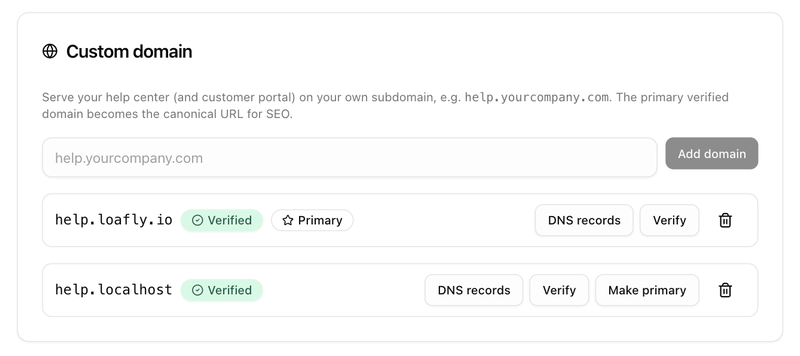 A verified domain serves both the help center and the portal. The first verified domain becomes the site's primary address. Custom domains need a plan that includes them; the card tells you if yours does not.
## Brands
If you use several support brands, each brand can run its own help center, picked with the pills at the top of the help center settings page. Each brand site has its own branding, custom domains, knowledge bases and self sign-up policy.
- A customer sees the branding of the site they signed up through or last visited.
- Portal accounts are shared across all your brands: one sign-in works on every site.
- A ticket opened in the portal is filed under your default brand.
Next: [Portal tickets in your inbox](./customer-portal-portal-tickets-for-agents).
A verified domain serves both the help center and the portal. The first verified domain becomes the site's primary address. Custom domains need a plan that includes them; the card tells you if yours does not.
## Brands
If you use several support brands, each brand can run its own help center, picked with the pills at the top of the help center settings page. Each brand site has its own branding, custom domains, knowledge bases and self sign-up policy.
- A customer sees the branding of the site they signed up through or last visited.
- Portal accounts are shared across all your brands: one sign-in works on every site.
- A ticket opened in the portal is filed under your default brand.
Next: [Portal tickets in your inbox](./customer-portal-portal-tickets-for-agents).