# Onboarding tasks in the portal
> Source: https://support.usebluehill.com/customer-portal-onboarding-tasks-in-the-portal | Updated: 2026-10-27T13:54:45Z
## Who sees Home
**Home** appears in the portal header, and is the page the customer lands on after signing in, when two things are true:
- the portal user is **linked to a customer** (see [Link a portal user to a customer](./customer-portal-manage-portal-users#link-a-portal-user-to-a-customer)), and
- their **Access** includes **Onboarding & tasks** (the **Full portal** default for invited users includes it).
A user without a customer link, or with ticket-only access, never sees Home.
## The Home dashboard
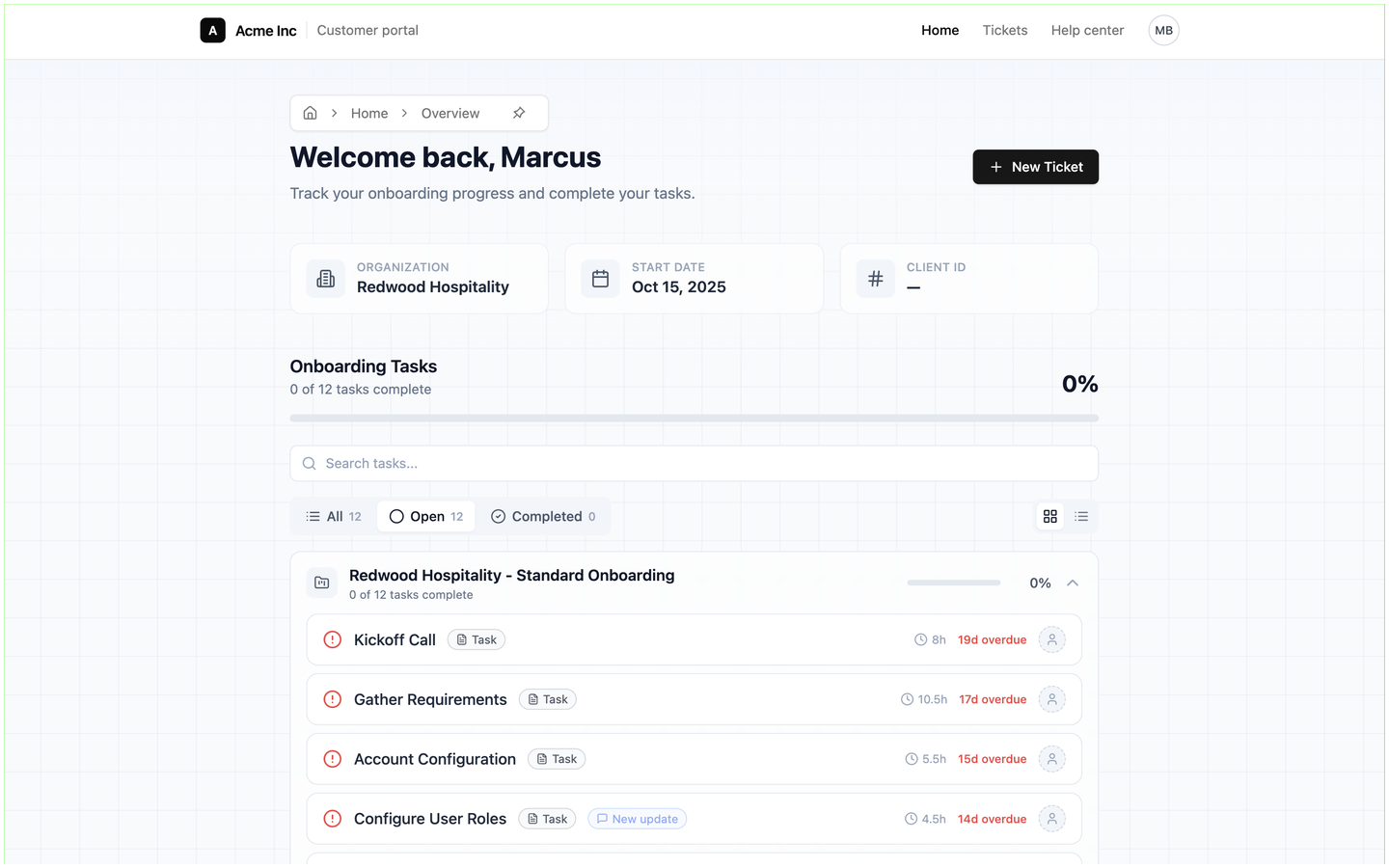 Home, and the task pages that open from it, use the portal's own header: your name with **Customer portal** beside it, then **Home**, **Tickets**, **Help center** and the customer's avatar. The page greets the customer by first name (*Welcome back, Marcus*) under the line **Track your onboarding progress and complete your tasks.**, with a **New Ticket** button on the right.
- Three cards show the **Organization** (the customer record the user is linked to), the **Start date** and the **Client ID** from that record.
- **Onboarding Tasks** adds up every task you have published to this customer, from every board that belongs to the customer record: *0 of 12 tasks complete* and a percentage bar.
- **Search tasks...** finds a task by name. The **All**, **Open** and **Completed** pills filter by portal status and show a count each. The two buttons on the right switch between tasks grouped by project, where each board is a collapsible card with its own progress bar, and one flat list.
- Each task row shows a status icon (a red alert for an overdue task, a green tick for a completed one), the task name, a type chip, the time estimate such as *8h*, and the due date: *19d overdue*, *Today*, or the date of an upcoming task. A **New update** chip marks a task that is *In Progress*. The avatar at the end of the row is an **Assign member** picker, which lets the customer hand the task to another portal user from their company.
With nothing published yet, the page reads **No tasks yet**; filters that match nothing read **No tasks match your filters**.
## How the customer completes a task
The chip on each row comes from the task's type on the board, and the type decides whether the row opens anything:
| Type on the board | In the portal |
|---|---|
| **Acknowledge** | Chip **Acknowledgement**. Opens a page headed with the task name and **Please Read and Confirm the Following:** above the task description, with an **Acknowledge & Complete Task** button. |
| **Form** | Chip **Form**. Opens the form you attached to the task; the customer's answers stay with the task, where your team can view them from the board. |
| **Upload** | Chip **Upload**. Opens a page where the customer uploads the files you asked for and then marks the task complete. |
| **Information**, **Download**, **Link** | Chip **Task**. The row is read-only: it informs the customer but there is nothing to open or tick off. |
Home, and the task pages that open from it, use the portal's own header: your name with **Customer portal** beside it, then **Home**, **Tickets**, **Help center** and the customer's avatar. The page greets the customer by first name (*Welcome back, Marcus*) under the line **Track your onboarding progress and complete your tasks.**, with a **New Ticket** button on the right.
- Three cards show the **Organization** (the customer record the user is linked to), the **Start date** and the **Client ID** from that record.
- **Onboarding Tasks** adds up every task you have published to this customer, from every board that belongs to the customer record: *0 of 12 tasks complete* and a percentage bar.
- **Search tasks...** finds a task by name. The **All**, **Open** and **Completed** pills filter by portal status and show a count each. The two buttons on the right switch between tasks grouped by project, where each board is a collapsible card with its own progress bar, and one flat list.
- Each task row shows a status icon (a red alert for an overdue task, a green tick for a completed one), the task name, a type chip, the time estimate such as *8h*, and the due date: *19d overdue*, *Today*, or the date of an upcoming task. A **New update** chip marks a task that is *In Progress*. The avatar at the end of the row is an **Assign member** picker, which lets the customer hand the task to another portal user from their company.
With nothing published yet, the page reads **No tasks yet**; filters that match nothing read **No tasks match your filters**.
## How the customer completes a task
The chip on each row comes from the task's type on the board, and the type decides whether the row opens anything:
| Type on the board | In the portal |
|---|---|
| **Acknowledge** | Chip **Acknowledgement**. Opens a page headed with the task name and **Please Read and Confirm the Following:** above the task description, with an **Acknowledge & Complete Task** button. |
| **Form** | Chip **Form**. Opens the form you attached to the task; the customer's answers stay with the task, where your team can view them from the board. |
| **Upload** | Chip **Upload**. Opens a page where the customer uploads the files you asked for and then marks the task complete. |
| **Information**, **Download**, **Link** | Chip **Task**. The row is read-only: it informs the customer but there is nothing to open or tick off. |
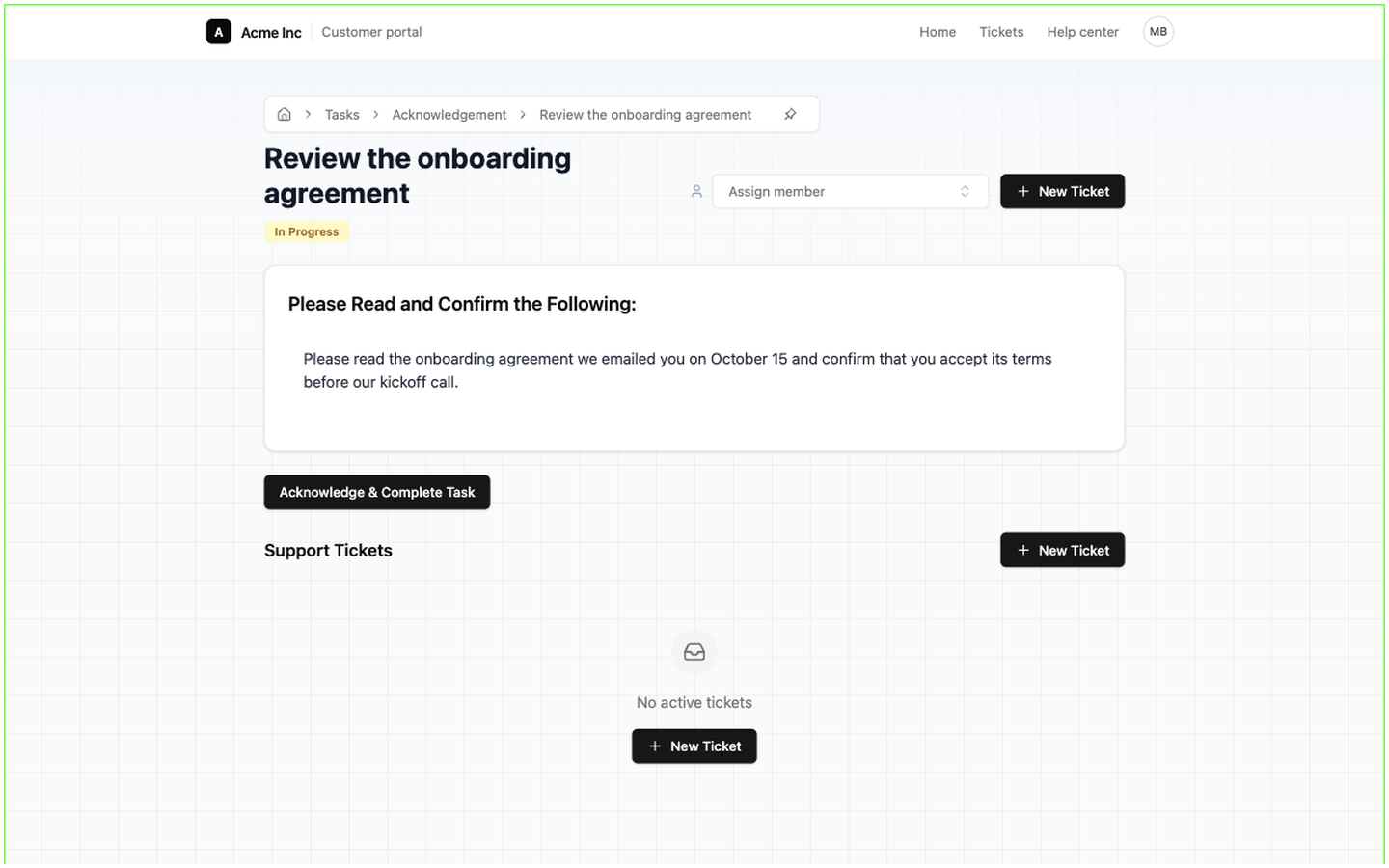 A task page has a breadcrumb (**Home › Tasks › Acknowledgement › the task name**), the task's portal status badge, the **Assign member** picker, a **New Ticket** button and, under the task, a **Support Tickets** shortcut. Opening a task moves its portal status from *Not Started* to *In Progress*, and completing it sets *Complete*. Both are visible to you on the board, and while a task is *In Progress* its row on Home carries the **New update** chip.
## What you publish from a board
Nothing reaches the portal until you publish it.
A task page has a breadcrumb (**Home › Tasks › Acknowledgement › the task name**), the task's portal status badge, the **Assign member** picker, a **New Ticket** button and, under the task, a **Support Tickets** shortcut. Opening a task moves its portal status from *Not Started* to *In Progress*, and completing it sets *Complete*. Both are visible to you on the board, and while a task is *In Progress* its row on Home carries the **New update** chip.
## What you publish from a board
Nothing reaches the portal until you publish it.
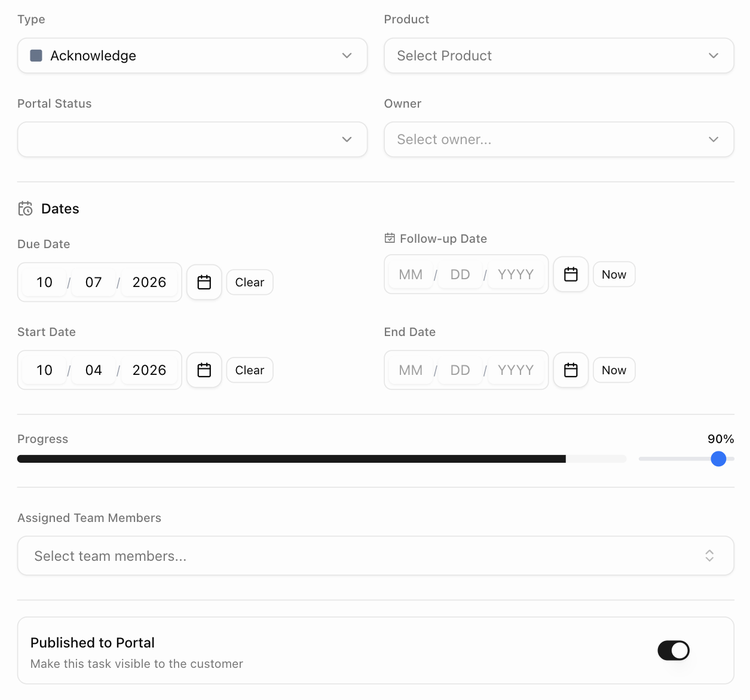 - Open the task and switch on **Published to Portal** (*Make this task visible to the customer*). The task table has a **Published** column for the same switch, and publishing a parent task publishes its subtasks.
- **Portal Status** (*Not Started*, *In Progress*, *Complete*) is the customer's progress on the task. You can set it by hand if the customer completed the step some other way.
- **Portal Assignee** names the customer contact responsible for the task.
- Automations can react to the portal: the trigger **The customer completes an item in the portal** fires when the customer ticks a task off, the action **Publish to the portal** shows or hides items, and the email action can include an **Open the portal** link.
The Boards guides cover task types, the board page and automations in detail.
Next: [Branding, addresses and brands](./customer-portal-branding-and-domains).
- Open the task and switch on **Published to Portal** (*Make this task visible to the customer*). The task table has a **Published** column for the same switch, and publishing a parent task publishes its subtasks.
- **Portal Status** (*Not Started*, *In Progress*, *Complete*) is the customer's progress on the task. You can set it by hand if the customer completed the step some other way.
- **Portal Assignee** names the customer contact responsible for the task.
- Automations can react to the portal: the trigger **The customer completes an item in the portal** fires when the customer ticks a task off, the action **Publish to the portal** shows or hides items, and the email action can include an **Open the portal** link.
The Boards guides cover task types, the board page and automations in detail.
Next: [Branding, addresses and brands](./customer-portal-branding-and-domains).