# Portal tickets in your inbox
> Source: https://support.usebluehill.com/customer-portal-portal-tickets-for-agents | Updated: 2026-10-27T13:54:45Z
## How to spot a portal ticket
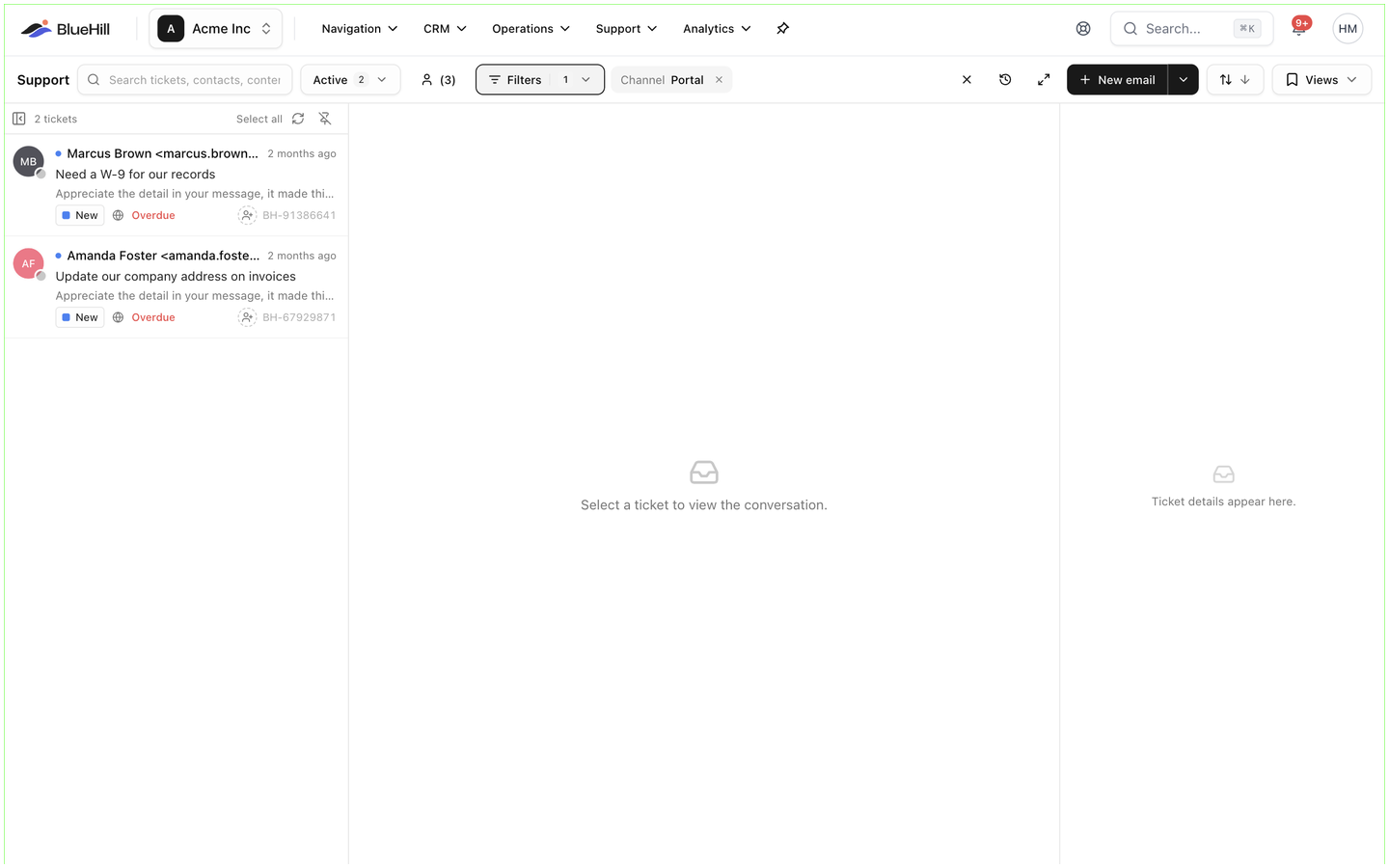 - The ticket's **Channel** is *Portal*. The line under the subject reads **Portal · opened** and the date, with a globe icon, and the **Channel** field under **Conversation details** in the rail says *Portal*. In the list, a globe marks each portal ticket; the table layout shows a **Portal** badge next to the subject.
- The inbox **Filters** panel can limit the list to **Channel: Portal**, and Support analytics breaks ticket volume down by channel.
- Tickets from the help center's **Contact support** form carry the same channel. Portal tickets are those where the requester is a portal user.
- The ticket's **Channel** is *Portal*. The line under the subject reads **Portal · opened** and the date, with a globe icon, and the **Channel** field under **Conversation details** in the rail says *Portal*. In the list, a globe marks each portal ticket; the table layout shows a **Portal** badge next to the subject.
- The inbox **Filters** panel can limit the list to **Channel: Portal**, and Support analytics breaks ticket volume down by channel.
- Tickets from the help center's **Contact support** form carry the same channel. Portal tickets are those where the requester is a portal user.
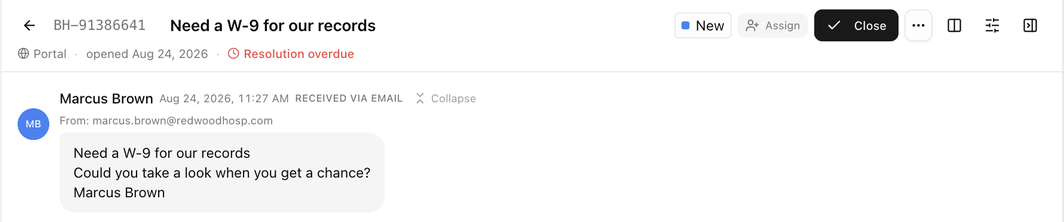 The **Requester** is the portal user's email address and name. For a user linked to a customer, the ticket is attached to that customer as soon as it is created; otherwise BlueHill matches the customer by email, as it does for incoming mail.
## Who is told about it
- When a portal ticket arrives, the agent it was assigned to by your routing rules or round-robin receives an email. If no rule assigns it, nobody is emailed; the ticket simply appears in the inbox. Use **Support settings → Routing** if you want portal tickets to land with someone straight away.
- When the customer replies in the portal, the assignee is notified, and so is anyone watching the ticket. If the reply reopened the ticket, the notification says so.
- The customer receives your brand's automatic reply when the ticket is created, if **Auto-reply** is on for the brand, and an email for every reply you send.
## What the customer sees of your work
| In your inbox | In the portal |
|---|---|
| A **reply** | Shown as a bubble with your name, and emailed. |
| An **internal note** | Never shown. |
| Status, assignment and other activity | Never shown. The customer sees only the status badge: **Open**, **Pending**, **Solved** or **Closed**, whatever your custom status is called. |
| Priority, tags, custom fields | Never shown. |
| Attachments on your reply | Images appear inline; other files are listed by name. |
Your email address is never displayed in the portal, only your name.
## Status changes from the portal
A customer reply in the portal reopens a solved or closed ticket and moves a pending ticket back to *Open*, exactly as an email reply does. The Support guides explain the setting that limits this to solved and closed tickets.
Customers cannot close, solve or reopen a ticket themselves. Solve the ticket from the inbox when the work is done; it moves to the customer's **Solved** tab.
## Merging, deleting and spam
- When you merge a portal ticket into another, the customer sees only the ticket you kept. Replies to the old one land on the kept ticket.
- A deleted ticket disappears from the portal. It is restored if the customer replies to it by email.
- Inbound email filters, spam rules and drop rules never touch portal tickets.
Next: [FAQ and troubleshooting](./customer-portal-faq-and-troubleshooting).
The **Requester** is the portal user's email address and name. For a user linked to a customer, the ticket is attached to that customer as soon as it is created; otherwise BlueHill matches the customer by email, as it does for incoming mail.
## Who is told about it
- When a portal ticket arrives, the agent it was assigned to by your routing rules or round-robin receives an email. If no rule assigns it, nobody is emailed; the ticket simply appears in the inbox. Use **Support settings → Routing** if you want portal tickets to land with someone straight away.
- When the customer replies in the portal, the assignee is notified, and so is anyone watching the ticket. If the reply reopened the ticket, the notification says so.
- The customer receives your brand's automatic reply when the ticket is created, if **Auto-reply** is on for the brand, and an email for every reply you send.
## What the customer sees of your work
| In your inbox | In the portal |
|---|---|
| A **reply** | Shown as a bubble with your name, and emailed. |
| An **internal note** | Never shown. |
| Status, assignment and other activity | Never shown. The customer sees only the status badge: **Open**, **Pending**, **Solved** or **Closed**, whatever your custom status is called. |
| Priority, tags, custom fields | Never shown. |
| Attachments on your reply | Images appear inline; other files are listed by name. |
Your email address is never displayed in the portal, only your name.
## Status changes from the portal
A customer reply in the portal reopens a solved or closed ticket and moves a pending ticket back to *Open*, exactly as an email reply does. The Support guides explain the setting that limits this to solved and closed tickets.
Customers cannot close, solve or reopen a ticket themselves. Solve the ticket from the inbox when the work is done; it moves to the customer's **Solved** tab.
## Merging, deleting and spam
- When you merge a portal ticket into another, the customer sees only the ticket you kept. Replies to the old one land on the kept ticket.
- A deleted ticket disappears from the portal. It is restored if the customer replies to it by email.
- Inbound email filters, spam rules and drop rules never touch portal tickets.
Next: [FAQ and troubleshooting](./customer-portal-faq-and-troubleshooting).