# The Portal users page
> Source: https://support.usebluehill.com/customer-portal-portal-users-page | Updated: 2026-10-27T13:54:45Z
## Open the page
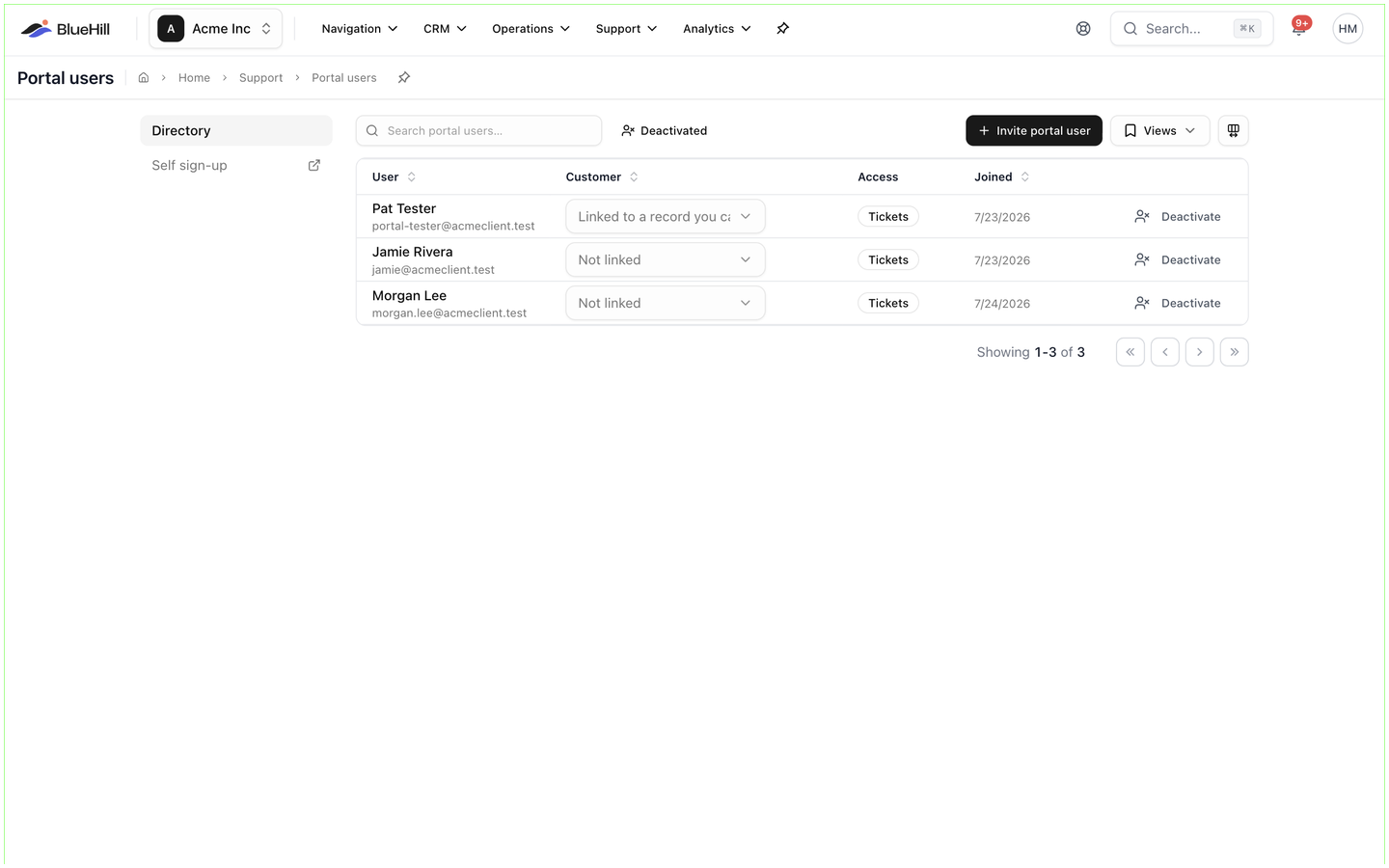
Open **Support → Portal users**. The page is headed **Portal users**, with a **Directory** entry on the left and a **Self sign-up** link that jumps to the help center settings, because sign-up rules are set per help center rather than here.
 ## The toolbar
| Control | What it does |
|---|---|
| **Search portal users…** | Filters the list by name or email as you type. |
| **Deactivated** | Includes accounts that have been switched off. They are hidden by default. |
| **Invite portal user** | Opens the invitation dialog. See [Invite customers to the portal](./customer-portal-invite-portal-users). |
| **Views** | Saves the current search and columns under a name so you can reapply them later. |
| **Columns** | Shows, hides and reorders columns. |
## Pending invites
When invitations are outstanding, a **Pending invites** box sits above the table. Each row shows the invited email address and the customer it will be linked to, with **Resend** and **Revoke** buttons. An accepted invitation disappears from this box and the person appears in the table.
## The table
| Column | Shows |
|---|---|
| **User** | The person's name and email address. A **Deactivated** badge marks accounts that have been switched off. |
| **Customer** | The customer record the user is linked to, or **Not linked**. Click it to change the link. If the linked record has been deleted or is outside your view, the cell reads **Linked to a record you can't view**. |
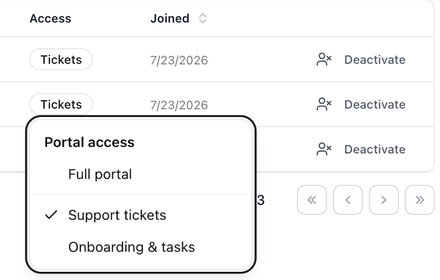
| **Access** | **Full portal**, **Tickets**, **Onboarding** or **No access**. Click the badge to change it. |
| **Joined** | The date the account was created. |
| **Actions** | **Deactivate**, or **Reactivate** for a deactivated account. |
## The toolbar
| Control | What it does |
|---|---|
| **Search portal users…** | Filters the list by name or email as you type. |
| **Deactivated** | Includes accounts that have been switched off. They are hidden by default. |
| **Invite portal user** | Opens the invitation dialog. See [Invite customers to the portal](./customer-portal-invite-portal-users). |
| **Views** | Saves the current search and columns under a name so you can reapply them later. |
| **Columns** | Shows, hides and reorders columns. |
## Pending invites
When invitations are outstanding, a **Pending invites** box sits above the table. Each row shows the invited email address and the customer it will be linked to, with **Resend** and **Revoke** buttons. An accepted invitation disappears from this box and the person appears in the table.
## The table
| Column | Shows |
|---|---|
| **User** | The person's name and email address. A **Deactivated** badge marks accounts that have been switched off. |
| **Customer** | The customer record the user is linked to, or **Not linked**. Click it to change the link. If the linked record has been deleted or is outside your view, the cell reads **Linked to a record you can't view**. |
| **Access** | **Full portal**, **Tickets**, **Onboarding** or **No access**. Click the badge to change it. |
| **Joined** | The date the account was created. |
| **Actions** | **Deactivate**, or **Reactivate** for a deactivated account. |
 The list is paged; the footer shows **Showing 1-3 of 3** style counts with first, previous, next and last page buttons.
## When the list is empty
A workspace with no portal users shows **No portal users yet**, with the hint to invite customers from this page or to turn on self sign-up so they can create their own accounts from your help center. A search with no match shows **No portal users match "…"**.
## The same information elsewhere
- **Customers → *a customer* → Support → Portal access** lists only that customer's portal users and invitations. See [Invite from the customer's Support tab](./customer-portal-invite-portal-users#invite-from-the-customer-s-support-tab).
- **Customers → *a customer* → Contacts** shows, in its **Portal** column, whether each contact has been invited or already has access.
- In the mobile app, **Settings → Portal users** shows the same directory with a **Show deactivated** switch and a **Pending invites** section.
Next: [Invite customers to the portal](./customer-portal-invite-portal-users).
The list is paged; the footer shows **Showing 1-3 of 3** style counts with first, previous, next and last page buttons.
## When the list is empty
A workspace with no portal users shows **No portal users yet**, with the hint to invite customers from this page or to turn on self sign-up so they can create their own accounts from your help center. A search with no match shows **No portal users match "…"**.
## The same information elsewhere
- **Customers → *a customer* → Support → Portal access** lists only that customer's portal users and invitations. See [Invite from the customer's Support tab](./customer-portal-invite-portal-users#invite-from-the-customer-s-support-tab).
- **Customers → *a customer* → Contacts** shows, in its **Portal** column, whether each contact has been invited or already has access.
- In the mobile app, **Settings → Portal users** shows the same directory with a **Show deactivated** switch and a **Pending invites** section.
Next: [Invite customers to the portal](./customer-portal-invite-portal-users).