# Let customers sign up themselves
> Source: https://support.usebluehill.com/customer-portal-self-sign-up | Updated: 2026-10-27T13:54:45Z
## Where the setting lives
Self sign-up is set per help center, so a brand with its own site can have its own rules.
1. Open **Support → Support settings → Help center**.
2. If you run several brands, pick the site with the pills at the top (**Default**, or a brand name).
3. Scroll to the **Self sign-up** card.
The **Self sign-up** link on the Portal users page brings you to the same place.
 ## Turn it on
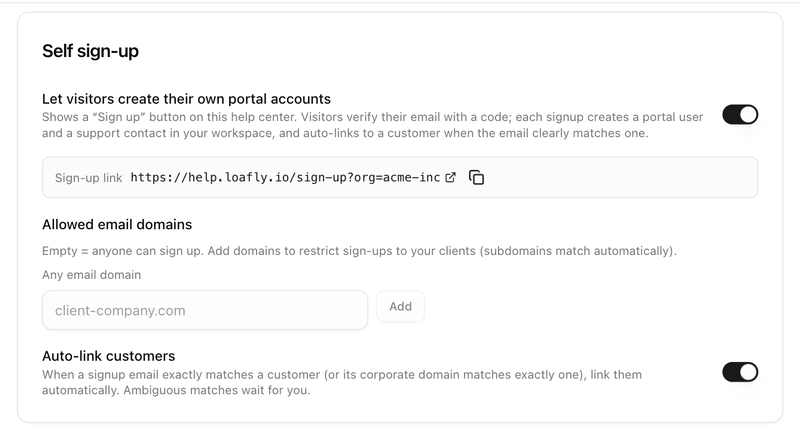
Switch on **Let visitors create their own portal accounts**. From then on:
- The help center header shows **Sign up** next to **Sign in**, and the sign-in page offers **New here? Create an account**.
- A **Sign-up link** row appears under the switch with a copy button. Paste the link into onboarding emails or your website.
- Each sign-up creates a portal user and a support contact in your workspace.
Switch it off again at any time; existing accounts keep working.
## Limit who can sign up
| Setting | What it does |
|---|---|
| **Allowed email domains** | Empty means anyone can sign up. Add a domain, for example *client-company.com*, and click **Add** to allow only addresses at that domain. Subdomains match automatically. Remove a domain by clicking the × on its chip. |
| **Auto-link customers** | When a new sign-up's email exactly matches a customer, or its company domain matches exactly one customer, the account is linked to that customer straight away. An ambiguous match is left **Not linked** for you to resolve on the Portal users page. |
The list of allowed domains is never shown to visitors. Someone from a domain you have not allowed sees the same **Check your email** screen as everyone else, and no code is sent.
## Choose what self sign-ups can open
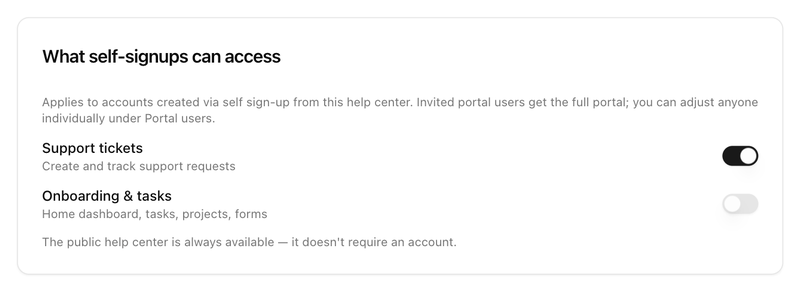
The **What self-signups can access** card applies only to accounts created through this help center's sign-up; invited users always start with the full portal.
- **Support tickets**: create and track support requests.
- **Onboarding & tasks**: the Home dashboard, tasks, projects and forms. This only has content once the account is linked to a customer.
## Turn it on
Switch on **Let visitors create their own portal accounts**. From then on:
- The help center header shows **Sign up** next to **Sign in**, and the sign-in page offers **New here? Create an account**.
- A **Sign-up link** row appears under the switch with a copy button. Paste the link into onboarding emails or your website.
- Each sign-up creates a portal user and a support contact in your workspace.
Switch it off again at any time; existing accounts keep working.
## Limit who can sign up
| Setting | What it does |
|---|---|
| **Allowed email domains** | Empty means anyone can sign up. Add a domain, for example *client-company.com*, and click **Add** to allow only addresses at that domain. Subdomains match automatically. Remove a domain by clicking the × on its chip. |
| **Auto-link customers** | When a new sign-up's email exactly matches a customer, or its company domain matches exactly one customer, the account is linked to that customer straight away. An ambiguous match is left **Not linked** for you to resolve on the Portal users page. |
The list of allowed domains is never shown to visitors. Someone from a domain you have not allowed sees the same **Check your email** screen as everyone else, and no code is sent.
## Choose what self sign-ups can open
The **What self-signups can access** card applies only to accounts created through this help center's sign-up; invited users always start with the full portal.
- **Support tickets**: create and track support requests.
- **Onboarding & tasks**: the Home dashboard, tasks, projects and forms. This only has content once the account is linked to a customer.
 You can still change any individual account later under **Access** on the Portal users page. The public help center itself never needs an account.
## Brand sites follow the default site
A brand's help center shows a banner reading **Following the Default help center's sign-up settings** until you change something on it. After that it reads **This site has its own sign-up policy**, with a **Use default settings** button to go back to following the default site.
## What the visitor sees
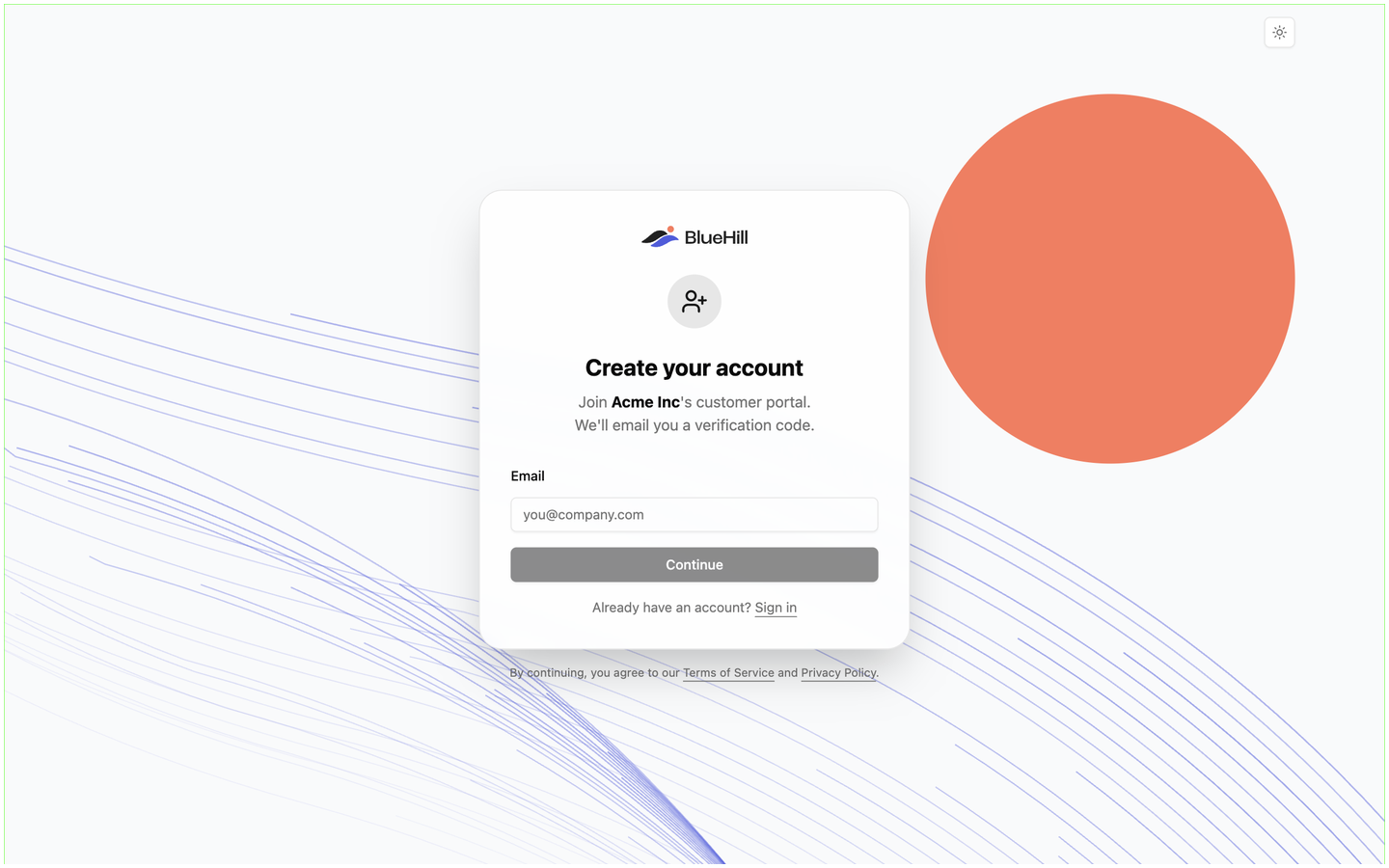
1. They click **Sign up** in the help center header (or open your sign-up link) and land on **Create your account**, which reads **Join *Your workspace*'s customer portal. We'll email you a verification code.**
2. They enter their **Email** and click **Continue**. The next screen, **Check your email**, says **If *their address* is eligible, a 6-digit code is on its way.**
3. They enter the code from the email, then fill in **First name** and **Last name** under **Complete your profile** and click **Create account**.
4. They return to your help center, signed in, with **Tickets** (and **Home**, if allowed and linked) in the header.
You can still change any individual account later under **Access** on the Portal users page. The public help center itself never needs an account.
## Brand sites follow the default site
A brand's help center shows a banner reading **Following the Default help center's sign-up settings** until you change something on it. After that it reads **This site has its own sign-up policy**, with a **Use default settings** button to go back to following the default site.
## What the visitor sees
1. They click **Sign up** in the help center header (or open your sign-up link) and land on **Create your account**, which reads **Join *Your workspace*'s customer portal. We'll email you a verification code.**
2. They enter their **Email** and click **Continue**. The next screen, **Check your email**, says **If *their address* is eligible, a 6-digit code is on its way.**
3. They enter the code from the email, then fill in **First name** and **Last name** under **Complete your profile** and click **Create account**.
4. They return to your help center, signed in, with **Tickets** (and **Home**, if allowed and linked) in the header.
 When sign-up is off, the same page reads **Sign-up isn't available** and asks the visitor to request an invitation instead. A member of your own team who tries to sign up is told to sign in to the main app, and a deactivated portal user is told that their access was deactivated.
Next: [How customers sign in and manage their profile](./customer-portal-sign-in-and-profile).
When sign-up is off, the same page reads **Sign-up isn't available** and asks the visitor to request an invitation instead. A member of your own team who tries to sign up is told to sign in to the main app, and a deactivated portal user is told that their access was deactivated.
Next: [How customers sign in and manage their profile](./customer-portal-sign-in-and-profile).