# How customers sign in and manage their profile
> Source: https://support.usebluehill.com/customer-portal-sign-in-and-profile | Updated: 2026-10-27T13:54:45Z
## Sign in with a code
Portal sign-in is passwordless. Each time a customer signs in, BlueHill emails them a six-digit code and a magic link.
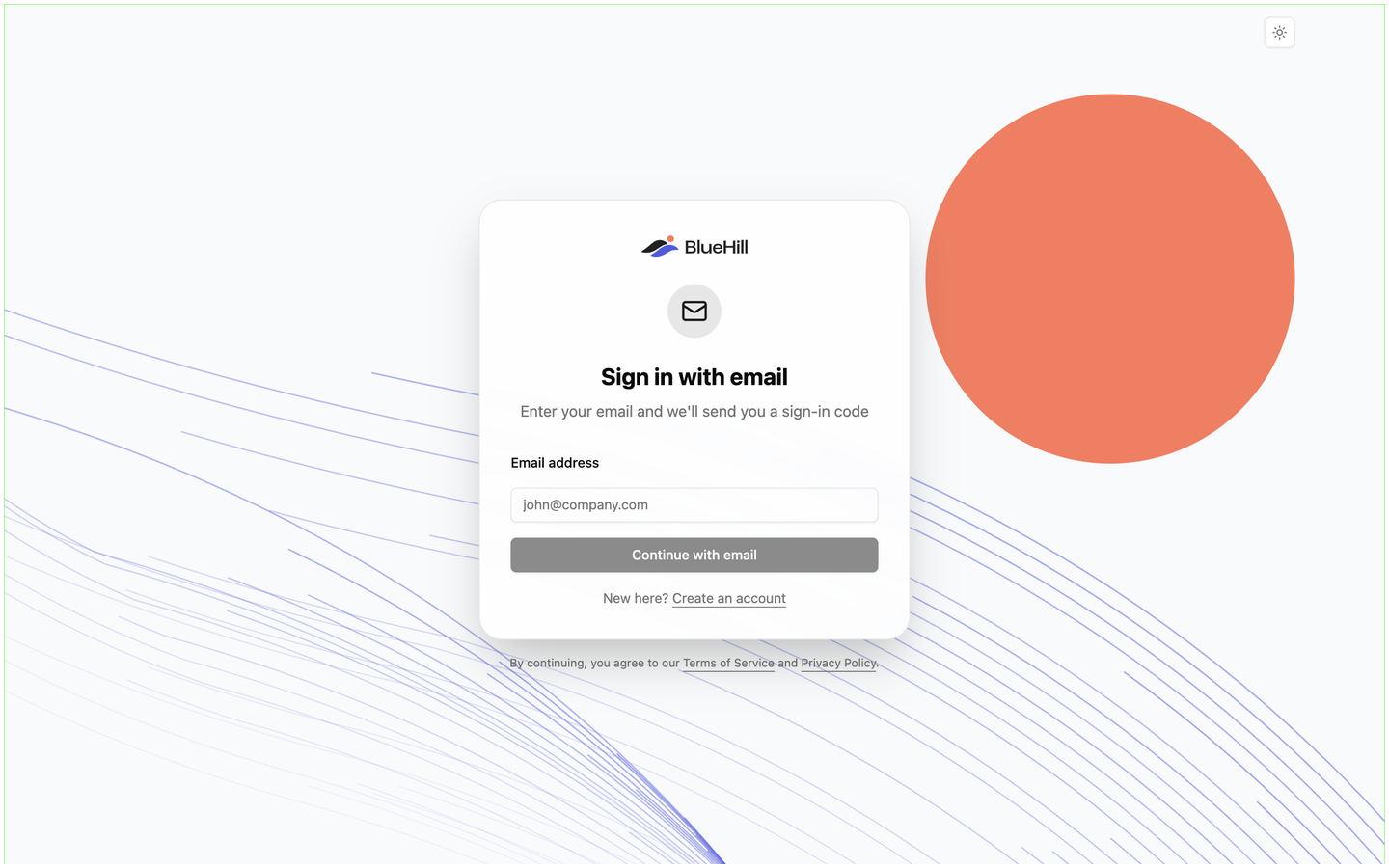
1. The customer clicks **Sign in** in the help center header, or follows a ticket link from an email. The sign-in page is headed **Sign in with email**.
2. They enter their **Email address** and click **Continue with email**.
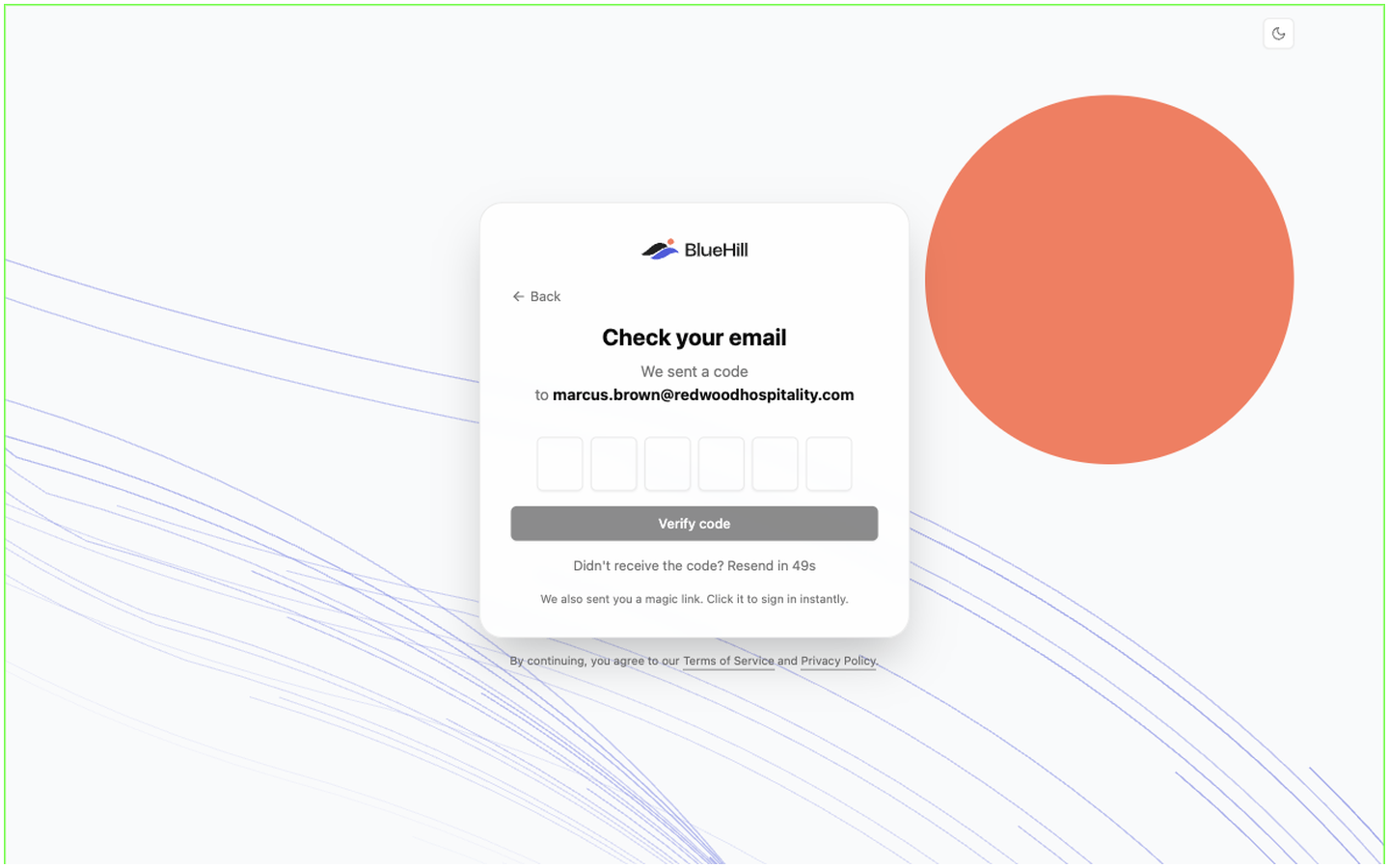
3. The page changes to **Check your email** (*We sent a code to …*) with six boxes for the code and a **Verify code** button. The email, from BlueHill, has the subject **Your sign in code for BlueHill** followed by the code. Typing or pasting the code and clicking **Verify code** signs them in; so does clicking the magic link in the same email. **Back** returns to the email step.
4. If their address belongs to more than one workspace, **Choose your workspace** asks which one to enter.
 Things worth knowing when a customer asks:
- The code and link work for 10 minutes. Requesting a new code cancels the old one.
- The page counts down (*Didn't receive the code? Resend in 58s*) and then offers **Resend code**, 60 seconds after the last email.
- Too many wrong codes in a row stop the sign-in; the customer requests a fresh code.
- A customer stays signed in for about a week on that browser before being asked for a new code.
- An address with no portal account is told to ask you for a sign-up link, or, when the help center allows self sign-up, is sent to create an account. A member of your own team is told to sign in to the main app instead.
The sign-in page always shows the BlueHill logo rather than your branding; your name, logo and colours appear as soon as the customer is in.
## After signing in
A customer linked to a customer record with onboarding access lands on **Home**; everyone else lands on **Support tickets**. On help center pages, including the tickets pages, the header gains **Tickets** (and **Home** when it applies) and an avatar with the customer's initials on the right. Home, task pages and My Profile use the portal's own header instead: your name with **Customer portal** beside it, then **Home**, **Tickets**, **Help center** and the same avatar.
Things worth knowing when a customer asks:
- The code and link work for 10 minutes. Requesting a new code cancels the old one.
- The page counts down (*Didn't receive the code? Resend in 58s*) and then offers **Resend code**, 60 seconds after the last email.
- Too many wrong codes in a row stop the sign-in; the customer requests a fresh code.
- A customer stays signed in for about a week on that browser before being asked for a new code.
- An address with no portal account is told to ask you for a sign-up link, or, when the help center allows self sign-up, is sent to create an account. A member of your own team is told to sign in to the main app instead.
The sign-in page always shows the BlueHill logo rather than your branding; your name, logo and colours appear as soon as the customer is in.
## After signing in
A customer linked to a customer record with onboarding access lands on **Home**; everyone else lands on **Support tickets**. On help center pages, including the tickets pages, the header gains **Tickets** (and **Home** when it applies) and an avatar with the customer's initials on the right. Home, task pages and My Profile use the portal's own header instead: your name with **Customer portal** beside it, then **Home**, **Tickets**, **Help center** and the same avatar.
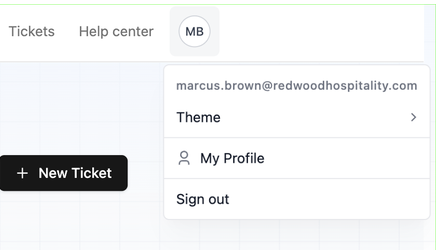 The avatar opens the user menu:
| Item | What it does |
|---|---|
| The email address | Shows which account is signed in. |
| **Theme** | **Light**, **Dark** or **System**. By default the portal follows the device setting. |
| **My Profile** | Opens the profile page below. |
| **Sign out** | Signs out and returns to the help center. |
## The My Profile page
**My Profile** is headed **Manage your personal information and account settings.**
The avatar opens the user menu:
| Item | What it does |
|---|---|
| The email address | Shows which account is signed in. |
| **Theme** | **Light**, **Dark** or **System**. By default the portal follows the device setting. |
| **My Profile** | Opens the profile page below. |
| **Sign out** | Signs out and returns to the help center. |
## The My Profile page
**My Profile** is headed **Manage your personal information and account settings.**
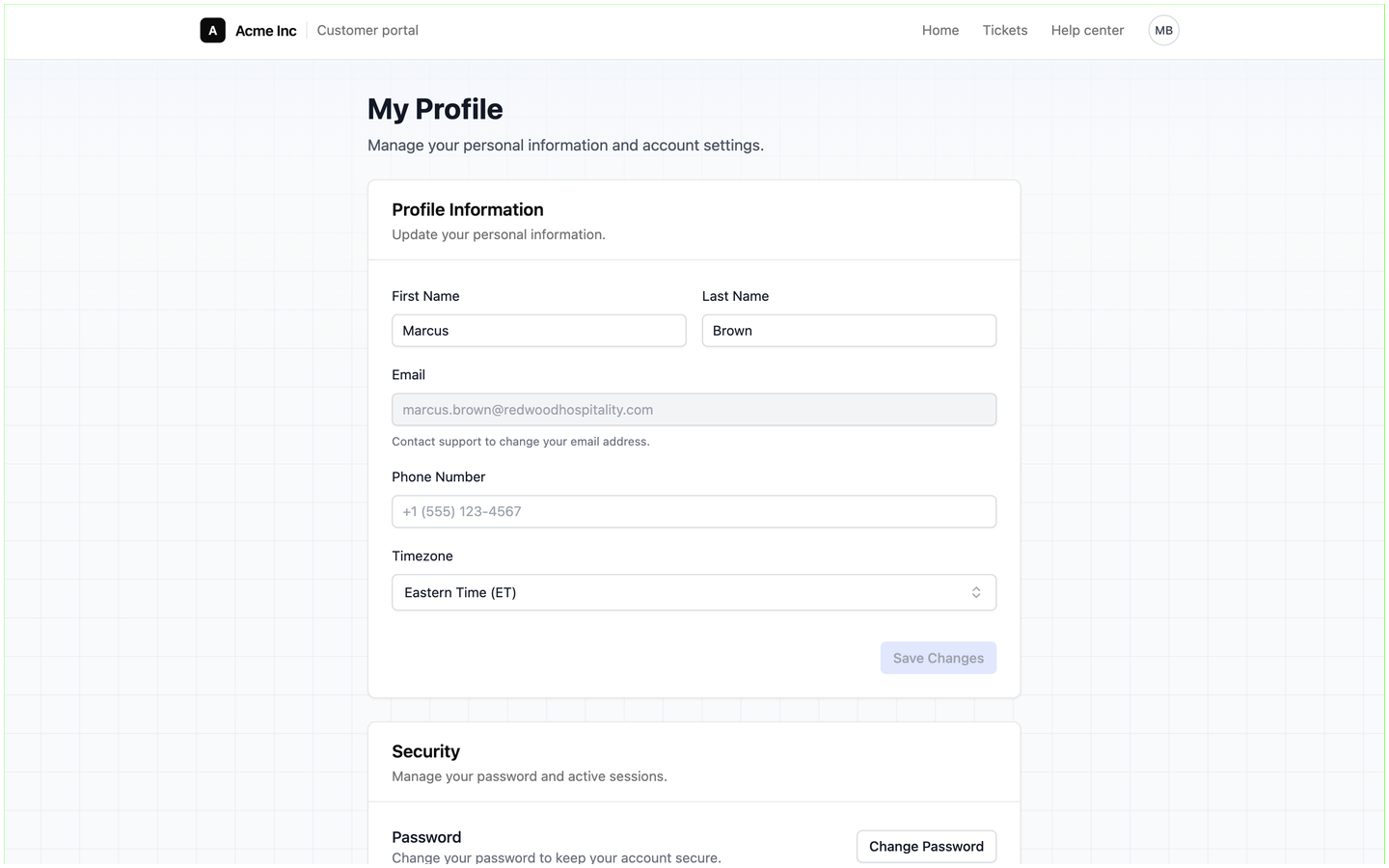 - **Profile Information**: **First Name**, **Last Name**, **Phone Number** and **Timezone**, saved with **Save Changes**. The **Email** field is read-only and tells the customer to contact support to change it; see [When a contact's email changes](./customer-portal-manage-portal-users#when-a-contact-s-email-changes).
- **Security**: a **Change Password** button and an **Active Sessions** list showing each signed-in device and when it was last active, the current one marked **Current**, with **Revoke** on the others and **Sign Out All** when there is more than one. Sign-in works with the emailed code whether or not a password has been set.
Changes a customer makes to their name or phone number here update their portal account; they do not change the contact record in your Customers module.
Next: [Tickets in the portal](./customer-portal-tickets-in-the-portal).
- **Profile Information**: **First Name**, **Last Name**, **Phone Number** and **Timezone**, saved with **Save Changes**. The **Email** field is read-only and tells the customer to contact support to change it; see [When a contact's email changes](./customer-portal-manage-portal-users#when-a-contact-s-email-changes).
- **Security**: a **Change Password** button and an **Active Sessions** list showing each signed-in device and when it was last active, the current one marked **Current**, with **Revoke** on the others and **Sign Out All** when there is more than one. Sign-in works with the emailed code whether or not a password has been set.
Changes a customer makes to their name or phone number here update their portal account; they do not change the contact record in your Customers module.
Next: [Tickets in the portal](./customer-portal-tickets-in-the-portal).