# Tickets in the portal
> Source: https://support.usebluehill.com/customer-portal-tickets-in-the-portal | Updated: 2026-10-27T13:54:45Z
## The Support tickets page
**Tickets** in the help center header opens the page headed **Support tickets**, with the line **Track your requests and start new ones — we reply within one business day.**
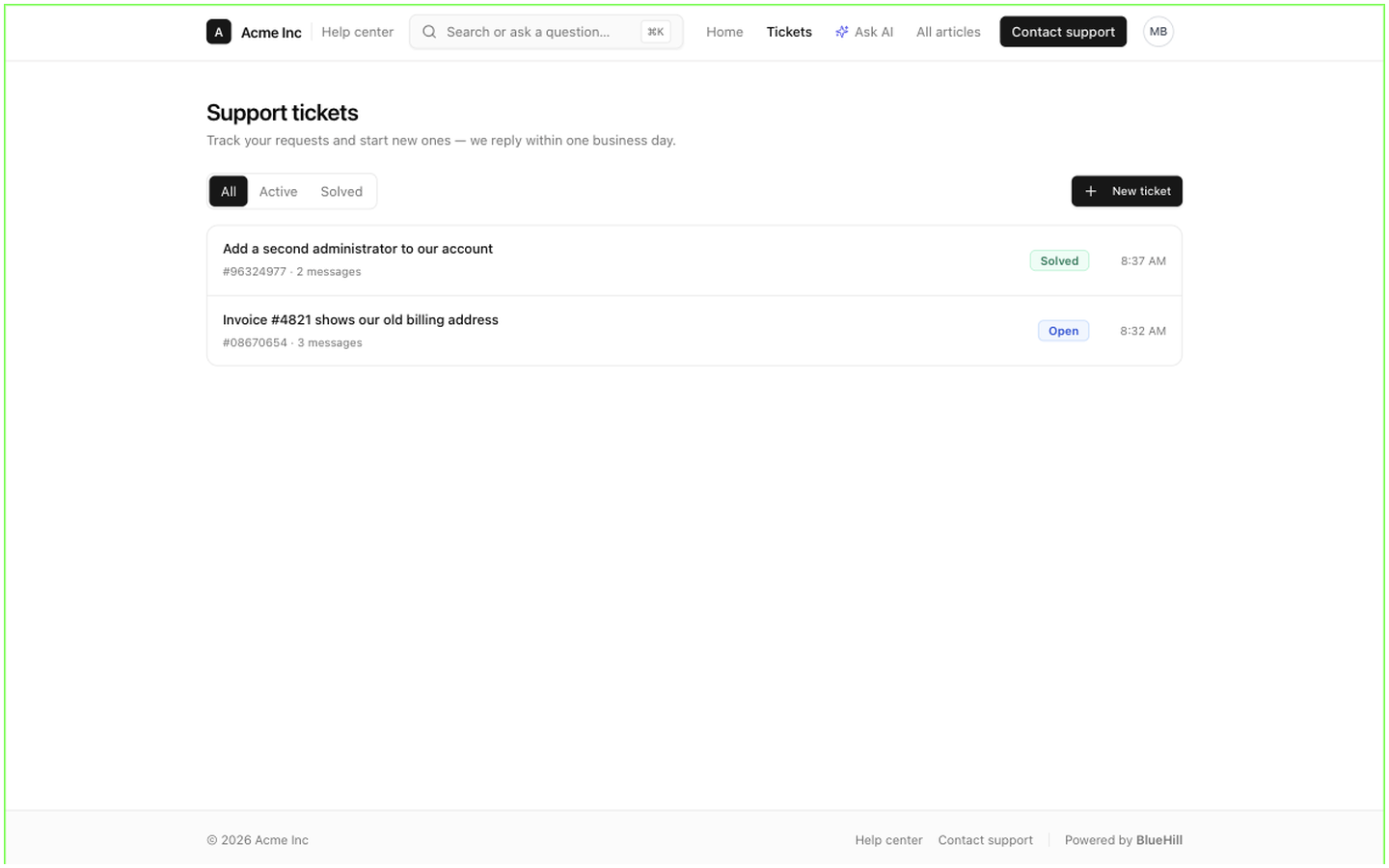 - Three tabs split the list: **All**, **Active** (open and pending tickets) and **Solved**. Closed tickets appear only under **All**.
- Each row shows the subject, the ticket's reference number with the number of messages (for example **#54351077 · 3 messages**), a status badge and when it was last updated. The newest activity is at the top.
- The badge is one of **Open**, **Pending**, **Solved** or **Closed**. Customers never see your custom status names, priorities or assignees.
- A customer who is not linked to a customer record sees the note **Showing requests you've submitted.** above the list. See [Link a portal user to a customer](./customer-portal-manage-portal-users#link-a-portal-user-to-a-customer).
A customer with no tickets sees **No tickets yet** and the invitation **Need a hand? Open a ticket and our team will get back to you.** If their account has no ticket access, the page reads **Ticketing isn't enabled for your account** instead.
## Open a new ticket
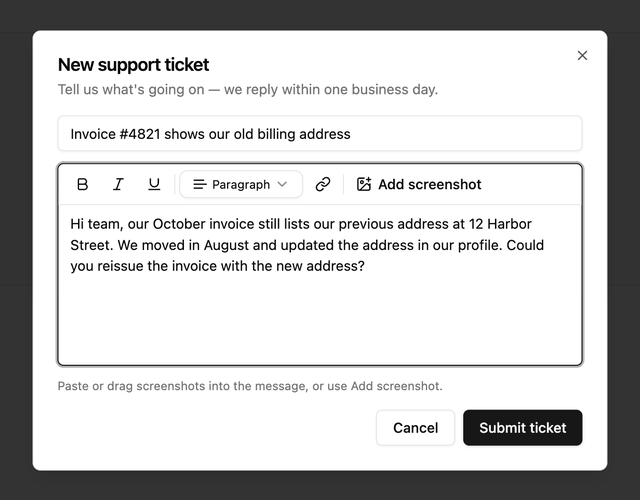
1. Click **New ticket**. The dialog **New support ticket** opens, headed **Tell us what's going on — we reply within one business day.**
2. Enter a **Subject**.
3. Describe the problem in the message box, which opens with the hint *Describe the issue — include dates, error messages, or invoice numbers if you have them.* The toolbar offers bold, italic, underline, a **Paragraph** style menu and links. **Add screenshot** attaches images; they can also be pasted or dragged in.
4. Click **Submit ticket**. The button stays grey until both a subject and a message exist.
- Three tabs split the list: **All**, **Active** (open and pending tickets) and **Solved**. Closed tickets appear only under **All**.
- Each row shows the subject, the ticket's reference number with the number of messages (for example **#54351077 · 3 messages**), a status badge and when it was last updated. The newest activity is at the top.
- The badge is one of **Open**, **Pending**, **Solved** or **Closed**. Customers never see your custom status names, priorities or assignees.
- A customer who is not linked to a customer record sees the note **Showing requests you've submitted.** above the list. See [Link a portal user to a customer](./customer-portal-manage-portal-users#link-a-portal-user-to-a-customer).
A customer with no tickets sees **No tickets yet** and the invitation **Need a hand? Open a ticket and our team will get back to you.** If their account has no ticket access, the page reads **Ticketing isn't enabled for your account** instead.
## Open a new ticket
1. Click **New ticket**. The dialog **New support ticket** opens, headed **Tell us what's going on — we reply within one business day.**
2. Enter a **Subject**.
3. Describe the problem in the message box, which opens with the hint *Describe the issue — include dates, error messages, or invoice numbers if you have them.* The toolbar offers bold, italic, underline, a **Paragraph** style menu and links. **Add screenshot** attaches images; they can also be pasted or dragged in.
4. Click **Submit ticket**. The button stays grey until both a subject and a message exist.
 Screenshots must be PNG, JPG, GIF or WebP, up to six per message and 12 MB in total. Other kinds of file cannot be attached in the portal; customers can email them to you instead, and the email joins the ticket.
After submitting, the customer lands on the new ticket's page. The ticket appears in your inbox with the channel *Portal*, and the customer receives your brand's automatic reply if you have one switched on. That automatic reply also shows in the conversation, as the first message from your side, under your brand's name.
## Read a ticket
Screenshots must be PNG, JPG, GIF or WebP, up to six per message and 12 MB in total. Other kinds of file cannot be attached in the portal; customers can email them to you instead, and the email joins the ticket.
After submitting, the customer lands on the new ticket's page. The ticket appears in your inbox with the channel *Portal*, and the customer receives your brand's automatic reply if you have one switched on. That automatic reply also shows in the conversation, as the first message from your side, under your brand's name.
## Read a ticket
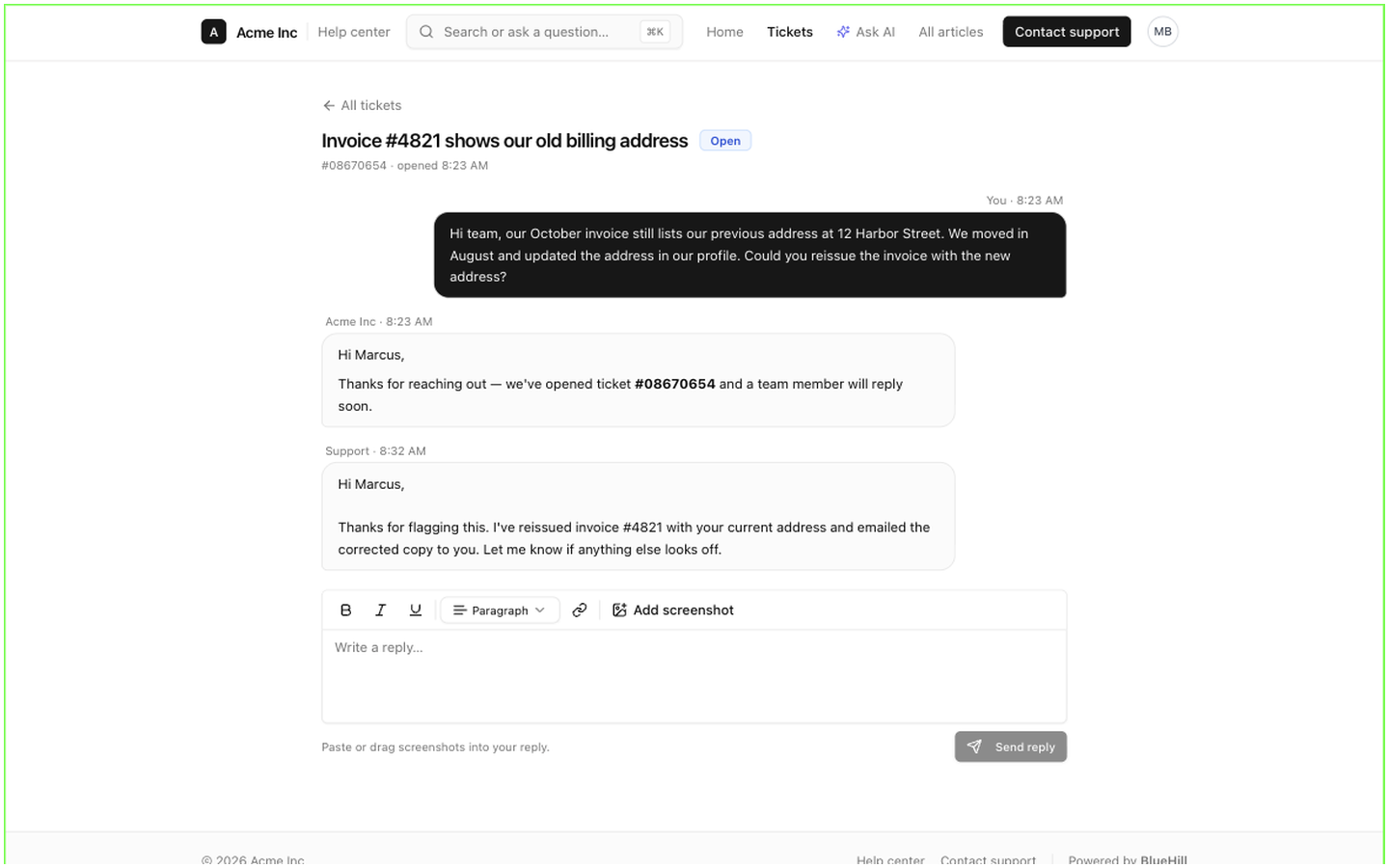 The ticket page shows an **All tickets** link back to the list, the subject with its status badge, **#reference · opened** and the time, and the conversation as chat bubbles:
- The customer's own messages sit on the right in your accent colour, labelled **You** and the time. The message they wrote when opening the ticket is the first bubble.
- Messages from your side sit on the left. Each carries the name it was sent under, usually **Support**, and the time; automatic replies carry your brand's name. The agent's email address is never shown.
- Images sent inline appear inside the bubbles. Files your team attached are listed by name under the message.
Internal notes, status changes, assignments and anything else from the ticket's activity never reach the portal.
## Reply
The box at the bottom, **Write a reply…**, has the same toolbar and **Add screenshot** button as the new-ticket form, with the hint *Paste or drag screenshots into your reply.* **Send reply** adds the message to the conversation and notifies your team.
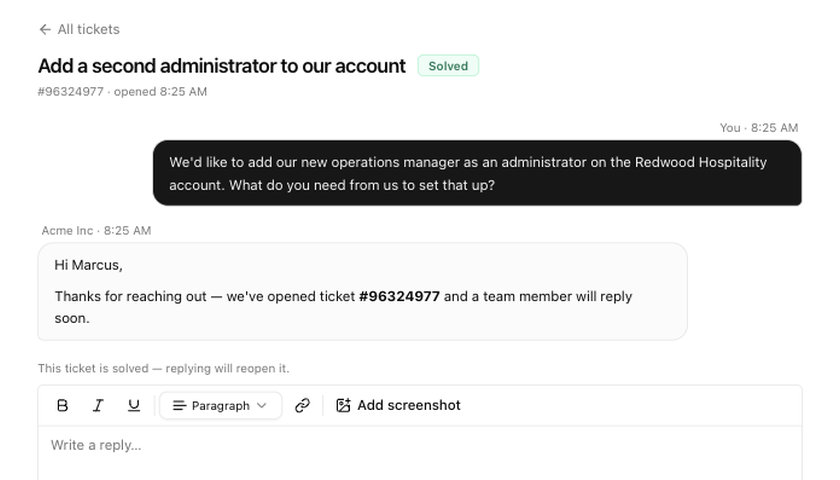
On a solved or closed ticket a notice reads **This ticket is solved — replying will reopen it.** (or *closed*). The customer can still reply; doing so moves the ticket back to open in your inbox.
The ticket page shows an **All tickets** link back to the list, the subject with its status badge, **#reference · opened** and the time, and the conversation as chat bubbles:
- The customer's own messages sit on the right in your accent colour, labelled **You** and the time. The message they wrote when opening the ticket is the first bubble.
- Messages from your side sit on the left. Each carries the name it was sent under, usually **Support**, and the time; automatic replies carry your brand's name. The agent's email address is never shown.
- Images sent inline appear inside the bubbles. Files your team attached are listed by name under the message.
Internal notes, status changes, assignments and anything else from the ticket's activity never reach the portal.
## Reply
The box at the bottom, **Write a reply…**, has the same toolbar and **Add screenshot** button as the new-ticket form, with the hint *Paste or drag screenshots into your reply.* **Send reply** adds the message to the conversation and notifies your team.
On a solved or closed ticket a notice reads **This ticket is solved — replying will reopen it.** (or *closed*). The customer can still reply; doing so moves the ticket back to open in your inbox.
 ## Tickets your team merged or deleted
- A ticket you merged into another disappears from the list. Opening an old link to it shows the ticket you kept.
- A ticket you deleted disappears from the portal. If the customer replies to it by email, it is restored.
## When something goes wrong
If the list cannot be loaded, the page says **Couldn't load your tickets** with the reason and a **Retry** button. A ticket that does not exist or is not theirs shows **Ticket not found** with a link back to the list.
Next: [Onboarding tasks in the portal](./customer-portal-onboarding-tasks-in-the-portal).
## Tickets your team merged or deleted
- A ticket you merged into another disappears from the list. Opening an old link to it shows the ticket you kept.
- A ticket you deleted disappears from the portal. If the customer replies to it by email, it is restored.
## When something goes wrong
If the list cannot be loaded, the page says **Couldn't load your tickets** with the reason and a **Retry** button. A ticket that does not exist or is not theirs shows **Ticket not found** with a link back to the list.
Next: [Onboarding tasks in the portal](./customer-portal-onboarding-tasks-in-the-portal).