# Activity, notes and follow-ups
> Source: https://support.usebluehill.com/customers-activity-and-follow-ups | Updated: 2026-10-26T21:09:20Z
## The Activity tab
Open a customer and choose **Activity**. The tab has three parts:
- The **composer** at the top, where you log a note, call, email or meeting.
- The **feed** below it: everything that has happened with the customer, newest first, grouped by day.
- The **rail** on the right with **Follow-ups**, **Email logging** and **Pinned context** cards.
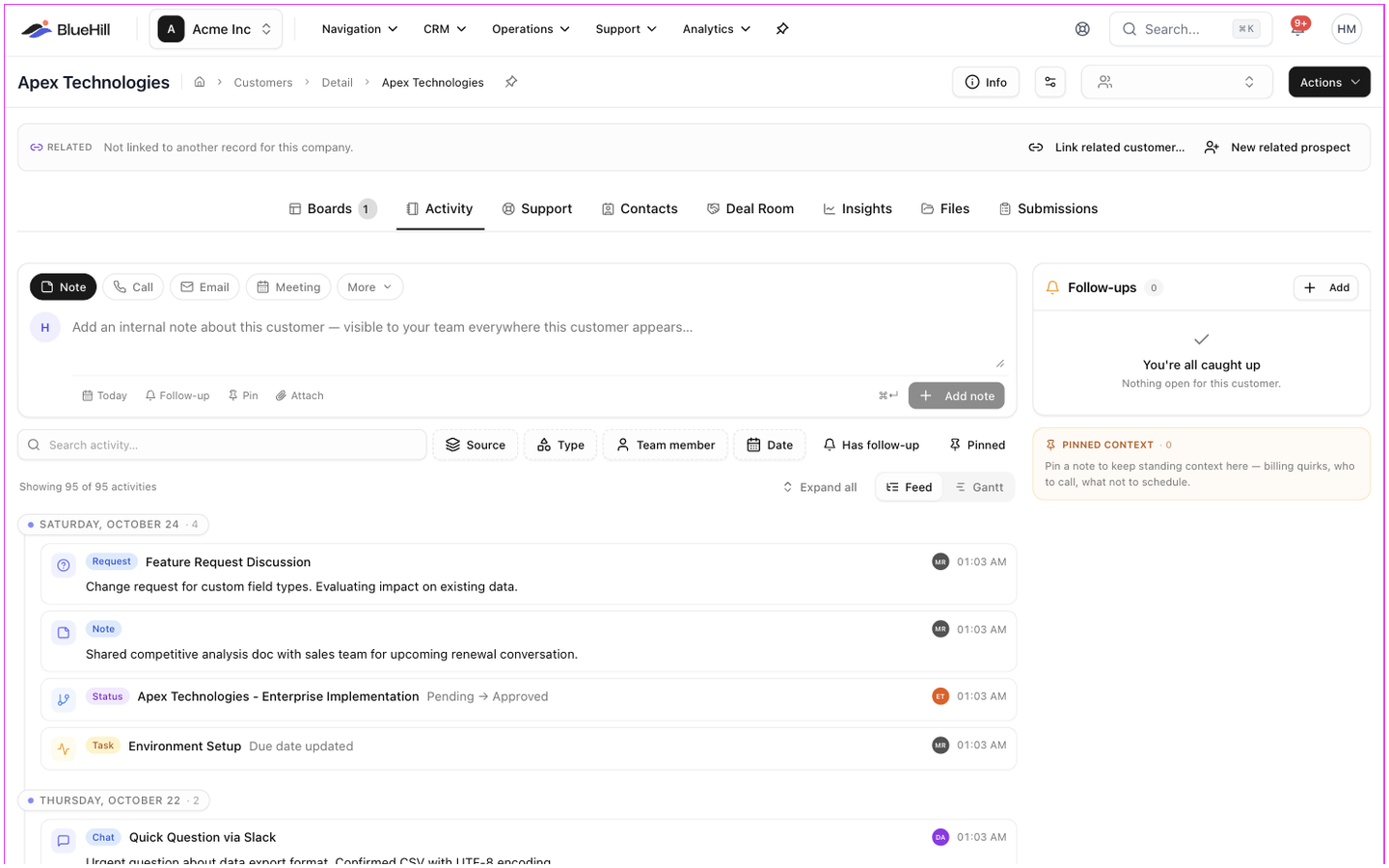 A **Feed** / **Gantt** switch at the top swaps the feed for a timeline of the customer's boards. BlueHill remembers which you used last.
## Log a note, call, email or meeting
1. Pick the type: **Note**, **Call**, **Email** or **Meeting**. **More** lists further types such as *Training / Demo*, *Check-In*, *Customer Request*, *Issue / Escalation* and *Team Handoff*.
2. For anything but a note, give it a short **title**.
3. Write what happened. Notes are internal and show everywhere the customer appears; they are never visible to the customer.
4. Use the chips under the text:
- **Today** sets when it happened, if it was not today.
- **Follow-up** attaches a reminder. See [Follow-ups](#follow-ups).
- **Pin** keeps the entry in the **Pinned context** card.
- **Attach** adds up to 5 files.
5. Click **Add note** or **Log call** (or press **⌘↵**). A toast confirms **Note added** or **Call logged**.
Anything you have typed but not logged is kept as a draft, even if you leave the page.
## Read the feed
Each entry shows a badge for what it is (**Note**, **Call**, **Meeting**, **Status** for a board status change, **Task** for a task change, **Portal** for something the customer did in the portal, **Email · in** or **Email · out**), its title, who logged it and when, and a follow-up chip if one is attached. Click an entry to expand it; **Expand all** / **Collapse all** work on the whole feed.
Narrow the feed with the toolbar above it:
- **Search activity…** looks through titles and text.
- **Source** limits it to **Interactions**, **Emails · inbound**, **Emails · outbound**, **Status changes**, **Task activity** or **Portal activity**, each with a count.
- **Type** and **Team member** filter by activity type and author.
- **Date** offers **Last 7 days**, **Last 30 days** and **Last 90 days**.
- **Has follow-up** and **Pinned** keep only entries with a follow-up, or pinned ones.
The feed shows the newest 200 entries; filter to reach older ones.
## Edit or delete an entry
Hover an entry you logged to see its actions: **Set follow-up** (or **Reschedule**), **Pin** / **Unpin**, **Edit** and a bin icon. Deleting asks **Delete this activity?** and removes it, with any follow-up on it, everywhere the customer appears. Board status changes and other system entries cannot be edited.
## Logged email
When a support brand has **Email logging** switched on, email between that brand and the customer appears in the feed as threads marked **Email · in** or **Email · out**, with the subject, the number of messages and a link to the ticket.
- Expand a thread to read it. **Reply** sends a short reply from the ticket's mailbox without leaving the page; for formatting or attachments, use **Open in mailbox**.
- **Don't log** removes a thread from this customer's timeline. The email stays in its ticket.
- The **Email logging** card in the rail pauses logging for this one customer: existing threads are hidden and new mail is not shown, while the brand's setting stays on. The **Brand setting** link opens the setting in Support settings.
## Follow-ups
A follow-up is a dated reminder. It can sit on an activity, on a support ticket or on a contact, and all of them for a customer gather in the **Follow-ups** card on the right of the Activity tab, grouped into **Overdue**, **Due today** and **Upcoming**.
A **Feed** / **Gantt** switch at the top swaps the feed for a timeline of the customer's boards. BlueHill remembers which you used last.
## Log a note, call, email or meeting
1. Pick the type: **Note**, **Call**, **Email** or **Meeting**. **More** lists further types such as *Training / Demo*, *Check-In*, *Customer Request*, *Issue / Escalation* and *Team Handoff*.
2. For anything but a note, give it a short **title**.
3. Write what happened. Notes are internal and show everywhere the customer appears; they are never visible to the customer.
4. Use the chips under the text:
- **Today** sets when it happened, if it was not today.
- **Follow-up** attaches a reminder. See [Follow-ups](#follow-ups).
- **Pin** keeps the entry in the **Pinned context** card.
- **Attach** adds up to 5 files.
5. Click **Add note** or **Log call** (or press **⌘↵**). A toast confirms **Note added** or **Call logged**.
Anything you have typed but not logged is kept as a draft, even if you leave the page.
## Read the feed
Each entry shows a badge for what it is (**Note**, **Call**, **Meeting**, **Status** for a board status change, **Task** for a task change, **Portal** for something the customer did in the portal, **Email · in** or **Email · out**), its title, who logged it and when, and a follow-up chip if one is attached. Click an entry to expand it; **Expand all** / **Collapse all** work on the whole feed.
Narrow the feed with the toolbar above it:
- **Search activity…** looks through titles and text.
- **Source** limits it to **Interactions**, **Emails · inbound**, **Emails · outbound**, **Status changes**, **Task activity** or **Portal activity**, each with a count.
- **Type** and **Team member** filter by activity type and author.
- **Date** offers **Last 7 days**, **Last 30 days** and **Last 90 days**.
- **Has follow-up** and **Pinned** keep only entries with a follow-up, or pinned ones.
The feed shows the newest 200 entries; filter to reach older ones.
## Edit or delete an entry
Hover an entry you logged to see its actions: **Set follow-up** (or **Reschedule**), **Pin** / **Unpin**, **Edit** and a bin icon. Deleting asks **Delete this activity?** and removes it, with any follow-up on it, everywhere the customer appears. Board status changes and other system entries cannot be edited.
## Logged email
When a support brand has **Email logging** switched on, email between that brand and the customer appears in the feed as threads marked **Email · in** or **Email · out**, with the subject, the number of messages and a link to the ticket.
- Expand a thread to read it. **Reply** sends a short reply from the ticket's mailbox without leaving the page; for formatting or attachments, use **Open in mailbox**.
- **Don't log** removes a thread from this customer's timeline. The email stays in its ticket.
- The **Email logging** card in the rail pauses logging for this one customer: existing threads are hidden and new mail is not shown, while the brand's setting stays on. The **Brand setting** link opens the setting in Support settings.
## Follow-ups
A follow-up is a dated reminder. It can sit on an activity, on a support ticket or on a contact, and all of them for a customer gather in the **Follow-ups** card on the right of the Activity tab, grouped into **Overdue**, **Due today** and **Upcoming**.
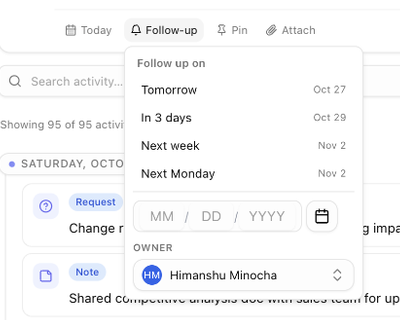 - **Add one**: click **+ Add** in the card (or the **Follow-up** chip in the composer), type what needs following up, pick a date from the presets (**Tomorrow**, **In 3 days**, **Next week**, **Next Monday**) or the calendar, optionally choose an **Owner**, and click **Add follow-up**.
- **Resolve one**: click the circle at the left of the row. A toast offers **Undo** for 10 seconds. Resolved follow-ups are listed under **Resolved · N**, where **Reopen** brings one back.
- **Postpone one**: click the clock icon and pick a new date.
- **Reassign one**: click the owner avatar on the row.
- **Edit the text**: click it, change it, and click **Save**.
Follow-ups also show on the Customers page in the **Follow-ups** column, so the **Follow-ups due** view is a to-do list across every customer. If **Resolve follow-ups when the customer replies** is on in Support settings, a follow-up attached to a ticket closes itself when the customer answers.
## Pinned context
Pin a note to keep standing context at the top of the rail: a billing quirk, who to call, what not to schedule. The **Pinned context** card lists pinned entries with an **Unpin** button on each.
## Log from the Customers page
The **Quick log** column on **CRM → Customers** has **Add note**, **Log call**, **Log email** and **Log meeting** buttons on every row. Each opens the same composer in a small popover, with an **Activity ↗** link to the full tab, so you can log a call without opening the customer. The buttons show how many of each type have been logged and light up when one was logged in the last 10 days.
## The Log Activity dialog
**Add note** and **Log activity** in a customer's **Actions** menu open the **Log Activity** dialog, a fuller form for the same thing:
- **Add one**: click **+ Add** in the card (or the **Follow-up** chip in the composer), type what needs following up, pick a date from the presets (**Tomorrow**, **In 3 days**, **Next week**, **Next Monday**) or the calendar, optionally choose an **Owner**, and click **Add follow-up**.
- **Resolve one**: click the circle at the left of the row. A toast offers **Undo** for 10 seconds. Resolved follow-ups are listed under **Resolved · N**, where **Reopen** brings one back.
- **Postpone one**: click the clock icon and pick a new date.
- **Reassign one**: click the owner avatar on the row.
- **Edit the text**: click it, change it, and click **Save**.
Follow-ups also show on the Customers page in the **Follow-ups** column, so the **Follow-ups due** view is a to-do list across every customer. If **Resolve follow-ups when the customer replies** is on in Support settings, a follow-up attached to a ticket closes itself when the customer answers.
## Pinned context
Pin a note to keep standing context at the top of the rail: a billing quirk, who to call, what not to schedule. The **Pinned context** card lists pinned entries with an **Unpin** button on each.
## Log from the Customers page
The **Quick log** column on **CRM → Customers** has **Add note**, **Log call**, **Log email** and **Log meeting** buttons on every row. Each opens the same composer in a small popover, with an **Activity ↗** link to the full tab, so you can log a call without opening the customer. The buttons show how many of each type have been logged and light up when one was logged in the last 10 days.
## The Log Activity dialog
**Add note** and **Log activity** in a customer's **Actions** menu open the **Log Activity** dialog, a fuller form for the same thing:
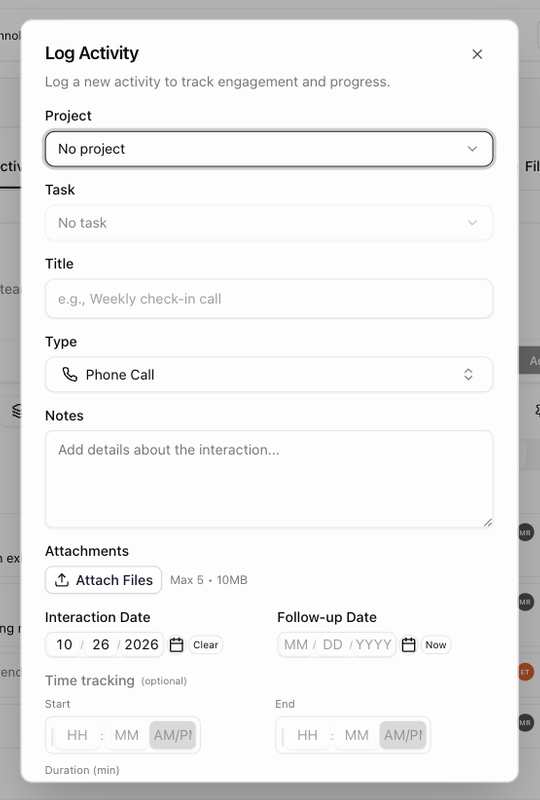 | Field | What it is for |
|---|---|
| **Project** and **Task** | Attach the activity to one of the customer's boards and, optionally, a task on it. |
| **Title** and **Type** | A short summary and the kind of activity. The type starts as *Phone Call* when you open the dialog from **Log activity**, and as a note from **Add note**. |
| **Notes** and **Attachments** | What happened, with files. |
| **Notify Team Members** | For a note on a task: teammates to email about it. |
| **Interaction Date** and **Follow-up Date** | When it happened (now, by default) and when to follow up. |
| **Time tracking** | **Start**, **End** and **Duration** in minutes, for time spent. |
Click **Log Activity** to save. Closing with unsaved changes asks **Discard unsaved changes?**.
Next: [Customer health and insights](./customers-customer-health-and-insights).
| Field | What it is for |
|---|---|
| **Project** and **Task** | Attach the activity to one of the customer's boards and, optionally, a task on it. |
| **Title** and **Type** | A short summary and the kind of activity. The type starts as *Phone Call* when you open the dialog from **Log activity**, and as a note from **Add note**. |
| **Notes** and **Attachments** | What happened, with files. |
| **Notify Team Members** | For a note on a task: teammates to email about it. |
| **Interaction Date** and **Follow-up Date** | When it happened (now, by default) and when to follow up. |
| **Time tracking** | **Start**, **End** and **Duration** in minutes, for time spent. |
Click **Log Activity** to save. Closing with unsaved changes asks **Discard unsaved changes?**.
Next: [Customer health and insights](./customers-customer-health-and-insights).