# Contacts and portal access
> Source: https://support.usebluehill.com/customers-contacts-and-portal-access | Updated: 2026-10-26T21:09:20Z
## The Contacts tab
Open a customer and choose **Contacts**. The tab is headed **Support contacts** and lists everyone at the company.
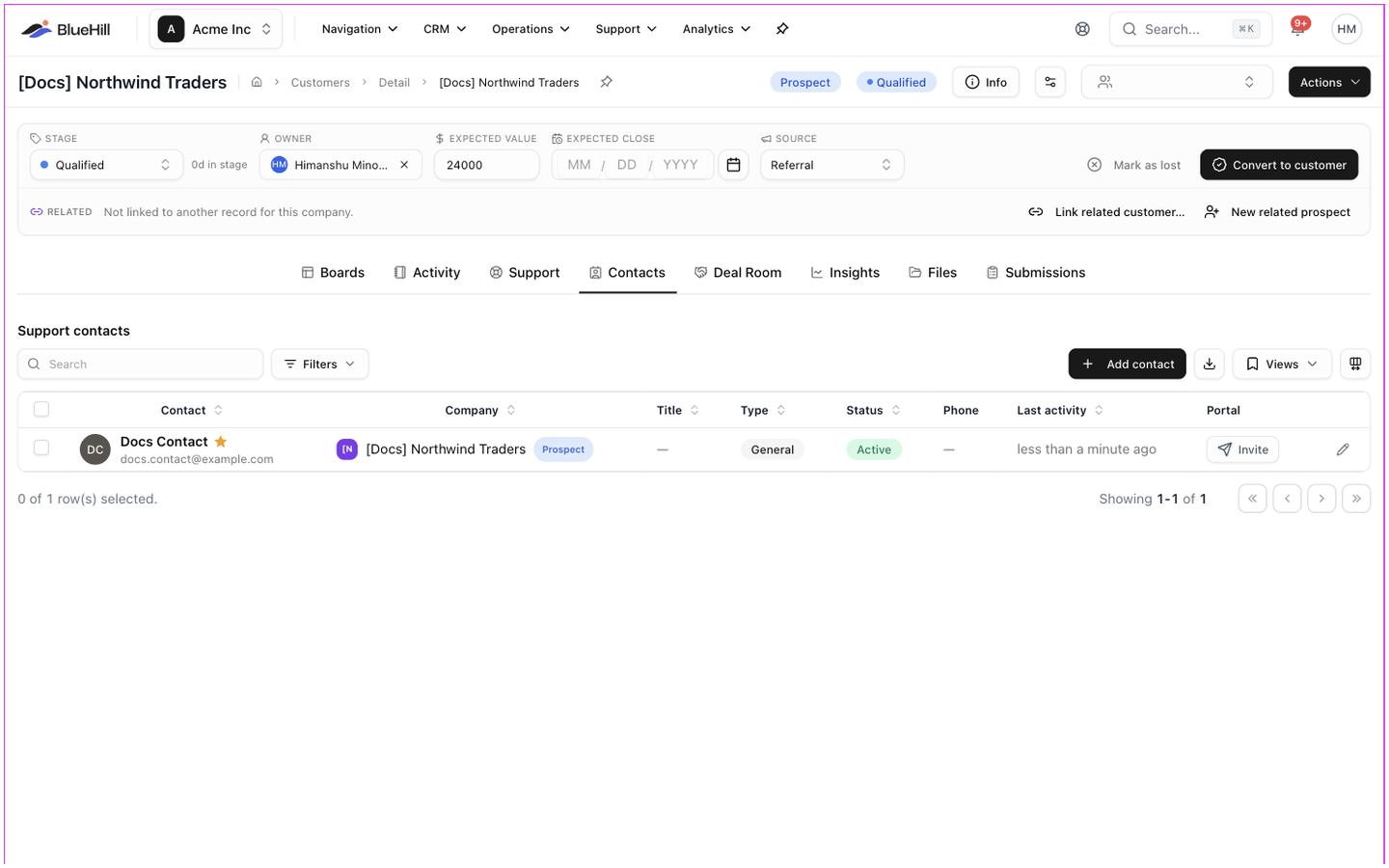 | Column | Shows |
|---|---|
| **Contact** | The person's name and email address. An amber star marks the **primary contact**. A contact that belongs to a related record shows **via name**. |
| **Company** | The customer the contact belongs to. |
| **Title** | Their job title. |
| **Type** | *General*, *Billing*, *Technical*, *Executive*, *Support*, *Sales*, *Legal* or *Other*. |
| **Status** | **Active** or **Inactive**. |
| **Phone** | Their phone number. |
| **Last activity** | When you last logged something with this person. |
| **Portal** | Whether they can sign in to the customer portal. See [Portal access](#portal-access). |
Filter the list by **Type** and by **Primary** / **Not Primary**. Click a row, or its pencil icon, to edit the contact.
Every contact across all customers is also listed on **Support → Contacts**, where the **Company** column links back to the customer.
## Add a contact
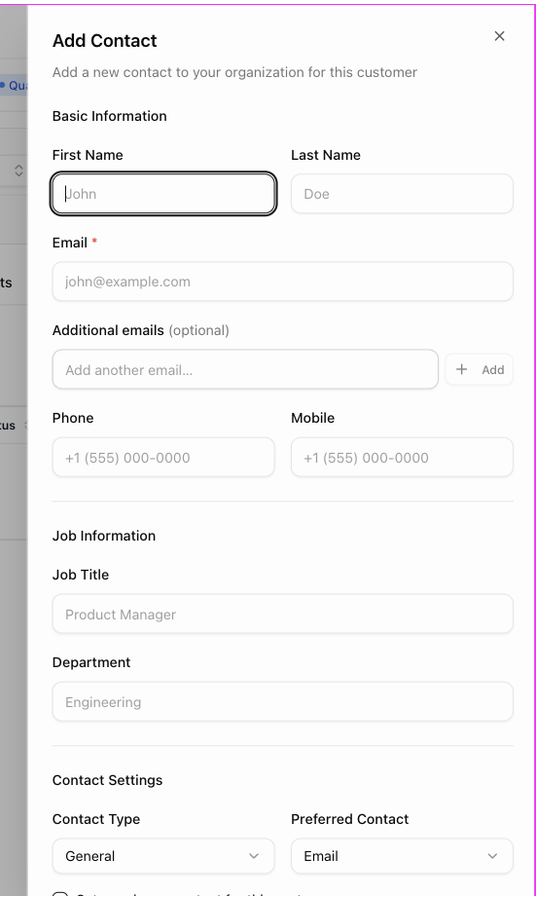
1. On the Contacts tab, click **Add contact**. The **Add Contact** panel slides in.
2. Under **Basic Information**, enter the **First Name**, **Last Name** and **Email** (the only required field), plus any **Additional emails**, **Phone** and **Mobile**.
3. Under **Job Information**, enter the **Job Title** and **Department**.
4. Under **Contact Settings**, choose the **Contact Type** and **Preferred Contact** method. Tick **Set as primary contact for this customer** if this is the main person you deal with, and **Opted in to receive email communications** if they have agreed to receive email from you.
5. Under **Additional Information**, add a **LinkedIn URL** and **Notes**. If your organization has defined custom fields for contacts, they appear under **Custom Fields**.
6. Click **Create Contact**.
| Column | Shows |
|---|---|
| **Contact** | The person's name and email address. An amber star marks the **primary contact**. A contact that belongs to a related record shows **via name**. |
| **Company** | The customer the contact belongs to. |
| **Title** | Their job title. |
| **Type** | *General*, *Billing*, *Technical*, *Executive*, *Support*, *Sales*, *Legal* or *Other*. |
| **Status** | **Active** or **Inactive**. |
| **Phone** | Their phone number. |
| **Last activity** | When you last logged something with this person. |
| **Portal** | Whether they can sign in to the customer portal. See [Portal access](#portal-access). |
Filter the list by **Type** and by **Primary** / **Not Primary**. Click a row, or its pencil icon, to edit the contact.
Every contact across all customers is also listed on **Support → Contacts**, where the **Company** column links back to the customer.
## Add a contact
1. On the Contacts tab, click **Add contact**. The **Add Contact** panel slides in.
2. Under **Basic Information**, enter the **First Name**, **Last Name** and **Email** (the only required field), plus any **Additional emails**, **Phone** and **Mobile**.
3. Under **Job Information**, enter the **Job Title** and **Department**.
4. Under **Contact Settings**, choose the **Contact Type** and **Preferred Contact** method. Tick **Set as primary contact for this customer** if this is the main person you deal with, and **Opted in to receive email communications** if they have agreed to receive email from you.
5. Under **Additional Information**, add a **LinkedIn URL** and **Notes**. If your organization has defined custom fields for contacts, they appear under **Custom Fields**.
6. Click **Create Contact**.
 The representative you enter when creating a customer becomes its first contact automatically. A prospect created from the pipeline board with an email address gets that person as its first contact too.
## The primary contact
The primary contact is who BlueHill emails on the customer's behalf: the **Primary contact** option when drafting email to many customers, and the default recipient when you start a new email from the customer. Each customer has one. To change it, edit the contact that should be primary and tick **Set as primary contact for this customer**.
## Edit, merge or delete contacts
- Click a contact to open **Edit Contact**, the same form as above.
- Tick several contacts to use the selection bar: **Edit** changes a field on all of them, **Merge** combines duplicates into one contact, **Invite to portal** sends portal invitations, and **Delete** removes them after you confirm **Delete N contact(s)?**. Deleting cannot be undone.
## Portal access
The customer portal is where your customers see their own onboarding tasks and support tickets. A contact needs a portal account to sign in.
### Invite a contact
1. On the Contacts tab, find the contact. The **Portal** column shows **Not invited**, with an **Invite** button if you are an owner, admin or manager.
2. Click **Invite**. BlueHill asks **Invite name to the customer portal?** and explains that it will email the contact a link to create their account, which expires in 7 days.
3. Click **Send invite**.
To invite several people at once, tick them and choose **Invite to portal** from the selection bar.
### What the Portal column shows
| Value | Meaning |
|---|---|
| **Not invited** | No invitation has been sent. |
| **Invited** | An invitation is out. Use the menu to **Resend invite** or **Revoke invite**. |
| **Invite expired** | The link is older than 7 days. Click **Re-invite**. |
| **Has access** | The person has a portal account and can sign in. |
| **Deactivated** | The person's portal account has been switched off. |
| **Team member** | The person is a member of your own team, not a portal user. |
Revoking asks **Revoke portal invite?**; the link stops working and you can invite the person again later.
### The Portal access pane
The customer's **Support** tab has a **Portal access** pane that shows the same information from the account side: the portal users linked to this customer, and **Customer Portal Invites** with each invitation's status (**Pending**, **Accepted**, **Declined**, **Expired** or **Revoked**). **Invite Portal User** here sends an invitation to any email address, with a **Role**, without first creating a contact.
Across all customers, **Support → Portal users** lists every portal account with its **Access** level (**Full portal**, **Support tickets** or **Onboarding & tasks**) and pending invites, and lets you deactivate accounts.
## What the customer sees in the portal
After accepting the invitation (**Join Acme Inc**, then **Accept Invite**) the person signs in with an emailed code or a password. In the portal they see:
- **Home**: a welcome message and the onboarding tasks you have published to the portal, grouped by project, with **Open** and **Completed** tabs. Form, acknowledgement and upload tasks are completed right there.
- **Tickets**: their company's support tickets, and a **New support ticket** form.
- **My Profile**: their name, phone number and time zone.
The portal carries your help center's branding. **Self sign-up**, under the **Help center** section of Support settings, lets people from allowed email domains create their own portal accounts without an invitation.
Next: [Activity, notes and follow-ups](./customers-activity-and-follow-ups).
The representative you enter when creating a customer becomes its first contact automatically. A prospect created from the pipeline board with an email address gets that person as its first contact too.
## The primary contact
The primary contact is who BlueHill emails on the customer's behalf: the **Primary contact** option when drafting email to many customers, and the default recipient when you start a new email from the customer. Each customer has one. To change it, edit the contact that should be primary and tick **Set as primary contact for this customer**.
## Edit, merge or delete contacts
- Click a contact to open **Edit Contact**, the same form as above.
- Tick several contacts to use the selection bar: **Edit** changes a field on all of them, **Merge** combines duplicates into one contact, **Invite to portal** sends portal invitations, and **Delete** removes them after you confirm **Delete N contact(s)?**. Deleting cannot be undone.
## Portal access
The customer portal is where your customers see their own onboarding tasks and support tickets. A contact needs a portal account to sign in.
### Invite a contact
1. On the Contacts tab, find the contact. The **Portal** column shows **Not invited**, with an **Invite** button if you are an owner, admin or manager.
2. Click **Invite**. BlueHill asks **Invite name to the customer portal?** and explains that it will email the contact a link to create their account, which expires in 7 days.
3. Click **Send invite**.
To invite several people at once, tick them and choose **Invite to portal** from the selection bar.
### What the Portal column shows
| Value | Meaning |
|---|---|
| **Not invited** | No invitation has been sent. |
| **Invited** | An invitation is out. Use the menu to **Resend invite** or **Revoke invite**. |
| **Invite expired** | The link is older than 7 days. Click **Re-invite**. |
| **Has access** | The person has a portal account and can sign in. |
| **Deactivated** | The person's portal account has been switched off. |
| **Team member** | The person is a member of your own team, not a portal user. |
Revoking asks **Revoke portal invite?**; the link stops working and you can invite the person again later.
### The Portal access pane
The customer's **Support** tab has a **Portal access** pane that shows the same information from the account side: the portal users linked to this customer, and **Customer Portal Invites** with each invitation's status (**Pending**, **Accepted**, **Declined**, **Expired** or **Revoked**). **Invite Portal User** here sends an invitation to any email address, with a **Role**, without first creating a contact.
Across all customers, **Support → Portal users** lists every portal account with its **Access** level (**Full portal**, **Support tickets** or **Onboarding & tasks**) and pending invites, and lets you deactivate accounts.
## What the customer sees in the portal
After accepting the invitation (**Join Acme Inc**, then **Accept Invite**) the person signs in with an emailed code or a password. In the portal they see:
- **Home**: a welcome message and the onboarding tasks you have published to the portal, grouped by project, with **Open** and **Completed** tabs. Form, acknowledgement and upload tasks are completed right there.
- **Tickets**: their company's support tickets, and a **New support ticket** form.
- **My Profile**: their name, phone number and time zone.
The portal carries your help center's branding. **Self sign-up**, under the **Help center** section of Support settings, lets people from allowed email domains create their own portal accounts without an invitation.
Next: [Activity, notes and follow-ups](./customers-activity-and-follow-ups).