# Create a customer or prospect
> Source: https://support.usebluehill.com/customers-create-a-customer | Updated: 2026-10-26T21:09:20Z
## Before you start
Decide one thing: is this company already a customer, or are you still selling to it?
- Choose **Customer** for an active account. Billing, boards and portal access all apply from day one.
- Choose **Prospect** for a company you are still working. A prospect sits in a pipeline stage, can have an owner, an expected value and a close date, and converts to a customer with one click later. Contacts and support tickets attach to a prospect exactly as they do to a customer.
You can change your mind later: a customer can be marked as a prospect and a prospect converted to a customer at any time. See [Prospects and the sales pipeline](./customers-prospects-and-pipeline).
## Create a customer
1. On **CRM → Customers**, click **Create Customer**. (The arrow next to it offers the same **New customer** choice and **New prospect**.)
2. Under **General Information**, leave **Record type** on **Customer** and enter the **Company** name. Add the main contact as **Representative First Name**, **Representative Last Name** and **Representative Job Title**, with the company's **Email**, **Phone #** and **Website**. **Internal ID** is for a reference number from another system. **Notes** are internal and never shown to the customer.
3. Under **Address**, enter the **Street**, **City**, **State** and **Zip Code** used for billing and correspondence.
4. Under **Categorization**, tick the categories the customer belongs to, or click **Add Category** to create one.
5. Click **Save** in the **Unsaved changes** bar at the bottom of the page. The bar reads **Saving**, then **Changes Saved**, and you are returned to the Customers page.
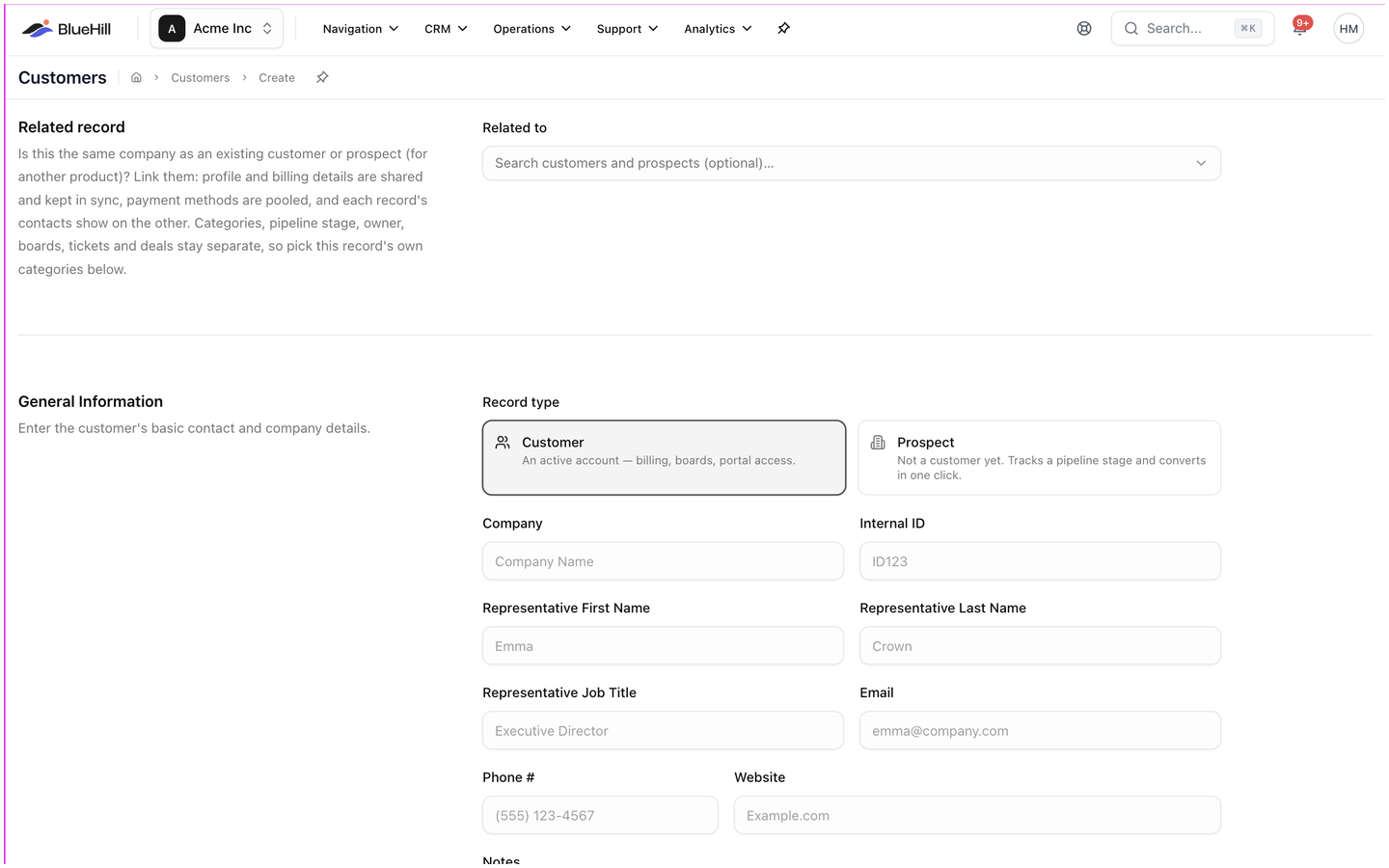 No field is compulsory, but a company name and an email address make the record far more useful: the email domain gives the company its logo, and the representative becomes the record's primary contact.
## Create a prospect
1. Click the arrow next to **Create Customer** and choose **New prospect**, or switch **Record type** to **Prospect** on the Create Customer page. The page title changes to **New prospect**.
2. Fill in **General Information** and **Address** as for a customer.
3. A **Pipeline** section appears. Pick the **Stage**, the **Owner**, the **Expected value** in dollars, the **Expected close** date and the **Source** (where the lead came from, for example *Website form*, *Referral* or *Event / conference*). Everything here is optional and can be changed later.
4. Add categories and click **Save**. You are returned to the Customers page with the **Prospects** scope selected.
## Create a prospect from the pipeline board
The fastest way to add a prospect is straight into a stage on the pipeline board:
1. On **CRM → Customers**, choose **Prospects**, then **Board**.
2. Click the **+** at the top of the stage column the prospect belongs in. The **New prospect** dialog opens with that stage chosen and you as the owner.
3. Enter the **Company** or the person's **First name** and **Last name** (one or the other is required), plus their **Job title**, **Email**, **Phone** and **Website**. With an email address, the person is saved as the prospect's first contact; without one, only the name and phone are kept on the prospect itself.
4. Optional: choose a **Parent customer** if the prospect is the same company as an existing record. See [Related records](./customers-related-records-and-merge).
5. Adjust the **Pipeline** fields and click **Create prospect**.
No field is compulsory, but a company name and an email address make the record far more useful: the email domain gives the company its logo, and the representative becomes the record's primary contact.
## Create a prospect
1. Click the arrow next to **Create Customer** and choose **New prospect**, or switch **Record type** to **Prospect** on the Create Customer page. The page title changes to **New prospect**.
2. Fill in **General Information** and **Address** as for a customer.
3. A **Pipeline** section appears. Pick the **Stage**, the **Owner**, the **Expected value** in dollars, the **Expected close** date and the **Source** (where the lead came from, for example *Website form*, *Referral* or *Event / conference*). Everything here is optional and can be changed later.
4. Add categories and click **Save**. You are returned to the Customers page with the **Prospects** scope selected.
## Create a prospect from the pipeline board
The fastest way to add a prospect is straight into a stage on the pipeline board:
1. On **CRM → Customers**, choose **Prospects**, then **Board**.
2. Click the **+** at the top of the stage column the prospect belongs in. The **New prospect** dialog opens with that stage chosen and you as the owner.
3. Enter the **Company** or the person's **First name** and **Last name** (one or the other is required), plus their **Job title**, **Email**, **Phone** and **Website**. With an email address, the person is saved as the prospect's first contact; without one, only the name and phone are kept on the prospect itself.
4. Optional: choose a **Parent customer** if the prospect is the same company as an existing record. See [Related records](./customers-related-records-and-merge).
5. Adjust the **Pipeline** fields and click **Create prospect**.
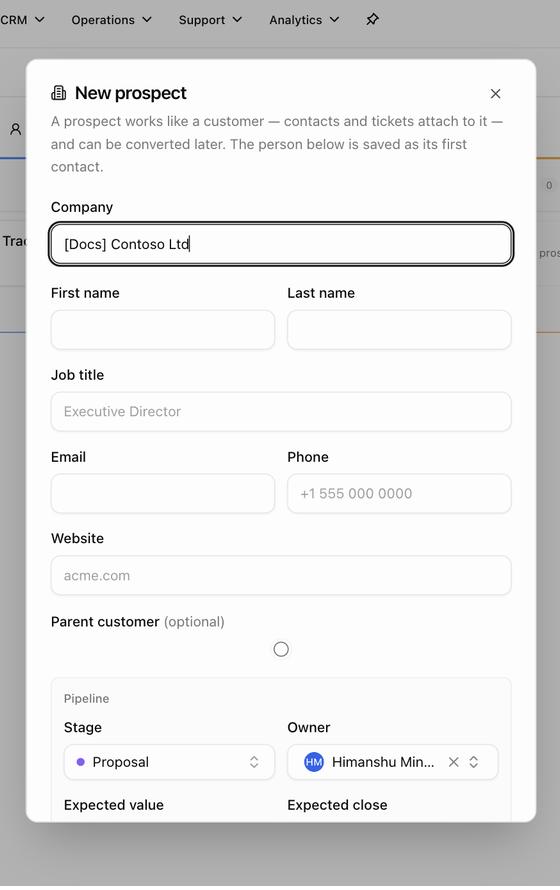 The same dialog opens from **New related prospect** on a customer's page.
## Link the new record to an existing one
If the company already has a record (for example a customer for one product who is now a prospect for another), use the **Related record** section at the top of the Create Customer page:
1. In **Related to**, search for the existing customer or prospect.
2. Choose the **Primary record**: the existing record (recommended, its details are copied onto the new one) or **This new record** (what you enter overwrites the existing record's shared fields).
3. Leave the **Share** boxes ticked to share **Profile**, **Billing** and **Contacts** between the two records, or untick what should stay separate.
Categories, pipeline stage, owner, boards, tickets and deals are never shared, so still pick the new record's own categories. See [Related records and merging duplicates](./customers-related-records-and-merge).
## Other ways customers get created
- A support agent can create a prospect straight from a ticket, so a new company that writes in never falls through the cracks.
- **Import from Freshdesk** in Support settings can create a customer for each Freshdesk company it cannot match.
- There is no spreadsheet import for customers. Your BlueHill contact can arrange a bulk load if you are migrating a large list.
## What to do next
- Add the people you deal with: [Contacts and portal access](./customers-contacts-and-portal-access).
- Start onboarding: create a board on the customer's **Boards** tab. See the Boards guides.
- Log the first call or note: [Activity, notes and follow-ups](./customers-activity-and-follow-ups).
Next: [Prospects and the sales pipeline](./customers-prospects-and-pipeline).
The same dialog opens from **New related prospect** on a customer's page.
## Link the new record to an existing one
If the company already has a record (for example a customer for one product who is now a prospect for another), use the **Related record** section at the top of the Create Customer page:
1. In **Related to**, search for the existing customer or prospect.
2. Choose the **Primary record**: the existing record (recommended, its details are copied onto the new one) or **This new record** (what you enter overwrites the existing record's shared fields).
3. Leave the **Share** boxes ticked to share **Profile**, **Billing** and **Contacts** between the two records, or untick what should stay separate.
Categories, pipeline stage, owner, boards, tickets and deals are never shared, so still pick the new record's own categories. See [Related records and merging duplicates](./customers-related-records-and-merge).
## Other ways customers get created
- A support agent can create a prospect straight from a ticket, so a new company that writes in never falls through the cracks.
- **Import from Freshdesk** in Support settings can create a customer for each Freshdesk company it cannot match.
- There is no spreadsheet import for customers. Your BlueHill contact can arrange a bulk load if you are migrating a large list.
## What to do next
- Add the people you deal with: [Contacts and portal access](./customers-contacts-and-portal-access).
- Start onboarding: create a board on the customer's **Boards** tab. See the Boards guides.
- Log the first call or note: [Activity, notes and follow-ups](./customers-activity-and-follow-ups).
Next: [Prospects and the sales pipeline](./customers-prospects-and-pipeline).