# Work inside a customer record
> Source: https://support.usebluehill.com/customers-customer-page | Updated: 2026-10-26T21:09:20Z
## Open a customer
- From **CRM → Customers**, click a company name or **View →** on its row.
- Press **⌘K** (or **Ctrl+K**), type the company name and pick it.
- From a support ticket, a board or a deal room, follow the customer link in its side panel or header.
Once you are on a customer page, the **customer switcher** (the icon next to **Actions**) jumps to another customer without going back to the list. Start typing a name or company.
 ## The header
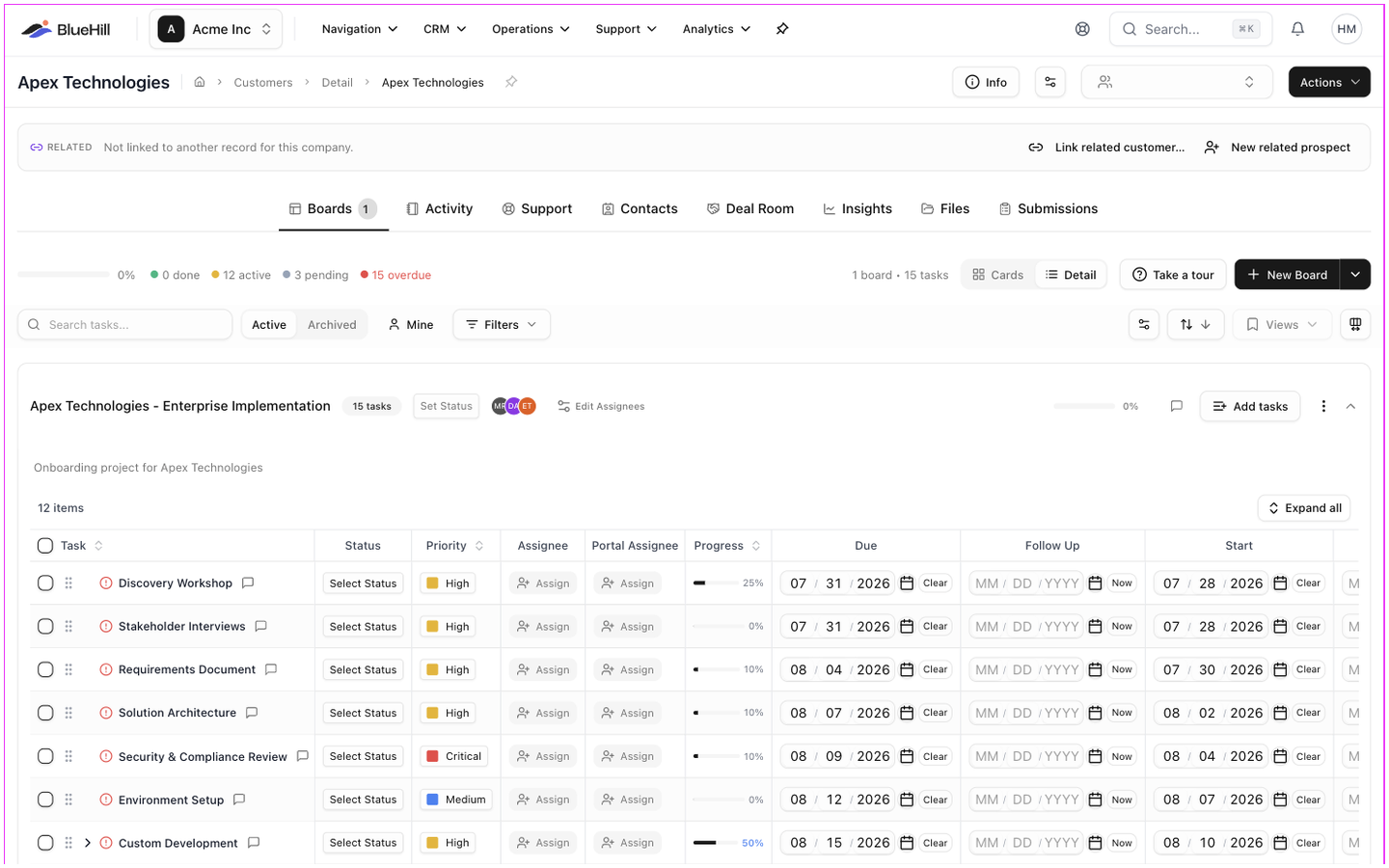
From left to right, the header shows:
- The **company name** (or the representative's name when there is no company) and the breadcrumb **Customers › Detail › name**.
- Avatars of teammates viewing the record right now.
- The customer's **time zone**, for example *Eastern Time (UTC-5)*.
- Badges for custom fields you have chosen to **Show in header**.
- Status pills when they apply: **Archived**, **No automated emails**, **Prospect** with its stage, and **Primary** or **Linked** for a record in a related group.
- **Info**, which opens the **Customer Information** popover.
- The **Custom fields** gear. See [Custom fields](./customers-edit-customer-details#custom-fields).
- The customer switcher and the **Actions** button.
## The Info popover
## The header
From left to right, the header shows:
- The **company name** (or the representative's name when there is no company) and the breadcrumb **Customers › Detail › name**.
- Avatars of teammates viewing the record right now.
- The customer's **time zone**, for example *Eastern Time (UTC-5)*.
- Badges for custom fields you have chosen to **Show in header**.
- Status pills when they apply: **Archived**, **No automated emails**, **Prospect** with its stage, and **Primary** or **Linked** for a record in a related group.
- **Info**, which opens the **Customer Information** popover.
- The **Custom fields** gear. See [Custom fields](./customers-edit-customer-details#custom-fields).
- The customer switcher and the **Actions** button.
## The Info popover
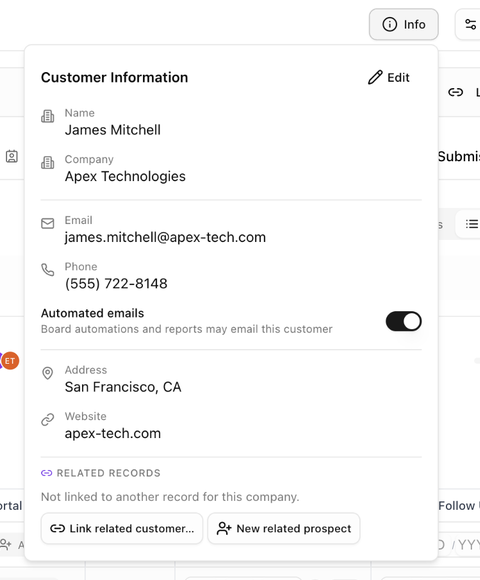 **Info** shows the record's essentials without leaving the tab you are on: **Name**, **Company**, **Internal ID**, **Email**, **Phone**, **Address**, **Time Zone**, **Website** and the custom fields you have not hidden. **Edit** opens the edit form. See [Edit customer details and custom fields](./customers-edit-customer-details).
The popover also holds the **Automated emails** switch and a **Related records** section with **Manage**, **Link related customer…** and **New related prospect**.
## The Actions menu
**Info** shows the record's essentials without leaving the tab you are on: **Name**, **Company**, **Internal ID**, **Email**, **Phone**, **Address**, **Time Zone**, **Website** and the custom fields you have not hidden. **Edit** opens the edit form. See [Edit customer details and custom fields](./customers-edit-customer-details).
The popover also holds the **Automated emails** switch and a **Related records** section with **Manage**, **Link related customer…** and **New related prospect**.
## The Actions menu
 | Item | What it does |
|---|---|
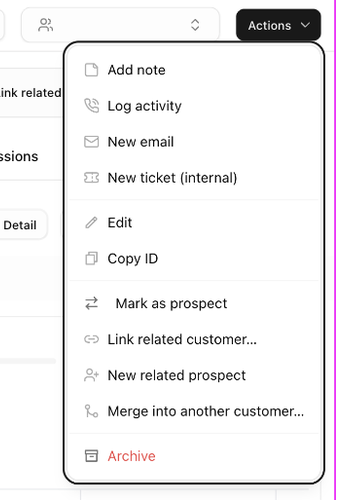
| **Add note** | Opens the **Log Activity** dialog with the type set to a note. |
| **Log activity** | Opens the same dialog for a call, meeting or other interaction. See [Activity, notes and follow-ups](./customers-activity-and-follow-ups). |
| **New email** | Starts an email to the customer from your support inbox. |
| **New ticket (internal)** | Opens an internal ticket about the customer; nothing is emailed. |
| **Edit** | Opens the full edit page. |
| **Copy ID** | Copies the record's ID to the clipboard for use in other systems. |
| **Convert to customer** / **Mark as prospect** | Switches the record type. See [Prospects and the sales pipeline](./customers-prospects-and-pipeline). |
| **Link related customer…** | Links this record to another record for the same company. |
| **New related prospect** | Creates a prospect linked to this record. |
| **Merge into another customer…** | Merges this record into another one. See [Related records and merging duplicates](./customers-related-records-and-merge). |
| **Archive** / **Restore** | Takes the record out of the active list, or brings it back. |
## The tabs
Which tabs you see depends on your permissions and on the features your workspace uses. The page opens on the first tab you can see, which is **Boards** in a workspace without billing.
| Tab | What it holds |
|---|---|
| **Overview** | Profile, plans, taxes, payment methods, metrics and transaction history, with the **Billing Timeline** on the right. Shown when your workspace bills through BlueHill and you have financial access. See [Plans, payment methods and billing](./customers-billing-plans-and-payments). |
| **Boards** | The customer's boards, with a count on the tab. |
| **Activity** | The timeline of notes, calls, meetings, logged emails and system events, plus follow-ups. See [Activity, notes and follow-ups](./customers-activity-and-follow-ups). |
| **Support** | The customer's support tickets, and who has portal access. |
| **Contacts** | The people at the company. See [Contacts and portal access](./customers-contacts-and-portal-access). |
| **Deal Room** | Quotes, agreements and pay links for the customer. |
| **Insights** | Health score, stalled-project alerts, an activity heatmap and project history. See [Customer health and insights](./customers-customer-health-and-insights). |
| **Files** | Files uploaded by the customer or sent by your team. |
| **Submissions** | Forms the customer has filled in. |
Above the tabs you may also see a banner: a notice that the customer pays by check, a **Possible duplicate** hint, the pipeline strip on a prospect, or the **Related** row listing the other records in its group.
## Boards tab
The Boards tab is the customer's own Boards page: a **New Board** button (with **From Template** in its menu), **Active** / **Archived**, **Mine**, filters, sort and the cards or detail layout. A customer's board always opens here, with the customer one click away. The Boards guides describe everything on it.
## Support tab
The Support tab has two panes, **Tickets** and **Portal access**.
- **Tickets** lists the customer's support tickets with a summary (**2 awaiting reply · 1 unassigned**), a **Drafts** list of unsent emails to this customer, a search box, **Open** / **All** scopes and filters for status, priority, assignee, tag, category, SLA, brand, requester, channel and dates. **New email** starts a conversation with the customer; **New ticket** records something internal without sending an email. Click a ticket to open it in the inbox, or **Preview** to read it in a side panel.
- **Portal access** lists the people who can sign in to the customer portal for this company and the invitations you have sent. See [Portal access](./customers-contacts-and-portal-access#portal-access).
## Deal Room tab
Each deal room is a card showing its status, when it was sent, viewed and accepted, the one-time and recurring amounts, what has been paid, what is outstanding and the next due date. **Open deal room** goes to the deal room itself; **New deal room** starts one for this customer. The tab is shown to people with permission to view invoices.
## Files tab
A folder tree of the customer's files. Filter by **From** (**From customer** or **Sent by us**), **Upload** files for the customer, or create a **New folder**. Files a customer uploads through a portal task land here too.
## Submissions tab
Every form the customer has submitted, with **Total Submissions** and **Forms Completed** counts, a search by form name and the date of each submission. Open a submission to read the answers.
## Archive and restore a customer
Archiving hides a record from the active list without deleting anything.
1. Open the customer and choose **Archive** from the **Actions** menu. The record is archived straight away and an **Archived** badge appears in the header.
2. To bring it back, open the record (search for it with **⌘K**, or follow a link to it) and choose **Restore**.
There is no delete for a customer record. To fold a duplicate into another record, use **Merge** instead. See [Merge duplicate records](./customers-related-records-and-merge#merge-duplicate-records).
## If you cannot open a record
- **Customer not found** means the record no longer exists, usually because it was merged into another record. Follow the link again; a merged record redirects to the record that was kept.
- **Customer Access Restricted** means your role does not include viewing customer details. Ask an administrator.
- **Overview Access Restricted** means the Overview tab needs billing access and admin or financial viewing permission; the other tabs still work.
Next: [Edit customer details and custom fields](./customers-edit-customer-details).
| Item | What it does |
|---|---|
| **Add note** | Opens the **Log Activity** dialog with the type set to a note. |
| **Log activity** | Opens the same dialog for a call, meeting or other interaction. See [Activity, notes and follow-ups](./customers-activity-and-follow-ups). |
| **New email** | Starts an email to the customer from your support inbox. |
| **New ticket (internal)** | Opens an internal ticket about the customer; nothing is emailed. |
| **Edit** | Opens the full edit page. |
| **Copy ID** | Copies the record's ID to the clipboard for use in other systems. |
| **Convert to customer** / **Mark as prospect** | Switches the record type. See [Prospects and the sales pipeline](./customers-prospects-and-pipeline). |
| **Link related customer…** | Links this record to another record for the same company. |
| **New related prospect** | Creates a prospect linked to this record. |
| **Merge into another customer…** | Merges this record into another one. See [Related records and merging duplicates](./customers-related-records-and-merge). |
| **Archive** / **Restore** | Takes the record out of the active list, or brings it back. |
## The tabs
Which tabs you see depends on your permissions and on the features your workspace uses. The page opens on the first tab you can see, which is **Boards** in a workspace without billing.
| Tab | What it holds |
|---|---|
| **Overview** | Profile, plans, taxes, payment methods, metrics and transaction history, with the **Billing Timeline** on the right. Shown when your workspace bills through BlueHill and you have financial access. See [Plans, payment methods and billing](./customers-billing-plans-and-payments). |
| **Boards** | The customer's boards, with a count on the tab. |
| **Activity** | The timeline of notes, calls, meetings, logged emails and system events, plus follow-ups. See [Activity, notes and follow-ups](./customers-activity-and-follow-ups). |
| **Support** | The customer's support tickets, and who has portal access. |
| **Contacts** | The people at the company. See [Contacts and portal access](./customers-contacts-and-portal-access). |
| **Deal Room** | Quotes, agreements and pay links for the customer. |
| **Insights** | Health score, stalled-project alerts, an activity heatmap and project history. See [Customer health and insights](./customers-customer-health-and-insights). |
| **Files** | Files uploaded by the customer or sent by your team. |
| **Submissions** | Forms the customer has filled in. |
Above the tabs you may also see a banner: a notice that the customer pays by check, a **Possible duplicate** hint, the pipeline strip on a prospect, or the **Related** row listing the other records in its group.
## Boards tab
The Boards tab is the customer's own Boards page: a **New Board** button (with **From Template** in its menu), **Active** / **Archived**, **Mine**, filters, sort and the cards or detail layout. A customer's board always opens here, with the customer one click away. The Boards guides describe everything on it.
## Support tab
The Support tab has two panes, **Tickets** and **Portal access**.
- **Tickets** lists the customer's support tickets with a summary (**2 awaiting reply · 1 unassigned**), a **Drafts** list of unsent emails to this customer, a search box, **Open** / **All** scopes and filters for status, priority, assignee, tag, category, SLA, brand, requester, channel and dates. **New email** starts a conversation with the customer; **New ticket** records something internal without sending an email. Click a ticket to open it in the inbox, or **Preview** to read it in a side panel.
- **Portal access** lists the people who can sign in to the customer portal for this company and the invitations you have sent. See [Portal access](./customers-contacts-and-portal-access#portal-access).
## Deal Room tab
Each deal room is a card showing its status, when it was sent, viewed and accepted, the one-time and recurring amounts, what has been paid, what is outstanding and the next due date. **Open deal room** goes to the deal room itself; **New deal room** starts one for this customer. The tab is shown to people with permission to view invoices.
## Files tab
A folder tree of the customer's files. Filter by **From** (**From customer** or **Sent by us**), **Upload** files for the customer, or create a **New folder**. Files a customer uploads through a portal task land here too.
## Submissions tab
Every form the customer has submitted, with **Total Submissions** and **Forms Completed** counts, a search by form name and the date of each submission. Open a submission to read the answers.
## Archive and restore a customer
Archiving hides a record from the active list without deleting anything.
1. Open the customer and choose **Archive** from the **Actions** menu. The record is archived straight away and an **Archived** badge appears in the header.
2. To bring it back, open the record (search for it with **⌘K**, or follow a link to it) and choose **Restore**.
There is no delete for a customer record. To fold a duplicate into another record, use **Merge** instead. See [Merge duplicate records](./customers-related-records-and-merge#merge-duplicate-records).
## If you cannot open a record
- **Customer not found** means the record no longer exists, usually because it was merged into another record. Follow the link again; a merged record redirects to the record that was kept.
- **Customer Access Restricted** means your role does not include viewing customer details. Ask an administrator.
- **Overview Access Restricted** means the Overview tab needs billing access and admin or financial viewing permission; the other tabs still work.
Next: [Edit customer details and custom fields](./customers-edit-customer-details).