# Edit customer details and custom fields
> Source: https://support.usebluehill.com/customers-edit-customer-details | Updated: 2026-10-26T21:09:20Z
## Two ways to edit
- **Quick edit**: click **Info** in the header, then **Edit**. The **Edit Customer Information** dialog covers the fields you change most.
- **Full edit**: choose **Edit** from the **Actions** menu. The edit page adds **Notes**, the prospect pipeline fields and custom-field values.
Neither form has required fields. Changes to a record in a related group also update the records that share those fields; the form tells you when that applies. See [Related records](./customers-related-records-and-merge).
## The Edit Customer Information dialog
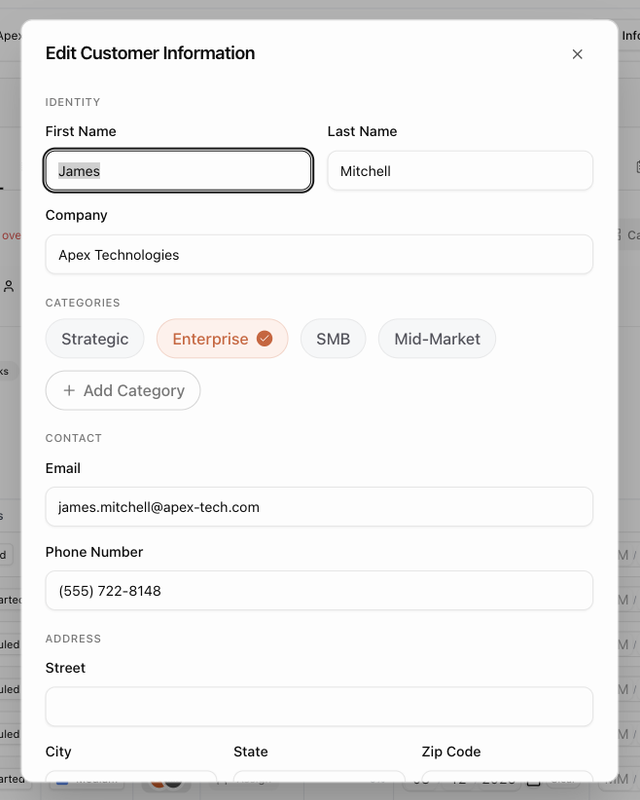 | Section | Fields |
|---|---|
| **Identity** | **First Name**, **Last Name** and **Company**. |
| **Categories** | Tick and untick categories, or create one. |
| **Contact** | **Email** and **Phone Number**. |
| **Address** | **Street**, **City**, **State**, **Zip Code** and **Website**. |
| **Additional** | **Internal ID** (a reference from another system) and **Time Zone**. Start typing a city or region to find the zone; the list is grouped by **North America**, **South America**, **Europe**, **Asia & Pacific** and **Other**. |
| **Custom Fields** | Values for your organization's customer fields, when any are defined. |
Click **Save Changes** to apply, or **Cancel**.
## The edit page
The edit page mirrors the Create Customer page:
- **General Information**: first name, last name, **Company**, **Internal ID**, **Email**, **Phone #**, **Website** and **Notes**. Notes are internal and never shown to the customer.
- **Address**: **Street**, **City**, **State** and **Zip Code**.
- **Pipeline** (prospects only): **Owner**, **Expected value**, **Expected close** and **Source**. The stage itself is changed from the prospect's page or the pipeline board. See [Move a prospect to another stage](./customers-prospects-and-pipeline#move-a-prospect-to-another-stage).
- **Categorization**: the customer's categories.
- **Custom Fields**: one input per field defined for your organization. Values are unique to this customer.
As soon as you change something, an **Unsaved changes** bar appears at the bottom with **Reset** and **Save**. Click **Save**; the bar reads **Saving**, then **Changes Saved**.
The record type (customer or prospect) is not on either form. Change it with **Convert to customer** or **Mark as prospect** instead.
## Categories
Categories are the labels you filter and report by. On the customer page you can change them in three places: the **Categories** row of the **Customer Information** card on the Overview tab, the edit dialog, and the edit page. Pick from the existing categories or type a new name to create one.
Categories are never shared between related records. A prospect's page can show its parent customer's categories as dashed chips for context; to change those, open the parent.
## Pause automated emails for a customer
Board automations and scheduled reports can email a customer, for example a reminder about an overdue onboarding task. To stop that for one customer without changing any automation:
1. Click **Info** in the header.
2. Switch **Automated emails** off. The description changes to **Paused — board automations and reports skip this customer**, and the header shows a **No automated emails** badge.
Switch it back on when the customer should receive automated email again. Email your team sends by hand is not affected.
## Custom fields
Custom fields let your organization record things BlueHill does not have a field for, such as a contract renewal date, an account tier or a region. Definitions are shared by every customer; values are stored per customer.
### Define a field
1. Click the **Custom fields** gear in the header of the Customers page or a customer page, or open **Customer Custom Fields** on the **Organization** tab of Settings.
2. Under **Manage definitions**, click **Add Custom Field**.
3. Enter the **Field name** and choose the **Type**: **Text**, **Number**, **Currency**, **Date**, **Dropdown** (with a list of options), **Checkbox**, **Long Text**, **Email** or **URL**. Tick **Required** if every customer should have a value.
4. Click **Add Field**.
| Section | Fields |
|---|---|
| **Identity** | **First Name**, **Last Name** and **Company**. |
| **Categories** | Tick and untick categories, or create one. |
| **Contact** | **Email** and **Phone Number**. |
| **Address** | **Street**, **City**, **State**, **Zip Code** and **Website**. |
| **Additional** | **Internal ID** (a reference from another system) and **Time Zone**. Start typing a city or region to find the zone; the list is grouped by **North America**, **South America**, **Europe**, **Asia & Pacific** and **Other**. |
| **Custom Fields** | Values for your organization's customer fields, when any are defined. |
Click **Save Changes** to apply, or **Cancel**.
## The edit page
The edit page mirrors the Create Customer page:
- **General Information**: first name, last name, **Company**, **Internal ID**, **Email**, **Phone #**, **Website** and **Notes**. Notes are internal and never shown to the customer.
- **Address**: **Street**, **City**, **State** and **Zip Code**.
- **Pipeline** (prospects only): **Owner**, **Expected value**, **Expected close** and **Source**. The stage itself is changed from the prospect's page or the pipeline board. See [Move a prospect to another stage](./customers-prospects-and-pipeline#move-a-prospect-to-another-stage).
- **Categorization**: the customer's categories.
- **Custom Fields**: one input per field defined for your organization. Values are unique to this customer.
As soon as you change something, an **Unsaved changes** bar appears at the bottom with **Reset** and **Save**. Click **Save**; the bar reads **Saving**, then **Changes Saved**.
The record type (customer or prospect) is not on either form. Change it with **Convert to customer** or **Mark as prospect** instead.
## Categories
Categories are the labels you filter and report by. On the customer page you can change them in three places: the **Categories** row of the **Customer Information** card on the Overview tab, the edit dialog, and the edit page. Pick from the existing categories or type a new name to create one.
Categories are never shared between related records. A prospect's page can show its parent customer's categories as dashed chips for context; to change those, open the parent.
## Pause automated emails for a customer
Board automations and scheduled reports can email a customer, for example a reminder about an overdue onboarding task. To stop that for one customer without changing any automation:
1. Click **Info** in the header.
2. Switch **Automated emails** off. The description changes to **Paused — board automations and reports skip this customer**, and the header shows a **No automated emails** badge.
Switch it back on when the customer should receive automated email again. Email your team sends by hand is not affected.
## Custom fields
Custom fields let your organization record things BlueHill does not have a field for, such as a contract renewal date, an account tier or a region. Definitions are shared by every customer; values are stored per customer.
### Define a field
1. Click the **Custom fields** gear in the header of the Customers page or a customer page, or open **Customer Custom Fields** on the **Organization** tab of Settings.
2. Under **Manage definitions**, click **Add Custom Field**.
3. Enter the **Field name** and choose the **Type**: **Text**, **Number**, **Currency**, **Date**, **Dropdown** (with a list of options), **Checkbox**, **Long Text**, **Email** or **URL**. Tick **Required** if every customer should have a value.
4. Click **Add Field**.
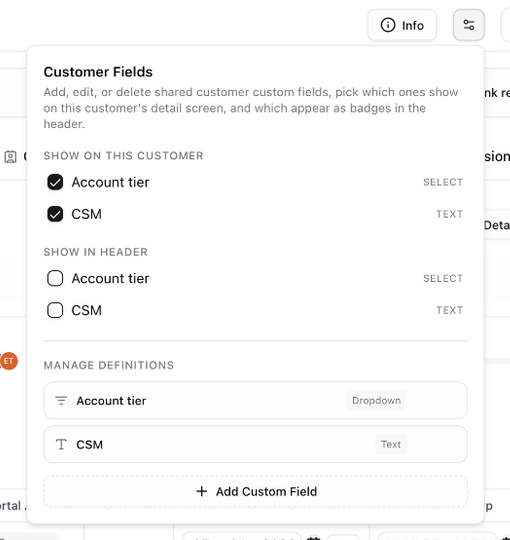 Existing fields can be renamed inline. Deleting a field removes its values from every customer and cannot be undone; BlueHill asks you to confirm.
### Choose where a field shows
The same gear popover controls what you, personally, see:
- On the Customers page, **Show as columns** adds the ticked fields as table columns.
- On a customer page, **Show on this customer** decides which fields appear in the **Info** popover and the Overview tab's **Custom Fields** card (all are shown unless you untick them), and **Show in header** turns a field into a badge next to the customer's name.
These choices follow you across every customer; they do not change what teammates see.
### Fill in a value
Enter values in the **Custom Fields** section of the edit dialog or the edit page. On the Customers page, custom-field columns show **—** when a value is empty and **Yes** / **No** for checkboxes.
Next: [Contacts and portal access](./customers-contacts-and-portal-access).
Existing fields can be renamed inline. Deleting a field removes its values from every customer and cannot be undone; BlueHill asks you to confirm.
### Choose where a field shows
The same gear popover controls what you, personally, see:
- On the Customers page, **Show as columns** adds the ticked fields as table columns.
- On a customer page, **Show on this customer** decides which fields appear in the **Info** popover and the Overview tab's **Custom Fields** card (all are shown unless you untick them), and **Show in header** turns a field into a badge next to the customer's name.
These choices follow you across every customer; they do not change what teammates see.
### Fill in a value
Enter values in the **Custom Fields** section of the edit dialog or the edit page. On the Customers page, custom-field columns show **—** when a value is empty and **Yes** / **No** for checkboxes.
Next: [Contacts and portal access](./customers-contacts-and-portal-access).