# Prospects and the sales pipeline
> Source: https://support.usebluehill.com/customers-prospects-and-pipeline | Updated: 2026-10-26T21:09:20Z
## Customers and prospects
A prospect is a customer record that is not a customer yet. It has everything a customer has (contacts, tickets, boards, notes) plus a few pipeline fields:
| Field | Meaning |
|---|---|
| **Stage** | Where the prospect is in your pipeline. |
| **Owner** | The team member working the opportunity. |
| **Expected value** | What the deal is worth, in dollars. |
| **Expected close** | When you expect it to sign. Shown in red once it has passed. |
| **Source** | Where the lead came from: *Inbound email*, *Website form*, *Referral*, *Partner*, *Event / conference*, *Existing customer* and so on. |
On the Customers page, prospects carry a blue **Prospect** pill in the **Type** column; customers carry a green **Customer** pill. Choose **Prospects** in the toolbar to see only prospects, with the **Stage**, **Owner**, **Expected value** and **Expected close** columns.
## Stages
Every workspace starts with four stages, *Lead*, *Qualified*, *Proposal* and *Negotiation*, plus *Lost*, which is always there and always last. There is no *Won* stage: a prospect wins by being converted to a customer.
To change the stages:
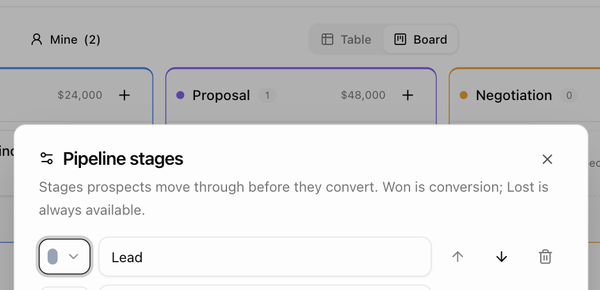
1. On **CRM → Customers**, choose **Prospects** and click **Stages**. The **Pipeline stages** dialog opens.
2. Edit a stage's name, pick its colour from the swatch, or use the arrows to move it up or down. **Add stage** adds a new row; the bin icon removes one. You can have up to 20 stages.
3. If you removed a stage that still has prospects in it, choose where they should go under **Prospects in removed stages will move to…** (the first stage by default).
4. Click **Save stages**.
 ## Table or board
In the Prospects scope the toolbar offers two layouts:
- **Table** is the normal list. Sort by **Stage** to see the pipeline in order, or pick the built-in **Prospect pipeline** view.
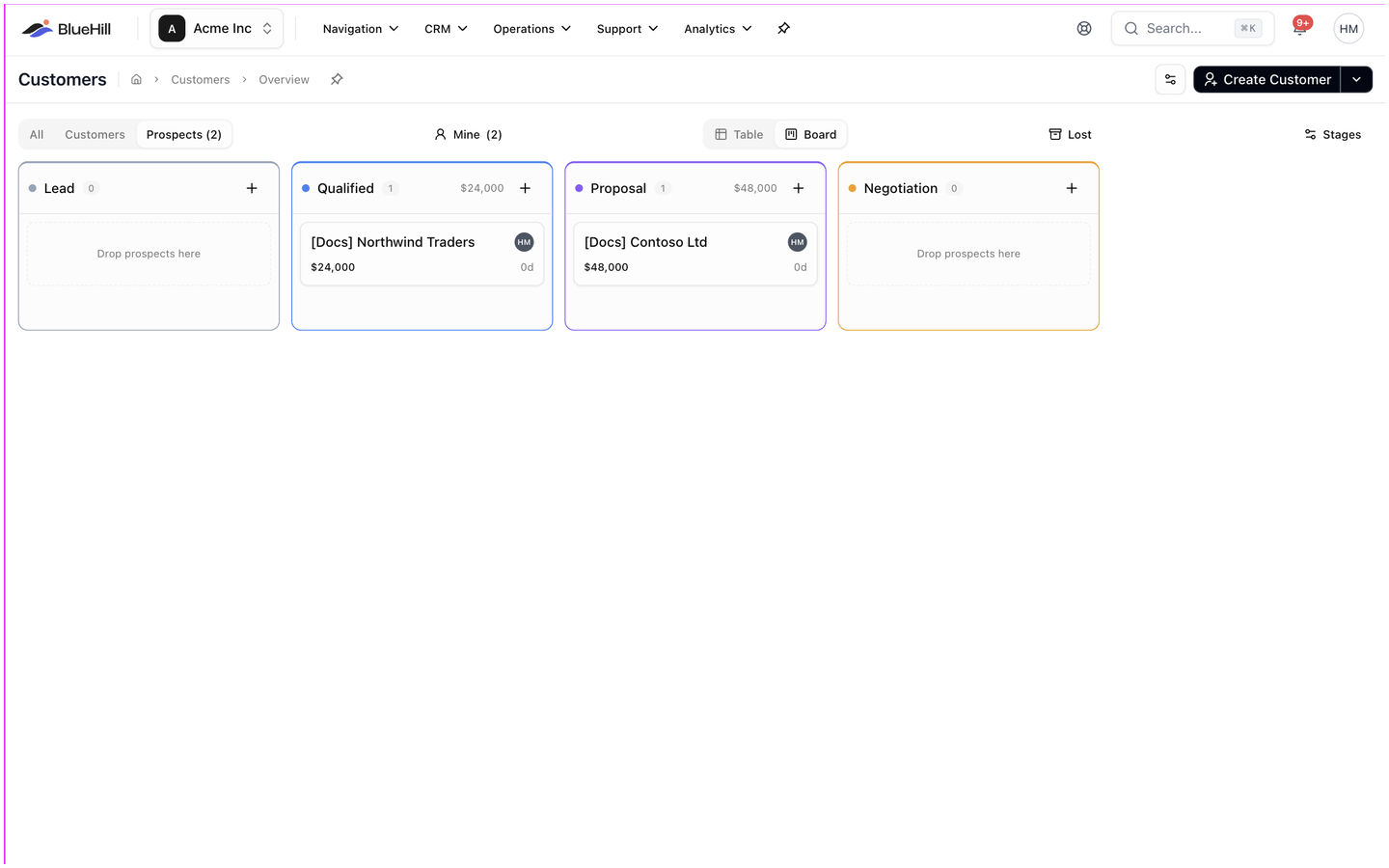
- **Board** shows one column per stage, with a card for each prospect. The column header shows the count and the total expected value in that stage. Each card shows the company, its email, the owner's avatar, the expected value, the expected close date and how many days the prospect has sat in its current stage.
## Table or board
In the Prospects scope the toolbar offers two layouts:
- **Table** is the normal list. Sort by **Stage** to see the pipeline in order, or pick the built-in **Prospect pipeline** view.
- **Board** shows one column per stage, with a card for each prospect. The column header shows the count and the total expected value in that stage. Each card shows the company, its email, the owner's avatar, the expected value, the expected close date and how many days the prospect has sat in its current stage.
 On the board only the **Owner** filter and **Mine** apply; search and the other filters are for the table.
## Move a prospect to another stage
- **On the board**, drag the card to another column.
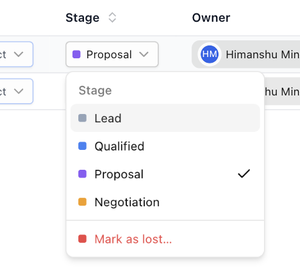
- **In the table**, click the **Stage** pill and pick the new stage. The current stage has a check mark.
- **On the prospect's page**, use the **Stage** field in the pipeline strip above the tabs.
On the board only the **Owner** filter and **Mine** apply; search and the other filters are for the table.
## Move a prospect to another stage
- **On the board**, drag the card to another column.
- **In the table**, click the **Stage** pill and pick the new stage. The current stage has a check mark.
- **On the prospect's page**, use the **Stage** field in the pipeline strip above the tabs.
 ## Mark a prospect as lost, and reopen it
1. Pick **Mark as lost…** at the bottom of the Stage picker, drag the card onto the **Lost** column, or click **Mark as lost** on the prospect's page.
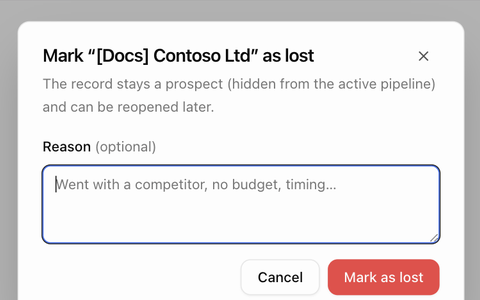
2. In the **Mark "name" as lost** dialog, type a **Reason** if you have one (*Went with a competitor*, *No budget*, *Timing*) and click **Mark as lost**.
## Mark a prospect as lost, and reopen it
1. Pick **Mark as lost…** at the bottom of the Stage picker, drag the card onto the **Lost** column, or click **Mark as lost** on the prospect's page.
2. In the **Mark "name" as lost** dialog, type a **Reason** if you have one (*Went with a competitor*, *No budget*, *Timing*) and click **Mark as lost**.
 A lost prospect stays a prospect but is hidden from the table and the board. Turn on the **Lost** toggle in the toolbar to see lost prospects; on the board they appear in a **Lost** column with the reason on each card. To bring one back, open its Stage picker, which now reads **Reopen in stage**, and pick a stage, or click **Reopen** on its page.
## Owner, value, close date and source
- Change the **Owner** by clicking the owner pill in the table or on the card. Picking yourself or a teammate never sends an email.
- Change **Expected value**, **Expected close** and **Source** in the pipeline strip on the prospect's page or on its **Edit** page. In the table, turn on those columns with **Columns** to see them.
## Convert a prospect to a customer
When the prospect signs:
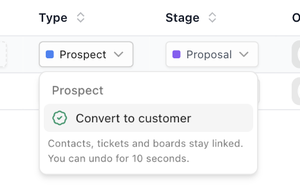
- Click the **Prospect** pill in the **Type** column and choose **Convert to customer**, or
- Open the prospect and choose **Convert to customer** in the pipeline strip or the **Actions** menu, or
- Tick several prospects and choose **Convert to customer** from the selection bar.
The record becomes a customer straight away, keeping its contacts, tickets and boards. A toast reads **Converted name to a customer** with an **Undo** link that works for 10 seconds. Bulk conversion asks you to confirm first.
A converted customer shows **Converted** in the **Stage** column and, on its page, **Converted from prospect on date by name · closed from stage**. Turn on the **Converted** column to sort customers by conversion date.
A lost prospect stays a prospect but is hidden from the table and the board. Turn on the **Lost** toggle in the toolbar to see lost prospects; on the board they appear in a **Lost** column with the reason on each card. To bring one back, open its Stage picker, which now reads **Reopen in stage**, and pick a stage, or click **Reopen** on its page.
## Owner, value, close date and source
- Change the **Owner** by clicking the owner pill in the table or on the card. Picking yourself or a teammate never sends an email.
- Change **Expected value**, **Expected close** and **Source** in the pipeline strip on the prospect's page or on its **Edit** page. In the table, turn on those columns with **Columns** to see them.
## Convert a prospect to a customer
When the prospect signs:
- Click the **Prospect** pill in the **Type** column and choose **Convert to customer**, or
- Open the prospect and choose **Convert to customer** in the pipeline strip or the **Actions** menu, or
- Tick several prospects and choose **Convert to customer** from the selection bar.
The record becomes a customer straight away, keeping its contacts, tickets and boards. A toast reads **Converted name to a customer** with an **Undo** link that works for 10 seconds. Bulk conversion asks you to confirm first.
A converted customer shows **Converted** in the **Stage** column and, on its page, **Converted from prospect on date by name · closed from stage**. Turn on the **Converted** column to sort customers by conversion date.
 ## Turn a customer back into a prospect
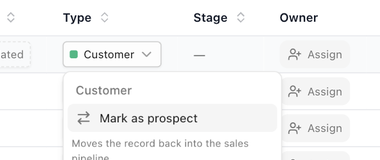
Click the **Customer** pill and choose **Mark as prospect**, or use **Mark as prospect** in the **Actions** menu on the customer's page. BlueHill asks you to confirm, then moves the record back into the pipeline with its contacts, tickets and boards intact. Set its stage next.
## Turn a customer back into a prospect
Click the **Customer** pill and choose **Mark as prospect**, or use **Mark as prospect** in the **Actions** menu on the customer's page. BlueHill asks you to confirm, then moves the record back into the pipeline with its contacts, tickets and boards intact. Set its stage next.
 ## The pipeline strip on a prospect's page
A prospect's page has a strip above the tabs with **Stage** (and how many days it has been there), **Owner**, **Expected value**, **Expected close** and **Source**, plus **Mark as lost** and **Convert to customer** buttons. A lost prospect shows **Lost.** with the reason and a **Reopen** button instead.
## The pipeline strip on a prospect's page
A prospect's page has a strip above the tabs with **Stage** (and how many days it has been there), **Owner**, **Expected value**, **Expected close** and **Source**, plus **Mark as lost** and **Convert to customer** buttons. A lost prospect shows **Lost.** with the reason and a **Reopen** button instead.
 ## Who can see prospects
An administrator can hide prospects from particular teams under **Prospect visibility** on the **Organization** tab of Settings. Members of those teams see no **Prospects** scope, no **Type** or **Stage** columns and no convert options; they still see customers as usual.
Next: [Work inside a customer record](./customers-customer-page).
## Who can see prospects
An administrator can hide prospects from particular teams under **Prospect visibility** on the **Organization** tab of Settings. Members of those teams see no **Prospects** scope, no **Type** or **Stage** columns and no convert options; they still see customers as usual.
Next: [Work inside a customer record](./customers-customer-page).