# Related records and merging duplicates
> Source: https://support.usebluehill.com/customers-related-records-and-merge | Updated: 2026-10-26T21:09:20Z
## Related records: one company, several records
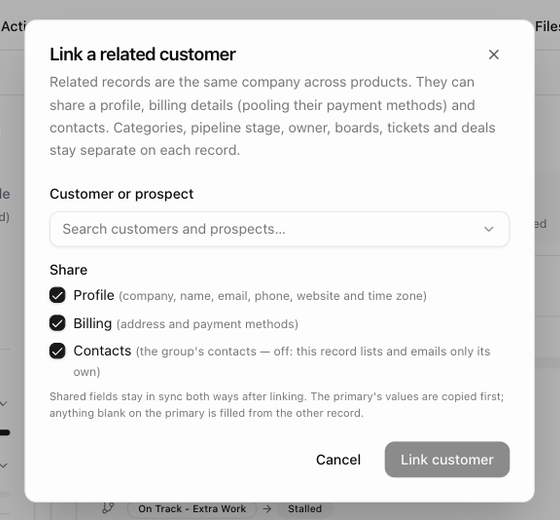
A related group links two or more records that belong to the same company, for example a customer for one product and a prospect for another, or two business units billed separately. The records stay separate for everything that differs between them and share what should be the same.
| Shared when you choose to | Never shared |
|---|---|
| **Profile**: company, name, email, phone, website and time zone | Categories |
| **Billing**: address and payment methods | Pipeline stage and owner |
| **Contacts**: the group's people appear on every record | Boards, tickets and deals |
One record in the group is the **Primary**; the others are **Linked**. Shared fields stay in sync both ways after linking, so editing the company name on either record updates both.
## Link two records
1. Open either record and choose **Link related customer…** from the **Actions** menu (or from the **Related** row above the tabs, or the **Info** popover).
2. Under **Customer or prospect**, search for the other record. A record that is already in another group has to be unlinked there first.
3. Once a record is chosen, a **Primary record** choice appears. The primary's values are copied first; anything blank on it is filled from the other record.
4. Tick what to **Share**: **Profile**, **Billing** and **Contacts**. All three are on by default.
5. Check the preview. It reads **No field values will change**, or **These fields will be updated:** with each field, its old value and its new value.
6. Click **Link customer**.
 You can also link while creating a record: see [Link the new record to an existing one](./customers-create-a-customer#link-the-new-record-to-an-existing-one). **New related prospect** in the Actions menu creates a prospect already linked to the current record, with its profile filled in.
## See and manage a group
- The header of every record in a group carries a **Primary** or **Linked** pill.
- The **Related** row above the tabs lists every member with its type, stage and categories. Click a member to open it.
- Contacts from other members of the group appear on each record's Contacts tab marked **via name**.
- Choose **Manage** on the Related row (or in the Info popover) to open **Related records**. Here each member has **Profile**, **Billing** and **Contacts** switches, and a **⋯** menu with **Open**, **Set as primary** and **Unlink**. Unlinking shows a toast with **Undo** for 10 seconds.
When you edit a shared field, the form shows a note such as **Company, name, email, phone, website and time zone are shared with 1 related record: Northwind Traders. Saving here updates it too.**
## Related records on the Customers page
- The **Related** column shows **+1 related** on a primary record and the primary's name on a linked record. On a standalone record, point at the row and a dashed **Related** button appears; its menu offers **New related prospect**, **New related customer…** and **Link related customer…**.
- **Condensed** in the toolbar shows one row per group, hiding linked records behind their primary. The toggle shows how many rows are hidden.
- **Parent categories** makes a prospect also show (and match in the Categories filter) the categories of its parent customer, as dashed chips.
- The **Related** filter finds **Primary of a group**, **Linked record** or **Standalone** records.
## Merge duplicate records
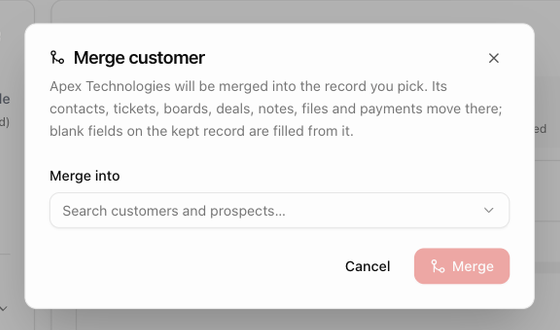
Merging is for genuine duplicates: the same company entered twice. One record is kept and the others are folded into it. Everything linked to the merged records (contacts, tickets, boards, deals, notes, files and payments) moves to the kept record, and any blank field on the kept record is filled from the merged ones. The kept record's own values are never overwritten.
Merging cannot be undone. Merged records disappear from the list, and any link to them opens the kept record instead.
### Merge from a customer's page
1. Open the record you want to get rid of and choose **Merge into another customer…** from the **Actions** menu. The **Merge customer** dialog opens.
2. Under **Merge into**, search for the record to keep.
3. Once a record is chosen, check **Record to keep**. The dialog marks one record **Keep** and the other **Merged away**; switch them if BlueHill guessed wrong. By default it keeps an active record over an archived one, a customer over a prospect, and then the older record.
4. Read the preview: **Moves to name** lists what will move (for example **3 tickets**, **2 boards**, **notes & activity**), and **Fields filled on name** lists the blank fields that will be filled.
5. Click **Merge 1 record into name**.
You can also link while creating a record: see [Link the new record to an existing one](./customers-create-a-customer#link-the-new-record-to-an-existing-one). **New related prospect** in the Actions menu creates a prospect already linked to the current record, with its profile filled in.
## See and manage a group
- The header of every record in a group carries a **Primary** or **Linked** pill.
- The **Related** row above the tabs lists every member with its type, stage and categories. Click a member to open it.
- Contacts from other members of the group appear on each record's Contacts tab marked **via name**.
- Choose **Manage** on the Related row (or in the Info popover) to open **Related records**. Here each member has **Profile**, **Billing** and **Contacts** switches, and a **⋯** menu with **Open**, **Set as primary** and **Unlink**. Unlinking shows a toast with **Undo** for 10 seconds.
When you edit a shared field, the form shows a note such as **Company, name, email, phone, website and time zone are shared with 1 related record: Northwind Traders. Saving here updates it too.**
## Related records on the Customers page
- The **Related** column shows **+1 related** on a primary record and the primary's name on a linked record. On a standalone record, point at the row and a dashed **Related** button appears; its menu offers **New related prospect**, **New related customer…** and **Link related customer…**.
- **Condensed** in the toolbar shows one row per group, hiding linked records behind their primary. The toggle shows how many rows are hidden.
- **Parent categories** makes a prospect also show (and match in the Categories filter) the categories of its parent customer, as dashed chips.
- The **Related** filter finds **Primary of a group**, **Linked record** or **Standalone** records.
## Merge duplicate records
Merging is for genuine duplicates: the same company entered twice. One record is kept and the others are folded into it. Everything linked to the merged records (contacts, tickets, boards, deals, notes, files and payments) moves to the kept record, and any blank field on the kept record is filled from the merged ones. The kept record's own values are never overwritten.
Merging cannot be undone. Merged records disappear from the list, and any link to them opens the kept record instead.
### Merge from a customer's page
1. Open the record you want to get rid of and choose **Merge into another customer…** from the **Actions** menu. The **Merge customer** dialog opens.
2. Under **Merge into**, search for the record to keep.
3. Once a record is chosen, check **Record to keep**. The dialog marks one record **Keep** and the other **Merged away**; switch them if BlueHill guessed wrong. By default it keeps an active record over an archived one, a customer over a prospect, and then the older record.
4. Read the preview: **Moves to name** lists what will move (for example **3 tickets**, **2 boards**, **notes & activity**), and **Fields filled on name** lists the blank fields that will be filled.
5. Click **Merge 1 record into name**.
 If the record you were looking at is the one merged away, BlueHill takes you to the kept record.
### Merge from the Customers page
Tick two or more records and choose **Merge** from the selection bar. The dialog is the same, headed **Merge N records**, with a **Record to keep** list to pick the survivor. You can also **Merge into a record outside the selection…**.
### Possible duplicate hints
When BlueHill spots another record with the same email, the same email domain or the same (or a very similar) company name, the customer page shows a **Possible duplicate** banner naming it. **Merge…** opens the merge dialog with both records in it; the **×** dismisses the hint for you only.
A prospect merged with a customer is kept as a customer.
Next: [FAQ and troubleshooting](./customers-faq-and-troubleshooting).
If the record you were looking at is the one merged away, BlueHill takes you to the kept record.
### Merge from the Customers page
Tick two or more records and choose **Merge** from the selection bar. The dialog is the same, headed **Merge N records**, with a **Record to keep** list to pick the survivor. You can also **Merge into a record outside the selection…**.
### Possible duplicate hints
When BlueHill spots another record with the same email, the same email domain or the same (or a very similar) company name, the customer page shows a **Possible duplicate** banner naming it. **Merge…** opens the merge dialog with both records in it; the **×** dismisses the hint for you only.
A prospect merged with a customer is kept as a customer.
Next: [FAQ and troubleshooting](./customers-faq-and-troubleshooting).