# Build the quote
> Source: https://support.usebluehill.com/deal-rooms-build-the-quote | Updated: 2026-10-27T16:20:56Z
## The Quote card
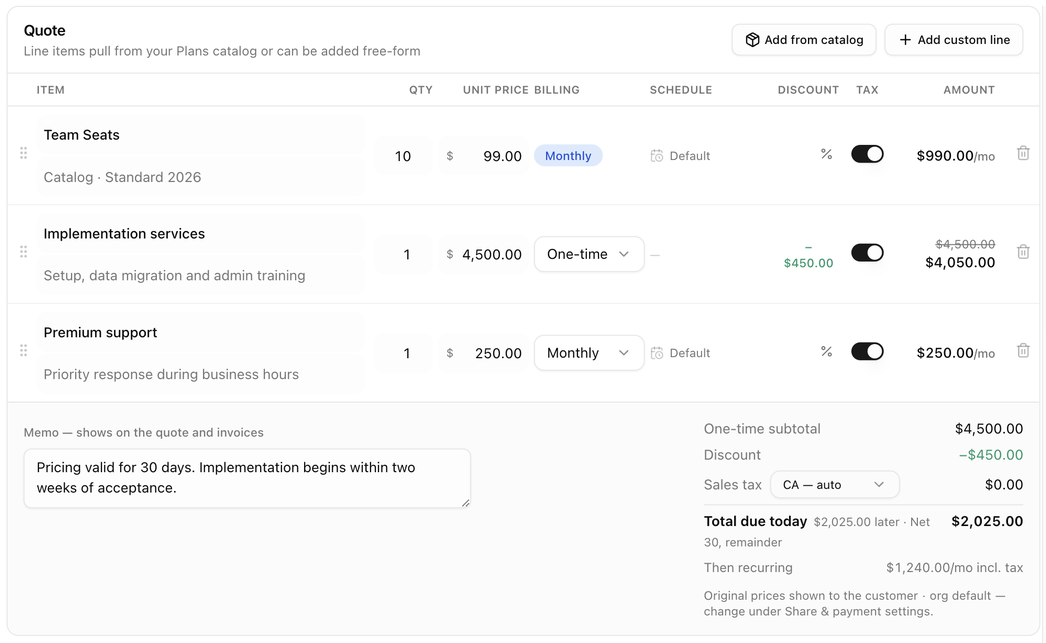 The card header shows **Quote** and a version chip such as **v2** once the quote has been sent. Under it, a line tells you where the quote stands: *Line items pull from your Plans catalog or can be added free-form* on a new quote, *Version 2 · edited Oct 14* after edits, or *Locked since it was accepted* with the signer's name, date and IP address once the customer has accepted.
Two buttons add lines: **Add from catalog** and **Add custom line**. Remember to click **Save changes** in the header when you are done; see [Save your changes](./deal-rooms-deal-room-page#save-your-changes).
## Add a line from the catalog
The card header shows **Quote** and a version chip such as **v2** once the quote has been sent. Under it, a line tells you where the quote stands: *Line items pull from your Plans catalog or can be added free-form* on a new quote, *Version 2 · edited Oct 14* after edits, or *Locked since it was accepted* with the signer's name, date and IP address once the customer has accepted.
Two buttons add lines: **Add from catalog** and **Add custom line**. Remember to click **Save changes** in the header when you are done; see [Save your changes](./deal-rooms-deal-room-page#save-your-changes).
## Add a line from the catalog
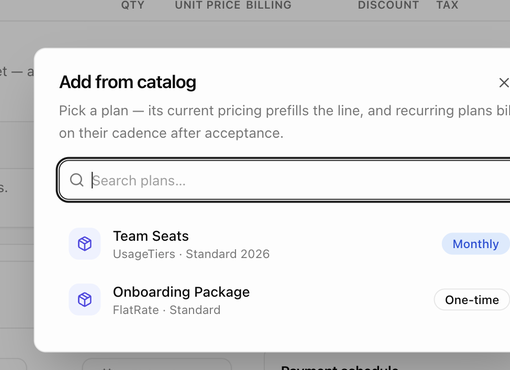 1. Click **Add from catalog**.
2. Search **plans** by name. Each row shows the plan's name, its type and pricing name, and whether it is *One-time* or bills *Monthly*, *Quarterly* or *Yearly*.
3. Click a plan. It is added as a line at the plan's current price, with the description *Catalog · pricing name*. Catalog lines keep their cadence; change the quantity, price, discount and tax as you like.
If the dialog says **No active plans in the catalog yet**, create plans under **Financial → Pricing** first.
## Add a custom line
1. Click **Add custom line**. An empty row appears.
2. Enter the **Item name** and an optional **Description**.
3. Set the **Qty** (default 1) and the **Unit price**.
4. Choose the **Billing**: **One-time**, **Monthly**, **Quarterly** or **Yearly**.
## The line item columns
| Column | What it is for |
|---|---|
| **Item** | The name and description shown to the customer. |
| **Qty** | How many. The amount is quantity times unit price. |
| **Unit price** | The price of one, in US dollars. |
| **Billing** | *One-time* or the recurring cadence. Catalog lines show it as a badge; custom lines as a dropdown. |
| **Schedule** | Shown only when a line is recurring. Which day the line bills, such as *1st of month* or *Default*, and whether the first period is prorated. Click it to change it for this line. |
| **At signing** | Shown only when the agreement starts in the future. Tick it to bill the line when the customer accepts instead of on the start date. |
| **Discount** | The **%** button opens the line discount. An active discount shows the amount taken off in green. |
| **Tax** | A switch that makes the line taxable. New lines are taxable by default. |
| **Amount** | The line total after the discount, with */mo*, */qtr* or */yr* for recurring lines. When discounted, the full price shows struck through above it. |
The handle at the left of a row drags it to a new position; the bin icon removes it.
## Set when a recurring line bills
1. Click **Add from catalog**.
2. Search **plans** by name. Each row shows the plan's name, its type and pricing name, and whether it is *One-time* or bills *Monthly*, *Quarterly* or *Yearly*.
3. Click a plan. It is added as a line at the plan's current price, with the description *Catalog · pricing name*. Catalog lines keep their cadence; change the quantity, price, discount and tax as you like.
If the dialog says **No active plans in the catalog yet**, create plans under **Financial → Pricing** first.
## Add a custom line
1. Click **Add custom line**. An empty row appears.
2. Enter the **Item name** and an optional **Description**.
3. Set the **Qty** (default 1) and the **Unit price**.
4. Choose the **Billing**: **One-time**, **Monthly**, **Quarterly** or **Yearly**.
## The line item columns
| Column | What it is for |
|---|---|
| **Item** | The name and description shown to the customer. |
| **Qty** | How many. The amount is quantity times unit price. |
| **Unit price** | The price of one, in US dollars. |
| **Billing** | *One-time* or the recurring cadence. Catalog lines show it as a badge; custom lines as a dropdown. |
| **Schedule** | Shown only when a line is recurring. Which day the line bills, such as *1st of month* or *Default*, and whether the first period is prorated. Click it to change it for this line. |
| **At signing** | Shown only when the agreement starts in the future. Tick it to bill the line when the customer accepts instead of on the start date. |
| **Discount** | The **%** button opens the line discount. An active discount shows the amount taken off in green. |
| **Tax** | A switch that makes the line taxable. New lines are taxable by default. |
| **Amount** | The line total after the discount, with */mo*, */qtr* or */yr* for recurring lines. When discounted, the full price shows struck through above it. |
The handle at the left of a row drags it to a new position; the bin icon removes it.
## Set when a recurring line bills
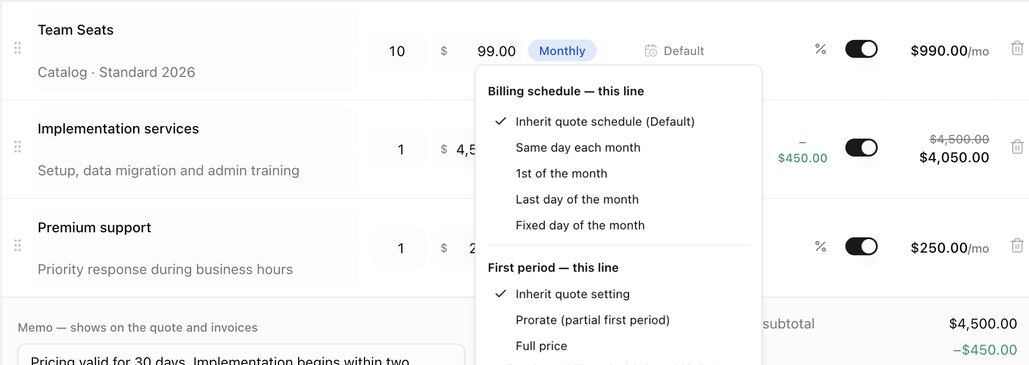 Most recurring lines follow the billing schedule set in the **Payment terms** card. To give one line its own schedule, click its **Schedule** cell:
- **Billing schedule — this line**: **Inherit quote schedule**, **Same day each month**, **1st of the month**, **Last day of the month** or **Fixed day of the month** with a **Day** from 1 to 31.
- **First period — this line**: **Inherit quote setting**, **Prorate (partial first period)** or **Full price**.
A dot on the cell marks a line with its own schedule. See [Billing schedule for recurring lines](./deal-rooms-payment-terms-and-schedule#billing-schedule-for-recurring-lines).
## Give a discount
Most recurring lines follow the billing schedule set in the **Payment terms** card. To give one line its own schedule, click its **Schedule** cell:
- **Billing schedule — this line**: **Inherit quote schedule**, **Same day each month**, **1st of the month**, **Last day of the month** or **Fixed day of the month** with a **Day** from 1 to 31.
- **First period — this line**: **Inherit quote setting**, **Prorate (partial first period)** or **Full price**.
A dot on the cell marks a line with its own schedule. See [Billing schedule for recurring lines](./deal-rooms-payment-terms-and-schedule#billing-schedule-for-recurring-lines).
## Give a discount
 Discounts are set per line:
1. Click the **%** button on the line.
2. Choose **Percent** or **Amount $** and enter the value, or **None** to remove the discount.
The line's amount updates, a **Discount** row appears in the totals, and the customer sees the list price struck through with a *Discount* line on the pay page, invoices and PDFs. If you would rather customers only ever see the discounted price, switch off **Show original prices to customers**, either for this deal in the **Share & payment** card or for everyone in settings. A note under the totals tells you which applies.
Large discounts may need approval before the quote can be sent. See [Approvals](./deal-rooms-send-the-quote#approvals).
## Sales tax
- Each line has a **Tax** switch. Switch it off for lines that are not taxable.
- The **Sales tax** row in the totals chooses the rate: the customer's rate worked out from their address (for example *CA — auto*), **Custom rate…** with a percentage you type, or **No tax**.
- The customer's rate comes from the address on their record. If the totals show no rate, refresh the address on the customer page, then re-link the customer.
## The memo
**Memo — shows on the quote and invoices** is free text under the line items: pricing validity, payment context, discount reasons or anything the customer should read. It appears on the pay page, on invoices and in the PDFs.
## Read the totals
The totals block under the memo is worked out as you edit:
| Row | Meaning |
|---|---|
| **One-time subtotal** | The one-time lines before discounts and tax. |
| **Discount** | The total taken off, shown only when a discount is set. |
| **Sales tax** | The tax on taxable lines at the chosen rate. |
| **First recurring payment** | Shown when the first recurring period is invoiced at acceptance. *prorated first period* appears when the schedule prorates it. |
| **Total due today** | What the customer pays when they accept. A note next to it explains any later amounts, such as *$1,500.00 later · Net 30* or *due at signing* for a future start. |
| **Then recurring** | The recurring amount per cadence including tax, such as *$199.00/mo*. With a future start date this reads **From *date*** instead. |
A line such as *Bills on the 1st each month · first period prorated* summarizes the billing schedule, and **Recurring ends *date*** appears when the agreement has an end date. Totals are in US dollars.
## Edit a quote after sending it
While the room is *Sent* or *Viewed* you can keep editing. Saved edits go live on the customer's pay link immediately; the header shows **Edited since last send** and the activity logs *Quote revised after send*. Click **Resend quote** so the customer gets an email about the change. Once the customer accepts, the quote is locked.
## Version history
Click the version chip (for example **v2**) in the Quote card header, or **View history**, to open **Version history**. A version is recorded every time the quote is sent, with the date, who it went to, the totals, the number of lines and who sent it. Expand a version to see its lines and memo; **Resent (no changes)** marks a resend that changed nothing.
To go back to an earlier version, click **Restore this version** and confirm **Restore vN?**. The current content is replaced, every version is kept, totals are recomputed with the customer's current tax rate, and the next send records the restored content as a new version. Accepted quotes cannot be restored.
Next: [Payment terms and schedule](./deal-rooms-payment-terms-and-schedule).
Discounts are set per line:
1. Click the **%** button on the line.
2. Choose **Percent** or **Amount $** and enter the value, or **None** to remove the discount.
The line's amount updates, a **Discount** row appears in the totals, and the customer sees the list price struck through with a *Discount* line on the pay page, invoices and PDFs. If you would rather customers only ever see the discounted price, switch off **Show original prices to customers**, either for this deal in the **Share & payment** card or for everyone in settings. A note under the totals tells you which applies.
Large discounts may need approval before the quote can be sent. See [Approvals](./deal-rooms-send-the-quote#approvals).
## Sales tax
- Each line has a **Tax** switch. Switch it off for lines that are not taxable.
- The **Sales tax** row in the totals chooses the rate: the customer's rate worked out from their address (for example *CA — auto*), **Custom rate…** with a percentage you type, or **No tax**.
- The customer's rate comes from the address on their record. If the totals show no rate, refresh the address on the customer page, then re-link the customer.
## The memo
**Memo — shows on the quote and invoices** is free text under the line items: pricing validity, payment context, discount reasons or anything the customer should read. It appears on the pay page, on invoices and in the PDFs.
## Read the totals
The totals block under the memo is worked out as you edit:
| Row | Meaning |
|---|---|
| **One-time subtotal** | The one-time lines before discounts and tax. |
| **Discount** | The total taken off, shown only when a discount is set. |
| **Sales tax** | The tax on taxable lines at the chosen rate. |
| **First recurring payment** | Shown when the first recurring period is invoiced at acceptance. *prorated first period* appears when the schedule prorates it. |
| **Total due today** | What the customer pays when they accept. A note next to it explains any later amounts, such as *$1,500.00 later · Net 30* or *due at signing* for a future start. |
| **Then recurring** | The recurring amount per cadence including tax, such as *$199.00/mo*. With a future start date this reads **From *date*** instead. |
A line such as *Bills on the 1st each month · first period prorated* summarizes the billing schedule, and **Recurring ends *date*** appears when the agreement has an end date. Totals are in US dollars.
## Edit a quote after sending it
While the room is *Sent* or *Viewed* you can keep editing. Saved edits go live on the customer's pay link immediately; the header shows **Edited since last send** and the activity logs *Quote revised after send*. Click **Resend quote** so the customer gets an email about the change. Once the customer accepts, the quote is locked.
## Version history
Click the version chip (for example **v2**) in the Quote card header, or **View history**, to open **Version history**. A version is recorded every time the quote is sent, with the date, who it went to, the totals, the number of lines and who sent it. Expand a version to see its lines and memo; **Resent (no changes)** marks a resend that changed nothing.
To go back to an earlier version, click **Restore this version** and confirm **Restore vN?**. The current content is replaced, every version is kept, totals are recomputed with the customer's current tax rate, and the next send records the restored content as a new version. Accepted quotes cannot be restored.
Next: [Payment terms and schedule](./deal-rooms-payment-terms-and-schedule).