# Create a deal room
> Source: https://support.usebluehill.com/deal-rooms-create-a-deal-room | Updated: 2026-10-27T16:20:56Z
## Before you start
Decide two things:
- **Who is the deal for?** A room can be linked to a customer or a prospect. Quotes, invoices and payments in the room are billed to that record, and the room appears on its **Deal Room** tab. You can create the room without one and link it later, but a quote cannot be sent until a customer is linked.
- **Which sales group?** If your organization uses sales groups, the room inherits the group's pay-link policies, email wording and visibility. Most teams leave the default. See [Sales groups](./deal-rooms-settings-and-sales-groups#sales-groups).
## Create a room from the Deal rooms page
1. Open **CRM → Deal Rooms** and click **New deal room**.
2. Enter a **Name**, for example *Acme Robotics — platform rollout*. If your sales group has a naming template, a name is already suggested; edit it freely, or click **use it** to restore the suggestion after changing it.
3. Choose a **Customer**. The picker searches customers and prospects together by name or company. If the company is not in BlueHill yet, choose **+ New prospect** at the bottom of the list to create one on the spot. Leave the field empty to link a customer later.
4. If you see a **Sales group** field, keep the default or pick another group. **No group** makes the room visible to everyone.
5. Click **Create deal room**. The new room opens straight away.
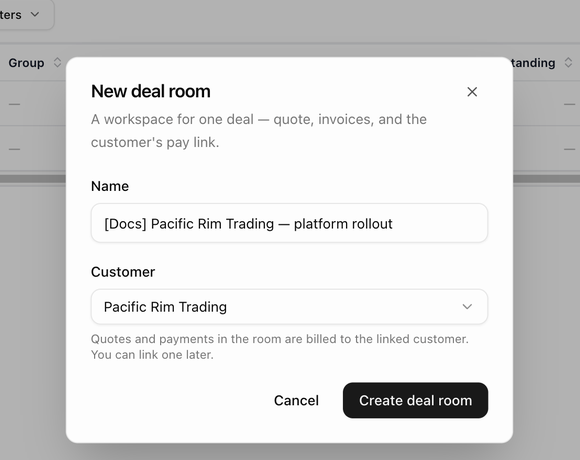 A new room starts in **Draft** with an empty quote, a quote reference such as *Q-2026-003*, **On receipt** terms, the reminder schedule from your settings, and a *Deal room created* entry in its activity.
## Create a room from a customer record
1. Open the customer and choose the **Deal Room** tab.
2. Click **New deal room**. The customer is already selected in the dialog; change it if you need to.
3. Name the room and click **Create deal room**.
A new room starts in **Draft** with an empty quote, a quote reference such as *Q-2026-003*, **On receipt** terms, the reminder schedule from your settings, and a *Deal room created* entry in its activity.
## Create a room from a customer record
1. Open the customer and choose the **Deal Room** tab.
2. Click **New deal room**. The customer is already selected in the dialog; change it if you need to.
3. Name the room and click **Create deal room**.
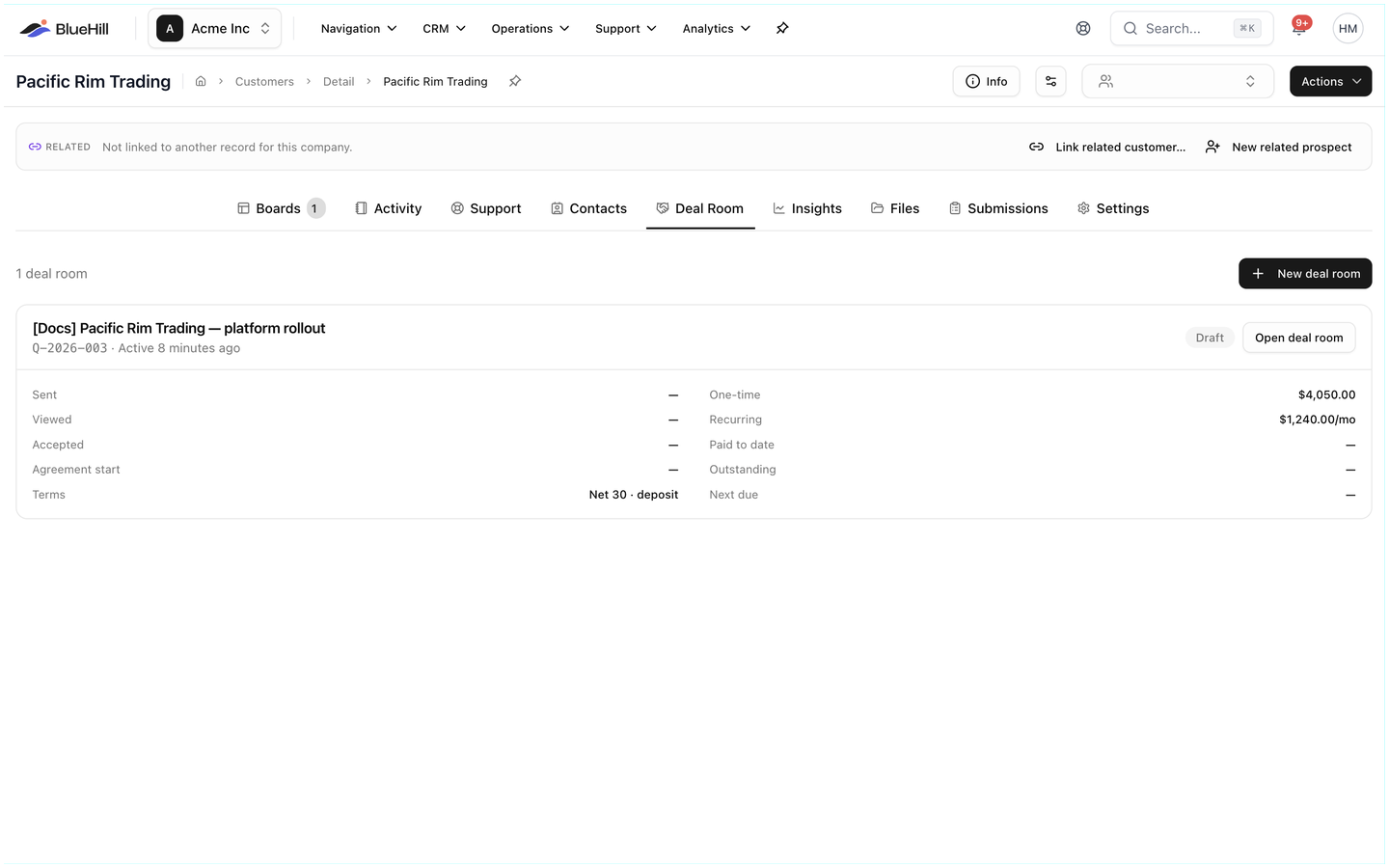 The tab lists the customer's rooms as cards, newest activity first, with the status, when the quote was sent, viewed and accepted, the one-time and recurring amounts, what has been paid, what is outstanding and the next due date. **Open deal room** takes you into the room.
## Link or change the customer later
1. In the room, click **No customer linked** in the header, or **Link a customer** in the **Customer** card. For a room that already has a customer, click **Change** in the **Customer** card.
2. The **Link a customer** dialog opens. Choose a **Customer** (customers and prospects, with the same **+ New prospect** shortcut).
3. Optional: choose a **Billing contact**. Quote emails, invoices and reminders go to this contact's address instead of the customer's default email.
4. The **Tax rate** line shows what sales tax will apply: a rate worked out from the customer's address (*7.25% · auto from address*), *Tax exempt*, or *No rate on file — refresh it from the customer page* when the address has not been looked up yet.
5. Click **Link customer**.
Linking is recorded in the room's activity. A prospect linked to a deal room is converted to a customer automatically when it accepts or pays.
## Rename a deal room
Open the **⋯** menu in the room's header and choose **Rename…**. Enter the new name and confirm. The quote reference does not change.
## Move a room to another sales group
In the room's **Share & payment** card, pick a group from the **Sales group** dropdown, or choose **No group**. The room immediately follows the new group's policies and becomes visible to that group's members. The field is only shown when your organization has sales groups.
Next: [Work inside a deal room](./deal-rooms-deal-room-page).
The tab lists the customer's rooms as cards, newest activity first, with the status, when the quote was sent, viewed and accepted, the one-time and recurring amounts, what has been paid, what is outstanding and the next due date. **Open deal room** takes you into the room.
## Link or change the customer later
1. In the room, click **No customer linked** in the header, or **Link a customer** in the **Customer** card. For a room that already has a customer, click **Change** in the **Customer** card.
2. The **Link a customer** dialog opens. Choose a **Customer** (customers and prospects, with the same **+ New prospect** shortcut).
3. Optional: choose a **Billing contact**. Quote emails, invoices and reminders go to this contact's address instead of the customer's default email.
4. The **Tax rate** line shows what sales tax will apply: a rate worked out from the customer's address (*7.25% · auto from address*), *Tax exempt*, or *No rate on file — refresh it from the customer page* when the address has not been looked up yet.
5. Click **Link customer**.
Linking is recorded in the room's activity. A prospect linked to a deal room is converted to a customer automatically when it accepts or pays.
## Rename a deal room
Open the **⋯** menu in the room's header and choose **Rename…**. Enter the new name and confirm. The quote reference does not change.
## Move a room to another sales group
In the room's **Share & payment** card, pick a group from the **Sales group** dropdown, or choose **No group**. The room immediately follows the new group's policies and becomes visible to that group's members. The field is only shown when your organization has sales groups.
Next: [Work inside a deal room](./deal-rooms-deal-room-page).