# Work inside a deal room
> Source: https://support.usebluehill.com/deal-rooms-deal-room-page | Updated: 2026-10-27T16:20:56Z
## Open a deal room
- From **CRM → Deal Rooms**, click a row, or choose **Open** from its **⋯** menu.
- From a customer record, open the **Deal Room** tab and click **Open deal room** on a card.
- From a support ticket, click the room's name in the **Deal rooms** card of the side panel.
 ## The header
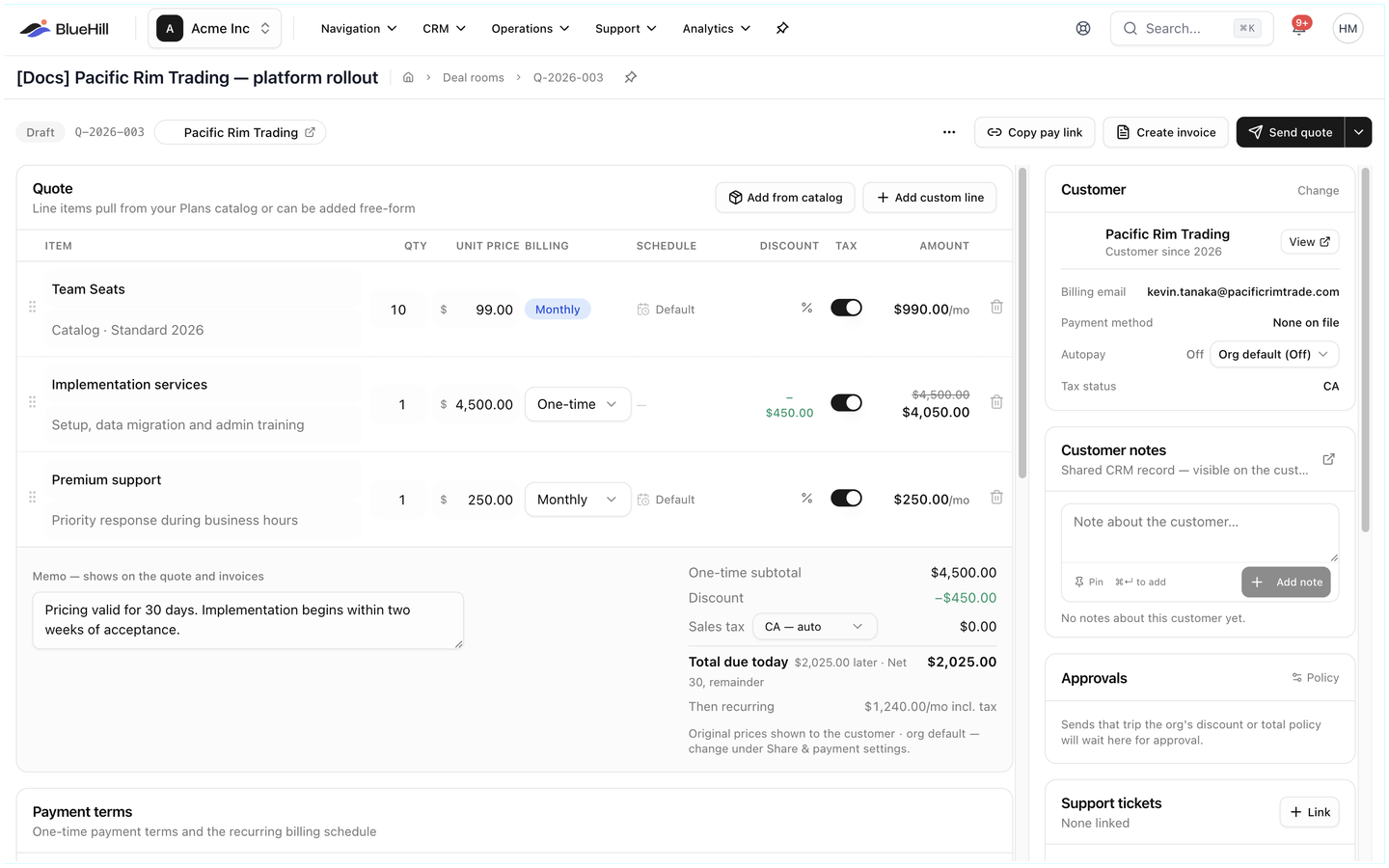
From left to right, the header shows:
- The room's **status badge** (*Draft*, *Sent*, *Viewed*, *Accepted*, *Invoiced* or *Paid*) and the **quote reference**.
- The **customer chip**, which opens the customer record, or **No customer linked**, which opens the Link a customer dialog.
- An amber **Edited since last send** pill when the quote has changed since the customer last received it.
- The **⋯** menu (see below).
- **Copy pay link**, which creates the customer's link if it does not exist yet and copies it. Nothing is emailed.
- **Create invoice**, which opens the New invoice dialog. See [Create an invoice by hand](./deal-rooms-invoices-and-payments#create-an-invoice-by-hand).
- **Reset** and **Save changes**, shown only while you have unsaved edits.
- **Send quote** (or **Resend quote** once the quote has been sent). The arrow next to it also offers **Preview as customer**. See [Send the quote and share the pay link](./deal-rooms-send-the-quote).
## The room menu
## The header
From left to right, the header shows:
- The room's **status badge** (*Draft*, *Sent*, *Viewed*, *Accepted*, *Invoiced* or *Paid*) and the **quote reference**.
- The **customer chip**, which opens the customer record, or **No customer linked**, which opens the Link a customer dialog.
- An amber **Edited since last send** pill when the quote has changed since the customer last received it.
- The **⋯** menu (see below).
- **Copy pay link**, which creates the customer's link if it does not exist yet and copies it. Nothing is emailed.
- **Create invoice**, which opens the New invoice dialog. See [Create an invoice by hand](./deal-rooms-invoices-and-payments#create-an-invoice-by-hand).
- **Reset** and **Save changes**, shown only while you have unsaved edits.
- **Send quote** (or **Resend quote** once the quote has been sent). The arrow next to it also offers **Preview as customer**. See [Send the quote and share the pay link](./deal-rooms-send-the-quote).
## The room menu
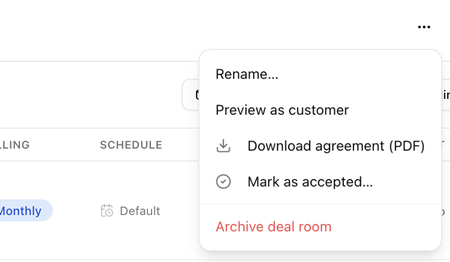 The **⋯** button in the header opens the room menu:
| Item | What it does |
|---|---|
| **Rename…** | Changes the room's name. |
| **Preview as customer** | Opens the pay link the way the customer will see it, with actions disabled. |
| **Download agreement (PDF)** | Downloads the quote as an agreement PDF. After acceptance it is the executed agreement with the signature. |
| **Send executed agreement…** | Emails the executed agreement PDF to the customer. Shown once the quote is accepted. See [Send the executed agreement](./deal-rooms-documents-and-signature#send-the-executed-agreement). |
| **Mark as accepted…** | Records an acceptance made outside BlueHill, such as a signed paper contract. Shown while the quote is *Draft*, *Sent* or *Viewed*. See [Record an offline acceptance](./deal-rooms-send-the-quote#record-an-offline-acceptance). |
| **Expire agreement…** | Ends an accepted agreement today and stops recurring billing. See [End an agreement early](./deal-rooms-invoices-and-payments#end-an-agreement-early). |
| **Archive deal room** | Removes the room from the Deal rooms page and stops its pay link working. See [Archive a deal room](./deal-rooms-find-and-organize-deal-rooms#archive-a-deal-room). |
## The layout
The page has two columns.
- The **left column** is the deal itself: the **Quote** card, the **Payment terms** card and the **Documents & signature** card. Each has its own guide: [Build the quote](./deal-rooms-build-the-quote), [Payment terms and schedule](./deal-rooms-payment-terms-and-schedule) and [Documents and signature](./deal-rooms-documents-and-signature).
- The **right column** is everything around the deal: **Customer**, **Customer notes**, **Approvals**, **Support tickets**, **Share & payment**, **Invoices** and **Activity**.
When an invoice is due soon or overdue, a **reminder banner** sits under the header. See [Reminders](./deal-rooms-invoices-and-payments#reminders).
## Save your changes
Edits to the quote and payment terms are held on the page until you save them.
- Click **Save changes** in the header to save. **Reset** throws the edits away.
- If you leave the page with unsaved edits, BlueHill asks **Discard unsaved quote changes?**.
- The quote can be edited while the room is *Draft*, *Sent* or *Viewed*. Once the customer accepts, the quote is locked. See [Edit a quote after sending it](./deal-rooms-build-the-quote#edit-a-quote-after-sending-it).
- Settings in the right column, such as autopay, the sales group and the pay-link overrides, save immediately with a **Deal room saved** message.
## The Customer card
The **⋯** button in the header opens the room menu:
| Item | What it does |
|---|---|
| **Rename…** | Changes the room's name. |
| **Preview as customer** | Opens the pay link the way the customer will see it, with actions disabled. |
| **Download agreement (PDF)** | Downloads the quote as an agreement PDF. After acceptance it is the executed agreement with the signature. |
| **Send executed agreement…** | Emails the executed agreement PDF to the customer. Shown once the quote is accepted. See [Send the executed agreement](./deal-rooms-documents-and-signature#send-the-executed-agreement). |
| **Mark as accepted…** | Records an acceptance made outside BlueHill, such as a signed paper contract. Shown while the quote is *Draft*, *Sent* or *Viewed*. See [Record an offline acceptance](./deal-rooms-send-the-quote#record-an-offline-acceptance). |
| **Expire agreement…** | Ends an accepted agreement today and stops recurring billing. See [End an agreement early](./deal-rooms-invoices-and-payments#end-an-agreement-early). |
| **Archive deal room** | Removes the room from the Deal rooms page and stops its pay link working. See [Archive a deal room](./deal-rooms-find-and-organize-deal-rooms#archive-a-deal-room). |
## The layout
The page has two columns.
- The **left column** is the deal itself: the **Quote** card, the **Payment terms** card and the **Documents & signature** card. Each has its own guide: [Build the quote](./deal-rooms-build-the-quote), [Payment terms and schedule](./deal-rooms-payment-terms-and-schedule) and [Documents and signature](./deal-rooms-documents-and-signature).
- The **right column** is everything around the deal: **Customer**, **Customer notes**, **Approvals**, **Support tickets**, **Share & payment**, **Invoices** and **Activity**.
When an invoice is due soon or overdue, a **reminder banner** sits under the header. See [Reminders](./deal-rooms-invoices-and-payments#reminders).
## Save your changes
Edits to the quote and payment terms are held on the page until you save them.
- Click **Save changes** in the header to save. **Reset** throws the edits away.
- If you leave the page with unsaved edits, BlueHill asks **Discard unsaved quote changes?**.
- The quote can be edited while the room is *Draft*, *Sent* or *Viewed*. Once the customer accepts, the quote is locked. See [Edit a quote after sending it](./deal-rooms-build-the-quote#edit-a-quote-after-sending-it).
- Settings in the right column, such as autopay, the sales group and the pay-link overrides, save immediately with a **Deal room saved** message.
## The Customer card
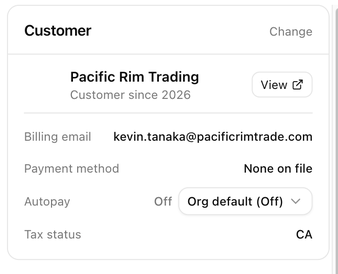 With a customer linked, the card shows the customer's name with *Prospect*, *Customer* or *Customer since 2024* underneath, a **View** link to the record, and these rows:
| Row | Shows |
|---|---|
| **Billing email** | Where quote emails, invoices and reminders go. Set it with **Change**, by choosing a billing contact. |
| **Payment method** | The saved card or bank account, such as *Card ····4242*, or *None on file*. A method is saved when the customer accepts or pays on the pay link and chooses to keep it. |
| **Autopay** | *On* or *Off*, with *· group default* or *· org default* when the room inherits the setting. Click it to change it for this deal. |
| **Tax status** | The state and ZIP code used for sales tax, or *No address*. |
| **Current MRR** | The customer's current monthly recurring revenue, when known. |
### Turn autopay on or off for one deal
1. Click the **Autopay** value and choose **On**, **Off**, or the **default** option to follow the group or organization setting.
2. Choosing **On** (or a default that is on) asks you to confirm **Turn on autopay?**. You confirm that you hold the customer's authorization to charge their saved method, and your name is recorded as the source of that consent.
3. Click **Turn on autopay**.
Autopay only works with a saved payment method and when the room's invoice posting is not set to **Manual (hold)**. See [Autopay](./deal-rooms-invoices-and-payments#autopay).
## The Customer notes card
Notes written here are the same notes that appear on the customer record and on the customer's support tickets, so your colleagues see them wherever they meet the customer.
- Type in **Note about the customer…** and click **+ Add note** (or press **⌘↵**).
- Switch on **Pin** before adding to keep the note at the top under **PINNED**.
- **Show more** reveals older notes. The icon in the card header opens the customer's full activity feed.
The card is hidden until a customer is linked.
## The Support tickets card
Link the support tickets that relate to this deal so the two stay one click apart.
1. Click **+ Link** (shown once a customer is linked).
2. Search **this customer's tickets** and pick one. **Open inbox** jumps to the support inbox instead.
3. Linked tickets appear as *#number subject* with their status. The **×** unlinks a ticket; the ticket itself is untouched.
The same link can be made from the ticket's side panel. See [Where to find Deal Rooms](./deal-rooms-overview#where-to-find-deal-rooms).
## The Activity card
With a customer linked, the card shows the customer's name with *Prospect*, *Customer* or *Customer since 2024* underneath, a **View** link to the record, and these rows:
| Row | Shows |
|---|---|
| **Billing email** | Where quote emails, invoices and reminders go. Set it with **Change**, by choosing a billing contact. |
| **Payment method** | The saved card or bank account, such as *Card ····4242*, or *None on file*. A method is saved when the customer accepts or pays on the pay link and chooses to keep it. |
| **Autopay** | *On* or *Off*, with *· group default* or *· org default* when the room inherits the setting. Click it to change it for this deal. |
| **Tax status** | The state and ZIP code used for sales tax, or *No address*. |
| **Current MRR** | The customer's current monthly recurring revenue, when known. |
### Turn autopay on or off for one deal
1. Click the **Autopay** value and choose **On**, **Off**, or the **default** option to follow the group or organization setting.
2. Choosing **On** (or a default that is on) asks you to confirm **Turn on autopay?**. You confirm that you hold the customer's authorization to charge their saved method, and your name is recorded as the source of that consent.
3. Click **Turn on autopay**.
Autopay only works with a saved payment method and when the room's invoice posting is not set to **Manual (hold)**. See [Autopay](./deal-rooms-invoices-and-payments#autopay).
## The Customer notes card
Notes written here are the same notes that appear on the customer record and on the customer's support tickets, so your colleagues see them wherever they meet the customer.
- Type in **Note about the customer…** and click **+ Add note** (or press **⌘↵**).
- Switch on **Pin** before adding to keep the note at the top under **PINNED**.
- **Show more** reveals older notes. The icon in the card header opens the customer's full activity feed.
The card is hidden until a customer is linked.
## The Support tickets card
Link the support tickets that relate to this deal so the two stay one click apart.
1. Click **+ Link** (shown once a customer is linked).
2. Search **this customer's tickets** and pick one. **Open inbox** jumps to the support inbox instead.
3. Linked tickets appear as *#number subject* with their status. The **×** unlinks a ticket; the ticket itself is untouched.
The same link can be made from the ticket's side panel. See [Where to find Deal Rooms](./deal-rooms-overview#where-to-find-deal-rooms).
## The Activity card
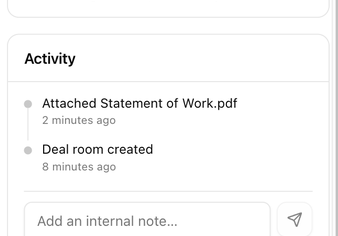 Everything that happens in the room lands here, newest first: the room being created, the customer being linked, every send, view, revision, approval, acceptance, invoice, payment, reminder and autopay attempt, documents attached and signed, and tickets linked.
To leave a note for your team, type in **Add an internal note…** and press **⌘↵** or the send icon. Notes show your name and an *internal* tag. Customers never see the Activity card.
Next: [Build the quote](./deal-rooms-build-the-quote).
Everything that happens in the room lands here, newest first: the room being created, the customer being linked, every send, view, revision, approval, acceptance, invoice, payment, reminder and autopay attempt, documents attached and signed, and tickets linked.
To leave a note for your team, type in **Add an internal note…** and press **⌘↵** or the send icon. Notes show your name and an *internal* tag. Customers never see the Activity card.
Next: [Build the quote](./deal-rooms-build-the-quote).