# Find, filter and organize deal rooms
> Source: https://support.usebluehill.com/deal-rooms-find-and-organize-deal-rooms | Updated: 2026-10-27T16:20:56Z
## Search
Type in the **Search** box above the table to narrow the list by room name, quote reference or customer. The list updates as you type.
## Filters
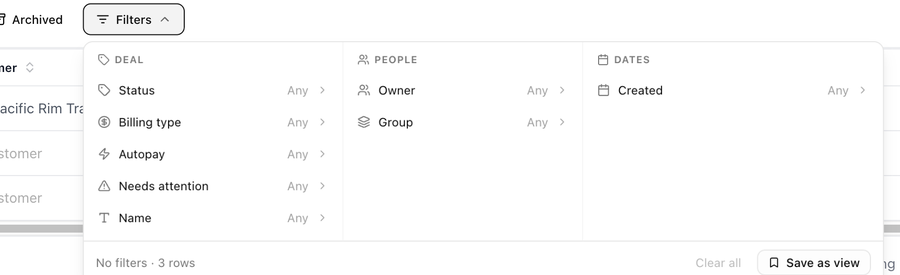 Click **Filters** to open the panel. Filters are grouped in three sections and combine with each other.
**Deal**
| Filter | Options |
|---|---|
| **Status** | *Draft*, *Sent*, *Viewed*, *Accepted*, *Invoiced*, *Paid*, *Overdue*. Pick one or more. |
| **Billing type** | *One-time*, *Recurring* or *Mixed* (the quote has both one-time and recurring lines). |
| **Autopay** | *On* or *Off*, using the setting that actually applies to the room, whether it was set on the room, its sales group or the organization. |
| **Needs attention** | Shortcuts for deals that need a human: *Overdue*, *Awaiting payment* (anything outstanding), *Pending approval*, *Revised since send* and *Sent, never opened*. A room matches if any ticked option applies. |
| **Name** | Rooms whose name contains the text you enter. |
**People**
| Filter | Options |
|---|---|
| **Owner** | *Unassigned* or any team member. |
| **Group** | *Ungrouped* or any sales group. |
**Dates**
| Filter | Options |
|---|---|
| **Created** | Quick ranges such as *Today*, *This week*, *Last 7 days*, *This month*, *Last month* and *Last 30 days*, or a custom range. |
The panel's footer shows how many rows match (*No filters · 3 rows*), **Clear all** removes every filter, and **Save as view** keeps the combination for later. Each column header also offers its own filter.
## Sort
Click a column header to sort by it, and again to reverse the order. Every column except **Terms** and **Method on file** can be sorted. The default order is by last activity, newest first.
## Choose columns
The **Columns** button at the right end of the toolbar shows, hides and reorders columns. **Deal room** is always first. The optional columns are:
| Column | Shows |
|---|---|
| **Paid to date** | What the customer has paid so far. |
| **Overdue $** | The overdue amount, in red. |
| **Autopay** | *On* when the room charges the saved payment method automatically. A solid badge means it was set on this room; an outline badge means it is inherited, and hovering tells you whether from the group or the organization. |
| **Method on file** | The saved payment method, such as *Card ····4242* or *ACH ····6789*. |
| **Terms** | A summary such as *Net 30 · deposit · late fee*. |
| **Sent**, **Viewed**, **Last opened**, **Accepted** | When each happened. **Viewed** adds the number of opens; **Accepted** adds who accepted and their job title. |
| **Agreement start**, **Agreement end** | The agreement term set on the quote. |
| **Created** | When the room was created. |
| **Approval** | A *Pending* badge while a send is waiting for an approver. |
| **Revised** | A *Since send* badge when the quote was edited after it was last sent. |
## Saved views
**Views** saves the current filters, sort and columns under a name so you can reapply them with one click.
- Choose **Save current view...**, enter a **View Name** and save.
- Pick a saved view from the list to apply it. **Reset to default** returns to the standard layout.
- **Set as default for *your workspace*** makes a view open automatically for you. **Arrange your views** changes their order.
Date filters in a saved view are re-evaluated when you apply the view, so *This month* always means the current month.
## Show archived rooms
Archived rooms are hidden by default. Switch on **Archived** in the toolbar to include them; each one carries an *Archived* tag next to its status. An archived room can still be opened and read.
## Archive a deal room
1. Open the room's **⋯** menu on the Deal rooms page, or the **⋯** menu in the room's header.
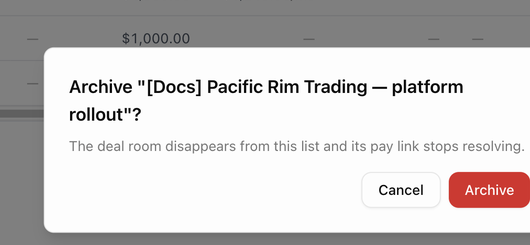
2. Choose **Archive**. The dialog **Archive "*room name*"?** explains that the room disappears from the list and its pay link stops resolving.
3. Click **Archive**.
Click **Filters** to open the panel. Filters are grouped in three sections and combine with each other.
**Deal**
| Filter | Options |
|---|---|
| **Status** | *Draft*, *Sent*, *Viewed*, *Accepted*, *Invoiced*, *Paid*, *Overdue*. Pick one or more. |
| **Billing type** | *One-time*, *Recurring* or *Mixed* (the quote has both one-time and recurring lines). |
| **Autopay** | *On* or *Off*, using the setting that actually applies to the room, whether it was set on the room, its sales group or the organization. |
| **Needs attention** | Shortcuts for deals that need a human: *Overdue*, *Awaiting payment* (anything outstanding), *Pending approval*, *Revised since send* and *Sent, never opened*. A room matches if any ticked option applies. |
| **Name** | Rooms whose name contains the text you enter. |
**People**
| Filter | Options |
|---|---|
| **Owner** | *Unassigned* or any team member. |
| **Group** | *Ungrouped* or any sales group. |
**Dates**
| Filter | Options |
|---|---|
| **Created** | Quick ranges such as *Today*, *This week*, *Last 7 days*, *This month*, *Last month* and *Last 30 days*, or a custom range. |
The panel's footer shows how many rows match (*No filters · 3 rows*), **Clear all** removes every filter, and **Save as view** keeps the combination for later. Each column header also offers its own filter.
## Sort
Click a column header to sort by it, and again to reverse the order. Every column except **Terms** and **Method on file** can be sorted. The default order is by last activity, newest first.
## Choose columns
The **Columns** button at the right end of the toolbar shows, hides and reorders columns. **Deal room** is always first. The optional columns are:
| Column | Shows |
|---|---|
| **Paid to date** | What the customer has paid so far. |
| **Overdue $** | The overdue amount, in red. |
| **Autopay** | *On* when the room charges the saved payment method automatically. A solid badge means it was set on this room; an outline badge means it is inherited, and hovering tells you whether from the group or the organization. |
| **Method on file** | The saved payment method, such as *Card ····4242* or *ACH ····6789*. |
| **Terms** | A summary such as *Net 30 · deposit · late fee*. |
| **Sent**, **Viewed**, **Last opened**, **Accepted** | When each happened. **Viewed** adds the number of opens; **Accepted** adds who accepted and their job title. |
| **Agreement start**, **Agreement end** | The agreement term set on the quote. |
| **Created** | When the room was created. |
| **Approval** | A *Pending* badge while a send is waiting for an approver. |
| **Revised** | A *Since send* badge when the quote was edited after it was last sent. |
## Saved views
**Views** saves the current filters, sort and columns under a name so you can reapply them with one click.
- Choose **Save current view...**, enter a **View Name** and save.
- Pick a saved view from the list to apply it. **Reset to default** returns to the standard layout.
- **Set as default for *your workspace*** makes a view open automatically for you. **Arrange your views** changes their order.
Date filters in a saved view are re-evaluated when you apply the view, so *This month* always means the current month.
## Show archived rooms
Archived rooms are hidden by default. Switch on **Archived** in the toolbar to include them; each one carries an *Archived* tag next to its status. An archived room can still be opened and read.
## Archive a deal room
1. Open the room's **⋯** menu on the Deal rooms page, or the **⋯** menu in the room's header.
2. Choose **Archive**. The dialog **Archive "*room name*"?** explains that the room disappears from the list and its pay link stops resolving.
3. Click **Archive**.
 Archiving does not void invoices or stop an accepted agreement. To end recurring billing, use **Expire agreement…** instead. See [End an agreement early](./deal-rooms-invoices-and-payments#end-an-agreement-early).
## Export to CSV
The **Export CSV** icon in the toolbar downloads the rooms you can see as a spreadsheet, with the name, quote reference, customer, group, status, totals, next due date, autopay, sent and accepted dates, agreement dates, link opens, approval state and last activity.
## Who can see which rooms
- Deal rooms are open to anyone with permission to view invoices. Creating rooms, sending quotes and issuing invoices need permission to create invoices. Ask an admin if a button is missing.
- A room in a sales group is visible only to that group's members, admins and the room's owner. Rooms with no group are visible to everyone. See [Sales groups](./deal-rooms-settings-and-sales-groups#sales-groups).
Next: [Create a deal room](./deal-rooms-create-a-deal-room).
Archiving does not void invoices or stop an accepted agreement. To end recurring billing, use **Expire agreement…** instead. See [End an agreement early](./deal-rooms-invoices-and-payments#end-an-agreement-early).
## Export to CSV
The **Export CSV** icon in the toolbar downloads the rooms you can see as a spreadsheet, with the name, quote reference, customer, group, status, totals, next due date, autopay, sent and accepted dates, agreement dates, link opens, approval state and last activity.
## Who can see which rooms
- Deal rooms are open to anyone with permission to view invoices. Creating rooms, sending quotes and issuing invoices need permission to create invoices. Ask an admin if a button is missing.
- A room in a sales group is visible only to that group's members, admins and the room's owner. Rooms with no group are visible to everyone. See [Sales groups](./deal-rooms-settings-and-sales-groups#sales-groups).
Next: [Create a deal room](./deal-rooms-create-a-deal-room).