# Invoices and payments
> Source: https://support.usebluehill.com/deal-rooms-invoices-and-payments | Updated: 2026-10-27T16:20:56Z
## How invoices are created
Invoices arrive in three ways, and every one has a reference such as *INV-0042* from a single running sequence for your organization:
| Source | When | What is issued |
|---|---|---|
| **The accepted quote** | The customer accepts, or you mark the quote accepted. | The one-time total as one invoice, or the **Deposit** and **Remainder**, or the **Installments**, according to the payment terms. When **First payment at acceptance** is on, the first recurring period is invoiced too, folded into the invoice due at acceptance. |
| **Recurring billing** | Each billing date on the schedule, about three days before the amount is due. | One **Recurring** invoice per period, following the room's billing schedule and payment terms. |
| **By hand** | Whenever you click **Create invoice**. | A one-off **Manual** invoice the customer pays from the same pay link. |
Invoices from the quote are held while a required document is unsigned. See [Hold invoices until the documents are signed](./deal-rooms-documents-and-signature#hold-invoices-until-the-documents-are-signed).
## Create an invoice by hand
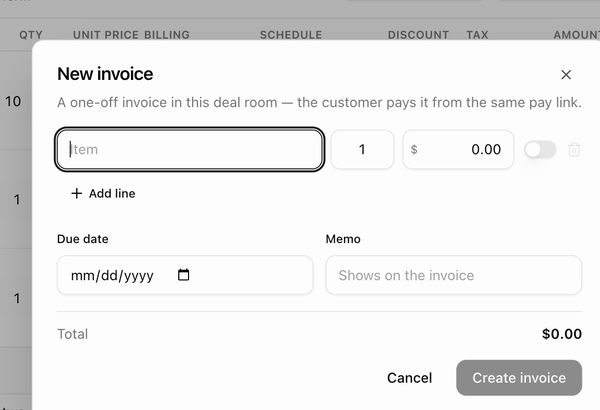 1. Click **Create invoice** in the room header, or **+ New** in the **Invoices** card.
2. Add one or more lines: **Item**, **Qty**, **Unit price** and whether the line is **Taxable** (off by default). **+ Add line** adds another.
3. Set the **Due date** and a **Memo**, which shows on the invoice.
4. Check the **Total**, which includes tax at the quote's rate, and click **Create invoice**.
## The Invoices card
1. Click **Create invoice** in the room header, or **+ New** in the **Invoices** card.
2. Add one or more lines: **Item**, **Qty**, **Unit price** and whether the line is **Taxable** (off by default). **+ Add line** adds another.
3. Set the **Due date** and a **Memo**, which shows on the invoice.
4. Check the **Total**, which includes tax at the quote's rate, and click **Create invoice**.
## The Invoices card
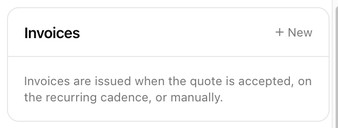 The **Invoices** card in the right column lists the room's invoices, newest first, with the reference (click it to open the hosted invoice), the total including any late fee, a status badge, the memo or source (*Recurring*, *Manual* or *One-time total*) and the due or paid date. *Autopay failed ×N* in red means the saved method could not be charged. Void invoices are hidden. Until the first invoice exists the card explains that invoices are issued when the quote is accepted, on the recurring cadence, or manually.
| Status | Meaning |
|---|---|
| **Pending** | Issued and not yet paid. |
| **Paid** | Paid in full, on the pay link, by autopay or by a charge you made. |
| **Overdue** | Past its due date and still unpaid. Reminders continue and a late fee accrues if one is set. |
| **Void** | Cancelled. It disappears from the customer's pay page. |
The **⋯** menu on a pending or overdue invoice offers:
| Item | What it does |
|---|---|
| **Send reminder** | Emails the customer the invoice reminder now. |
| **Charge saved method** | Charges the amount due to the customer's saved card or bank account immediately. Shown only when a method is on file; you confirm first. |
| **Void invoice** | Cancels the invoice. Recurring charges it covered are re-invoiced by the next sweep. |
**UPCOMING** at the bottom of the card lists the next recurring billing dates with the items and amount, and says what will happen to each: emailed to the customer, charged to the saved method, or held for your review.
## Invoice posting policies
**Invoice posting** decides what happens when a recurring invoice is generated. It is set for the organization, overridden per sales group, and overridden again per room under **Customize for this deal**:
| Policy | What happens |
|---|---|
| **Auto-post (email)** | The invoice is emailed to the customer with a pay link as soon as it is issued. This is the default. |
| **Auto-charge** | The saved payment method is charged when the invoice comes due, and a receipt is emailed. |
| **Manual (hold)** | The invoice is created but not emailed. You review it and send it yourself. Autopay is paused while a room is on manual posting. |
## Reminders
When an invoice is due soon or overdue, a banner under the room header says so, for example *INV-0042 ($1,250.00) is due Nov 3*, and tells you what will happen next: when autopay will charge, when the next reminder email is scheduled, whether the last one was opened, or that automatic reminders are off. **Send reminder now** emails the customer immediately.
The automatic schedule is the **Auto-remind** row in the Payment terms card: a reminder a number of days before the due date, then one every few days while the invoice is overdue. See [Automatic reminders](./deal-rooms-payment-terms-and-schedule#automatic-reminders). Reminders go to the billing email on the room.
## Autopay
Autopay charges the customer's saved payment method automatically when an invoice comes due, and emails a receipt. It is switched on in the **Customer** card for one deal, or as a default for a sales group or the whole organization, and your name is recorded as the source of consent. Customers cannot turn it on or off from the pay link, but the pay page tells them it is on. See [Turn autopay on or off for one deal](./deal-rooms-deal-room-page#turn-autopay-on-or-off-for-one-deal).
If a charge fails, the customer receives the *Automatic payment failed* email with a pay link, the invoice shows *Autopay failed ×N*, the room's owner is notified, and reminders take over until it is paid. Autopay needs a saved method, a room that is not on **Manual (hold)** posting, and a verified business.
## Late fees
With **Late fee** on in the Payment terms card, a monthly percentage is added to an invoice once it is overdue. The invoice total shows *incl. late fee* on the card, the Invoices page and the hosted invoice.
## End an agreement early
To stop an accepted agreement before its end date, open **⋯ → Expire agreement…** and confirm. The agreement ends today: recurring billing stops immediately, unpaid future recurring invoices are voided, and invoices already due stay collectible. The customer is not emailed; their pay page simply shows the end date. The activity logs *Agreement expired by name — recurring billing ended today*.
## The Invoices page
The **Invoices** card in the right column lists the room's invoices, newest first, with the reference (click it to open the hosted invoice), the total including any late fee, a status badge, the memo or source (*Recurring*, *Manual* or *One-time total*) and the due or paid date. *Autopay failed ×N* in red means the saved method could not be charged. Void invoices are hidden. Until the first invoice exists the card explains that invoices are issued when the quote is accepted, on the recurring cadence, or manually.
| Status | Meaning |
|---|---|
| **Pending** | Issued and not yet paid. |
| **Paid** | Paid in full, on the pay link, by autopay or by a charge you made. |
| **Overdue** | Past its due date and still unpaid. Reminders continue and a late fee accrues if one is set. |
| **Void** | Cancelled. It disappears from the customer's pay page. |
The **⋯** menu on a pending or overdue invoice offers:
| Item | What it does |
|---|---|
| **Send reminder** | Emails the customer the invoice reminder now. |
| **Charge saved method** | Charges the amount due to the customer's saved card or bank account immediately. Shown only when a method is on file; you confirm first. |
| **Void invoice** | Cancels the invoice. Recurring charges it covered are re-invoiced by the next sweep. |
**UPCOMING** at the bottom of the card lists the next recurring billing dates with the items and amount, and says what will happen to each: emailed to the customer, charged to the saved method, or held for your review.
## Invoice posting policies
**Invoice posting** decides what happens when a recurring invoice is generated. It is set for the organization, overridden per sales group, and overridden again per room under **Customize for this deal**:
| Policy | What happens |
|---|---|
| **Auto-post (email)** | The invoice is emailed to the customer with a pay link as soon as it is issued. This is the default. |
| **Auto-charge** | The saved payment method is charged when the invoice comes due, and a receipt is emailed. |
| **Manual (hold)** | The invoice is created but not emailed. You review it and send it yourself. Autopay is paused while a room is on manual posting. |
## Reminders
When an invoice is due soon or overdue, a banner under the room header says so, for example *INV-0042 ($1,250.00) is due Nov 3*, and tells you what will happen next: when autopay will charge, when the next reminder email is scheduled, whether the last one was opened, or that automatic reminders are off. **Send reminder now** emails the customer immediately.
The automatic schedule is the **Auto-remind** row in the Payment terms card: a reminder a number of days before the due date, then one every few days while the invoice is overdue. See [Automatic reminders](./deal-rooms-payment-terms-and-schedule#automatic-reminders). Reminders go to the billing email on the room.
## Autopay
Autopay charges the customer's saved payment method automatically when an invoice comes due, and emails a receipt. It is switched on in the **Customer** card for one deal, or as a default for a sales group or the whole organization, and your name is recorded as the source of consent. Customers cannot turn it on or off from the pay link, but the pay page tells them it is on. See [Turn autopay on or off for one deal](./deal-rooms-deal-room-page#turn-autopay-on-or-off-for-one-deal).
If a charge fails, the customer receives the *Automatic payment failed* email with a pay link, the invoice shows *Autopay failed ×N*, the room's owner is notified, and reminders take over until it is paid. Autopay needs a saved method, a room that is not on **Manual (hold)** posting, and a verified business.
## Late fees
With **Late fee** on in the Payment terms card, a monthly percentage is added to an invoice once it is overdue. The invoice total shows *incl. late fee* on the card, the Invoices page and the hosted invoice.
## End an agreement early
To stop an accepted agreement before its end date, open **⋯ → Expire agreement…** and confirm. The agreement ends today: recurring billing stops immediately, unpaid future recurring invoices are voided, and invoices already due stay collectible. The customer is not emailed; their pay page simply shows the end date. The activity logs *Agreement expired by name — recurring billing ended today*.
## The Invoices page
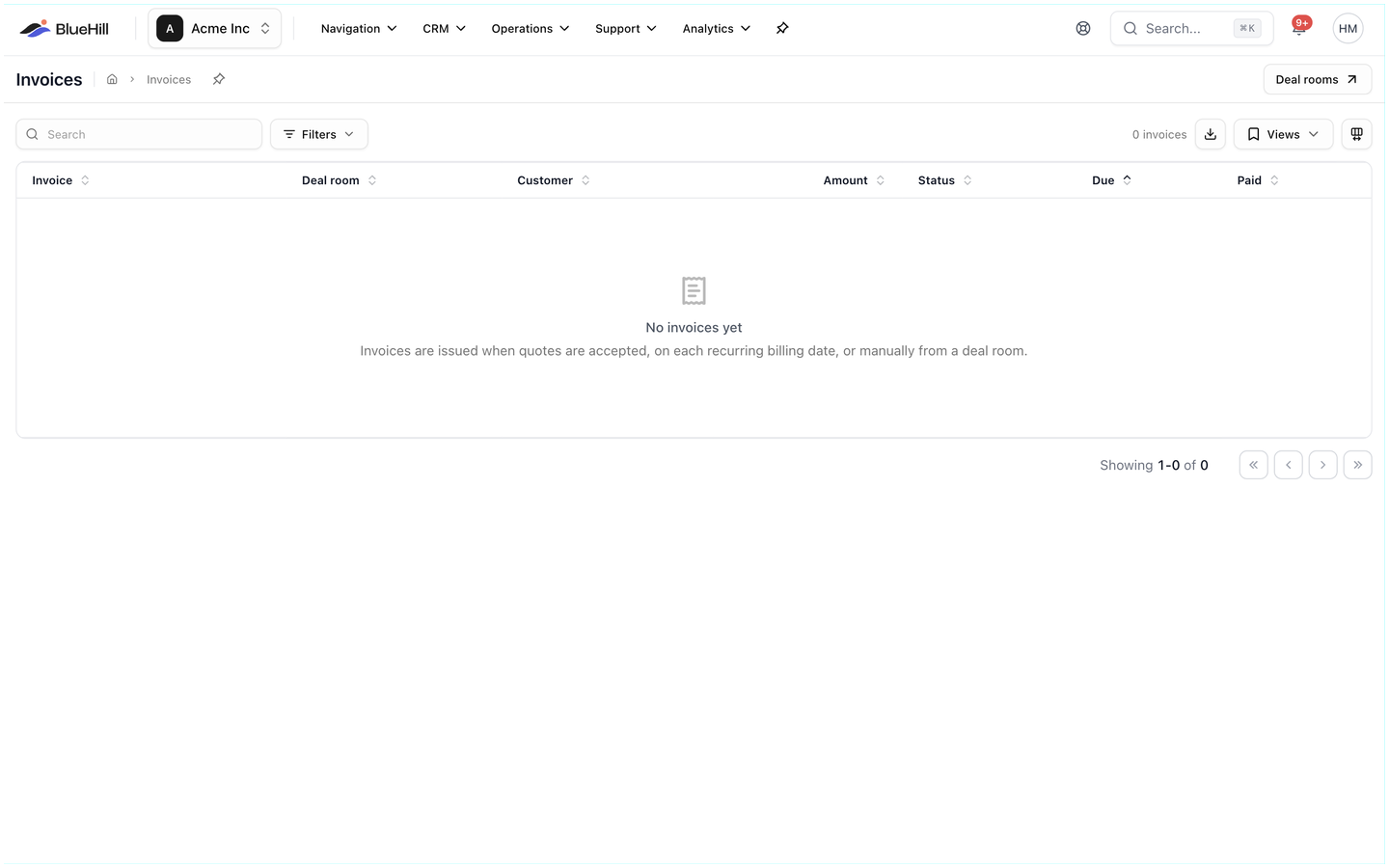 **CRM → Invoices** (or the **Invoices** button on the Deal rooms page) lists every invoice across all the rooms you can see, soonest due first. The toolbar shows the invoice count with the outstanding total (*12 invoices · $8,400.00 outstanding*), **Filters**, an **Export CSV** icon and **Views**. Before the first invoice exists the page explains that invoices are issued when quotes are accepted, on each recurring billing date, or manually from a deal room.
| Column | Shows |
|---|---|
| **Invoice** | The reference, with the memo or source underneath: *One-time total*, *Deposit*, *Remainder*, *Installment*, *Recurring* or *Manual*. |
| **Deal room** | The room the invoice belongs to. |
| **Customer** | Who it is billed to. |
| **Amount** | The total, with *incl. late fee* when one applies. |
| **Status** | *Pending*, *Paid*, *Overdue* or *Void*, plus a red *Autopay ×N* badge after failed charges. |
| **Due** | The due date, or *On receipt*. |
| **Paid** | The payment date. |
**Filters** offers **Status** and **Source** (*From quote*, *Recurring*, *Manual*). An **Upcoming** card under the table lists the recurring billing dates that have not become invoices yet, with the room, customer and items; click one to open the room.
## The invoice page
Click a row on the Invoices page to open the invoice. The header offers **Download PDF**, **Copy customer link** (the hosted invoice the customer can open without signing in), **Email invoice** for pending and overdue invoices, and a link to the deal room. Below it is the invoice exactly as the customer sees it. See [The hosted invoice](./deal-rooms-what-the-customer-sees#the-hosted-invoice).
Deal room invoices and payments also appear on the customer's **Billing** tab, where an **All billing** / **Deal rooms** switch separates them from the customer's other charges.
Next: [Settings and sales groups](./deal-rooms-settings-and-sales-groups).
**CRM → Invoices** (or the **Invoices** button on the Deal rooms page) lists every invoice across all the rooms you can see, soonest due first. The toolbar shows the invoice count with the outstanding total (*12 invoices · $8,400.00 outstanding*), **Filters**, an **Export CSV** icon and **Views**. Before the first invoice exists the page explains that invoices are issued when quotes are accepted, on each recurring billing date, or manually from a deal room.
| Column | Shows |
|---|---|
| **Invoice** | The reference, with the memo or source underneath: *One-time total*, *Deposit*, *Remainder*, *Installment*, *Recurring* or *Manual*. |
| **Deal room** | The room the invoice belongs to. |
| **Customer** | Who it is billed to. |
| **Amount** | The total, with *incl. late fee* when one applies. |
| **Status** | *Pending*, *Paid*, *Overdue* or *Void*, plus a red *Autopay ×N* badge after failed charges. |
| **Due** | The due date, or *On receipt*. |
| **Paid** | The payment date. |
**Filters** offers **Status** and **Source** (*From quote*, *Recurring*, *Manual*). An **Upcoming** card under the table lists the recurring billing dates that have not become invoices yet, with the room, customer and items; click one to open the room.
## The invoice page
Click a row on the Invoices page to open the invoice. The header offers **Download PDF**, **Copy customer link** (the hosted invoice the customer can open without signing in), **Email invoice** for pending and overdue invoices, and a link to the deal room. Below it is the invoice exactly as the customer sees it. See [The hosted invoice](./deal-rooms-what-the-customer-sees#the-hosted-invoice).
Deal room invoices and payments also appear on the customer's **Billing** tab, where an **All billing** / **Deal rooms** switch separates them from the customer's other charges.
Next: [Settings and sales groups](./deal-rooms-settings-and-sales-groups).