# Send the quote and share the pay link
> Source: https://support.usebluehill.com/deal-rooms-send-the-quote | Updated: 2026-10-27T16:20:56Z
## Before you send
Check four things:
- A **customer** is linked and has an email address (or a **Billing contact** is chosen). A quote cannot be sent without one.
- The **quote** has its lines, discounts and memo, and the **payment terms** are set.
- Any **documents** the customer must read or sign are attached.
- Your **approval policy** is not tripped, or you have time for an approver to release the send. See [Approvals](#approvals).
## Preview as customer
Choose **Preview as customer** from the arrow next to **Send quote**, or from the **⋯** menu. The pay page opens in a new tab with an amber *Preview* banner and every action disabled, so you can check the wording, totals and documents exactly as the customer will see them. See [What the customer sees](./deal-rooms-what-the-customer-sees).
## Send the quote
1. Click **Send quote**. Unsaved edits are saved first.
2. The customer receives the *Quote sent* email with a **View quote** button that opens the pay link. You see **Quote sent to the customer**, the room moves to **Sent**, and a version is recorded in [Version history](./deal-rooms-build-the-quote#version-history).
3. The activity logs *Quote sent to email (v1)*, and *Quote viewed by the customer* once the link is opened.
If the room has no customer, BlueHill asks you to link one first.
## Resend after changes
Edits made after sending go live on the pay link straight away, but the customer is not told. Click **Resend quote** to email them again; the version chip goes up by one and the **Edited since last send** pill clears. Resending without changes records a version marked *Resent (no changes)*.
## Approvals
Your organization can require approval for sends that trip a threshold: a line discount above a percentage, a total discount above an amount, or a quote total above an amount. See [Approval policy](./deal-rooms-settings-and-sales-groups#approval-policy).
- When you click **Send quote** on such a quote, you see **Approval requested — the quote sends once it's approved**. The room's **Approvals** card lists the reason, for example *Line discount 25% exceeds the 20% policy*, with *Awaiting approval*.
- Approvers see **Approve** and **Reject** on the card. Approving sends the quote; the card shows *Approved · date*. Rejecting leaves the room in Draft with *Rejected · date*.
- Sends that stay within policy show *Auto-approved · within policy*.
- The **Policy** link in the card header opens the settings. On the Deal rooms page, the **Approval** column and the **Needs attention → Pending approval** filter find rooms that are waiting.
The same hold applies when you mark a quote accepted by hand.
## The Share & payment card
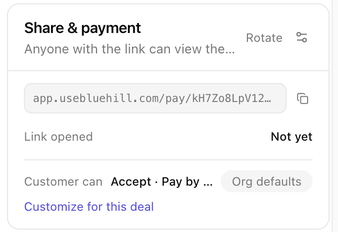 This card in the right column is the home of the pay link.
- **The link** is shown with a copy button. Anyone with the link can view the quote. Until the quote is sent or the link copied, the card says *A pay link is created when you send the quote (or copy it from the header)*.
- **Rotate** replaces the link. The old one stops working immediately, which is the right move if a link went to the wrong person. Confirm **Rotate the pay link?**.
- **Link opened** shows *Not yet* or how many times and when the customer last opened it. **View history** lists each open; repeat opens within an hour are collapsed into one entry.
- **Sales group** moves the room to another group. See [Move a room to another sales group](./deal-rooms-create-a-deal-room#move-a-room-to-another-sales-group).
- **Customer can** summarizes what the link allows, such as *Accept · Pay by Card, ACH* or *View only*. An *Org defaults* badge means nothing is overridden for this deal.
The gear icon in the card header opens Deal room settings.
### Customize for this deal
This card in the right column is the home of the pay link.
- **The link** is shown with a copy button. Anyone with the link can view the quote. Until the quote is sent or the link copied, the card says *A pay link is created when you send the quote (or copy it from the header)*.
- **Rotate** replaces the link. The old one stops working immediately, which is the right move if a link went to the wrong person. Confirm **Rotate the pay link?**.
- **Link opened** shows *Not yet* or how many times and when the customer last opened it. **View history** lists each open; repeat opens within an hour are collapsed into one entry.
- **Sales group** moves the room to another group. See [Move a room to another sales group](./deal-rooms-create-a-deal-room#move-a-room-to-another-sales-group).
- **Customer can** summarizes what the link allows, such as *Accept · Pay by Card, ACH* or *View only*. An *Org defaults* badge means nothing is overridden for this deal.
The gear icon in the card header opens Deal room settings.
### Customize for this deal
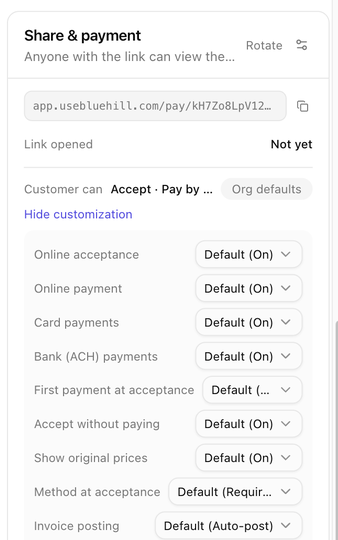 Click **Customize for this deal** to override the organization or sales group policy for this room only. Each row offers **Default** (the inherited value, shown in brackets), **On** or **Off**:
| Setting | What it controls |
|---|---|
| **Online acceptance** | Whether the customer can accept from the link. Off shows them a *Review your quote* card and you finalize acceptance yourself. |
| **Online payment** | Whether the customer can pay from the link. Off tells them payments are handled offline. |
| **Card payments**, **Bank (ACH) payments** | Which payment methods the link accepts. |
| **First payment at acceptance** | Whether the first recurring period is invoiced when the quote is accepted rather than on the next billing date. |
| **Accept without paying** | Whether the customer may accept now and pay later when an amount is due at acceptance. |
| **Show original prices** | Whether discounted lines show the list price struck through. |
| **Method at acceptance** | **Require**, **Optional** or **Don't ask**: whether the customer must give a card or bank account when they accept. |
| **Invoice posting** | **Auto-post (email)**, **Auto-charge** or **Manual (hold)**: what happens when a recurring invoice is generated. See [Invoice posting policies](./deal-rooms-invoices-and-payments#invoice-posting-policies). |
Changes save immediately. **Hide customization** collapses the rows again.
## Other ways to share the link
- **Copy pay link** in the room header or in the row menu on the Deal rooms page copies the link without emailing anyone. Paste it into your own email or chat.
- In a support ticket reply, **Send deal** inserts a *View and pay* block for a linked deal room. A *Draft* quote becomes *Sent* when the reply is emailed. See the Support guides for the ticket side.
- **Preview as customer** uses a staff-only preview link; do not send that one to the customer.
## Track opens
The room moves to **Viewed** the first time the customer opens the link, and the activity logs *Pay link opened* for later visits. On the Deal rooms page, the **Last viewed** column and the **Needs attention → Sent, never opened** filter show which quotes are waiting for attention.
## Record an offline acceptance
Click **Customize for this deal** to override the organization or sales group policy for this room only. Each row offers **Default** (the inherited value, shown in brackets), **On** or **Off**:
| Setting | What it controls |
|---|---|
| **Online acceptance** | Whether the customer can accept from the link. Off shows them a *Review your quote* card and you finalize acceptance yourself. |
| **Online payment** | Whether the customer can pay from the link. Off tells them payments are handled offline. |
| **Card payments**, **Bank (ACH) payments** | Which payment methods the link accepts. |
| **First payment at acceptance** | Whether the first recurring period is invoiced when the quote is accepted rather than on the next billing date. |
| **Accept without paying** | Whether the customer may accept now and pay later when an amount is due at acceptance. |
| **Show original prices** | Whether discounted lines show the list price struck through. |
| **Method at acceptance** | **Require**, **Optional** or **Don't ask**: whether the customer must give a card or bank account when they accept. |
| **Invoice posting** | **Auto-post (email)**, **Auto-charge** or **Manual (hold)**: what happens when a recurring invoice is generated. See [Invoice posting policies](./deal-rooms-invoices-and-payments#invoice-posting-policies). |
Changes save immediately. **Hide customization** collapses the rows again.
## Other ways to share the link
- **Copy pay link** in the room header or in the row menu on the Deal rooms page copies the link without emailing anyone. Paste it into your own email or chat.
- In a support ticket reply, **Send deal** inserts a *View and pay* block for a linked deal room. A *Draft* quote becomes *Sent* when the reply is emailed. See the Support guides for the ticket side.
- **Preview as customer** uses a staff-only preview link; do not send that one to the customer.
## Track opens
The room moves to **Viewed** the first time the customer opens the link, and the activity logs *Pay link opened* for later visits. On the Deal rooms page, the **Last viewed** column and the **Needs attention → Sent, never opened** filter show which quotes are waiting for attention.
## Record an offline acceptance
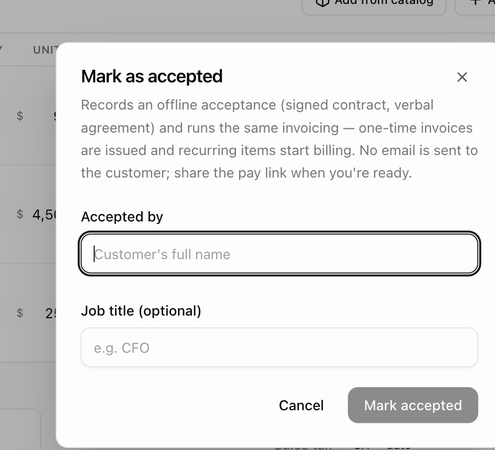 If the customer signed a paper contract or agreed by phone, record it instead of waiting for the pay link:
1. Open **⋯ → Mark as accepted…**.
2. Enter **Accepted by** (the customer's full name) and an optional **Job title**.
3. If a payment method is on file and an amount is due now, you can tick **Charge the card on file now** to collect it immediately.
4. Click **Mark accepted**.
The same invoicing runs as for an online acceptance: one-time invoices are issued and recurring lines start billing. No email is sent to the customer; share the pay link when you are ready. The activity logs *Marked accepted on behalf of name — recorded internally*.
Next: [What the customer sees](./deal-rooms-what-the-customer-sees).
If the customer signed a paper contract or agreed by phone, record it instead of waiting for the pay link:
1. Open **⋯ → Mark as accepted…**.
2. Enter **Accepted by** (the customer's full name) and an optional **Job title**.
3. If a payment method is on file and an amount is due now, you can tick **Charge the card on file now** to collect it immediately.
4. Click **Mark accepted**.
The same invoicing runs as for an online acceptance: one-time invoices are issued and recurring lines start billing. No email is sent to the customer; share the pay link when you are ready. The activity logs *Marked accepted on behalf of name — recorded internally*.
Next: [What the customer sees](./deal-rooms-what-the-customer-sees).