# What the customer sees
> Source: https://support.usebluehill.com/deal-rooms-what-the-customer-sees | Updated: 2026-10-27T16:20:56Z
## The pay page
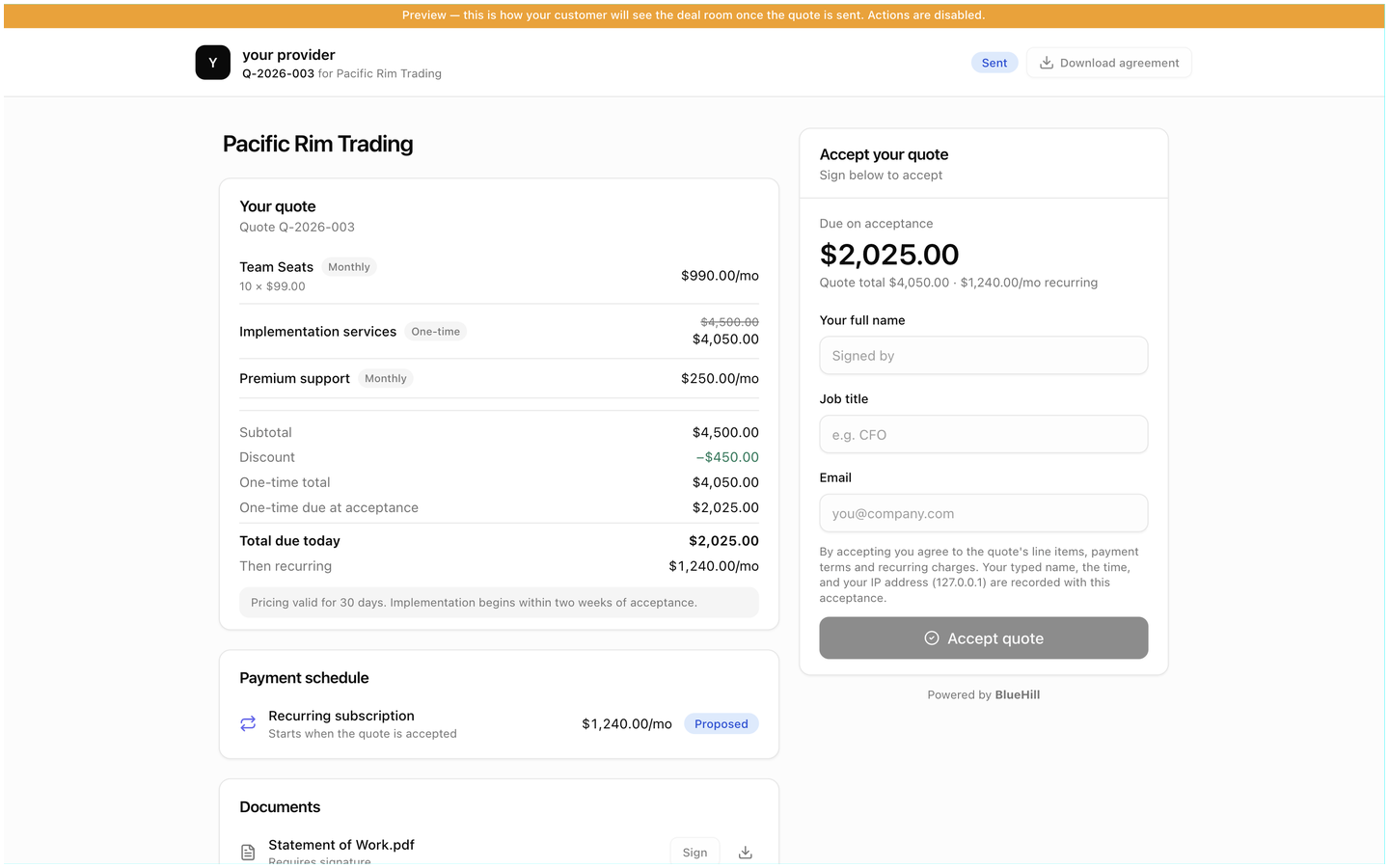 The customer opens the pay link from the quote email or from a link you pasted. No sign-in is needed. The page header carries your logo (or the initial of your provider name, set under **Customer emails** in settings) and shows *Q-2026-003 for Customer name*, the deal's status badge and a **Download agreement** button, which becomes **Executed agreement** after acceptance.
Two banners can appear above it:
- An amber **Preview** banner when you open the page yourself from the room. Actions are disabled, and a draft is shown as it will look once sent.
- A red **Test mode** banner when your business has not yet been verified by BlueHill. The page tells the customer not to send money or card details. Complete business verification in your organization settings to remove it.
## Your quote
The **Your quote** card lists every line with its name, *One-time* or cadence badge, quantity and unit price, and the line total. Discounted lines show the list price struck through when original prices are shown. Under the lines come the totals: **Subtotal**, **Discount**, **One-time total**, **Recurring**, then before acceptance **One-time due at acceptance**, **First recurring payment**, any **Card service fee**, **Total due today** and **Then recurring**. Your memo appears in a grey box at the bottom. When the agreement has a future start or an end date, tags such as *Agreement starts Nov 1* appear under the title.
## Payment schedule
The customer opens the pay link from the quote email or from a link you pasted. No sign-in is needed. The page header carries your logo (or the initial of your provider name, set under **Customer emails** in settings) and shows *Q-2026-003 for Customer name*, the deal's status badge and a **Download agreement** button, which becomes **Executed agreement** after acceptance.
Two banners can appear above it:
- An amber **Preview** banner when you open the page yourself from the room. Actions are disabled, and a draft is shown as it will look once sent.
- A red **Test mode** banner when your business has not yet been verified by BlueHill. The page tells the customer not to send money or card details. Complete business verification in your organization settings to remove it.
## Your quote
The **Your quote** card lists every line with its name, *One-time* or cadence badge, quantity and unit price, and the line total. Discounted lines show the list price struck through when original prices are shown. Under the lines come the totals: **Subtotal**, **Discount**, **One-time total**, **Recurring**, then before acceptance **One-time due at acceptance**, **First recurring payment**, any **Card service fee**, **Total due today** and **Then recurring**. Your memo appears in a grey box at the bottom. When the agreement has a future start or an end date, tags such as *Agreement starts Nov 1* appear under the title.
## Payment schedule
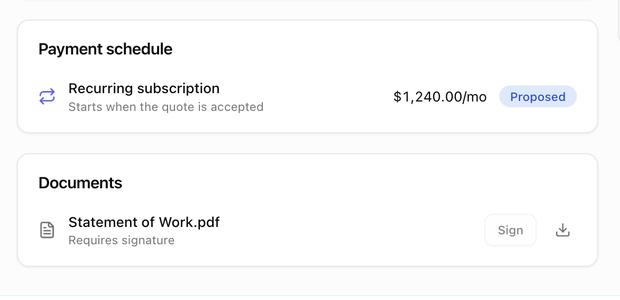 The **Payment schedule** card lists every invoice with a paid tick or a pending clock, its memo or reference, when it is due or was paid, the amount, its status and a **View** link to the hosted invoice. A **Recurring subscription** row says whether the subscription is *Proposed* or *Active*, when it starts, its billing rule, and whether autopay is on. **Upcoming** lists the next billing dates and explains that each becomes an invoice emailed with a payment link, or charged to the saved method when autopay is on.
## Documents
The **Documents** card lists the files you attached. Reference files have a download icon. A file marked **Requires signature** has a **Sign** button; the customer types their full name and clicks **Sign**, and the file shows *Signed date* on both sides.
## Accept the quote
Before acceptance, the right column holds the **Accept your quote** panel. Its subtitle tells the customer what the button will do: *Sign and pay in one step*, *Sign and save your payment method* or *Sign below to accept*. A large amount is labelled **Due on acceptance** or **Quote total**, with a line explaining what it includes.
The customer fills in:
1. **Your full name** and **Job title** (both required) and their **Email**.
2. **Payment**, when something is due now or your policy asks for a method, and your business is set up to take online payments: **Card** (card number, expiry **Month** and **Year**, **ZIP**) or **Bank (ACH)** (routing and account number). When nothing is due the box says *Nothing is charged today — the method is kept on file for upcoming invoices*. With **Method at acceptance** set to **Optional**, the box is collapsed behind **+ Add a payment method (optional)**. Until payments are set up, the panel simply says *Sign below to accept* and the button reads **Accept quote**.
3. The **terms checkbox**, *I have read and agree to the Terms of Service and Privacy Policy*, when you have set legal links.
4. A **Signature**, typed or drawn, when a signature is required.
Consent text above the button explains that their typed name or signature, the time and their IP address are recorded. The button reads **Accept & pay $X**, **Accept & save payment method** or **Accept quote** depending on the setup. When **Accept without paying** is allowed and an amount is due, an **Accept without paying now** link lets them accept and pay later.
Accepting moves the room to **Accepted**, issues the invoices, emails the *Quote accepted* confirmation, and, when they paid, shows **Payment received — a receipt is on its way to your inbox**. A prospect is converted to a customer at this point.
If **Online acceptance** is off, the customer sees **Review your quote** and is told your contact will finalize acceptance with them directly.
## Pay an invoice
After acceptance the right column changes:
- **Amount due** shows the open invoice (or a dropdown when several are open), the payment method fields or the method on file, the terms checkbox if needed, and a **Pay $X** button. **Save this method for future invoices** is ticked by default. When autopay is on, the panel says so and the customer cannot change it.
- **You're all caught up** appears when nothing is due. With autopay it adds that new invoices are charged automatically.
- **Almost there** appears while a required document is still unsigned; the first invoice is issued once they sign.
- **Payments are handled offline** appears when **Online payment** is off.
A card service fee, shown as its own line, may be added when the customer pays by card.
## The hosted invoice
Each invoice has its own page, reached from the **View** links on the pay page, from the invoice emails, or from **Copy customer link** on the invoice in BlueHill. It shows your branding, *Invoice INV-0042 for Customer*, **Download PDF** and, while unpaid, **Pay this invoice**, which goes to the pay link. The document lists who it is billed to, the deal, the status and due date, the line items, **Subtotal**, **Tax**, **Late fee**, **Total**, **Amount paid** and **Amount due**, then the memo. Once paid, the page becomes *Receipt INV-0042* with a green **PAID** stamp, the payment date and the method used.
## Emails the customer receives
| Email | When |
|---|---|
| **Quote sent** | You send or resend the quote. |
| **Quote accepted (confirmation)** | The customer accepts on the pay link. |
| **Executed agreement** | You send the executed agreement PDF. |
| **New invoice** | An invoice is posted with **Auto-post (email)**, or you email an invoice by hand. |
| **Invoice reminder (due soon)** | The automatic reminder before the due date, or **Send reminder now**. |
| **Invoice past due** | The repeating reminder while an invoice is overdue. |
| **Payment receipt** | A payment is received. |
| **Automatic payment failed** | An autopay charge did not go through. |
The wording and branding of every email is yours to change. See [Customer emails](./deal-rooms-settings-and-sales-groups#customer-emails).
## When the link does not work
An archived room, a rotated link or an expired link all show **This link isn't available** with the advice to ask their contact for a fresh one. A draft that has never been sent shows the same page to the customer; only your preview can open it. Links never expire unless you set **Links expire after** in settings.
Next: [Invoices and payments](./deal-rooms-invoices-and-payments).
The **Payment schedule** card lists every invoice with a paid tick or a pending clock, its memo or reference, when it is due or was paid, the amount, its status and a **View** link to the hosted invoice. A **Recurring subscription** row says whether the subscription is *Proposed* or *Active*, when it starts, its billing rule, and whether autopay is on. **Upcoming** lists the next billing dates and explains that each becomes an invoice emailed with a payment link, or charged to the saved method when autopay is on.
## Documents
The **Documents** card lists the files you attached. Reference files have a download icon. A file marked **Requires signature** has a **Sign** button; the customer types their full name and clicks **Sign**, and the file shows *Signed date* on both sides.
## Accept the quote
Before acceptance, the right column holds the **Accept your quote** panel. Its subtitle tells the customer what the button will do: *Sign and pay in one step*, *Sign and save your payment method* or *Sign below to accept*. A large amount is labelled **Due on acceptance** or **Quote total**, with a line explaining what it includes.
The customer fills in:
1. **Your full name** and **Job title** (both required) and their **Email**.
2. **Payment**, when something is due now or your policy asks for a method, and your business is set up to take online payments: **Card** (card number, expiry **Month** and **Year**, **ZIP**) or **Bank (ACH)** (routing and account number). When nothing is due the box says *Nothing is charged today — the method is kept on file for upcoming invoices*. With **Method at acceptance** set to **Optional**, the box is collapsed behind **+ Add a payment method (optional)**. Until payments are set up, the panel simply says *Sign below to accept* and the button reads **Accept quote**.
3. The **terms checkbox**, *I have read and agree to the Terms of Service and Privacy Policy*, when you have set legal links.
4. A **Signature**, typed or drawn, when a signature is required.
Consent text above the button explains that their typed name or signature, the time and their IP address are recorded. The button reads **Accept & pay $X**, **Accept & save payment method** or **Accept quote** depending on the setup. When **Accept without paying** is allowed and an amount is due, an **Accept without paying now** link lets them accept and pay later.
Accepting moves the room to **Accepted**, issues the invoices, emails the *Quote accepted* confirmation, and, when they paid, shows **Payment received — a receipt is on its way to your inbox**. A prospect is converted to a customer at this point.
If **Online acceptance** is off, the customer sees **Review your quote** and is told your contact will finalize acceptance with them directly.
## Pay an invoice
After acceptance the right column changes:
- **Amount due** shows the open invoice (or a dropdown when several are open), the payment method fields or the method on file, the terms checkbox if needed, and a **Pay $X** button. **Save this method for future invoices** is ticked by default. When autopay is on, the panel says so and the customer cannot change it.
- **You're all caught up** appears when nothing is due. With autopay it adds that new invoices are charged automatically.
- **Almost there** appears while a required document is still unsigned; the first invoice is issued once they sign.
- **Payments are handled offline** appears when **Online payment** is off.
A card service fee, shown as its own line, may be added when the customer pays by card.
## The hosted invoice
Each invoice has its own page, reached from the **View** links on the pay page, from the invoice emails, or from **Copy customer link** on the invoice in BlueHill. It shows your branding, *Invoice INV-0042 for Customer*, **Download PDF** and, while unpaid, **Pay this invoice**, which goes to the pay link. The document lists who it is billed to, the deal, the status and due date, the line items, **Subtotal**, **Tax**, **Late fee**, **Total**, **Amount paid** and **Amount due**, then the memo. Once paid, the page becomes *Receipt INV-0042* with a green **PAID** stamp, the payment date and the method used.
## Emails the customer receives
| Email | When |
|---|---|
| **Quote sent** | You send or resend the quote. |
| **Quote accepted (confirmation)** | The customer accepts on the pay link. |
| **Executed agreement** | You send the executed agreement PDF. |
| **New invoice** | An invoice is posted with **Auto-post (email)**, or you email an invoice by hand. |
| **Invoice reminder (due soon)** | The automatic reminder before the due date, or **Send reminder now**. |
| **Invoice past due** | The repeating reminder while an invoice is overdue. |
| **Payment receipt** | A payment is received. |
| **Automatic payment failed** | An autopay charge did not go through. |
The wording and branding of every email is yours to change. See [Customer emails](./deal-rooms-settings-and-sales-groups#customer-emails).
## When the link does not work
An archived room, a rotated link or an expired link all show **This link isn't available** with the advice to ask their contact for a fresh one. A draft that has never been sent shows the same page to the customer; only your preview can open it. Links never expire unless you set **Links expire after** in settings.
Next: [Invoices and payments](./deal-rooms-invoices-and-payments).