# The Help center tab at a glance
> Source: https://support.usebluehill.com/help-center-help-center-tab-overview | Updated: 2026-10-26T22:19:30Z
## Internal and Help center
Open **Navigation → Wiki**. Next to the page title sits a pair of tabs:
- **Internal** is the wiki as your team uses it: recently updated pages, your pins and the pages pinned for everyone.
- **Help center** is the dashboard for the public site. A count on the tab tells you how many things need attention.
The tabs only appear once your workspace has at least one public knowledge base. See [Set up and publish a help center](./help-center-set-up-a-help-center) if you do not see them. The tab you choose is remembered in your browser.
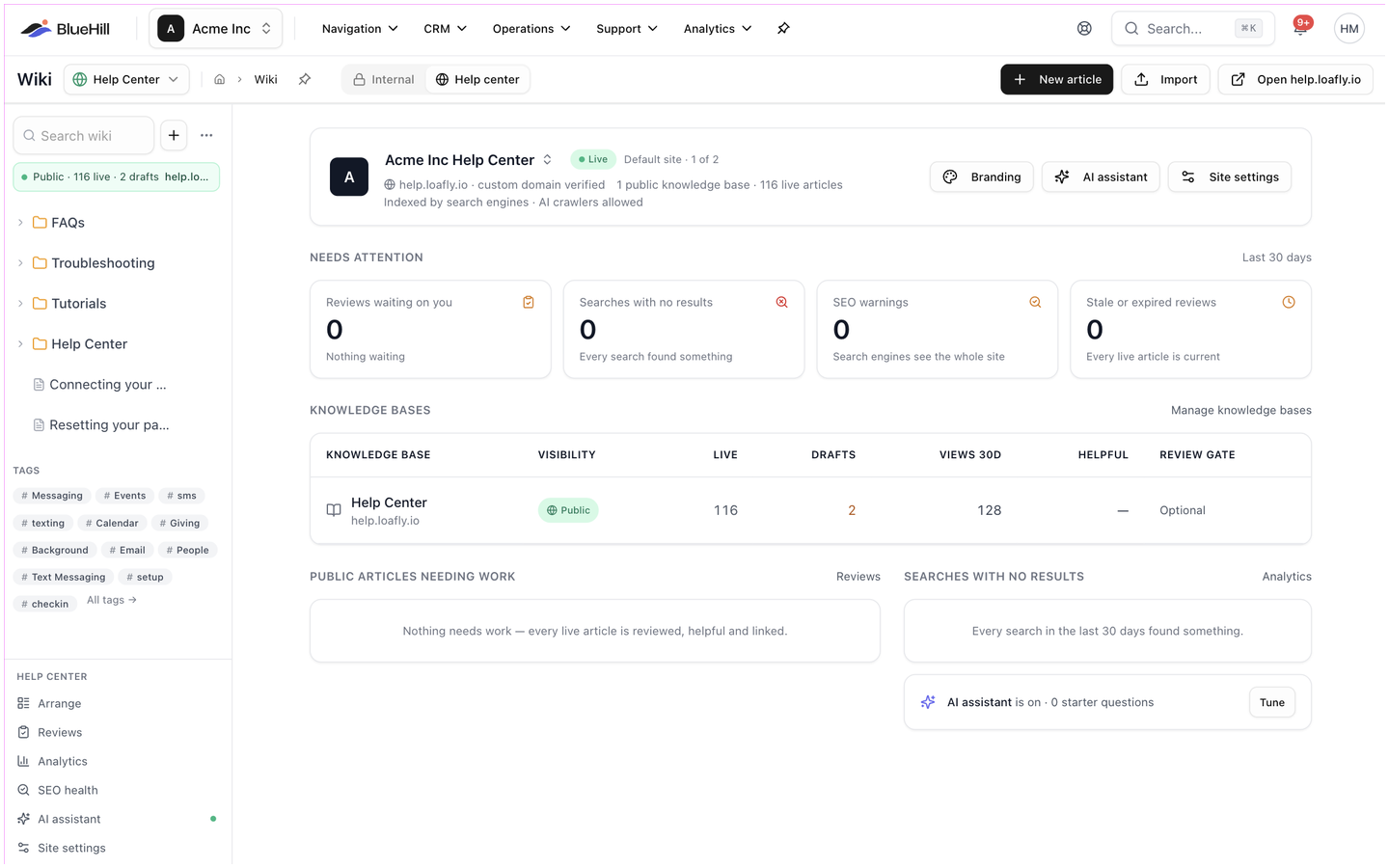 ## The header
 On the Help center tab the header offers:
| Button | What it does |
|---|---|
| **New article** | Creates a page in the site's first public knowledge base and opens the editor. |
| **Import** | Opens the import page, where you can bring in files, a Slab export or Freshdesk Solutions. |
| **Open help center** (or **Open *your domain***) | Opens the live site in a new tab. Shown only when the site is live. |
On the **Internal** tab the same spot holds **New page**, **Import** and **Export all**.
The **knowledge base switcher** next to the title lists every knowledge base. Public ones carry a green globe, internal ones a book. Pick one to work inside it; the last item, **Manage knowledge bases**, opens the dialog described in [Create a knowledge base](./help-center-set-up-a-help-center#create-a-knowledge-base).
## The site card
The first card names the site. Click the site name to switch between help centers when you have more than one; the list shows each site's domain, number of knowledge bases and live articles, and whether it is **Live** or **Not published**. Its footer links, **New help center for a brand…** and **Manage brands & domains**, open the Support settings.
The card also shows:
- A **Live** badge and whether this is the **Default site** or a **Brand site**, with its number among your sites.
- The site's address: either *your domain · custom domain verified* or the portal address.
- How many public knowledge bases and live articles the site has.
- Whether the site is **Indexed by search engines** and whether **AI crawlers** are allowed or blocked, or **Hidden from search engines**.
- **Branding**, **AI assistant** and **Site settings** buttons, which all open **Support → Support settings → Help center**.
If the site has nothing published yet, the card is followed by **This help center has nothing published yet** and an **Open help center settings** button.
## Needs attention
Four tiles summarize the last 30 days. Click a tile to open the page that fixes it.
| Tile | What it counts | Opens |
|---|---|---|
| **Reviews waiting on you** | Review requests assigned to you, how many block publishing and the age of the oldest. | The Reviews page. |
| **Searches with no results** | The most common search that found nothing and how often it was tried. | Analytics. |
| **SEO warnings** | Checks that cost search traffic. **Search engines see the whole site** means none. | SEO health. |
| **Stale or expired reviews** | Live articles whose approval has lapsed. **Every live article is current** means none. | The Reviews page, **Expiring** tab. |
> **Tip:** **Searches with no results** needs the ticketing plan. Without it the tile reads **Needs the ticketing plan**.
## Knowledge bases
The **Knowledge bases** table lists every knowledge base in the workspace with its **Visibility** (**Public** or **Internal**), the number of **Live** articles and **Drafts**, **Views 30d**, the **Helpful** rate and its **Review gate** (**Required · N days**, **Optional** or none). A public knowledge base shows the domain it serves under its name. Click a row to open that knowledge base in the wiki; **Manage knowledge bases** opens the dialog.
## Public articles needing work
This list shows live articles with a problem and why: **Awaiting your review**, **Review expired**, **Low helpful rate**, **Broken links** or **SEO**. Each row shows the category, a detail and the article's views. When everything is fine it reads **Nothing needs work — every live article is reviewed, helpful and linked.**
## Searches with no results
The top five searches that found nothing, each with a **Write article** button. The button opens a new article with the search as its title, so the gap is easy to close. When every search found something, the card says so.
## AI assistant
The last strip tells you whether the AI assistant is on for this site, how many questions it answered in the period and how many starter questions you have set. **Tune** opens the AI settings. See [AI answers and Ask AI chat](./help-center-ai-assistant).
## The sidebar toolkit
On the Help center tab the header offers:
| Button | What it does |
|---|---|
| **New article** | Creates a page in the site's first public knowledge base and opens the editor. |
| **Import** | Opens the import page, where you can bring in files, a Slab export or Freshdesk Solutions. |
| **Open help center** (or **Open *your domain***) | Opens the live site in a new tab. Shown only when the site is live. |
On the **Internal** tab the same spot holds **New page**, **Import** and **Export all**.
The **knowledge base switcher** next to the title lists every knowledge base. Public ones carry a green globe, internal ones a book. Pick one to work inside it; the last item, **Manage knowledge bases**, opens the dialog described in [Create a knowledge base](./help-center-set-up-a-help-center#create-a-knowledge-base).
## The site card
The first card names the site. Click the site name to switch between help centers when you have more than one; the list shows each site's domain, number of knowledge bases and live articles, and whether it is **Live** or **Not published**. Its footer links, **New help center for a brand…** and **Manage brands & domains**, open the Support settings.
The card also shows:
- A **Live** badge and whether this is the **Default site** or a **Brand site**, with its number among your sites.
- The site's address: either *your domain · custom domain verified* or the portal address.
- How many public knowledge bases and live articles the site has.
- Whether the site is **Indexed by search engines** and whether **AI crawlers** are allowed or blocked, or **Hidden from search engines**.
- **Branding**, **AI assistant** and **Site settings** buttons, which all open **Support → Support settings → Help center**.
If the site has nothing published yet, the card is followed by **This help center has nothing published yet** and an **Open help center settings** button.
## Needs attention
Four tiles summarize the last 30 days. Click a tile to open the page that fixes it.
| Tile | What it counts | Opens |
|---|---|---|
| **Reviews waiting on you** | Review requests assigned to you, how many block publishing and the age of the oldest. | The Reviews page. |
| **Searches with no results** | The most common search that found nothing and how often it was tried. | Analytics. |
| **SEO warnings** | Checks that cost search traffic. **Search engines see the whole site** means none. | SEO health. |
| **Stale or expired reviews** | Live articles whose approval has lapsed. **Every live article is current** means none. | The Reviews page, **Expiring** tab. |
> **Tip:** **Searches with no results** needs the ticketing plan. Without it the tile reads **Needs the ticketing plan**.
## Knowledge bases
The **Knowledge bases** table lists every knowledge base in the workspace with its **Visibility** (**Public** or **Internal**), the number of **Live** articles and **Drafts**, **Views 30d**, the **Helpful** rate and its **Review gate** (**Required · N days**, **Optional** or none). A public knowledge base shows the domain it serves under its name. Click a row to open that knowledge base in the wiki; **Manage knowledge bases** opens the dialog.
## Public articles needing work
This list shows live articles with a problem and why: **Awaiting your review**, **Review expired**, **Low helpful rate**, **Broken links** or **SEO**. Each row shows the category, a detail and the article's views. When everything is fine it reads **Nothing needs work — every live article is reviewed, helpful and linked.**
## Searches with no results
The top five searches that found nothing, each with a **Write article** button. The button opens a new article with the search as its title, so the gap is easy to close. When every search found something, the card says so.
## AI assistant
The last strip tells you whether the AI assistant is on for this site, how many questions it answered in the period and how many starter questions you have set. **Tune** opens the AI settings. See [AI answers and Ask AI chat](./help-center-ai-assistant).
## The sidebar toolkit
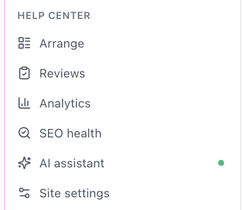 At the bottom of the wiki sidebar, under **Help center**, you will find:
| Item | Where it goes |
|---|---|
| **Arrange** | The Arrange page for featured articles and category order. See [Arrange categories, order and featured articles](./help-center-organize-categories-and-featured). |
| **Reviews** | Review requests and change requests, with a count. See [Reviews before publishing](./help-center-reviews-and-change-requests). |
| **Analytics** | Knowledge base analytics. See [Knowledge base analytics](./help-center-analytics). |
| **SEO health** | The SEO checks, with the number of warnings. See [Search engines, SEO health and search appearance](./help-center-search-engines-and-seo). |
| **AI assistant** | The AI settings. A dot shows when the assistant is on. |
| **Site settings** | The help center settings. |
**Reviews** and **Analytics** are always present; the rest appear once a help center exists. A line such as **3 broken links** appears here when live articles link to pages that no longer exist.
While a public knowledge base is selected, the sidebar also shows a **publish strip**, for example **Public · 116 live · 2 drafts** followed by the domain. Click it to jump to the Help center tab for that site.
Next: [What your visitors see](./help-center-what-visitors-see).
At the bottom of the wiki sidebar, under **Help center**, you will find:
| Item | Where it goes |
|---|---|
| **Arrange** | The Arrange page for featured articles and category order. See [Arrange categories, order and featured articles](./help-center-organize-categories-and-featured). |
| **Reviews** | Review requests and change requests, with a count. See [Reviews before publishing](./help-center-reviews-and-change-requests). |
| **Analytics** | Knowledge base analytics. See [Knowledge base analytics](./help-center-analytics). |
| **SEO health** | The SEO checks, with the number of warnings. See [Search engines, SEO health and search appearance](./help-center-search-engines-and-seo). |
| **AI assistant** | The AI settings. A dot shows when the assistant is on. |
| **Site settings** | The help center settings. |
**Reviews** and **Analytics** are always present; the rest appear once a help center exists. A line such as **3 broken links** appears here when live articles link to pages that no longer exist.
While a public knowledge base is selected, the sidebar also shows a **publish strip**, for example **Public · 116 live · 2 drafts** followed by the domain. Click it to jump to the Help center tab for that site.
Next: [What your visitors see](./help-center-what-visitors-see).