# Arrange categories, order and featured articles
> Source: https://support.usebluehill.com/help-center-organize-categories-and-featured | Updated: 2026-10-26T22:19:30Z
## One order for both
Folders in a public knowledge base are the help center's categories, subfolders its subcategories. Their order, and the order of articles inside them, is the wiki's own order: drag a folder or a page in the sidebar tree, or on the Arrange page, and the change is live on the help center right away. There is no separate public layout to publish.
Two things are help-center only: **Featured** articles at the top of the home page and **Hidden from home** categories.
## The Arrange page
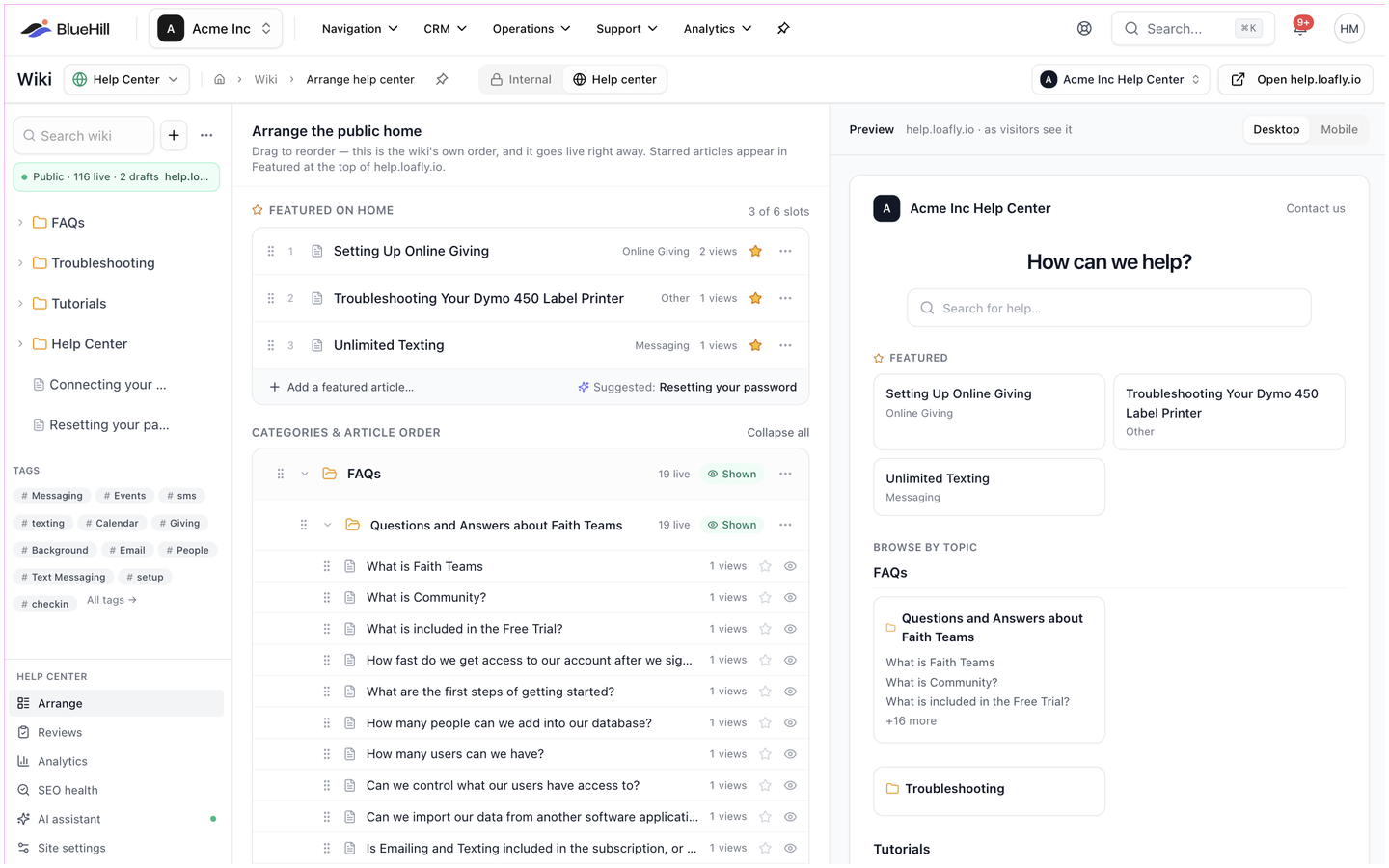 Open **Arrange** from the sidebar toolkit, from the publish bar of any article, or from a category page. The page is titled **Arrange the public home**. The site switcher in the header shows which help center you are arranging, and **Open *your domain*** opens the live site.
### Featured on home
Open **Arrange** from the sidebar toolkit, from the publish bar of any article, or from a category page. The page is titled **Arrange the public home**. The site switcher in the header shows which help center you are arranging, and **Open *your domain*** opens the live site.
### Featured on home
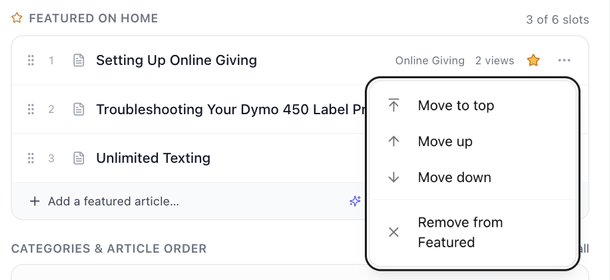 The **Featured on home** list holds up to six live articles, shown as the **Featured articles** cards on the home page, and tells you **N of 6 slots** are used.
- Click **Add a featured article…** and search live articles to add one. When all six slots are used the button reads **Featured is full**.
- Drag a row, or use its **⋮** menu (**Move to top**, **Move up**, **Move down**) to change its slot.
- Click the star or choose **Remove from Featured** to free the slot.
- A **Suggested** hint to the right proposes an article that answers your most common search with no results.
With nothing featured, the home page shows categories only.
### Categories and article order
The **Featured on home** list holds up to six live articles, shown as the **Featured articles** cards on the home page, and tells you **N of 6 slots** are used.
- Click **Add a featured article…** and search live articles to add one. When all six slots are used the button reads **Featured is full**.
- Drag a row, or use its **⋮** menu (**Move to top**, **Move up**, **Move down**) to change its slot.
- Click the star or choose **Remove from Featured** to free the slot.
- A **Suggested** hint to the right proposes an article that answers your most common search with no results.
With nothing featured, the home page shows categories only.
### Categories and article order
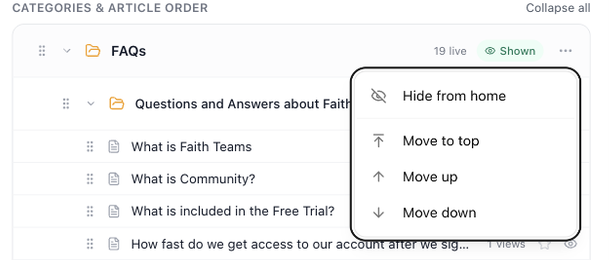 The **Categories & article order** list mirrors the knowledge base's folders. Each category row shows its name (click it to open the category page), **N live · N drafts** and a chip, **Shown** or **Hidden from home**. Expand a row to see its articles.
- Drag categories to reorder them among their siblings; drag articles to reorder them within their category.
- The category **⋮** menu offers **Hide from home** or **Show on home**, plus **Move to top**, **Move up** and **Move down**.
- Each article row shows a **draft** tag for drafts, the article's views, an amber dot when its review has expired or it was edited since approval, and a star to feature it. An eye icon marks it as **Live on the help center**.
- Articles that sit in no folder are listed under **Articles without a category**.
A hidden category stays reachable by search and by its link; it is just left off the home page.
### The preview
On wide screens a **Preview** pane shows the home page as visitors see it, with a **Desktop** / **Mobile** toggle. It updates as you arrange. Below it, a note lists any categories that are hidden from the home page.
## Category pages
The **Categories & article order** list mirrors the knowledge base's folders. Each category row shows its name (click it to open the category page), **N live · N drafts** and a chip, **Shown** or **Hidden from home**. Expand a row to see its articles.
- Drag categories to reorder them among their siblings; drag articles to reorder them within their category.
- The category **⋮** menu offers **Hide from home** or **Show on home**, plus **Move to top**, **Move up** and **Move down**.
- Each article row shows a **draft** tag for drafts, the article's views, an amber dot when its review has expired or it was edited since approval, and a star to feature it. An eye icon marks it as **Live on the help center**.
- Articles that sit in no folder are listed under **Articles without a category**.
A hidden category stays reachable by search and by its link; it is just left off the home page.
### The preview
On wide screens a **Preview** pane shows the home page as visitors see it, with a **Desktop** / **Mobile** toggle. It updates as you arrange. Below it, a note lists any categories that are hidden from the home page.
## Category pages
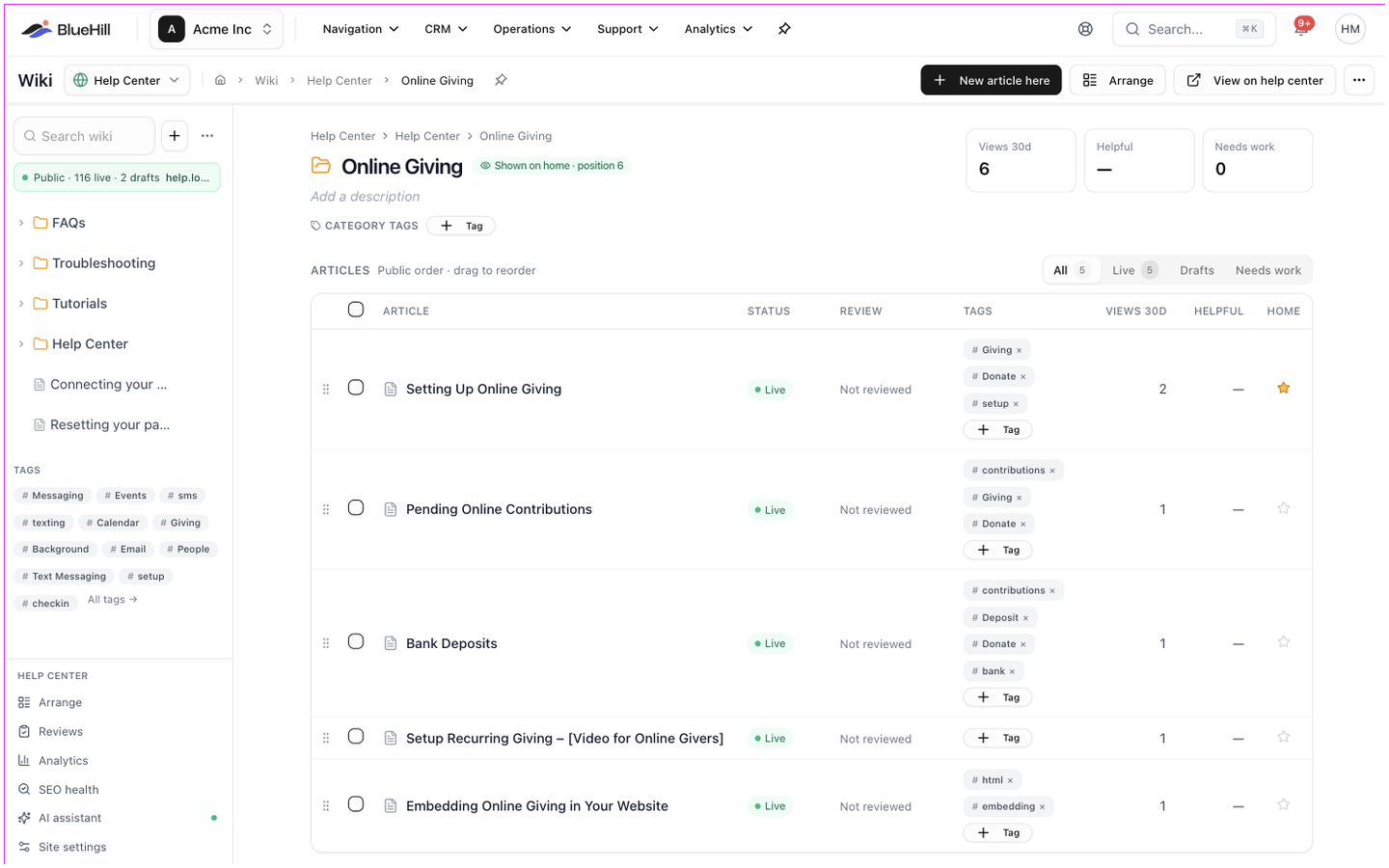 Click a folder name anywhere in the wiki to open its page. For a category in a public knowledge base the page gives you:
- **New article here**, **Arrange** and **View on help center**, which opens the category on the public site.
- A chip, **Shown on home · position N** or **Hidden from home**.
- The description. Click it to edit; it is **Shown as the category description on the help center**.
- **Category tags** (see below).
- **Views 30d**, **Helpful** and **Needs work** tiles for the category's articles.
- **Subcategories** as cards, each marked **Shown** or **Hidden**.
- The **⋮** menu: **Hide from home** / **Show on home**, **Apply category tags to all pages** and **Delete folder**. Deleting a folder moves its pages and subfolders to its parent.
### The articles table
Click a folder name anywhere in the wiki to open its page. For a category in a public knowledge base the page gives you:
- **New article here**, **Arrange** and **View on help center**, which opens the category on the public site.
- A chip, **Shown on home · position N** or **Hidden from home**.
- The description. Click it to edit; it is **Shown as the category description on the help center**.
- **Category tags** (see below).
- **Views 30d**, **Helpful** and **Needs work** tiles for the category's articles.
- **Subcategories** as cards, each marked **Shown** or **Hidden**.
- The **⋮** menu: **Hide from home** / **Show on home**, **Apply category tags to all pages** and **Delete folder**. Deleting a folder moves its pages and subfolders to its parent.
### The articles table
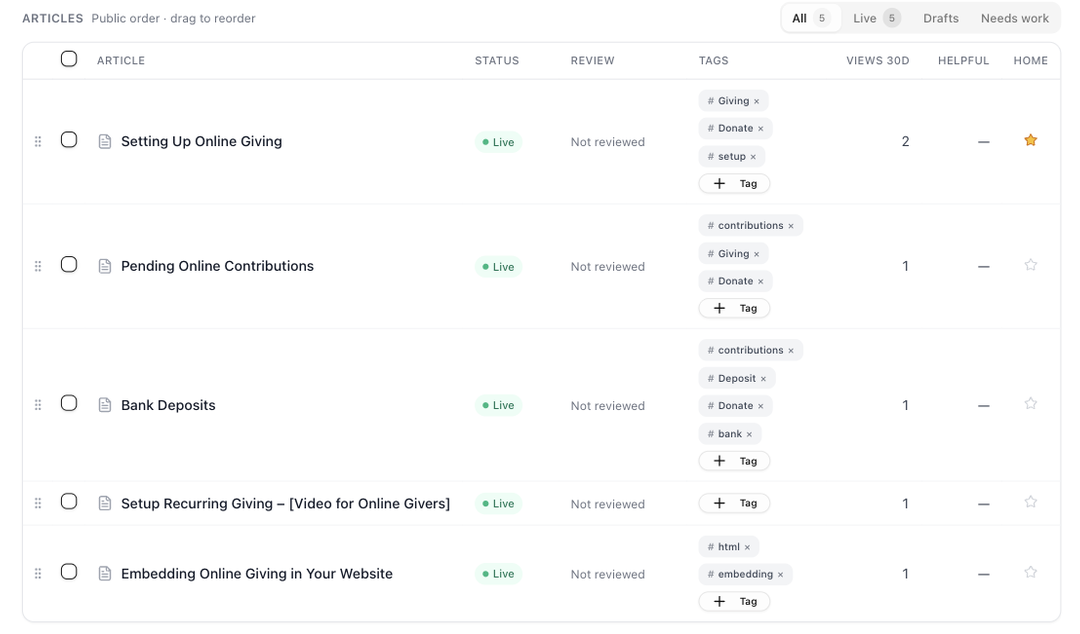 The **Articles** table is in **Public order · drag to reorder**. Filter it with **All**, **Live**, **Drafts** or **Needs work**; dragging is available only while **All** is selected.
| Column | Shows |
|---|---|
| **Article** | The title. Subpages are indented and cannot be dragged. |
| **Status** | **Live**, **Draft** or **Archived**. |
| **Review** | **Approved · *date***, **Awaiting review**, **Expired · N d**, **Edited since approval** or **Not reviewed**. |
| **Tags** | The article's tags, editable inline. **Missing category tags** shows when it lacks the category's tags. |
| **Views 30d**, **Helpful** | From analytics. |
| **Home** | A star: **Feature on home** or **Featured · slot N**. |
**Needs work** means the review expired, the page was edited since approval, or fewer than 70% of at least five votes were helpful.
Tick several articles to show **Tag N selected**, pick tags and click **Add N tags to N articles** to tag them in one go.
### Category tags
A category can carry tags that every new article inside it inherits. The **Category tags** line shows how many articles are missing them; **Apply to all N articles** adds the missing tags everywhere at once.
## Menus in the sidebar tree
The **Articles** table is in **Public order · drag to reorder**. Filter it with **All**, **Live**, **Drafts** or **Needs work**; dragging is available only while **All** is selected.
| Column | Shows |
|---|---|
| **Article** | The title. Subpages are indented and cannot be dragged. |
| **Status** | **Live**, **Draft** or **Archived**. |
| **Review** | **Approved · *date***, **Awaiting review**, **Expired · N d**, **Edited since approval** or **Not reviewed**. |
| **Tags** | The article's tags, editable inline. **Missing category tags** shows when it lacks the category's tags. |
| **Views 30d**, **Helpful** | From analytics. |
| **Home** | A star: **Feature on home** or **Featured · slot N**. |
**Needs work** means the review expired, the page was edited since approval, or fewer than 70% of at least five votes were helpful.
Tick several articles to show **Tag N selected**, pick tags and click **Add N tags to N articles** to tag them in one go.
### Category tags
A category can carry tags that every new article inside it inherits. The **Category tags** line shows how many articles are missing them; **Apply to all N articles** adds the missing tags everywhere at once.
## Menus in the sidebar tree
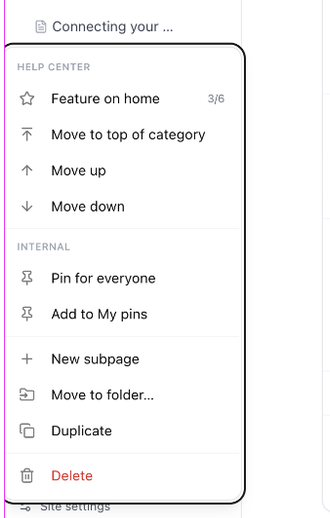 The **⋮** menu on a page in a public knowledge base starts with a **Help center** section: **Feature on home** (or **Remove from Featured**, with the slot count), **Move to top of category**, **Move up** and **Move down**. Drafts cannot be featured until they are published. A star on a tree row means the article is featured.
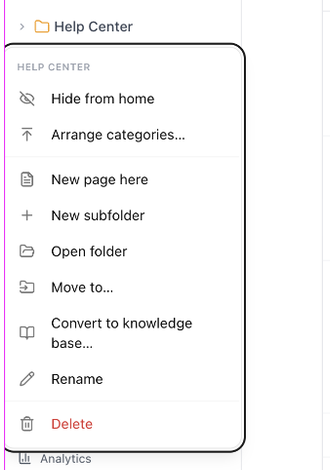 The **⋮** menu on a folder starts with **Hide from home** / **Show on home** and **Arrange categories…**, followed by the usual folder actions. Hidden folders are shown in grey with an eye-off icon.
## Convert a folder to a knowledge base
The **⋮** menu on a folder starts with **Hide from home** / **Show on home** and **Arrange categories…**, followed by the usual folder actions. Hidden folders are shown in grey with an eye-off icon.
## Convert a folder to a knowledge base
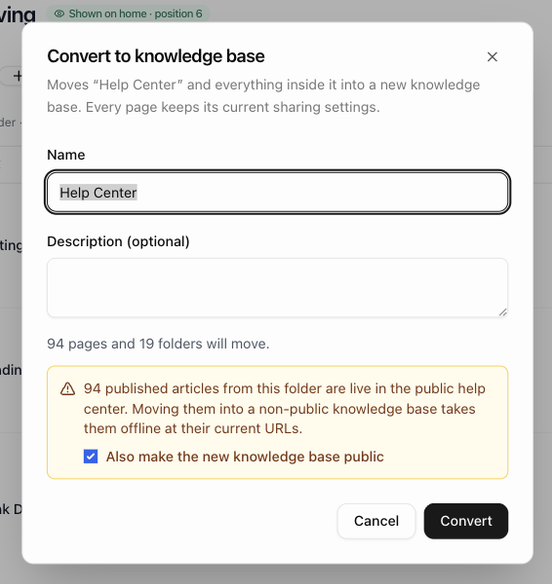 To split a folder off into its own knowledge base, choose **Convert to knowledge base…** on the folder's menu. The dialog shows how many pages and folders will move, warns when some of them are live on the help center (moving them into a non-public knowledge base takes them offline), and lets an admin tick **Also make the new knowledge base public** so they stay live. Click **Convert**. The toast offers **Undo** for a moment afterwards.
Next: [Branding, contact channels and self sign-up](./help-center-branding-contact-and-sign-up).
To split a folder off into its own knowledge base, choose **Convert to knowledge base…** on the folder's menu. The dialog shows how many pages and folders will move, warns when some of them are live on the help center (moving them into a non-public knowledge base takes them offline), and lets an admin tick **Also make the new knowledge base public** so they stay live. Click **Convert**. The toast offers **Undo** for a moment afterwards.
Next: [Branding, contact channels and self sign-up](./help-center-branding-contact-and-sign-up).