# Reviews before publishing
> Source: https://support.usebluehill.com/help-center-reviews-and-change-requests | Updated: 2026-10-26T22:19:30Z
## Require a review before publishing
1. Open the **knowledge base switcher** in the wiki and choose **Manage knowledge bases**.
2. Click **Edit** on the knowledge base.
3. Tick **Require an approved review before publishing** and set **Review validity (days)**. The default is *365*.
4. Click **Save**.
From then on, pages in that knowledge base cannot be published until a review has been approved and has not expired. Owners and admins can still publish without one. The knowledge base shows a **review required** chip in the dialog, and the Help center tab's **Knowledge bases** table shows **Required · 365 days** under **Review gate**.
## Request a review
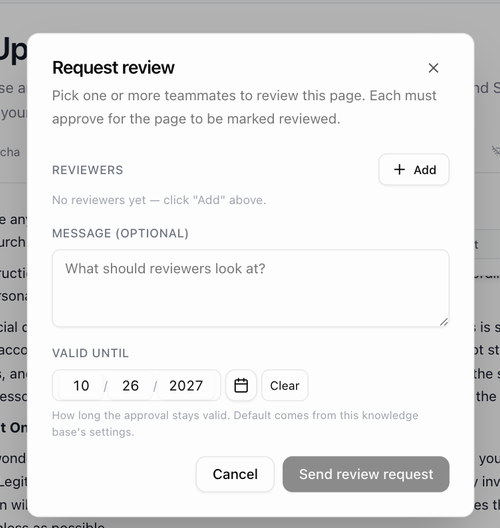 1. In the editor, open the **Status** menu and choose **Request review**. In the viewer, click the **Review** row in the details rail and choose **Request**.
2. Pick one or more **Reviewers**. Each must approve for the page to count as reviewed.
3. Add a **Message** if you like and check **Valid until**, which defaults to the knowledge base's review validity.
4. Click **Send review request**.
The reviewers are notified. The page's **Review** row in the details rail changes to **In review**.
## Review states
| State | Meaning |
|---|---|
| **Approved · *date*** | The review is current. The publish bar shows **Approved until *date***. |
| **Awaiting review** / **In review** | A request is open. |
| **Expired · N d** | The approval has lapsed. The page stays live until you unpublish it, but it is listed under **Stale or expired reviews**. |
| **Edited since approval** | The page changed after it was approved. A banner on the page says so. |
| **Not reviewed** | No review has been requested. |
When publishing is blocked, the **Publish** button explains why on hover: the review is still in progress, the last review has expired, the page was edited after approval, or blocking change requests are open.
## Change requests
A change request is a comment anchored to a passage that asks for a fix. Select text in the viewer or editor and choose **Request change**. Each request has a type (**Factual error**, **Outdated**, **Missing info**, **Wording** or **Compliance**), a severity (**Blocking**, **Should fix** or **Nice to have**) and, optionally, a suggested replacement that the author can apply with one click.
- A **Blocking** request stops the page from being published until it is resolved. The status button in the editor shows how many requests are open.
- A reviewer can **Waive** a blocking request.
- When a request is addressed, it is marked **Addressed in v N**; the requester then **Accepts** it.
## The Reviews page
1. In the editor, open the **Status** menu and choose **Request review**. In the viewer, click the **Review** row in the details rail and choose **Request**.
2. Pick one or more **Reviewers**. Each must approve for the page to count as reviewed.
3. Add a **Message** if you like and check **Valid until**, which defaults to the knowledge base's review validity.
4. Click **Send review request**.
The reviewers are notified. The page's **Review** row in the details rail changes to **In review**.
## Review states
| State | Meaning |
|---|---|
| **Approved · *date*** | The review is current. The publish bar shows **Approved until *date***. |
| **Awaiting review** / **In review** | A request is open. |
| **Expired · N d** | The approval has lapsed. The page stays live until you unpublish it, but it is listed under **Stale or expired reviews**. |
| **Edited since approval** | The page changed after it was approved. A banner on the page says so. |
| **Not reviewed** | No review has been requested. |
When publishing is blocked, the **Publish** button explains why on hover: the review is still in progress, the last review has expired, the page was edited after approval, or blocking change requests are open.
## Change requests
A change request is a comment anchored to a passage that asks for a fix. Select text in the viewer or editor and choose **Request change**. Each request has a type (**Factual error**, **Outdated**, **Missing info**, **Wording** or **Compliance**), a severity (**Blocking**, **Should fix** or **Nice to have**) and, optionally, a suggested replacement that the author can apply with one click.
- A **Blocking** request stops the page from being published until it is resolved. The status button in the editor shows how many requests are open.
- A reviewer can **Waive** a blocking request.
- When a request is addressed, it is marked **Addressed in v N**; the requester then **Accepts** it.
## The Reviews page
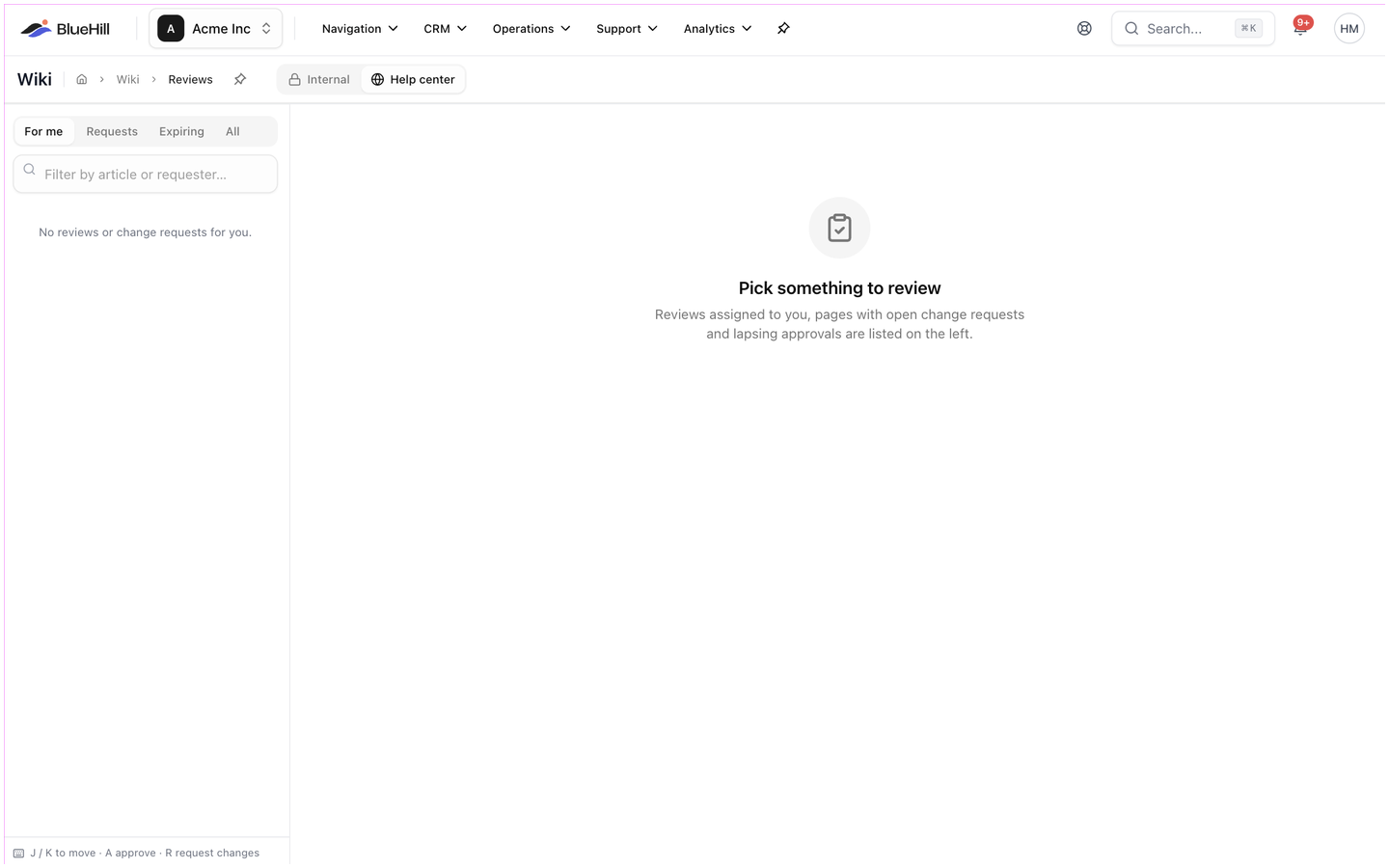 **Reviews** in the sidebar toolkit opens a three-pane page: the queue on the left, the article in the middle and the discussion on the right. The queue has four tabs:
| Tab | Shows |
|---|---|
| **For me** | Reviews assigned to you and change requests pointed at you. |
| **Requests** | Pages with open change requests. |
| **Expiring** | Approvals that lapse soon or have expired. |
| **All** | Everything above. |
Approve or decline from the right pane, or use the keyboard: **J** and **K** move through the queue, **A** approves and **R** requests changes. If blocking requests are still open when you approve, BlueHill asks **Approve anyway?** before accepting.
The Help center tab's **Reviews waiting on you** and **Stale or expired reviews** tiles are shortcuts to this page.
Next: [Arrange categories, order and featured articles](./help-center-organize-categories-and-featured).
**Reviews** in the sidebar toolkit opens a three-pane page: the queue on the left, the article in the middle and the discussion on the right. The queue has four tabs:
| Tab | Shows |
|---|---|
| **For me** | Reviews assigned to you and change requests pointed at you. |
| **Requests** | Pages with open change requests. |
| **Expiring** | Approvals that lapse soon or have expired. |
| **All** | Everything above. |
Approve or decline from the right pane, or use the keyboard: **J** and **K** move through the queue, **A** approves and **R** requests changes. If blocking requests are still open when you approve, BlueHill asks **Approve anyway?** before accepting.
The Help center tab's **Reviews waiting on you** and **Stale or expired reviews** tiles are shortcuts to this page.
Next: [Arrange categories, order and featured articles](./help-center-organize-categories-and-featured).