# Set up and publish a help center
> Source: https://support.usebluehill.com/help-center-set-up-a-help-center | Updated: 2026-10-26T22:19:30Z
## How publishing works
Three things decide whether a page is on the help center:
1. Its **knowledge base** is marked **Public** in **Support → Support settings → Help center**.
2. The page is **Published** (not a draft, not archived).
3. The page's visibility is **Everyone in org**. Pages shared with specific people or teams never appear publicly.
Everything else, from the site's name to its domain, is a setting on the site rather than on the page.
> **Tip:** The **Set up your support desk** checklist in Support settings has a step called **Publish a help center**. It is ticked as soon as any knowledge base is public.
## Create a knowledge base
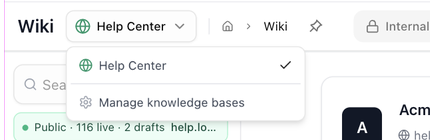 Most workspaces keep customer-facing articles in their own knowledge base, separate from internal notes.
1. Open **Navigation → Wiki** and click the **knowledge base switcher** next to the page title.
2. Choose **Manage knowledge bases**.
3. Under **Create a knowledge base**, enter a **Name** (for example *Customer Help*) and an optional **Description**, then click **Create**.
Most workspaces keep customer-facing articles in their own knowledge base, separate from internal notes.
1. Open **Navigation → Wiki** and click the **knowledge base switcher** next to the page title.
2. Choose **Manage knowledge bases**.
3. Under **Create a knowledge base**, enter a **Name** (for example *Customer Help*) and an optional **Description**, then click **Create**.
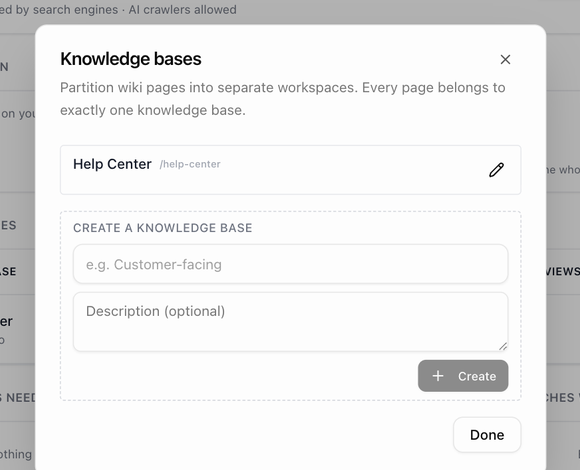 The dialog also lets you **Edit** a knowledge base (its name, description and review settings) or **Delete** one; pages inside a deleted knowledge base move to another. The review settings are covered in [Require a review before publishing](./help-center-reviews-and-change-requests#require-a-review-before-publishing).
> **Tip:** Already have the articles in a folder? Use **Convert to knowledge base…** on the folder's menu instead. See [Convert a folder to a knowledge base](./help-center-organize-categories-and-featured#convert-a-folder-to-a-knowledge-base).
If you are moving from Freshdesk, **Import** in the wiki header brings your Solutions in as a knowledge base named *Help Center* and offers to publish it in the same step.
## Make it public
The dialog also lets you **Edit** a knowledge base (its name, description and review settings) or **Delete** one; pages inside a deleted knowledge base move to another. The review settings are covered in [Require a review before publishing](./help-center-reviews-and-change-requests#require-a-review-before-publishing).
> **Tip:** Already have the articles in a folder? Use **Convert to knowledge base…** on the folder's menu instead. See [Convert a folder to a knowledge base](./help-center-organize-categories-and-featured#convert-a-folder-to-a-knowledge-base).
If you are moving from Freshdesk, **Import** in the wiki header brings your Solutions in as a knowledge base named *Help Center* and offers to publish it in the same step.
## Make it public
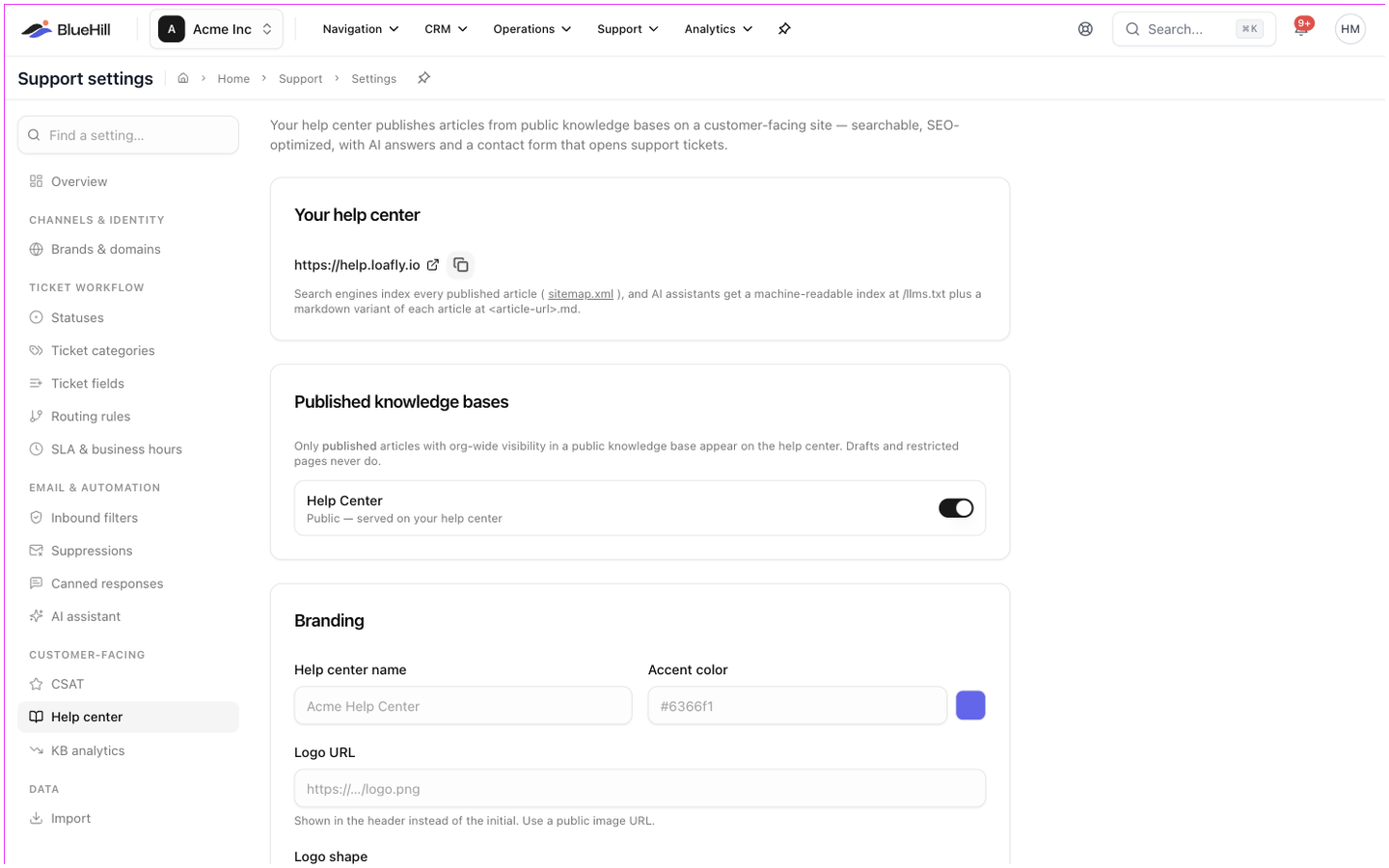 1. Open **Support → Support settings** and choose **Help center** in the settings navigation.
2. If you have several sites, pick one with the pills at the top: **Default** or a brand name.
3. In **Published knowledge bases**, switch on the knowledge base. Its line changes from **Internal only** to **Public — served on your help center**.
Switching a knowledge base on is what makes the site live. There is no separate on/off switch for the site; to take a site down, switch its knowledge bases back to internal.
Back in the wiki, the **Help center** tab now appears next to **Internal**, and the sidebar shows a **Public · N live · N drafts** strip whenever that knowledge base is selected.
## Where the site lives
The **Your help center** card at the top of the settings shows the public address with a copy button. Search engines get a sitemap of every published article automatically, and AI assistants get a machine-readable index plus a markdown version of each article. Hand the address to your customers, or put it on your own domain: see [Use your own domain](./help-center-custom-domain).
## A help center for each brand
If you run more than one support brand, every active brand that is not the default gets its own help center automatically. In the settings, the pills at the top switch between **Default** and each brand; everything below (knowledge bases, branding, domains, AI, sign-up) belongs to the chosen site.
- Each public knowledge base serves on exactly one site. The dropdown next to a public knowledge base moves it between **Default** and a brand.
- A brand site has its own address (the default address plus *~* and the brand's short name) and its own custom domains.
- Contact requests from a brand site are filed under that brand's support desk.
- To add a brand, use **New help center for a brand…** in the wiki's site switcher, or **Brands & domains** in Support settings.
## Check the result
Click **Open help center** in the Help center tab header. You should see your published articles grouped by category. If something is missing, the usual reasons are in [FAQ and troubleshooting](./help-center-faq-and-troubleshooting#an-article-is-not-on-the-help-center).
Next: [Write, publish and unpublish articles](./help-center-write-and-publish-articles).
1. Open **Support → Support settings** and choose **Help center** in the settings navigation.
2. If you have several sites, pick one with the pills at the top: **Default** or a brand name.
3. In **Published knowledge bases**, switch on the knowledge base. Its line changes from **Internal only** to **Public — served on your help center**.
Switching a knowledge base on is what makes the site live. There is no separate on/off switch for the site; to take a site down, switch its knowledge bases back to internal.
Back in the wiki, the **Help center** tab now appears next to **Internal**, and the sidebar shows a **Public · N live · N drafts** strip whenever that knowledge base is selected.
## Where the site lives
The **Your help center** card at the top of the settings shows the public address with a copy button. Search engines get a sitemap of every published article automatically, and AI assistants get a machine-readable index plus a markdown version of each article. Hand the address to your customers, or put it on your own domain: see [Use your own domain](./help-center-custom-domain).
## A help center for each brand
If you run more than one support brand, every active brand that is not the default gets its own help center automatically. In the settings, the pills at the top switch between **Default** and each brand; everything below (knowledge bases, branding, domains, AI, sign-up) belongs to the chosen site.
- Each public knowledge base serves on exactly one site. The dropdown next to a public knowledge base moves it between **Default** and a brand.
- A brand site has its own address (the default address plus *~* and the brand's short name) and its own custom domains.
- Contact requests from a brand site are filed under that brand's support desk.
- To add a brand, use **New help center for a brand…** in the wiki's site switcher, or **Brands & domains** in Support settings.
## Check the result
Click **Open help center** in the Help center tab header. You should see your published articles grouped by category. If something is missing, the usual reasons are in [FAQ and troubleshooting](./help-center-faq-and-troubleshooting#an-article-is-not-on-the-help-center).
Next: [Write, publish and unpublish articles](./help-center-write-and-publish-articles).