# Write, publish and unpublish articles
> Source: https://support.usebluehill.com/help-center-write-and-publish-articles | Updated: 2026-10-26T22:19:30Z
## Start a new article
- On the **Help center** tab, click **New article**. The page is created in the site's first public knowledge base.
- On a category page, click **New article here** to put it straight into that category.
- From **Searches with no results** on the Help center tab (or on the SEO health page), click **Write article** to start a page titled with the search visitors made.
New pages start as drafts. Write in the editor as you would any wiki page: headings become the article's **On this page** list, and the first paragraph becomes its search description unless you write your own.
## Publish
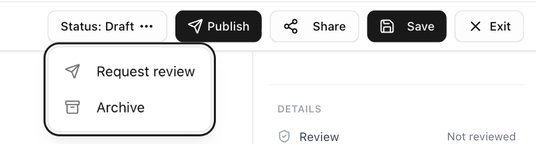 In the editor, the status button shows the page's state, and **Publish** makes it live:
| State | Status button | What you can do |
|---|---|---|
| Draft | **Status: Draft** | **Publish**, or open the menu for **Request review** and **Archive**. |
| Published | **Status: Published** | Open the menu for **Save as Draft**, **Request review** and **Archive**. |
| Archived | an **archived** tag | **Publish** to bring it back. |
If **Publish** is greyed out, hover it: the tooltip says why, for example **This knowledge base needs an approved review before publishing — request one first.** See [Reviews before publishing](./help-center-reviews-and-change-requests).
Publishing is immediate. The help center's navigation refreshes within about five minutes.
## The publish bar
Above every article in a public knowledge base, the viewer shows a publish bar with the article's public state.
In the editor, the status button shows the page's state, and **Publish** makes it live:
| State | Status button | What you can do |
|---|---|---|
| Draft | **Status: Draft** | **Publish**, or open the menu for **Request review** and **Archive**. |
| Published | **Status: Published** | Open the menu for **Save as Draft**, **Request review** and **Archive**. |
| Archived | an **archived** tag | **Publish** to bring it back. |
If **Publish** is greyed out, hover it: the tooltip says why, for example **This knowledge base needs an approved review before publishing — request one first.** See [Reviews before publishing](./help-center-reviews-and-change-requests).
Publishing is immediate. The help center's navigation refreshes within about five minutes.
## The publish bar
Above every article in a public knowledge base, the viewer shows a publish bar with the article's public state.
 - **Live on *your domain***, the public path, the version and when it was last updated, and **Approved until *date*** when a review is current.
- **Feature on home** or **Featured · slot N of 6** toggles the article's place in the home page's featured cards.
- The category, the article's position in it, and **hidden from home** if the category is hidden.
- **Search appearance: auto** or **custom**, from the article's SEO panel.
- **Arrange** opens the Arrange page for this site.
- **Unpublish** takes a live article down. You are asked to confirm: the article **goes back to a draft** and visitors with the link get a not-found page until it is published again.
- **Live on *your domain***, the public path, the version and when it was last updated, and **Approved until *date*** when a review is current.
- **Feature on home** or **Featured · slot N of 6** toggles the article's place in the home page's featured cards.
- The category, the article's position in it, and **hidden from home** if the category is hidden.
- **Search appearance: auto** or **custom**, from the article's SEO panel.
- **Arrange** opens the Arrange page for this site.
- **Unpublish** takes a live article down. You are asked to confirm: the article **goes back to a draft** and visitors with the link get a not-found page until it is published again.
 A draft shows **Not live · publishes to *site name***, its category, **Search appearance: auto** and a **Preview on help center** button, which opens the draft on the public site exactly as visitors would see it. The preview link is signed and expires after 24 hours, so you can share it with a reviewer who has no BlueHill account. An archived article shows **Archived · not on *your domain***.
## Share and visibility
A draft shows **Not live · publishes to *site name***, its category, **Search appearance: auto** and a **Preview on help center** button, which opens the draft on the public site exactly as visitors would see it. The preview link is signed and expires after 24 hours, so you can share it with a reviewer who has no BlueHill account. An archived article shows **Archived · not on *your domain***.
## Share and visibility
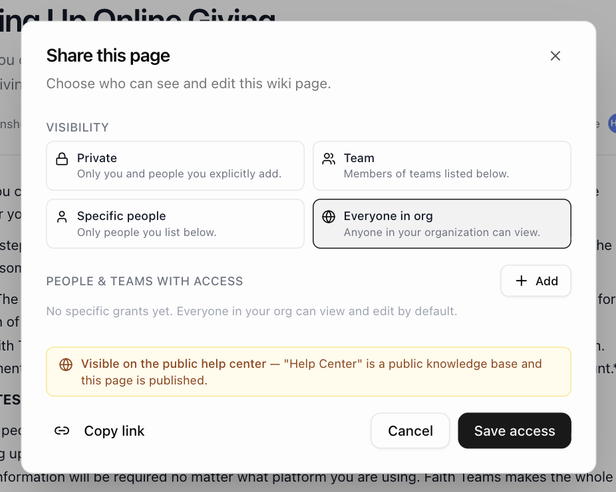 Click **Share** to open **Share this page**. The **Visibility** options are **Private**, **Team**, **Specific people** and **Everyone in org** (the default). Only pages set to **Everyone in org** can appear on the help center.
For pages in a public knowledge base the dialog ends with a plain readout: **Visible on the public help center** when the page is published and open to everyone, or **Hidden from the public help center** with the reason (it is a draft, it is archived, or its visibility is restricted).
## Open and copy the public page
Click **Share** to open **Share this page**. The **Visibility** options are **Private**, **Team**, **Specific people** and **Everyone in org** (the default). Only pages set to **Everyone in org** can appear on the help center.
For pages in a public knowledge base the dialog ends with a plain readout: **Visible on the public help center** when the page is published and open to everyone, or **Hidden from the public help center** with the reason (it is a draft, it is archived, or its visibility is restricted).
## Open and copy the public page
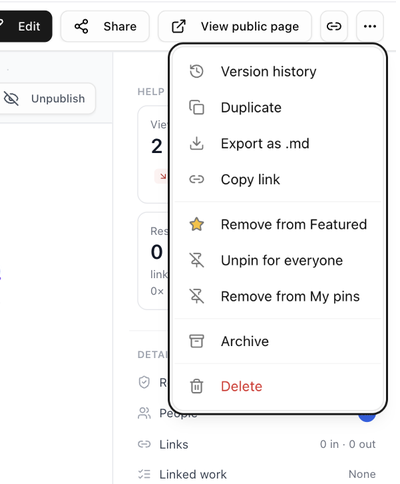 When an article is live, the viewer header shows **View public page** and a copy icon, **Copy help center link**. The copied link pastes as the article's title, ready for a reply or an email.
The **⋮** menu holds the rest:
| Item | What it does |
|---|---|
| **Version history** | Every saved version, with the option to compare and restore. |
| **Duplicate** | Copies the page as a new draft. |
| **Export as .md** | Downloads the page as markdown. |
| **Copy link** | Copies the internal wiki link. |
| **Feature on home** / **Remove from Featured** | Adds or removes the article from the home page's featured cards. |
| **Pin for everyone** / **Add to My pins** | Internal pins for the wiki's **Internal** tab. They do not affect the help center. |
| **Archive** / **Restore to draft** | Takes the page off the site and keeps it, or brings an archived page back as a draft. |
| **Move to KB** | Moves the page to another knowledge base. Moving it to an internal knowledge base takes it off the help center. |
| **Delete** | Moves the page to the trash. |
## The details rail
When an article is live, the viewer header shows **View public page** and a copy icon, **Copy help center link**. The copied link pastes as the article's title, ready for a reply or an email.
The **⋮** menu holds the rest:
| Item | What it does |
|---|---|
| **Version history** | Every saved version, with the option to compare and restore. |
| **Duplicate** | Copies the page as a new draft. |
| **Export as .md** | Downloads the page as markdown. |
| **Copy link** | Copies the internal wiki link. |
| **Feature on home** / **Remove from Featured** | Adds or removes the article from the home page's featured cards. |
| **Pin for everyone** / **Add to My pins** | Internal pins for the wiki's **Internal** tab. They do not affect the help center. |
| **Archive** / **Restore to draft** | Takes the page off the site and keeps it, or brings an archived page back as a draft. |
| **Move to KB** | Moves the page to another knowledge base. Moving it to an internal knowledge base takes it off the help center. |
| **Delete** | Moves the page to the trash. |
## The details rail
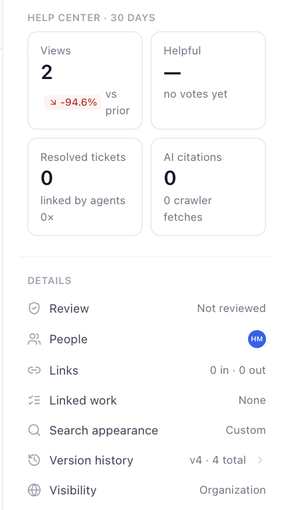 The rail on the right of a live article adds a **Help center · 30 days** block with **Views**, **Helpful** rate, **Resolved tickets** and **AI citations**, plus the top search terms that led visitors here. Below it, the **Review** row shows the review state, **Search appearance** shows **Auto** or **Custom**, and **Visibility** shows who can see the page inside your workspace. See [Knowledge base analytics](./help-center-analytics) and [Search appearance for one article](./help-center-search-engines-and-seo#search-appearance-for-one-article).
## Tags and categories
A page inherits the **category tags** of the folder it is created in. Tags are shown on the folder page's articles table and can be edited inline there. See [Category tags](./help-center-organize-categories-and-featured#category-tags).
Next: [Reviews before publishing](./help-center-reviews-and-change-requests).
The rail on the right of a live article adds a **Help center · 30 days** block with **Views**, **Helpful** rate, **Resolved tickets** and **AI citations**, plus the top search terms that led visitors here. Below it, the **Review** row shows the review state, **Search appearance** shows **Auto** or **Custom**, and **Visibility** shows who can see the page inside your workspace. See [Knowledge base analytics](./help-center-analytics) and [Search appearance for one article](./help-center-search-engines-and-seo#search-appearance-for-one-article).
## Tags and categories
A page inherits the **category tags** of the folder it is created in. Tags are shown on the folder page's articles table and can be edited inline there. See [Category tags](./help-center-organize-categories-and-featured#category-tags).
Next: [Reviews before publishing](./help-center-reviews-and-change-requests).