# Create an event type
> Source: https://support.usebluehill.com/scheduling-create-an-event-type | Updated: 2026-11-19T19:28:02Z
## The Event types tab
An event type is a meeting people can book with you: a name, a length, a place to meet and a link. The tab lists them in groups.
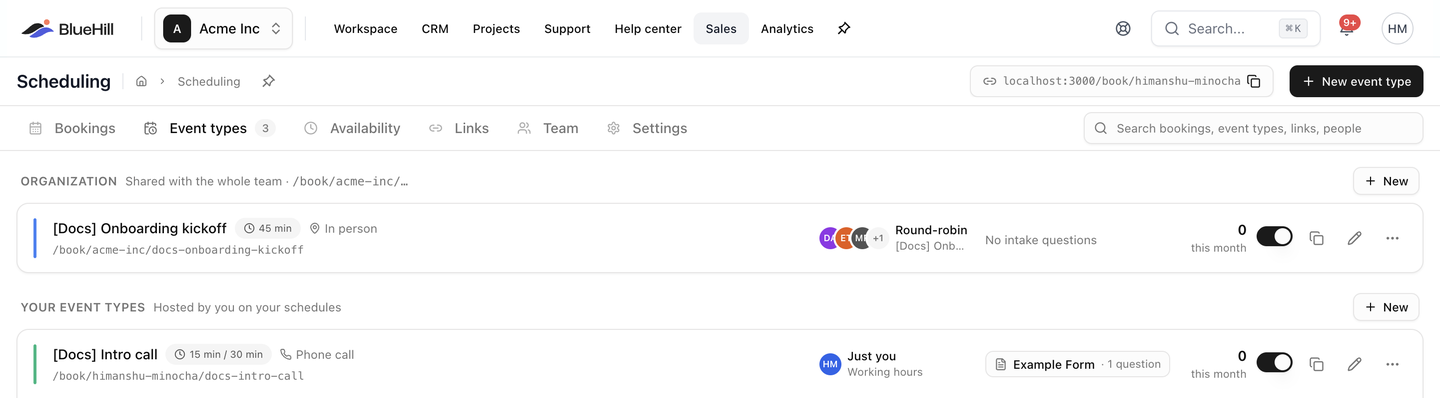 - **Your event types** are hosted by you on your schedules, and live on your personal booking page.
- **Organization** event types are shared with the whole team and listed on the organization's booking page. Only internal team members see this group. When the workspace has more than one brand, organization event types are grouped by brand, each group showing the brand's logo and its page address.
- Each group has its own **New** button.
With nothing created yet, the tab reads **No event types yet. An event type is a meeting people can book with you. Create one to get a shareable link.** with a **New event type** button and, for internal members, **Or create one for the whole organization**.
### What a row shows
| Part | Meaning |
|---|---|
| Colour bar and **title** | Click the title to open the editor. |
| Duration badge | *30 min*, or several lengths such as *15 min / 30 min / 1 h* when bookers can choose. |
| Location | *Zoom*, *Google Meet*, *Phone call*, *In person*, *Ask the invitee* or *No location*. Zoom rows also name the Zoom account. |
| **Hidden** badge | The event type is switched off and not accepting bookings. |
| Brand chip | The brand the event type is filed under, when your workspace has brands. |
| Link path | The public address, such as */book/jane/intro-call*. Personal rows read **No link yet — claim a handle in Settings** until you have a handle. |
| Hosting | **Just you**, the host's name, or **Round-robin** / **Collective** with the pool name and host count. |
| Intake | The intake form and its question count, or **No intake questions**. |
| **this month** | How many bookings it received this month. |
| Switch | Whether it is accepting bookings. See [Turn an event type off](#turn-an-event-type-off). |
| **Copy link**, **Edit** | Copy the public link; open the editor. Rows you cannot edit show **View** instead. |
### The row menu
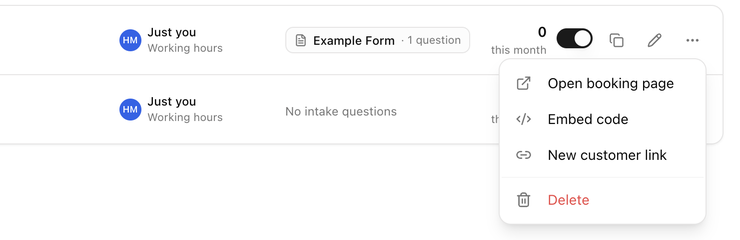 | Item | What it does |
|---|---|
| **Open booking page** | Opens the public page for this event type in a new tab. |
| **Embed code** | Opens the embed dialog. See [Embed a booking page](./scheduling-customer-links-and-embed#embed-a-booking-page). |
| **New customer link** | Opens the **Create link** dialog with this event type chosen. See [Create a customer link](./scheduling-customer-links-and-embed#create-a-customer-link). |
| **Delete** | Deletes the event type. See [Delete an event type](#delete-an-event-type). |
## Start a new event type
1. Click **New event type** in the page header, or **New** on a group. The editor replaces the page; **← Event types** at the top left takes you back.
2. Type a name in the **Event type name** field. The link slug follows the name until you edit the slug yourself.
3. Work through the sections. The pills under the header, **Basics**, **Hosting**, **Schedule & limits**, **Questions & intake**, **After booking** and **Sharing**, jump to each one.
4. Click **Save**. An **Event type created** message confirms it, and the link, embed and customer-link tiles under **Sharing** become available.
5. Click **Preview** to open the public page in a new tab and try it as a booker. Preview is unavailable until the first save (**Save first to preview**).
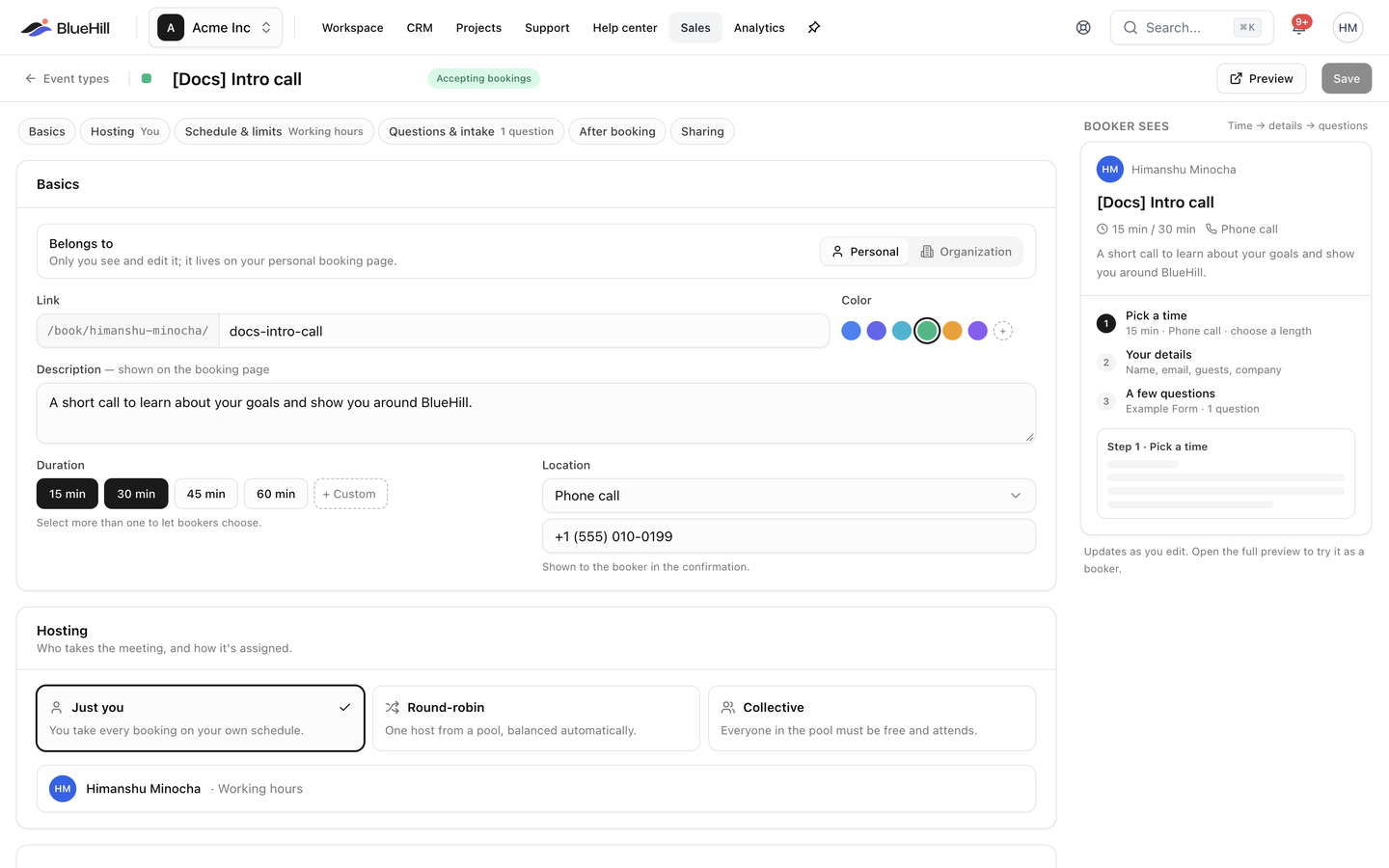 The header also shows the status badge, **Accepting bookings** or **Hidden**, and **Unsaved changes** while you have edits. Leaving with edits asks **Discard unsaved changes?**.
## Basics
| Field | What it is for |
|---|---|
| **Belongs to** | **Personal** (only you see and edit it, and it lives on your personal booking page) or **Organization** (shared with everyone on the team and listed on the organization's booking page). Internal team members only. Changing it on an existing event type moves the link, and links you have already shared stop working; the editor warns you before you save. |
| **Link** | The public address: a fixed prefix such as */book/jane/* or */book/your-organization/* and a slug you can edit (placeholder *intro-call*). Lowercase letters, numbers and hyphens only. |
| **Color** | One of six swatches, or **+** for a custom colour. The colour marks the event type on the Bookings calendar and on the public page. |
| **Brand** | Shown when your workspace has more than one brand. Filing an event type under a brand puts it on that brand's booking page with the brand's logo and colour. Brands live in **Settings → Support**. |
| **Description** | Shown on the booking page under the title. |
| **Duration** | Chips for *15 min*, *30 min*, *45 min* and *60 min*, plus **+ Custom** to add another length. Select more than one to let bookers choose. At least one stays selected. |
| **Location** | Where the meeting happens. See the table below. |
### Locations
| Location | What the booker gets |
|---|---|
| **Zoom** | A meeting link is created on your connected Zoom account. Pick the **Zoom account** when you have more than one. |
| **Google Meet** | A Meet link is created on your Google Calendar. |
| **Phone call** | The number you enter in **Phone number to call**, shown in the confirmation. |
| **In person** | The **Address or room** you enter, shown in the confirmation. |
| **Ask the invitee** | The booker is asked where or how to meet. |
| **No location** | No location is shown to the booker. |
## What a new event type starts with
A new event type is blue, 30 minutes long, hosted by **Just you**, personal, accepting bookings and without intake questions. Its location, buffers, minimum notice, bookable window, customer creation and reschedule setting come from **Settings → Defaults for new event types**. See [Defaults for new event types](./scheduling-set-up-your-booking-page#defaults-for-new-event-types).
## The "Booker sees" panel
On a wide screen the right side of the editor previews the booking page as you edit: the brand mark and hosts, the title, durations, location and description, then the steps a booker will go through, **Pick a time**, **Your details** and, when you use an intake form, **A few questions**. It updates as you type. When the event type is hidden, the panel notes that the booking page returns "not found" until you turn on **Accepting bookings**.
## Turn an event type off
A hidden event type keeps its settings and its bookings but takes no new ones; its public page shows "not found".
- Use the switch at the right of its row. The tooltip reads **Accepting bookings** or **Hidden — not accepting bookings**, and a message confirms the change (**Hidden from your booking page** or **Accepting bookings**).
- Or open the editor and use the **Accepting bookings** toggle under **After booking**.
## Delete an event type
1. Open the row's **⋮** menu and choose **Delete**.
2. Read the dialog **Delete "Title"?**. It explains that the booking link will stop working (for everyone on the team, for an organization event type) and that **Existing bookings are not affected.**
3. Click **Delete**. An **Event type deleted** message confirms it.
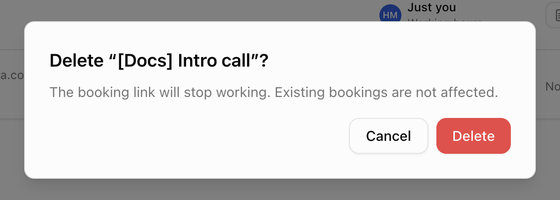 There is no delete button inside the editor, and deleting cannot be undone. To stop bookings temporarily, turn the event type off instead.
## View-only event types
Organization event types can be changed only by internal team members. If you open one you cannot edit, the editor shows a **View only** badge in place of **Save**, the row shows **View** instead of **Edit**, its switch is disabled and its menu has no **Delete**.
Next: [Hosting, schedule and limits](./scheduling-hosting-schedule-and-limits).