# Customer links and embed
> Source: https://support.usebluehill.com/scheduling-customer-links-and-embed | Updated: 2026-11-19T19:28:02Z
## Three kinds of link
| Link | Who it is for | Where to get it |
|---|---|---|
| **Public link** | Anyone. */book/jane/intro-call* books your event type on your schedule. | **Copy link** on the event type row or under **Sharing** in the editor. |
| **Customer link** | One customer. Their name and email are prefilled, the booking links to their record, and the link can have a usage limit, an expiry and settings of its own. | The **Links** tab, **New customer link** on an event type row, or the **Customer link** tile in the editor. |
| **Embed** | Visitors to your website. The booking page appears inside your page. | **Embed code** on an event type or link row, or the **Embed** tile in the editor. |
## The Links tab
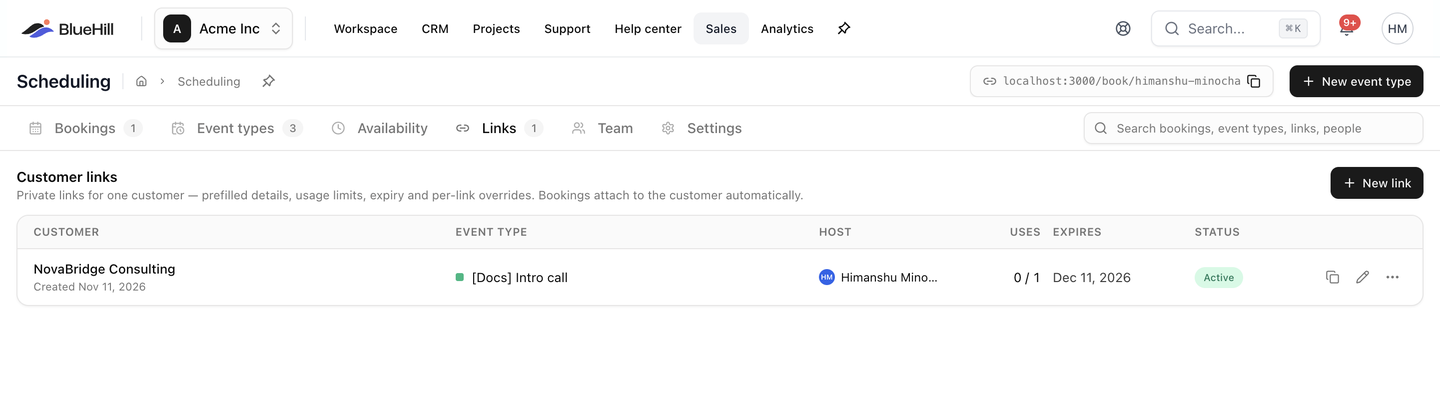 The **Customer links** table lists every private link you have made.
| Column | Shows |
|---|---|
| **Customer** | The customer the link was made for, and when it was created. |
| **Event type** | The meeting it books, with an **Overrides** pill when the link changes the event type's settings. |
| **Host** | Who takes the bookings: you, the organization event type's host, or the pool. |
| **Uses** | How many bookings have been made through it against its limit, for example *1 / 3* or *2 / ∞*. |
| **Expires** | The expiry date, or **Never**. |
| **Status** | **Active**, **Expired**, **Used up**, **Revoked** or **Inactive** (the event type is hidden). |
Each row has **Copy link** and **Edit** buttons and a **⋮** menu with **Open link**, **Embed code** and **Revoke**. With no links yet, the tab reads **No customer links yet** and offers a **New link** button.
## Create a customer link
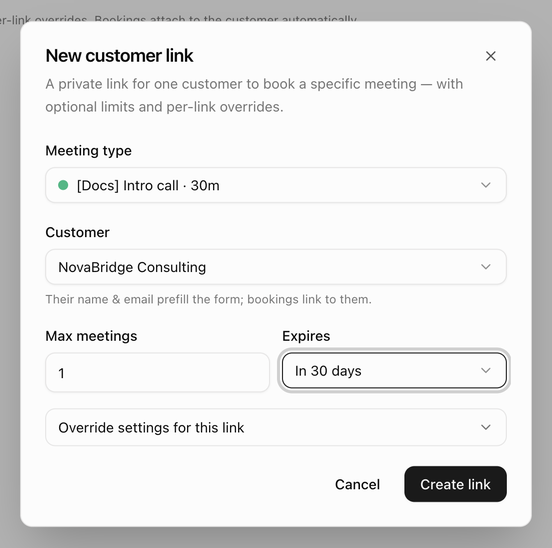 1. Click **New link** on the Links tab, or **New customer link** on an event type's menu.
2. Choose the **Meeting type**. Only event types that are accepting bookings and that you can edit are listed, as *Title · 30m*, with the organization or brand name after it where relevant.
3. If the meeting is on Zoom and you have more than one Zoom account, choose the **Zoom account**, or keep **Same as meeting type**.
4. Choose the **Customer**. Their name and email prefill the booking form, and the booking links to their record. A customer is required.
5. Set **Max meetings**, or leave it empty for unlimited. Set it to *1* for a link that works once.
6. Choose when it **Expires**: **Never**, **In 7 days**, **In 14 days**, **In 30 days** or **Custom date…**.
7. Optionally open **Override settings for this link**. See below.
8. Click **Create link**. The dialog becomes **Link ready to share**: copy the address with **Copy**, read the summary (for example *Usable 1 time · expires 12/11/2026*) and click **Done**.
The link looks like */book/link/* followed by a long token, so it cannot be guessed. Send it to the customer yourself, or from a ticket reply. See [Book from a support ticket](./scheduling-meetings-elsewhere#book-from-a-support-ticket).
### Override settings for this link
Everything left on **Inherit** follows the event type. Change only what this customer needs.
| Section | What you can override |
|---|---|
| **Availability** | Which schedule's hours the customer can pick from. |
| **Location** | **Zoom**, **Google Meet**, **Phone call**, **In person**, **Ask the invitee** or **No location**, with the phone number or address where needed. |
| **Durations** | A different meeting length, in minutes. |
| **Booking limits** | **Max bookings / day** and **Start times every (min)**. |
| **After booking** | A different confirmation message or redirect address. |
| **Customer capture** | **Ask for company name**, **Create a customer from each booking** and the tags to apply. |
## Edit, copy or revoke a link
- **Edit** opens the same dialog; click **Save changes** when you are done. A **Link updated** message confirms it.
- **Copy link** copies the address; **Open link** opens it in a new tab so you can see what the customer sees.
- **Revoke** stops the link at once. The dialog **Revoke this link?** notes that **The link stops accepting new bookings immediately. Existing bookings are not affected.** Choose **Revoke link** or **Keep it**. Revoked links stay in the table with the **Revoked** status; a link cannot be deleted.
A customer who opens a link that no longer works sees **This link is no longer available** with the reason: it has expired, it has been used the maximum number of times, or it was revoked by the host.
> **Tip:** Changing your handle never breaks customer links, because they use their own tokens rather than your handle.
## Embed a booking page
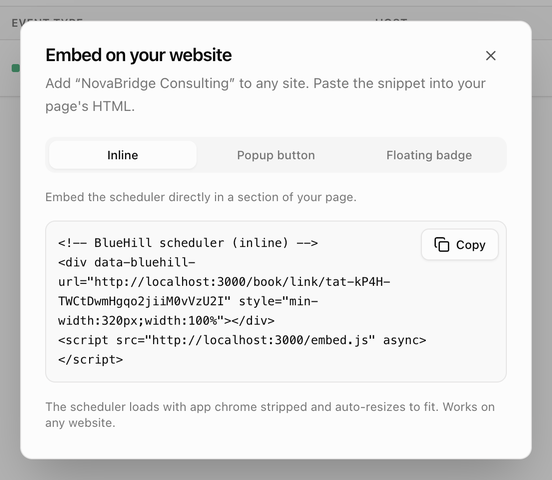 1. Open **Embed code** from an event type row, a customer link row or the **Embed** tile in the editor.
2. Pick a style:
| Style | What visitors see |
|---|---|
| **Inline** | The scheduler sits directly in a section of your page. |
| **Popup button** | A **Book a meeting** button that opens the scheduler in a window on top of the page. |
| **Floating badge** | A floating **Book a meeting** button in the corner of every page that carries the snippet. |
3. Click **Copy** and paste the snippet into your page's HTML, where you want the scheduler or button to appear. An **Embed code copied** message confirms the copy.
The embedded scheduler loads without BlueHill's app frame or footer and resizes itself to fit the space. It works on any website.
Next: [Team and pools](./scheduling-team-and-pools).