# The Scheduling page at a glance
> Source: https://support.usebluehill.com/scheduling-scheduling-page-overview | Updated: 2026-11-19T19:28:02Z
## Open Scheduling
- Open **Sales → Scheduling**. The page address is */scheduling*.
- The page opens on the **Bookings** tab. The tab you are on is kept in the page address, so a bookmarked or shared link opens the same tab.
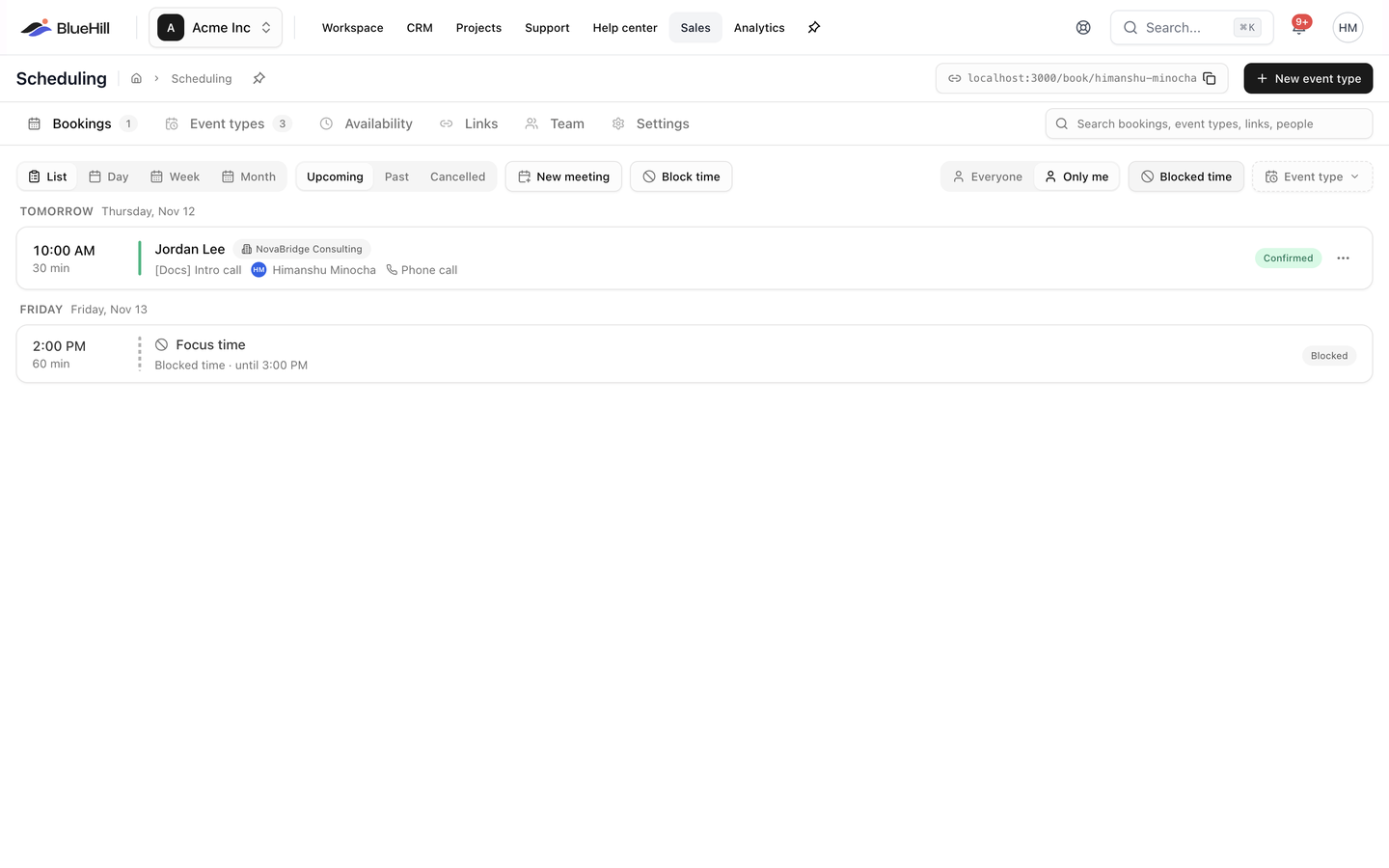 ## The header
The header shows, from left to right:
- The page title, **Scheduling**.
- Your **booking handle** button. Until you have a handle it reads **Claim your booking handle** and takes you to the **Settings** tab. Once you have one, it shows your personal booking address, such as *app.example.com/book/jane*, with a copy icon. Click it to copy the address; a **Booking link copied** message confirms it.
- **New event type**, which opens the event type editor. See [Create an event type](./scheduling-create-an-event-type).
## The six tabs
| Tab | What it holds | Badge |
|---|---|---|
| **Bookings** | Everything booked with you, as a list or a day, week or month calendar, plus blocked time. See [Work with bookings](./scheduling-bookings). | Number of upcoming bookings |
| **Event types** | The meetings people can book, each with its own link. See [Create an event type](./scheduling-create-an-event-type). | Number of event types |
| **Availability** | Your weekly hours, date overrides and the calendars that count as busy. See [Set your availability](./scheduling-availability). | |
| **Links** | Private customer links and embed codes. See [Customer links and embed](./scheduling-customer-links-and-embed). | Number of active links |
| **Team** | Who on your team can be booked, and the host pools team event types draw from. See [Team and pools](./scheduling-team-and-pools). | |
| **Settings** | Your handle, booking pages, Google Calendar and Zoom, and defaults for new event types. See [Set up your booking page](./scheduling-set-up-your-booking-page). | |
A badge is hidden when its count is zero.
## Search
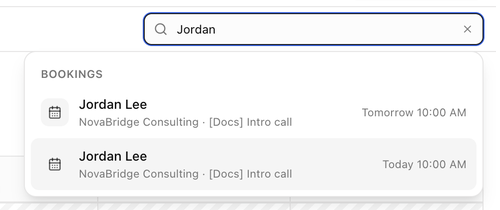
The search box at the right of the tab row searches across the whole module. Its placeholder reads **Search bookings, event types, links, people**.
 | Group | Matches on | Opening a result |
|---|---|---|
| **Bookings** | Booker name or email, customer, event type, host. Covers every status and every host. | Switches to **Bookings** and opens the booking. |
| **Event types** | Title, link, description, location, brand. | Opens the event type editor. |
| **Customer links** | Customer, event type, status. | Switches to the **Links** tab. |
| **People** | Name, email, handle. | Switches to the **Team** tab. |
- Each group shows up to five results. The right-hand text tells you the booking's day (*Today 10:00 AM*, *Tomorrow*, *Mon, Nov 10* or *Cancelled*), an event type's public path, a link's status or a person's handle.
- Press **Enter** to open the first result, or **Esc** to clear the search. **No matches for "…"** means nothing fits.
## Who sees what
- Everyone with access to Scheduling has their own event types, schedules, links and bookings.
- Internal team members also see **Organization** event types, the organization's booking pages and the **Team** tab. Members outside the internal team see only their own event types, and the Team tab tells them **Team isn't available**.
- Admins can block time on a teammate's calendar. See [Block time](./scheduling-schedule-a-meeting-and-block-time#block-time).
Next: [Set up your booking page](./scheduling-set-up-your-booking-page).