# Set up your booking page
> Source: https://support.usebluehill.com/scheduling-set-up-your-booking-page | Updated: 2026-11-19T19:28:02Z
## Claim your handle
Your handle is the word after */book/* in your personal booking address. You need one before any personal event type gets a shareable link.
1. Open **Scheduling → Settings**, or click **Claim your booking handle** in the page header.
2. Under **Your handle**, type a handle after the */book/* prefix, for example *jane*. Use lowercase letters, digits, hyphens, underscores or dots, at least two characters.
3. Click **Claim handle**. A **Handle saved** message confirms it.
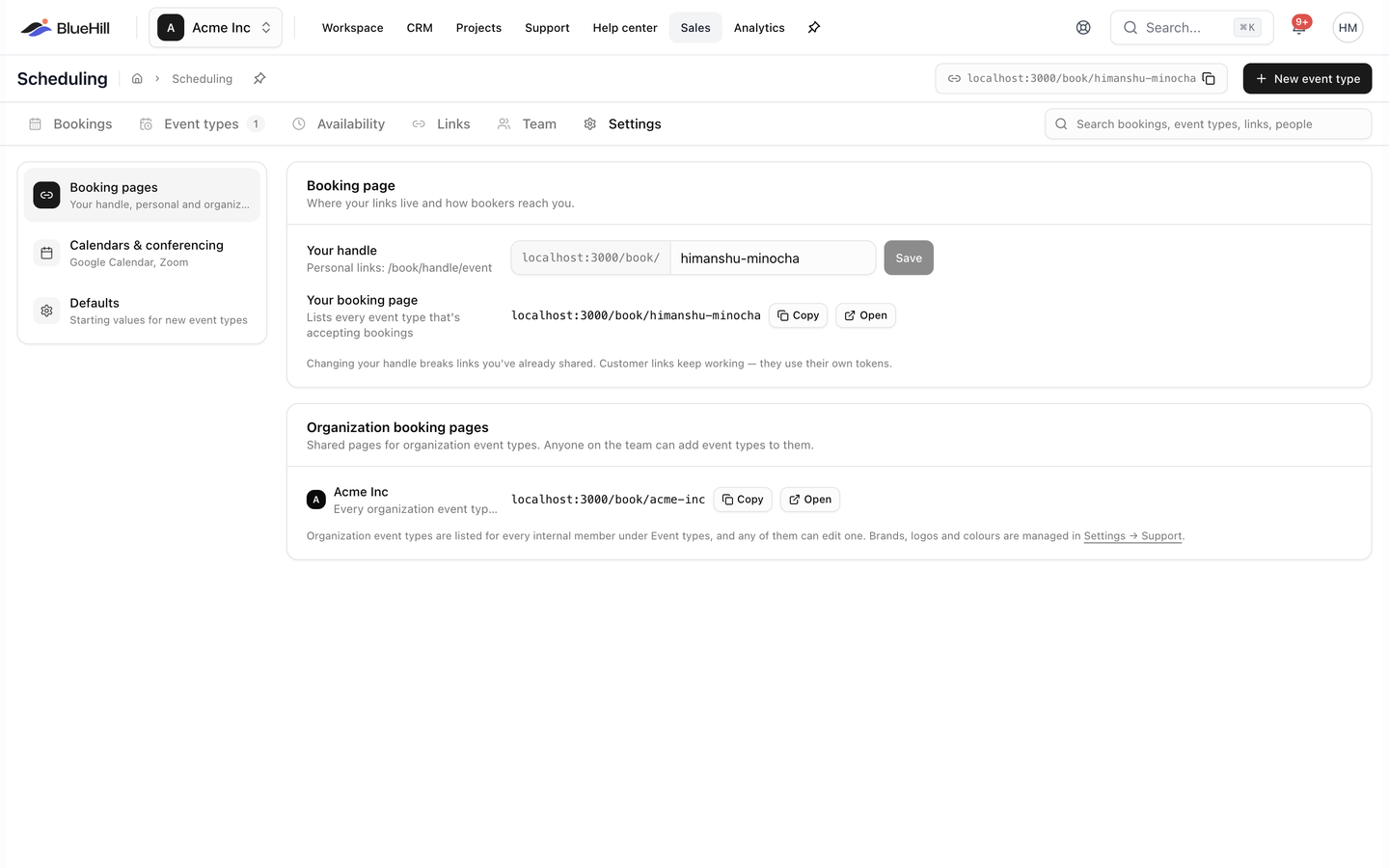 To change a handle later, edit the field and click **Save**.
> **Tip:** Changing your handle breaks links you have already shared. Customer links keep working, because they use their own tokens. See [Customer links and embed](./scheduling-customer-links-and-embed).
## Your booking page
**Your booking page** shows your personal address, */book/your-handle*, with **Copy** and **Open** buttons. The page lists every one of your personal event types that is accepting bookings, so a booker can pick the meeting they need. Until you claim a handle, the row reads **Claim a handle to get a public booking page.**
> **Tip:** Your handle belongs to you rather than to one workspace, so if you are a member of several workspaces your page lists your personal event types from all of them.
## Organization booking pages
Internal team members also see **Organization booking pages**. These are shared pages for organization event types, and anyone on the team can add event types to them.
- The organization row lists every organization event type that is accepting bookings, at */book/your-organization*.
- When your workspace has more than one brand, each brand has its own row, at */book/your-organization~brand*. A brand row reads **Appears once an event type uses this brand** until an organization event type is filed under it.
- Brands, logos and colours are managed in **Settings → Support**.
## Connect Google Calendar and Zoom
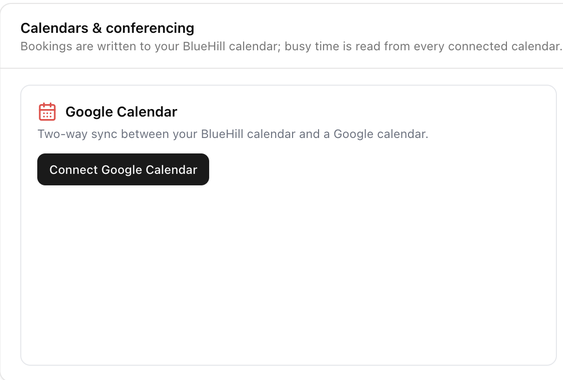
Open **Calendars & conferencing**. Bookings are written to your BlueHill calendar, and busy time is read from every connected calendar.
 | Card | What to do | What it gives you |
|---|---|---|
| **Google Calendar** | Click **Connect Google Calendar** and sign in. Once connected, choose the **Synced calendar**. | Busy time on that calendar hides those slots from bookers, and event types that meet on **Google Meet** get a Meet link. |
| **Zoom** | Click **Connect your Zoom** and sign in. You can add more with **Connect another Zoom account**; the first one is marked **Default**. | Event types that meet on **Zoom** get a meeting link on that account. An event type or a customer link can pick which account to use. |
The Zoom card also offers an organization-wide setup with **Account ID**, **Client ID**, **Client Secret** and an optional **Host email**, then **Connect organization Zoom** and **Test**. This is for admins whose company uses one Zoom app for everyone; most hosts connect their own account instead.
> **Tip:** Connect Zoom or Google before you share an event type that meets there. Without a connection, the booking still goes through but no join link can be created.
## Defaults for new event types
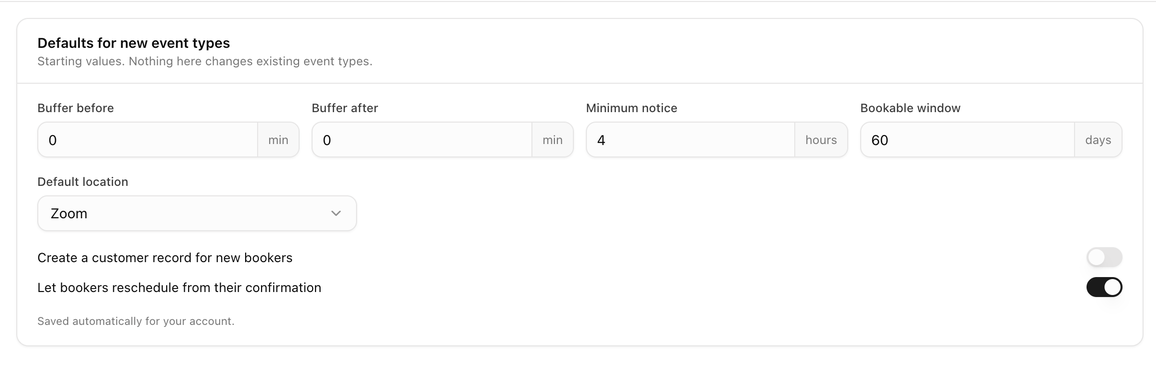
**Defaults for new event types** sets the starting values the editor fills in when you create an event type. Nothing here changes existing event types, and the choices are saved automatically for your account.
 | Setting | Starts as | Meaning |
|---|---|---|
| **Buffer before** | *0* min | Gap kept free before each booking. |
| **Buffer after** | *0* min | Gap kept free after each booking. |
| **Minimum notice** | *4* hours | How soon from now the first bookable time can be. |
| **Bookable window** | *60* days | How far ahead bookers can pick a time. |
| **Default location** | *Zoom* | Where new event types meet. |
| **Create a customer record for new bookers** | Off | Adds bookers to Customers when their email does not match one. |
| **Let bookers reschedule from their confirmation** | On | Gives bookers a reschedule link on their confirmation. |
Each of these can be changed per event type. See [Hosting, schedule and limits](./scheduling-hosting-schedule-and-limits).
Next: [Set your availability](./scheduling-availability).