# Create a ticket or a new email
> Source: https://support.usebluehill.com/support-create-a-ticket-or-email | Updated: 2026-10-26T23:46:59Z
## Three ways to start
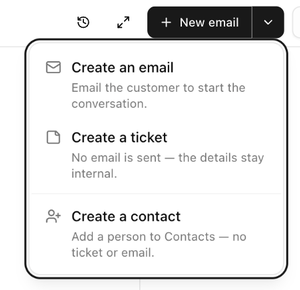
Most tickets arrive on their own, when a customer emails your support address or uses the contact form. When you need to start one yourself, click the arrow next to **New email** in the inbox toolbar.
 | Option | Use it when |
|---|---|
| **Create an email** | You want to email the customer to start the conversation. The email goes out when you send it, and the ticket tracks the replies. Clicking the main **New email** button (or pressing **c**) does the same. |
| **Create a ticket** | You want to record something without emailing anyone, for example a phone call or a request from a teammate. The details stay internal. |
| **Create a contact** | You only want to add a person to Contacts. No ticket is created and nothing is sent. |
| **Drafts · N** | You have unsent emails waiting. Shown only when drafts exist. |
## Write a new email
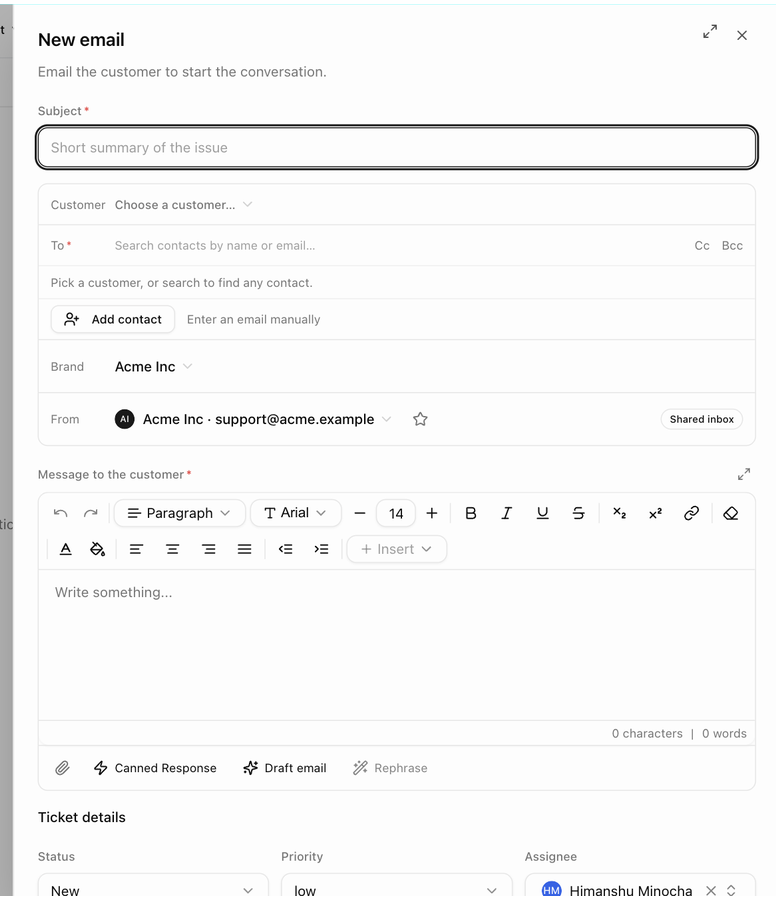
1. Choose **Create an email**. The **New email** panel slides in from the right, headed **Email the customer to start the conversation.**
2. Enter a **Subject** (placeholder *Short summary of the issue*).
3. Fill in the envelope:
| Field | What to enter |
|---|---|
| **Customer** | **Choose a customer…** to pick the account the ticket belongs to. Choosing one lets you pick from that customer's contacts. |
| **To** | The requester. **Search contacts by name or email…**; contacts of the chosen customer are listed first, and the customer's **Primary** contact is marked. **Add contact** creates a new person, and **Enter an email manually** accepts any address. |
| **Cc** / **Bcc** | Anyone else to copy. |
| **Brand** | Which brand the ticket is handled under. The default brand is preselected. |
| **From** | The address the email is sent from. The brand's shared mailbox (marked **Shared inbox**) or your default sender for that brand is preselected. |
4. Write the **Message to the customer**. The editor has the same tools as the reply composer: the paper-clip for attachments, **Canned Response**, **Draft email** (AI) and **Rephrase**.
5. Under **Ticket details**, check the **Status** (*New*), **Priority** (*Low*) and **Assignee** (you, by default; **Clear** leaves it unassigned), fill in **Type**, **Module**, **Group** or any other ticket fields your administrator has set up, and add **Tags**.
6. Click **Create & send email**.
| Option | Use it when |
|---|---|
| **Create an email** | You want to email the customer to start the conversation. The email goes out when you send it, and the ticket tracks the replies. Clicking the main **New email** button (or pressing **c**) does the same. |
| **Create a ticket** | You want to record something without emailing anyone, for example a phone call or a request from a teammate. The details stay internal. |
| **Create a contact** | You only want to add a person to Contacts. No ticket is created and nothing is sent. |
| **Drafts · N** | You have unsent emails waiting. Shown only when drafts exist. |
## Write a new email
1. Choose **Create an email**. The **New email** panel slides in from the right, headed **Email the customer to start the conversation.**
2. Enter a **Subject** (placeholder *Short summary of the issue*).
3. Fill in the envelope:
| Field | What to enter |
|---|---|
| **Customer** | **Choose a customer…** to pick the account the ticket belongs to. Choosing one lets you pick from that customer's contacts. |
| **To** | The requester. **Search contacts by name or email…**; contacts of the chosen customer are listed first, and the customer's **Primary** contact is marked. **Add contact** creates a new person, and **Enter an email manually** accepts any address. |
| **Cc** / **Bcc** | Anyone else to copy. |
| **Brand** | Which brand the ticket is handled under. The default brand is preselected. |
| **From** | The address the email is sent from. The brand's shared mailbox (marked **Shared inbox**) or your default sender for that brand is preselected. |
4. Write the **Message to the customer**. The editor has the same tools as the reply composer: the paper-clip for attachments, **Canned Response**, **Draft email** (AI) and **Rephrase**.
5. Under **Ticket details**, check the **Status** (*New*), **Priority** (*Low*) and **Assignee** (you, by default; **Clear** leaves it unassigned), fill in **Type**, **Module**, **Group** or any other ticket fields your administrator has set up, and add **Tags**.
6. Click **Create & send email**.
 A toast confirms **Ticket AS-16683 created — email sent to Sarah Johnson**, and the new ticket opens in the inbox. If the subject, recipient or message is missing, the panel tells you which one before anything is sent.
## Log an internal ticket
Choose **Create a ticket**. The panel is headed **New ticket** with the note **Create an internal ticket — nothing is emailed to the customer.** Fill in the **Subject**, pick the **Customer** and requester so the ticket is filed against the right account, write the details and click **Create ticket**. The toast reads **Ticket AS-16683 created — no email sent**.
Use an internal ticket to record calls, walk-ins or requests passed on by a colleague. You can still email the customer later from the ticket's composer.
## Save a draft and come back
Click **Save draft** instead of sending. The email waits in the **Drafts** view (choose **Drafts** from the **View** dropdown or from the **New email** menu). Open a draft to carry on; the panel notes who saved it and when, and nothing is sent until you choose **Send email**. **Update draft** saves your changes again.
If you close the panel with unsent content, BlueHill asks **Discard this email?** Choose **Keep editing** to stay, or **Discard** to throw the subject, message and attachments away.
The **Drafts** view can be filtered by **Written by** and, for drafts created by a bulk email run, by **Bulk run**. When it is empty it reads **No drafts**.
## Share drafts with teammates
By default a draft is private to the person who wrote it. An administrator can let teammates see each other's drafts for a brand: open the **Drafts** view and choose **Share a brand's drafts with teammates**, or go to **Support → Support settings → Brands & domains**, open the brand and use **Draft sharing** on its **Identity** tab. Pick **Add people** to choose who may see the brand's drafts, or leave it **Private to each author**.
## Create a ticket from elsewhere
- On a customer record, the **Tickets** tab lists the customer's tickets and has its own **New ticket** button, prefilled with that customer.
- The mobile app's **Inbox** tab has **New email** and **New ticket** in its menu.
- Customers create tickets themselves through the contact form on your help center and the **New ticket** button in the customer portal. See [What your customers see](./support-customer-portal-and-help-center).
Next: [Work a ticket](./support-work-a-ticket).
A toast confirms **Ticket AS-16683 created — email sent to Sarah Johnson**, and the new ticket opens in the inbox. If the subject, recipient or message is missing, the panel tells you which one before anything is sent.
## Log an internal ticket
Choose **Create a ticket**. The panel is headed **New ticket** with the note **Create an internal ticket — nothing is emailed to the customer.** Fill in the **Subject**, pick the **Customer** and requester so the ticket is filed against the right account, write the details and click **Create ticket**. The toast reads **Ticket AS-16683 created — no email sent**.
Use an internal ticket to record calls, walk-ins or requests passed on by a colleague. You can still email the customer later from the ticket's composer.
## Save a draft and come back
Click **Save draft** instead of sending. The email waits in the **Drafts** view (choose **Drafts** from the **View** dropdown or from the **New email** menu). Open a draft to carry on; the panel notes who saved it and when, and nothing is sent until you choose **Send email**. **Update draft** saves your changes again.
If you close the panel with unsent content, BlueHill asks **Discard this email?** Choose **Keep editing** to stay, or **Discard** to throw the subject, message and attachments away.
The **Drafts** view can be filtered by **Written by** and, for drafts created by a bulk email run, by **Bulk run**. When it is empty it reads **No drafts**.
## Share drafts with teammates
By default a draft is private to the person who wrote it. An administrator can let teammates see each other's drafts for a brand: open the **Drafts** view and choose **Share a brand's drafts with teammates**, or go to **Support → Support settings → Brands & domains**, open the brand and use **Draft sharing** on its **Identity** tab. Pick **Add people** to choose who may see the brand's drafts, or leave it **Private to each author**.
## Create a ticket from elsewhere
- On a customer record, the **Tickets** tab lists the customer's tickets and has its own **New ticket** button, prefilled with that customer.
- The mobile app's **Inbox** tab has **New email** and **New ticket** in its menu.
- Customers create tickets themselves through the contact form on your help center and the **New ticket** button in the customer portal. See [What your customers see](./support-customer-portal-and-help-center).
Next: [Work a ticket](./support-work-a-ticket).