# Find and filter tickets
> Source: https://support.usebluehill.com/support-find-and-filter-tickets | Updated: 2026-10-26T23:46:59Z
## Search
Type in **Search tickets, contacts, content…** at the top of the inbox, or press **/**. As you type, a dropdown lists matching tickets. Each result carries a badge saying what matched: **Number**, **Subject**, **Requester**, **Contact**, **Company**, **Attachment**, **Field** or **Message**. Click a result to open that ticket.
Press **Enter** (or click **Show all results for "…"**) to turn the search into a list filter: the ticket list then shows only matching tickets, and **Sort** gains a **Relevance** option. **Clear list filter** removes it again.
Ticket numbers work with or without their prefix, so *16683*, *AS-16683* and *#16683* all find the same ticket. From anywhere in BlueHill, **⌘K** (or **Ctrl+K**) searches tickets too.
## Views
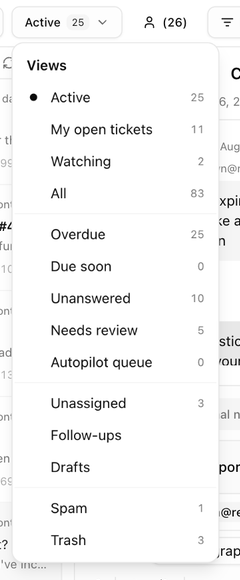
The **View** dropdown lists the built-in views with a live count beside each one.
 | View | Shows |
|---|---|
| **Active** | Every ticket that is not solved or closed. This is the default. |
| **My open tickets** | Active tickets assigned to you. |
| **Watching** | Tickets you have chosen to watch, including solved and closed ones. |
| **All** | Every ticket, whatever its status. |
| **Overdue** | Active tickets that have missed an SLA target. |
| **Due soon** | Tickets whose next SLA target falls within the next 24 hours. |
| **Unanswered** | Active tickets where the customer is waiting for a first reply. |
| **Needs review** | Suggestions from the AI assistant waiting for a teammate to approve them. |
| **Autopilot queue** | Automatic replies on hold before they are sent. |
| **Unassigned** | Tickets with no assignee. |
| **Follow-ups** | Your follow-up reminders, due and overdue. |
| **Drafts** | New emails saved but not yet sent. |
| **Spam** | Tickets marked as spam. |
| **Trash** | Deleted tickets, for administrators. |
**Needs review** and **Autopilot queue** appear only when the AI assistant is on, and **Trash** only when your workspace keeps deleted tickets and you are allowed to see them.
**Mine** sits next to the dropdown. Switch it on to keep only tickets assigned to you in whichever view you are using. If you have shared identities, a pill for each one filters to tickets sent to that identity's mailboxes.
## Use the Filters panel
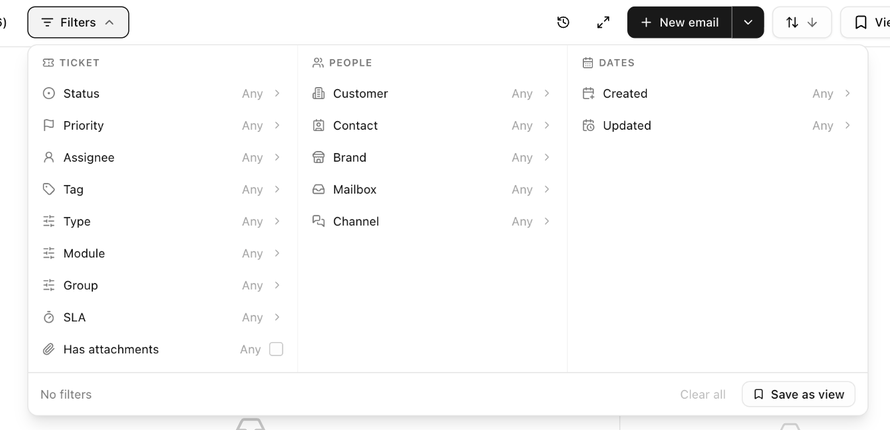
Click **Filters**. The panel is arranged in three groups: **Ticket**, **People** and **Dates**. Each row shows its current value (**Any** until you pick something); click a row to choose. The list updates as you go, the footer counts the active filters (**No filters** when there are none) and offers **Clear all** and **Save as view**.
| View | Shows |
|---|---|
| **Active** | Every ticket that is not solved or closed. This is the default. |
| **My open tickets** | Active tickets assigned to you. |
| **Watching** | Tickets you have chosen to watch, including solved and closed ones. |
| **All** | Every ticket, whatever its status. |
| **Overdue** | Active tickets that have missed an SLA target. |
| **Due soon** | Tickets whose next SLA target falls within the next 24 hours. |
| **Unanswered** | Active tickets where the customer is waiting for a first reply. |
| **Needs review** | Suggestions from the AI assistant waiting for a teammate to approve them. |
| **Autopilot queue** | Automatic replies on hold before they are sent. |
| **Unassigned** | Tickets with no assignee. |
| **Follow-ups** | Your follow-up reminders, due and overdue. |
| **Drafts** | New emails saved but not yet sent. |
| **Spam** | Tickets marked as spam. |
| **Trash** | Deleted tickets, for administrators. |
**Needs review** and **Autopilot queue** appear only when the AI assistant is on, and **Trash** only when your workspace keeps deleted tickets and you are allowed to see them.
**Mine** sits next to the dropdown. Switch it on to keep only tickets assigned to you in whichever view you are using. If you have shared identities, a pill for each one filters to tickets sent to that identity's mailboxes.
## Use the Filters panel
Click **Filters**. The panel is arranged in three groups: **Ticket**, **People** and **Dates**. Each row shows its current value (**Any** until you pick something); click a row to choose. The list updates as you go, the footer counts the active filters (**No filters** when there are none) and offers **Clear all** and **Save as view**.
 **Ticket**
| Filter | Options |
|---|---|
| **Status** | Any of your workspace's statuses, for example *New*, *Open*, *Pending*, *On hold*, *Solved* or *Closed*. |
| **Priority** | *Low*, *Medium*, *High* or *Urgent*. |
| **Assignee** | Any teammate, or **Unassigned**. |
| **Tag** | Any tag in use. |
| **Category** | Your ticket categories. Shown only once categories exist. |
| **Type**, **Module**, **Group** | The ticket fields your administrator has set up, each with a **Not set** option. They are listed even before any choices exist. |
| **SLA** | **Breached** or **Unanswered**. |
| **Has attachments** | Only tickets with files. |
**People**
| Filter | Options |
|---|---|
| **Customer** | Tickets linked to one or more customer accounts. |
| **Contact** | Tickets from one or more contacts. |
| **Brand** | Tickets handled under a brand. |
| **Mailbox** | Tickets that arrived at a particular address. |
| **Channel** | *Email*, *Manual*, *API*, *Portal*, *Widget*, *Chat*, *Phone*, *Voicemail* or *App*. |
**Dates**
| Filter | Options |
|---|---|
| **Created** | **Today**, **Yesterday**, **This week**, **Last week**, **Last 7 days**, **This month**, **Last month**, **Last 30 days** or a custom range. |
| **Updated** | A date that **is between**, **is after** or **is before** the dates you pick. |
> **Tip:** The inbox remembers your view and filters, so the list looks the same when you come back. Use **Clear all filters** when it is not showing what you expect.
## Sort the list
**Sort** offers **Last updated** (the default), **Created**, **Priority**, **SLA due**, **Status** and, while a search is active, **Relevance**. Click the direction arrow to switch between ascending and descending.
## Saved views
When you have a combination you use often, save it:
1. Set the view, filters and sort you want.
2. Click **Save as view** in the footer of the Filters panel (or open **Views** and choose **Save view**). Give it a name.
3. Pick it from **Views** whenever you need it. Saved views are listed under **My** (yours) and **Shared** (your team's).
A saved view can be marked as your default, which the inbox opens on your first visit of the day. Saved views work the same way in the Ticket list layout, where they appear as tabs.
## Act on several tickets at once
**Ticket**
| Filter | Options |
|---|---|
| **Status** | Any of your workspace's statuses, for example *New*, *Open*, *Pending*, *On hold*, *Solved* or *Closed*. |
| **Priority** | *Low*, *Medium*, *High* or *Urgent*. |
| **Assignee** | Any teammate, or **Unassigned**. |
| **Tag** | Any tag in use. |
| **Category** | Your ticket categories. Shown only once categories exist. |
| **Type**, **Module**, **Group** | The ticket fields your administrator has set up, each with a **Not set** option. They are listed even before any choices exist. |
| **SLA** | **Breached** or **Unanswered**. |
| **Has attachments** | Only tickets with files. |
**People**
| Filter | Options |
|---|---|
| **Customer** | Tickets linked to one or more customer accounts. |
| **Contact** | Tickets from one or more contacts. |
| **Brand** | Tickets handled under a brand. |
| **Mailbox** | Tickets that arrived at a particular address. |
| **Channel** | *Email*, *Manual*, *API*, *Portal*, *Widget*, *Chat*, *Phone*, *Voicemail* or *App*. |
**Dates**
| Filter | Options |
|---|---|
| **Created** | **Today**, **Yesterday**, **This week**, **Last week**, **Last 7 days**, **This month**, **Last month**, **Last 30 days** or a custom range. |
| **Updated** | A date that **is between**, **is after** or **is before** the dates you pick. |
> **Tip:** The inbox remembers your view and filters, so the list looks the same when you come back. Use **Clear all filters** when it is not showing what you expect.
## Sort the list
**Sort** offers **Last updated** (the default), **Created**, **Priority**, **SLA due**, **Status** and, while a search is active, **Relevance**. Click the direction arrow to switch between ascending and descending.
## Saved views
When you have a combination you use often, save it:
1. Set the view, filters and sort you want.
2. Click **Save as view** in the footer of the Filters panel (or open **Views** and choose **Save view**). Give it a name.
3. Pick it from **Views** whenever you need it. Saved views are listed under **My** (yours) and **Shared** (your team's).
A saved view can be marked as your default, which the inbox opens on your first visit of the day. Saved views work the same way in the Ticket list layout, where they appear as tabs.
## Act on several tickets at once
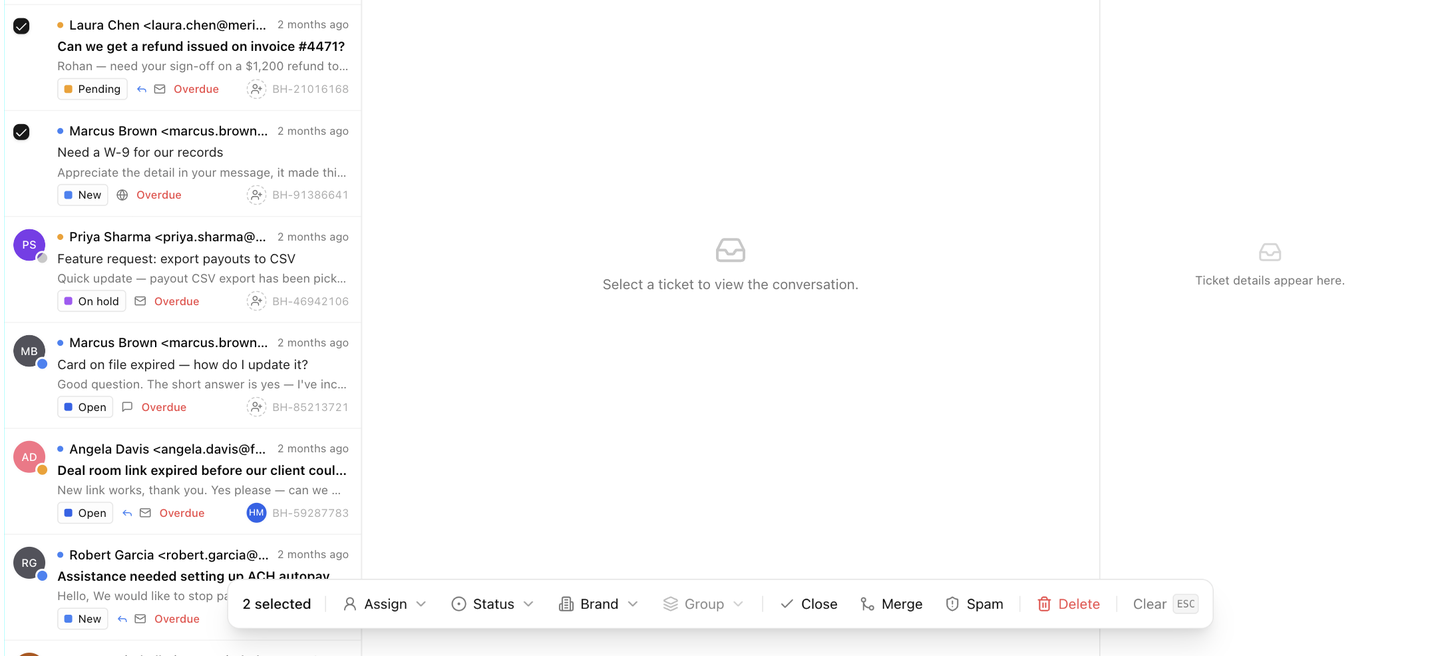 1. Tick the checkbox on each ticket (or press **x** on the highlighted row). Use **Select all** in the list header to take the whole list.
2. A bar appears showing **N selected**. Choose an action:
| Action | What it does |
|---|---|
| **Assign** | Sets the assignee on every selected ticket, or **Unassign** to clear it. |
| **Status** | Sets a status. |
| **Brand** | Moves the tickets to another brand. Shown only when you have more than one brand. |
| **Group** (or your group field's name) | Sets or clears that ticket field. Greyed out until the field has choices. |
| **Close** | Sets the tickets to your closed status. |
| **Merge** | Combines the selected tickets into one. See [Merge tickets](./support-work-a-ticket#merge-tickets). |
| **Spam** | Moves the tickets to the **Spam** view. Senders are not blocked. |
| **Delete** | Moves the tickets to **Trash**. You can undo straight away, and an administrator can restore them later. |
3. Click **Clear** at the end of the bar (or press **Esc**) to drop the selection.
In the **Trash** view the bar offers one action, **Restore**, which puts the selected tickets back exactly as they were.
## Open a ticket from a link
Every ticket has a link of the form */support/acme-inc/BH-85213721*: the brand's short name, then the ticket number. Notification emails and the **Copy link** action use it. Paste it into the address bar to open the ticket in the inbox. If the link points at a ticket you cannot see, the inbox says **Ticket not found in this workspace**.
Next: [Create a ticket or a new email](./support-create-a-ticket-or-email).
1. Tick the checkbox on each ticket (or press **x** on the highlighted row). Use **Select all** in the list header to take the whole list.
2. A bar appears showing **N selected**. Choose an action:
| Action | What it does |
|---|---|
| **Assign** | Sets the assignee on every selected ticket, or **Unassign** to clear it. |
| **Status** | Sets a status. |
| **Brand** | Moves the tickets to another brand. Shown only when you have more than one brand. |
| **Group** (or your group field's name) | Sets or clears that ticket field. Greyed out until the field has choices. |
| **Close** | Sets the tickets to your closed status. |
| **Merge** | Combines the selected tickets into one. See [Merge tickets](./support-work-a-ticket#merge-tickets). |
| **Spam** | Moves the tickets to the **Spam** view. Senders are not blocked. |
| **Delete** | Moves the tickets to **Trash**. You can undo straight away, and an administrator can restore them later. |
3. Click **Clear** at the end of the bar (or press **Esc**) to drop the selection.
In the **Trash** view the bar offers one action, **Restore**, which puts the selected tickets back exactly as they were.
## Open a ticket from a link
Every ticket has a link of the form */support/acme-inc/BH-85213721*: the brand's short name, then the ticket number. Notification emails and the **Copy link** action use it. Paste it into the address bar to open the ticket in the inbox. If the link points at a ticket you cannot see, the inbox says **Ticket not found in this workspace**.
Next: [Create a ticket or a new email](./support-create-a-ticket-or-email).