# Support settings: brands, domains and senders
> Source: https://support.usebluehill.com/support-support-settings-brands-and-email | Updated: 2026-10-26T23:46:59Z
## The Support settings page
Open **Support → Support settings**. The left-hand menu groups the settings:
| Group | Sections |
|---|---|
| **Overview** | A health summary of the desk. |
| **Channels & identity** | **Brands & domains** |
| **Ticket workflow** | **Statuses**, **Ticket categories**, **Ticket fields**, **Routing rules**, **SLA & business hours** |
| **Email & automation** | **Inbound filters**, **Suppressions**, **Canned responses**, **AI assistant** |
| **Customer-facing** | **CSAT**, **Help center**, **KB analytics** |
| **Data** | **Import** |
**Find a setting…** at the top of the menu searches every section, including things you might not know the name of, such as *ticket numbering* or *do not mail*. A dot on **Brands & domains** means a domain still needs verifying.
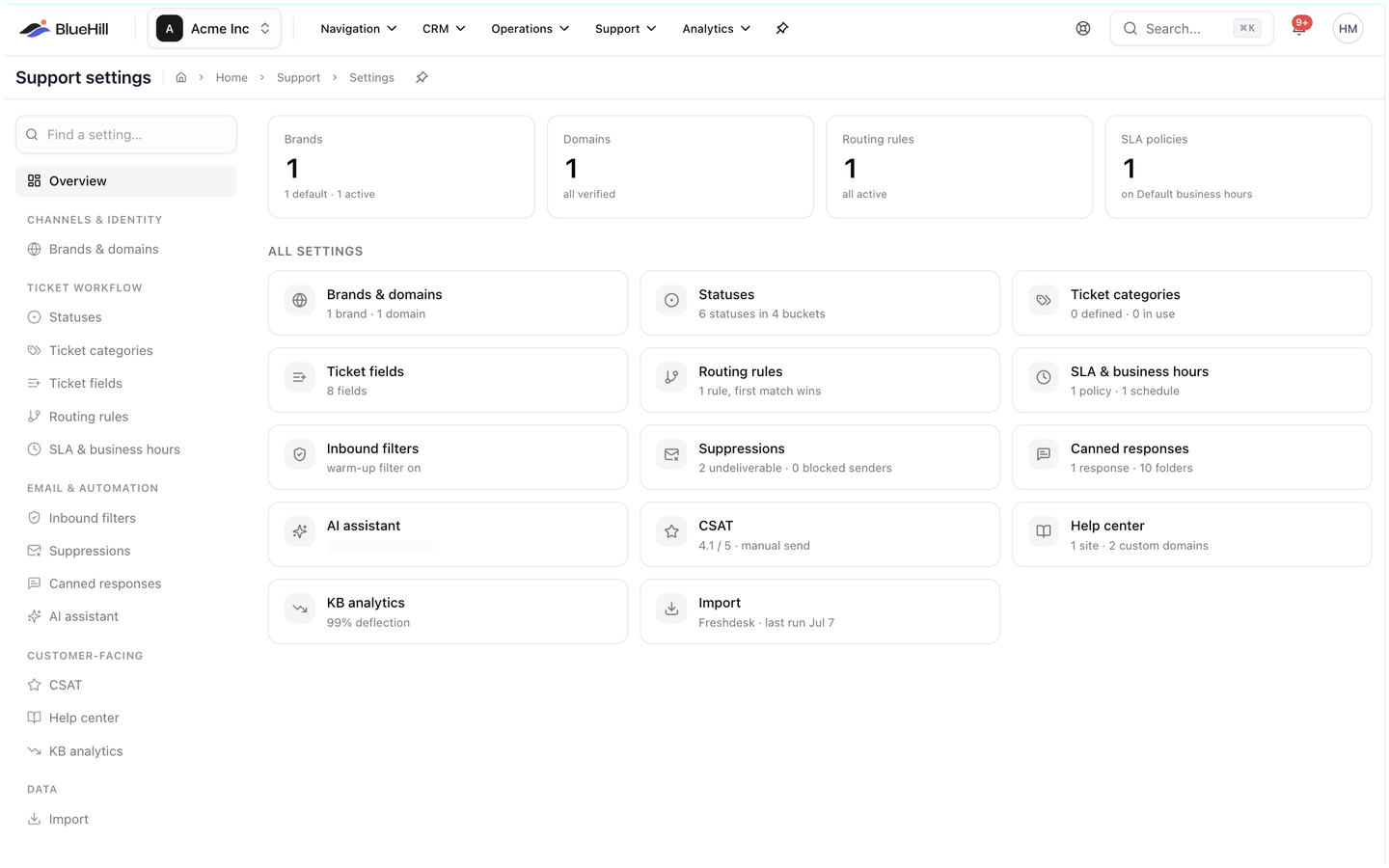 **Overview** shows four tiles (**Brands**, **Domains**, **Routing rules**, **SLA policies**) and an **All settings** grid where every card carries a one-line summary of its current state, such as *1 rule, first match wins*. When something is wrong, for example a domain that failed verification, a **Needs attention** list appears above the grid with a button for each problem.
A new workspace also sees the **Set up your support desk** checklist: **Create a brand & sender**, **Verify a sending domain**, **Set business hours & SLA** and **Publish a help center**. **Continue** opens the guided setup; **Dismiss** hides the checklist.
This guide covers **Brands & domains**. The other sections are in [Support settings: statuses, fields, routing and SLA](./support-support-settings-workflow) and [Canned responses, inbound filters, AI assistant and CSAT](./support-canned-responses-ai-and-csat).
## Brands
A brand is the identity your support emails are sent from. Every ticket belongs to one brand, which sets its ticket prefix, the From addresses available to agents, the auto-reply the customer receives and which help center its contact form belongs to.
**Overview** shows four tiles (**Brands**, **Domains**, **Routing rules**, **SLA policies**) and an **All settings** grid where every card carries a one-line summary of its current state, such as *1 rule, first match wins*. When something is wrong, for example a domain that failed verification, a **Needs attention** list appears above the grid with a button for each problem.
A new workspace also sees the **Set up your support desk** checklist: **Create a brand & sender**, **Verify a sending domain**, **Set business hours & SLA** and **Publish a help center**. **Continue** opens the guided setup; **Dismiss** hides the checklist.
This guide covers **Brands & domains**. The other sections are in [Support settings: statuses, fields, routing and SLA](./support-support-settings-workflow) and [Canned responses, inbound filters, AI assistant and CSAT](./support-canned-responses-ai-and-csat).
## Brands
A brand is the identity your support emails are sent from. Every ticket belongs to one brand, which sets its ticket prefix, the From addresses available to agents, the auto-reply the customer receives and which help center its contact form belongs to.
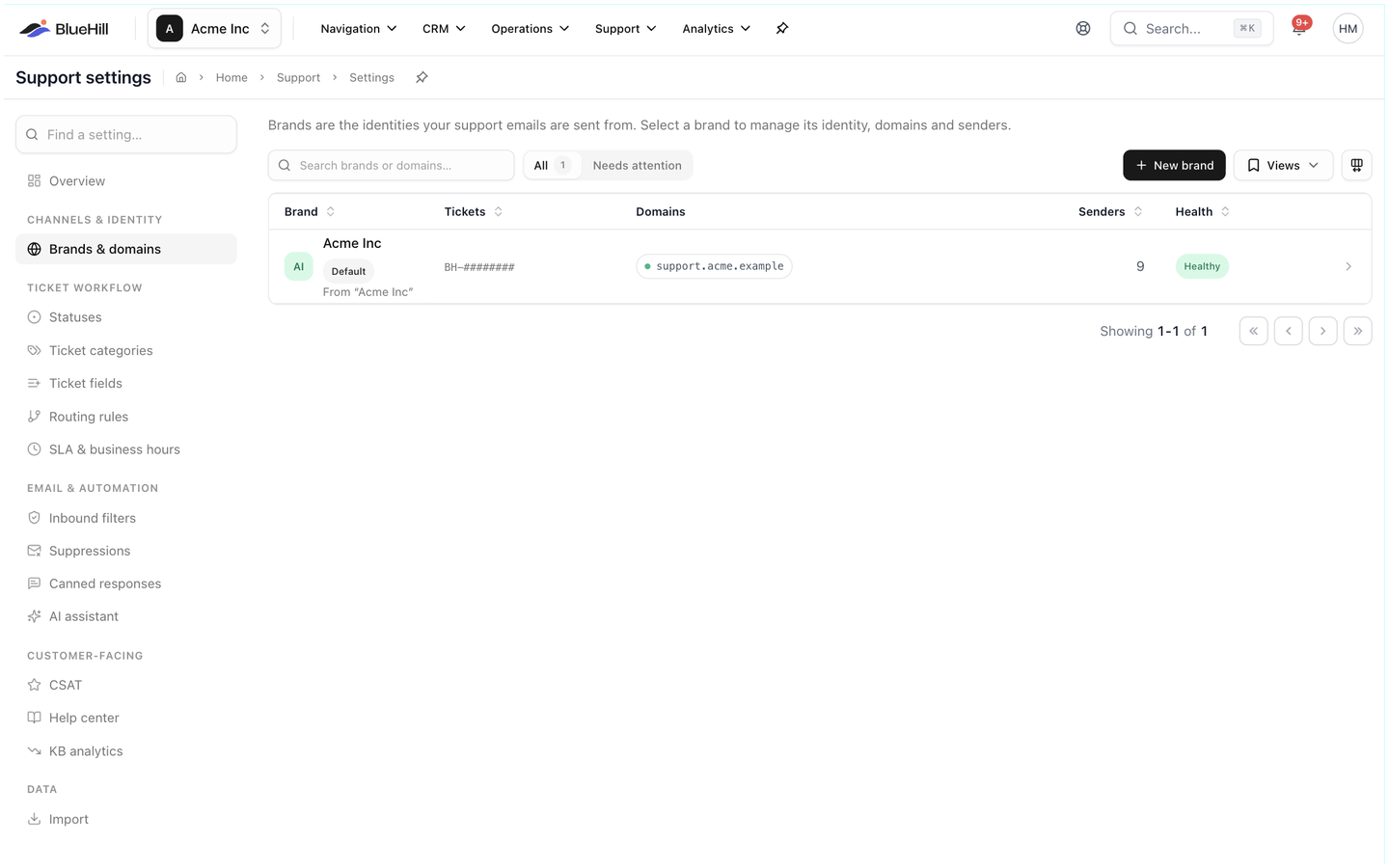 **Brands & domains** lists each brand with its **Tickets** prefix, **From** name, **Domains** (or **Managed address only**), number of **Senders** and a **Health** indicator. The **Default** badge marks the brand used for new tickets. Switch **All** to **Needs attention** to see only brands with a problem, or search with **Search brands or domains…**.
### Create a brand
1. Click **New brand**.
2. Enter the **Brand name**, a **Ticket prefix** (up to eight letters, shown in capitals, for example *AS*) and the **From name** customers will see.
3. Click **Create brand**.
The new brand starts with a **BlueHill-managed support address**, which can send and receive straight away. Add your own domain when you want email to come from your company's address.
### The brand page
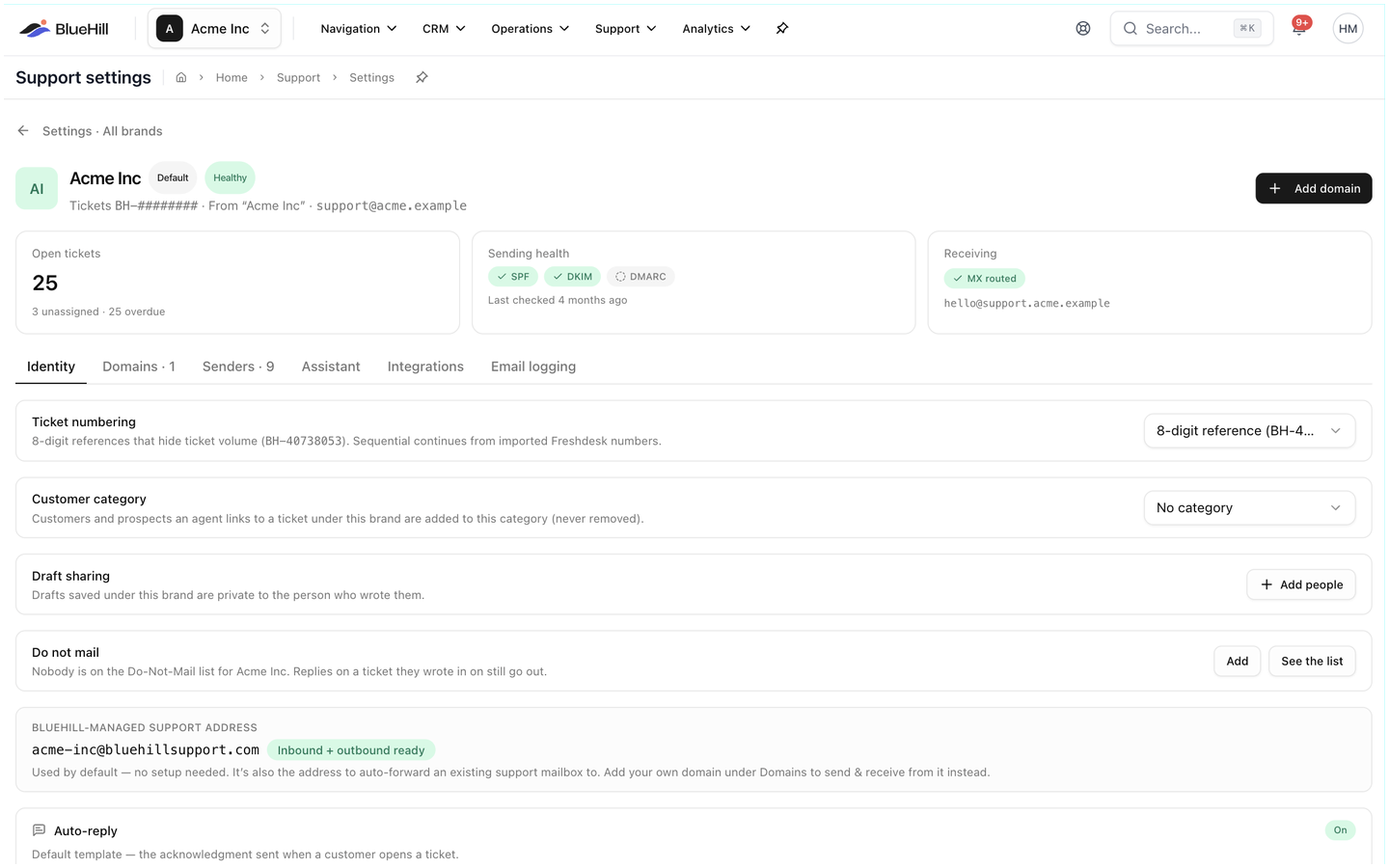
Click a brand to open it; **Settings · All brands** at the top takes you back. The header shows the brand's prefix, From name and mailbox address with **Default** and **Healthy** badges, plus **Add domain**. On a brand that is not the default, **Make default** makes it the brand for new tickets, the New email default and mail that arrives at the managed address. Three cards summarise **Open tickets** (with unassigned and overdue counts), **Sending health** (the SPF, DKIM and DMARC status of its domain and when it was last checked) and **Receiving** (**MX routed**, **Mailbox forwarding** or **Managed address**, with the inbound mailbox). The tabs below are **Identity**, **Domains**, **Senders**, **Assistant**, **Integrations** and **Email logging**.
**Brands & domains** lists each brand with its **Tickets** prefix, **From** name, **Domains** (or **Managed address only**), number of **Senders** and a **Health** indicator. The **Default** badge marks the brand used for new tickets. Switch **All** to **Needs attention** to see only brands with a problem, or search with **Search brands or domains…**.
### Create a brand
1. Click **New brand**.
2. Enter the **Brand name**, a **Ticket prefix** (up to eight letters, shown in capitals, for example *AS*) and the **From name** customers will see.
3. Click **Create brand**.
The new brand starts with a **BlueHill-managed support address**, which can send and receive straight away. Add your own domain when you want email to come from your company's address.
### The brand page
Click a brand to open it; **Settings · All brands** at the top takes you back. The header shows the brand's prefix, From name and mailbox address with **Default** and **Healthy** badges, plus **Add domain**. On a brand that is not the default, **Make default** makes it the brand for new tickets, the New email default and mail that arrives at the managed address. Three cards summarise **Open tickets** (with unassigned and overdue counts), **Sending health** (the SPF, DKIM and DMARC status of its domain and when it was last checked) and **Receiving** (**MX routed**, **Mailbox forwarding** or **Managed address**, with the inbound mailbox). The tabs below are **Identity**, **Domains**, **Senders**, **Assistant**, **Integrations** and **Email logging**.
 ## Identity tab
| Setting | What it does |
|---|---|
| **Ticket numbering** | **8-digit reference** (for example *BH-40738053*, the default, which hides your ticket volume) or **Sequential** (*BH-1001*, *BH-1002*…, continuing from any imported Freshdesk numbers). Switching to sequential asks you to confirm, because sequential numbers reveal how many tickets you handle. |
| **Customer category** | Customers and prospects an agent links to a ticket under this brand are added to this category automatically. Leave it on **No category** to skip this. |
| **Draft sharing** | Who can see unsent drafts saved under this brand: **Private to each author**, or the people you choose with **Add people**. |
| **Do not mail** | How many people and domains are on the brand's Do-Not-Mail list, with **Add** and **See the list**. |
| **BlueHill-managed support address** | The address BlueHill provides, such as *acme-inc@bluehillsupport.com*, marked **Inbound + outbound ready**. It works with no setup, and it is also the address to auto-forward an existing support mailbox to. |
| **Auto-reply** | **On** or **Off**: whether customers get an acknowledgement when they open a ticket, and what it says. |
| **Deal message** | The text **Send deal** inserts into a reply. Shown for workspaces that bill through BlueHill. |
### Edit the auto-reply
1. On the **Auto-reply** card, click **Edit template**.
2. Leave **Send an auto-reply** on, or turn it off to acknowledge tickets silently.
3. Edit the **Subject** and **Message**. **Insert a variable** adds placeholders such as the ticket number, the customer's name or the brand name, and the **Preview** shows the result with sample values.
4. Save.
The default reads: *We received your request (#12345678)* / *Hi Sarah, Thanks for reaching out — we've opened ticket #12345678 and a team member will reply soon.* The auto-reply is only sent from a brand with a verified custom domain, and never to addresses on the Do-Not-Mail list. Individual mailboxes can switch it off under **Senders**.
## Add and verify a custom domain
Replies, auto-replies and surveys are only emailed from a brand that has a verified domain of your own.
1. On the brand page, open **Domains** and click **Add domain**.
2. Enter the **Domain** (for example *support.acme.com*) and the **Inbound mailbox**, the local part of the address customers will write to (for example *support*).
3. BlueHill creates the DNS records you need. Click **Setup** on the new domain row to see them (**Hide setup** folds them away again).
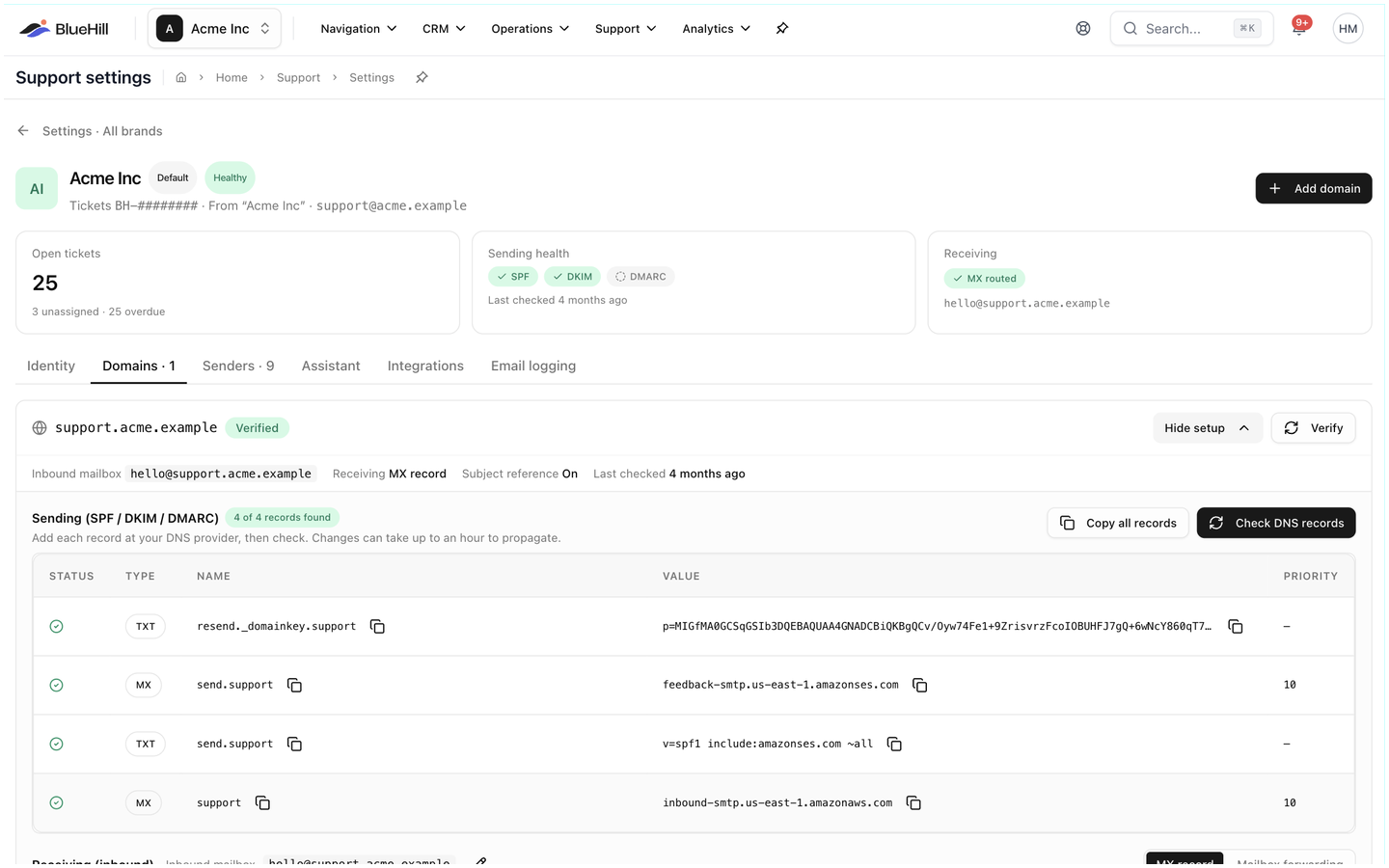
4. Under **Sending (SPF / DKIM / DMARC)**, add each record from the table at your DNS provider. **Copy all records** copies them in one go. Changes can take up to an hour to propagate.
5. Click **Check DNS records** (or **Verify** on the row). The row shows **Verified** and the panel reads **4 of 4 records found** when every record is in place.
## Identity tab
| Setting | What it does |
|---|---|
| **Ticket numbering** | **8-digit reference** (for example *BH-40738053*, the default, which hides your ticket volume) or **Sequential** (*BH-1001*, *BH-1002*…, continuing from any imported Freshdesk numbers). Switching to sequential asks you to confirm, because sequential numbers reveal how many tickets you handle. |
| **Customer category** | Customers and prospects an agent links to a ticket under this brand are added to this category automatically. Leave it on **No category** to skip this. |
| **Draft sharing** | Who can see unsent drafts saved under this brand: **Private to each author**, or the people you choose with **Add people**. |
| **Do not mail** | How many people and domains are on the brand's Do-Not-Mail list, with **Add** and **See the list**. |
| **BlueHill-managed support address** | The address BlueHill provides, such as *acme-inc@bluehillsupport.com*, marked **Inbound + outbound ready**. It works with no setup, and it is also the address to auto-forward an existing support mailbox to. |
| **Auto-reply** | **On** or **Off**: whether customers get an acknowledgement when they open a ticket, and what it says. |
| **Deal message** | The text **Send deal** inserts into a reply. Shown for workspaces that bill through BlueHill. |
### Edit the auto-reply
1. On the **Auto-reply** card, click **Edit template**.
2. Leave **Send an auto-reply** on, or turn it off to acknowledge tickets silently.
3. Edit the **Subject** and **Message**. **Insert a variable** adds placeholders such as the ticket number, the customer's name or the brand name, and the **Preview** shows the result with sample values.
4. Save.
The default reads: *We received your request (#12345678)* / *Hi Sarah, Thanks for reaching out — we've opened ticket #12345678 and a team member will reply soon.* The auto-reply is only sent from a brand with a verified custom domain, and never to addresses on the Do-Not-Mail list. Individual mailboxes can switch it off under **Senders**.
## Add and verify a custom domain
Replies, auto-replies and surveys are only emailed from a brand that has a verified domain of your own.
1. On the brand page, open **Domains** and click **Add domain**.
2. Enter the **Domain** (for example *support.acme.com*) and the **Inbound mailbox**, the local part of the address customers will write to (for example *support*).
3. BlueHill creates the DNS records you need. Click **Setup** on the new domain row to see them (**Hide setup** folds them away again).
4. Under **Sending (SPF / DKIM / DMARC)**, add each record from the table at your DNS provider. **Copy all records** copies them in one go. Changes can take up to an hour to propagate.
5. Click **Check DNS records** (or **Verify** on the row). The row shows **Verified** and the panel reads **4 of 4 records found** when every record is in place.
 ### Choose how mail is received
Under **Receiving (inbound)** pick one of two modes:
- **MX record**: point the domain's MX record at BlueHill. Every email sent to any address at the domain becomes a ticket. Use this only for a domain or subdomain dedicated to support, because an MX record moves *all* of that domain's mail.
- **Mailbox forwarding**: keep your mailboxes where they are (Google Workspace, Microsoft 365) and auto-forward each one to the BlueHill address shown in the **Forwarding mailboxes** table. Replies go out from the original mailbox address.
**Ticket reference in subject lines** appends the ticket number, such as *[BH-12345678]*, to every outgoing subject (replies, auto-reply, CSAT and forwards). Conversations thread by email headers either way, so turn it off for mailboxes whose mail should read like ordinary one-to-one email. The row summary shows **Subject reference On** or **Off**.
If another brand already uses the same domain, the row says **Shared with …**: the DNS setup and verification are shared, and each brand keeps its own inbound mailbox.
## Senders tab
Senders are the **From** identities agents can choose when replying under this brand.
The table lists each sender's **Name**, **Address**, whether it is **Available as From**, its **Auto-reply** setting and the linked **Team member** (**Not linked** otherwise). A sender that has been deactivated keeps its row, marked **(Deactivated)**.
- The **brand mailbox** (for example *support@support.acme.com*) is always listed and marked **Brand mailbox**. Its signature is set with **Brand mailbox signature**; leave it empty to fall back to the agent's own.
- **Personal senders** lets agents pick **My identity**, their own name at the brand's domain, as the From address. Turn it off when those addresses are not real mailboxes, which is usually the case with mailbox forwarding.
- **Add sender** creates a named identity: a **Display name**, a **Mailbox** local part, the **Domain** it belongs to and, optionally, the **Team member** it is linked to so that teammate can send as it. **Available as From** can be turned off to make a mailbox receive-only.
- **Edit** a sender to change its **Auto-reply**, restrict it to certain **Teams**, or give it its own **Signature** instead of the agent's.
- **Move** sends a mailbox to another brand: new tickets arriving through it belong to the chosen brand, while existing tickets stay where they are. **Remove** deletes the sender.
## Assistant, Integrations and Email logging tabs
- **Assistant** sets whether the AI assistant's autopilot runs on this brand: **Follow the workspace setting**, **On for this brand** or **Off for this brand**, with brand-specific instructions. See [The AI assistant](./support-canned-responses-ai-and-csat#the-ai-assistant).
- **Integrations** holds the **Freshdesk API** connection used by the import. Only administrators can change it.
- **Email logging** controls whether customer emails on this brand are logged to each customer's **Activity** tab: **Log customer emails to Activity**, which **Direction** (inbound, outbound), whether to **Show message bodies** on the timeline, and **Per-customer pauses** for customers whose email should not be logged.
Next: [Support settings: statuses, fields, routing and SLA](./support-support-settings-workflow).
### Choose how mail is received
Under **Receiving (inbound)** pick one of two modes:
- **MX record**: point the domain's MX record at BlueHill. Every email sent to any address at the domain becomes a ticket. Use this only for a domain or subdomain dedicated to support, because an MX record moves *all* of that domain's mail.
- **Mailbox forwarding**: keep your mailboxes where they are (Google Workspace, Microsoft 365) and auto-forward each one to the BlueHill address shown in the **Forwarding mailboxes** table. Replies go out from the original mailbox address.
**Ticket reference in subject lines** appends the ticket number, such as *[BH-12345678]*, to every outgoing subject (replies, auto-reply, CSAT and forwards). Conversations thread by email headers either way, so turn it off for mailboxes whose mail should read like ordinary one-to-one email. The row summary shows **Subject reference On** or **Off**.
If another brand already uses the same domain, the row says **Shared with …**: the DNS setup and verification are shared, and each brand keeps its own inbound mailbox.
## Senders tab
Senders are the **From** identities agents can choose when replying under this brand.
The table lists each sender's **Name**, **Address**, whether it is **Available as From**, its **Auto-reply** setting and the linked **Team member** (**Not linked** otherwise). A sender that has been deactivated keeps its row, marked **(Deactivated)**.
- The **brand mailbox** (for example *support@support.acme.com*) is always listed and marked **Brand mailbox**. Its signature is set with **Brand mailbox signature**; leave it empty to fall back to the agent's own.
- **Personal senders** lets agents pick **My identity**, their own name at the brand's domain, as the From address. Turn it off when those addresses are not real mailboxes, which is usually the case with mailbox forwarding.
- **Add sender** creates a named identity: a **Display name**, a **Mailbox** local part, the **Domain** it belongs to and, optionally, the **Team member** it is linked to so that teammate can send as it. **Available as From** can be turned off to make a mailbox receive-only.
- **Edit** a sender to change its **Auto-reply**, restrict it to certain **Teams**, or give it its own **Signature** instead of the agent's.
- **Move** sends a mailbox to another brand: new tickets arriving through it belong to the chosen brand, while existing tickets stay where they are. **Remove** deletes the sender.
## Assistant, Integrations and Email logging tabs
- **Assistant** sets whether the AI assistant's autopilot runs on this brand: **Follow the workspace setting**, **On for this brand** or **Off for this brand**, with brand-specific instructions. See [The AI assistant](./support-canned-responses-ai-and-csat#the-ai-assistant).
- **Integrations** holds the **Freshdesk API** connection used by the import. Only administrators can change it.
- **Email logging** controls whether customer emails on this brand are logged to each customer's **Activity** tab: **Log customer emails to Activity**, which **Direction** (inbound, outbound), whether to **Show message bodies** on the timeline, and **Per-customer pauses** for customers whose email should not be logged.
Next: [Support settings: statuses, fields, routing and SLA](./support-support-settings-workflow).