# Support settings: statuses, fields, routing and SLA
> Source: https://support.usebluehill.com/support-support-settings-workflow | Updated: 2026-10-26T23:46:59Z
All of these live under **Support → Support settings** in the **Ticket workflow** group.
## Statuses
Statuses define a ticket's lifecycle. Each one maps to a bucket (**Open**, **Pending**, **Solved** or **Closed**) that drives the inbox views and reports. Below the **Automation** card, the page shows one card per bucket with the statuses inside it, each with a pencil to edit and a trash icon to delete; the **Default** badge marks the status new tickets start in, and **Terminal** marks statuses that close the ticket.
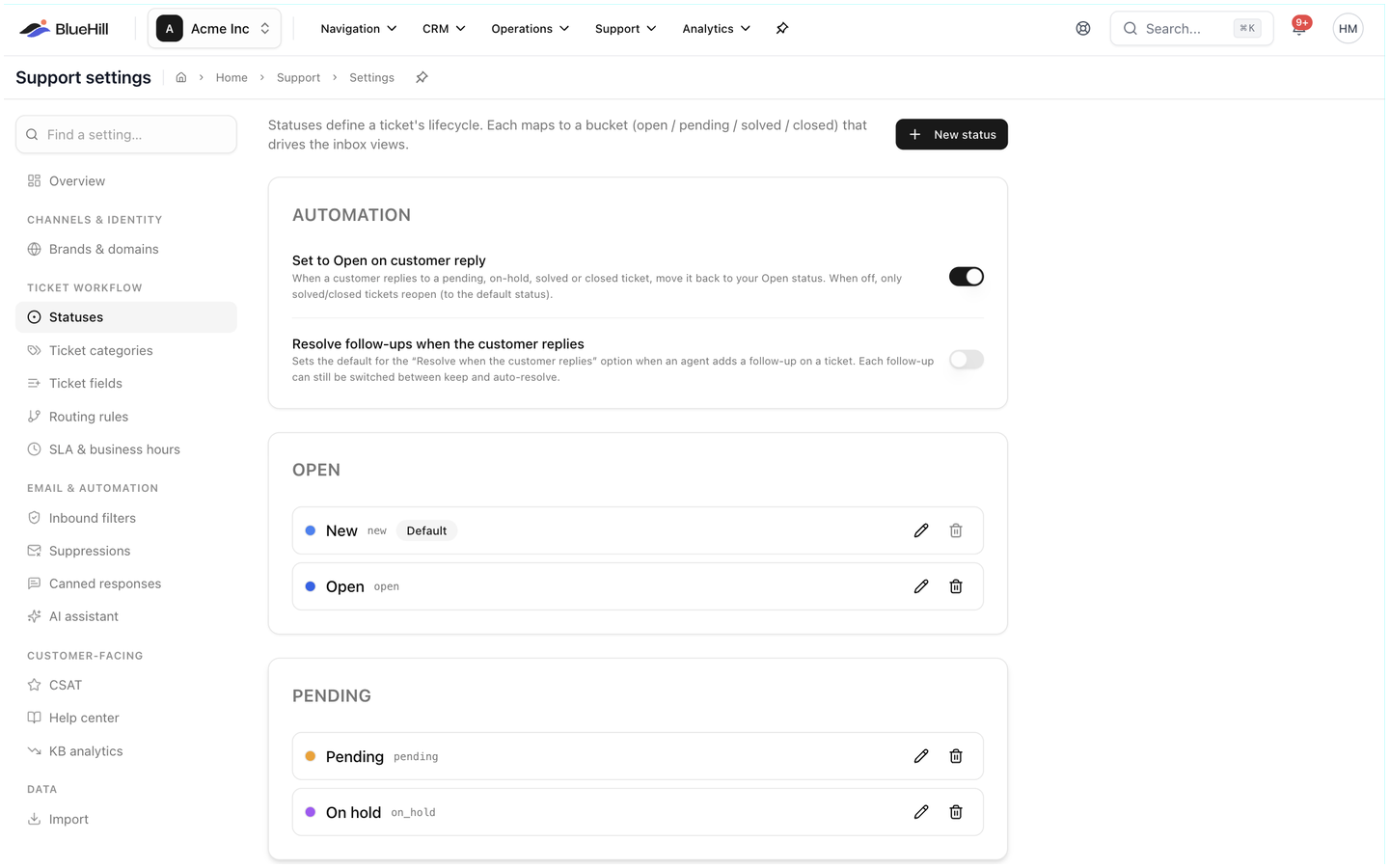 To add one, click **New status** and fill in:
| Field | Meaning |
|---|---|
| **Label** | The name agents see, for example *In review*. |
| **Bucket** | Which of the four buckets it belongs to. |
| **Sort order** | Its position in the status pickers. |
| **Color** | The colour of its dot and badge. |
| **Default for new tickets** | Make this the starting status. |
| **Closes the ticket** | Treat this status as closed. |
Click a status to edit it. The default status cannot be deleted; pick another default first.
The **Automation** card has two switches:
- **Set to Open on customer reply**: when a customer replies to a pending, on-hold, solved or closed ticket, it moves back to your Open status. With this off, only solved and closed tickets reopen.
- **Resolve follow-ups when the customer replies**: whether new follow-ups default to clearing themselves when the customer answers.
## Ticket categories
Categories classify tickets your way, for example *Billing question* or *Bug report*. They power the **Category** field on a ticket and the **Category** filter in the inbox, and a routing rule or the AI assistant can set them. Click **New category** and enter a **Name**. Renaming a category updates every ticket that uses it.
If agents have already typed category values before you defined them, the **In use, not defined** card lists those values with a one-click option to adopt each one.
## Ticket fields
**Type**, **Module** and **Group** are built-in fields set on every ticket. Give each one the choices your team uses: click **Edit choices**, enter one choice per line and save. They then appear in the ticket details, on the new-ticket form, as inbox filters and in analytics. A built-in field can be hidden but not deleted.
Under **Other custom fields**, click **New field** to add your own. A field has a name and a type (**Text**, **Number**, **Date**, **Dropdown**, **Multi-select** or **Yes / No**) and these options:
| Option | Effect |
|---|---|
| **Required on new tickets** | Agents must fill it in when creating a ticket by hand. |
| **Required to change the status** | Agents must fill it in before moving a ticket to the statuses you tick, per brand. The ticket shows a **Type needed** dialog until they do. |
| **Show with ticket details** | Pins the field to the **Conversation details** card and the Filters panel. |
| **Hidden** | Keeps the field's data but takes it off every screen. |
## Routing rules
Routing rules decide what happens to a new ticket the moment it arrives. Rules run top-down and the first match wins; all conditions on a rule must match. Each rule is listed with its number, name, **If** and **Then** summary. Use the arrows to reorder rules, the switch to pause one, and the row menu to **Edit rule**, **Duplicate rule** (the copy starts paused) or **Delete rule**. Until a rule matches, new tickets stay unassigned.
To add one, click **New status** and fill in:
| Field | Meaning |
|---|---|
| **Label** | The name agents see, for example *In review*. |
| **Bucket** | Which of the four buckets it belongs to. |
| **Sort order** | Its position in the status pickers. |
| **Color** | The colour of its dot and badge. |
| **Default for new tickets** | Make this the starting status. |
| **Closes the ticket** | Treat this status as closed. |
Click a status to edit it. The default status cannot be deleted; pick another default first.
The **Automation** card has two switches:
- **Set to Open on customer reply**: when a customer replies to a pending, on-hold, solved or closed ticket, it moves back to your Open status. With this off, only solved and closed tickets reopen.
- **Resolve follow-ups when the customer replies**: whether new follow-ups default to clearing themselves when the customer answers.
## Ticket categories
Categories classify tickets your way, for example *Billing question* or *Bug report*. They power the **Category** field on a ticket and the **Category** filter in the inbox, and a routing rule or the AI assistant can set them. Click **New category** and enter a **Name**. Renaming a category updates every ticket that uses it.
If agents have already typed category values before you defined them, the **In use, not defined** card lists those values with a one-click option to adopt each one.
## Ticket fields
**Type**, **Module** and **Group** are built-in fields set on every ticket. Give each one the choices your team uses: click **Edit choices**, enter one choice per line and save. They then appear in the ticket details, on the new-ticket form, as inbox filters and in analytics. A built-in field can be hidden but not deleted.
Under **Other custom fields**, click **New field** to add your own. A field has a name and a type (**Text**, **Number**, **Date**, **Dropdown**, **Multi-select** or **Yes / No**) and these options:
| Option | Effect |
|---|---|
| **Required on new tickets** | Agents must fill it in when creating a ticket by hand. |
| **Required to change the status** | Agents must fill it in before moving a ticket to the statuses you tick, per brand. The ticket shows a **Type needed** dialog until they do. |
| **Show with ticket details** | Pins the field to the **Conversation details** card and the Filters panel. |
| **Hidden** | Keeps the field's data but takes it off every screen. |
## Routing rules
Routing rules decide what happens to a new ticket the moment it arrives. Rules run top-down and the first match wins; all conditions on a rule must match. Each rule is listed with its number, name, **If** and **Then** summary. Use the arrows to reorder rules, the switch to pause one, and the row menu to **Edit rule**, **Duplicate rule** (the copy starts paused) or **Delete rule**. Until a rule matches, new tickets stay unassigned.
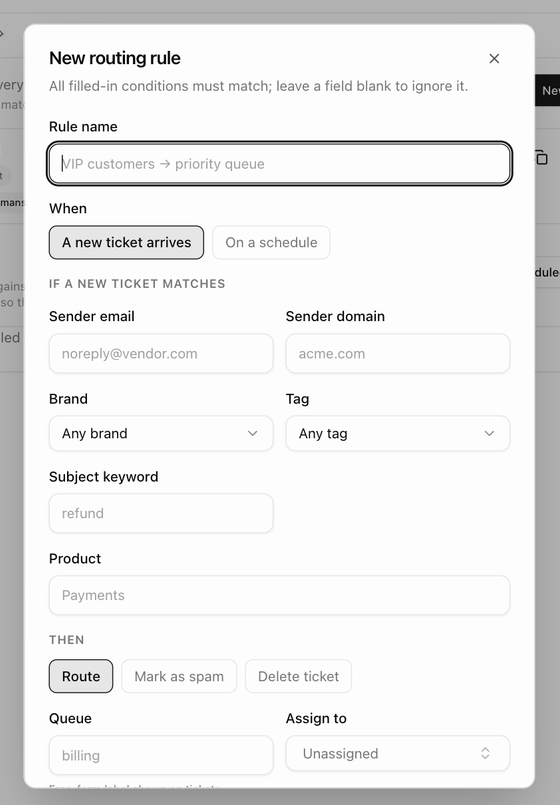 Click **New rule**. The **New routing rule** dialog notes that all filled-in conditions must match and a blank field is ignored.
1. Give the rule a **Rule name**.
2. Under **When**, leave **A new ticket arrives** selected. (**On a schedule** turns it into a scheduled rule; see below.)
3. Under **If a new ticket matches**, fill in any of **Sender email**, **Sender domain**, **Brand**, **Tag**, **Subject keyword** or **Product**.
4. Under **Then**, choose **Route**, **Mark as spam** or **Delete ticket**. For **Route**, pick any of **Queue** (a free-form label shown on tickets), **Assign to** (one teammate), **Set brand** (for mail that lands on a shared address), **Set channel** (for example mark voicemail-to-email notifications as *Voicemail*) and **Round-robin pool** (new tickets rotate across the chosen agents when no single assignee is set).
5. Click **Create rule**.
> **Tip:** **Delete ticket** removes matching mail without a trace and cannot be undone. Prefer **Mark as spam**, which keeps the ticket in the Spam view where you can check it.
### Scheduled rules
Scheduled rules act on existing tickets. They are checked every 15 minutes, and every matching rule applies, so there is no order. The classic use is closing tickets the customer never answered.
Click **New scheduled rule** (the same dialog with **On a schedule** selected under **When**):
1. Under **If a ticket**, choose **Is in status** (for example *Pending*), **Has been idle for** a number of hours or days, and **Measured from**: **our last reply, with no customer response since**, **the customer's last reply** or **the last update of any kind**. Narrow by **Brand** or **Tag** if you like.
2. Under **Then**, choose **Set status to** (for example *Closed*).
3. Tick **Email the customer first** to send a message before the status changes, and edit its **Subject** and **Message**. It is sent from the brand mailbox in the ticket's own thread, so a reply reopens the ticket.
4. Click **Create rule**.
## SLA policies and business hours
An SLA policy sets reply and resolution targets for the tickets it matches. The table lists each policy's **First**, **Next** and **Resolve** targets, its **Business hours** profile and **Applies when** conditions (*any* for a catch-all). A new workspace starts with a **Default SLA** of one hour to the first reply, four hours to the next and 24 hours to resolve.
Click **New rule**. The **New routing rule** dialog notes that all filled-in conditions must match and a blank field is ignored.
1. Give the rule a **Rule name**.
2. Under **When**, leave **A new ticket arrives** selected. (**On a schedule** turns it into a scheduled rule; see below.)
3. Under **If a new ticket matches**, fill in any of **Sender email**, **Sender domain**, **Brand**, **Tag**, **Subject keyword** or **Product**.
4. Under **Then**, choose **Route**, **Mark as spam** or **Delete ticket**. For **Route**, pick any of **Queue** (a free-form label shown on tickets), **Assign to** (one teammate), **Set brand** (for mail that lands on a shared address), **Set channel** (for example mark voicemail-to-email notifications as *Voicemail*) and **Round-robin pool** (new tickets rotate across the chosen agents when no single assignee is set).
5. Click **Create rule**.
> **Tip:** **Delete ticket** removes matching mail without a trace and cannot be undone. Prefer **Mark as spam**, which keeps the ticket in the Spam view where you can check it.
### Scheduled rules
Scheduled rules act on existing tickets. They are checked every 15 minutes, and every matching rule applies, so there is no order. The classic use is closing tickets the customer never answered.
Click **New scheduled rule** (the same dialog with **On a schedule** selected under **When**):
1. Under **If a ticket**, choose **Is in status** (for example *Pending*), **Has been idle for** a number of hours or days, and **Measured from**: **our last reply, with no customer response since**, **the customer's last reply** or **the last update of any kind**. Narrow by **Brand** or **Tag** if you like.
2. Under **Then**, choose **Set status to** (for example *Closed*).
3. Tick **Email the customer first** to send a message before the status changes, and edit its **Subject** and **Message**. It is sent from the brand mailbox in the ticket's own thread, so a reply reopens the ticket.
4. Click **Create rule**.
## SLA policies and business hours
An SLA policy sets reply and resolution targets for the tickets it matches. The table lists each policy's **First**, **Next** and **Resolve** targets, its **Business hours** profile and **Applies when** conditions (*any* for a catch-all). A new workspace starts with a **Default SLA** of one hour to the first reply, four hours to the next and 24 hours to resolve.
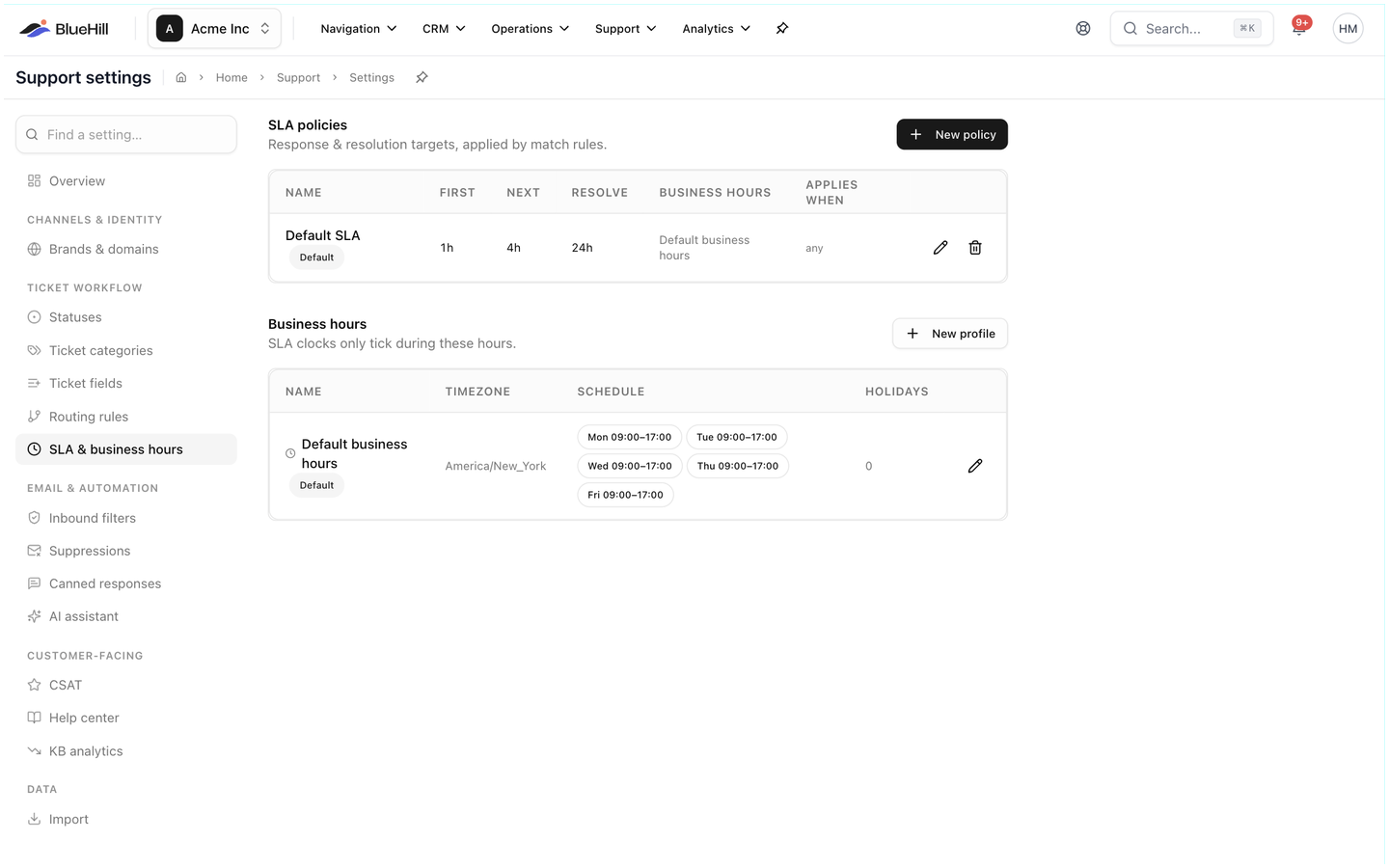 Click **New policy**:
| Field | Meaning |
|---|---|
| **Policy name** | For example *Urgent tickets*. |
| **First reply**, **Next reply**, **Resolve** | Targets in minutes. |
| **Business hours** | The profile whose hours the clock follows, or **24/7 (no business hours)**. |
| **Priority**, **Tag** | Which tickets the policy applies to. Leave both empty for a catch-all. |
| **Default** | Use this policy when no other matches. |
| **Active** | Pause a policy without deleting it. |
When several policies match a ticket, the one with the lowest priority number wins.
Under **Business hours**, click **New profile** to define a schedule: a **Name**, a **Timezone**, one time window per weekday, and whether it is the **Default profile**. The table shows each profile's **Schedule** (for example *Mon 09:00–17:00*) and its **Holidays**. SLA clocks pause outside these hours, so a ticket that arrives after closing time is not counted as late until the next working morning.
How agents see all of this on a ticket is in [Statuses, priority and SLA](./support-statuses-priority-and-sla).
Next: [Canned responses, inbound filters, AI assistant and CSAT](./support-canned-responses-ai-and-csat).
Click **New policy**:
| Field | Meaning |
|---|---|
| **Policy name** | For example *Urgent tickets*. |
| **First reply**, **Next reply**, **Resolve** | Targets in minutes. |
| **Business hours** | The profile whose hours the clock follows, or **24/7 (no business hours)**. |
| **Priority**, **Tag** | Which tickets the policy applies to. Leave both empty for a catch-all. |
| **Default** | Use this policy when no other matches. |
| **Active** | Pause a policy without deleting it. |
When several policies match a ticket, the one with the lowest priority number wins.
Under **Business hours**, click **New profile** to define a schedule: a **Name**, a **Timezone**, one time window per weekday, and whether it is the **Default profile**. The table shows each profile's **Schedule** (for example *Mon 09:00–17:00*) and its **Holidays**. SLA clocks pause outside these hours, so a ticket that arrives after closing time is not counted as late until the next working morning.
How agents see all of this on a ticket is in [Statuses, priority and SLA](./support-statuses-priority-and-sla).
Next: [Canned responses, inbound filters, AI assistant and CSAT](./support-canned-responses-ai-and-csat).