# Work a ticket
> Source: https://support.usebluehill.com/support-work-a-ticket | Updated: 2026-10-26T23:46:59Z
## Open a ticket
Click a row in the inbox, press **j** or **k** to step through the list, or paste a ticket link such as */support/acme-inc/BH-85213721* into the address bar. The conversation opens in the middle pane with the customer panel on the right.
## The ticket header
 From left to right:
- **Back to ticket list** (or **Esc**) closes the ticket.
- **Previous ticket** / **Next ticket** (or **k** / **j**) move through the list, with **3 of 25** showing where you are.
- The **ticket number** chip. Click it to copy the number.
- The **subject**, with a **Spam** or **Deleted** badge when either applies, and avatars of teammates who have the ticket open right now.
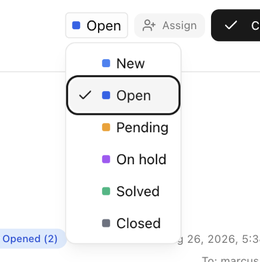
- The **Status** dropdown and the **Assignee** pill (it reads **Assign** while nobody has the ticket). Pick a new value to change it; the change saves straight away and is recorded in the conversation.
- **Close** sets the ticket to your closed status in one click. On a solved or closed ticket the button becomes **Reopen**.
- **More actions** (**⋯**) opens the menu described below.
- Three icons: **Reply beside the conversation** puts the composer side by side with the messages instead of underneath them; **Customize sidebar** chooses which cards show in the customer panel (see [Customize the panel](./support-customer-panel-and-follow-ups#customize-the-panel)); **Hide customer panel** collapses the right-hand column.
Under the subject, a line gives the channel the ticket arrived through, when it was opened and where it stands against its SLA, for example *Chat · opened Aug 26, 2026 · Resolution overdue*. See [Statuses, priority and SLA](./support-statuses-priority-and-sla).
From left to right:
- **Back to ticket list** (or **Esc**) closes the ticket.
- **Previous ticket** / **Next ticket** (or **k** / **j**) move through the list, with **3 of 25** showing where you are.
- The **ticket number** chip. Click it to copy the number.
- The **subject**, with a **Spam** or **Deleted** badge when either applies, and avatars of teammates who have the ticket open right now.
- The **Status** dropdown and the **Assignee** pill (it reads **Assign** while nobody has the ticket). Pick a new value to change it; the change saves straight away and is recorded in the conversation.
- **Close** sets the ticket to your closed status in one click. On a solved or closed ticket the button becomes **Reopen**.
- **More actions** (**⋯**) opens the menu described below.
- Three icons: **Reply beside the conversation** puts the composer side by side with the messages instead of underneath them; **Customize sidebar** chooses which cards show in the customer panel (see [Customize the panel](./support-customer-panel-and-follow-ups#customize-the-panel)); **Hide customer panel** collapses the right-hand column.
Under the subject, a line gives the channel the ticket arrived through, when it was opened and where it stands against its SLA, for example *Chat · opened Aug 26, 2026 · Resolution overdue*. See [Statuses, priority and SLA](./support-statuses-priority-and-sla).
 ## The conversation
Messages appear as a thread, oldest first. Messages from the customer sit on the left, your team's replies on the right, and internal notes stretch across the full width in amber. Status changes, assignments and other events appear as short dividers between them; hide them with **Hide activity in conversations** in the toolbar if you only want to read the messages.
## The conversation
Messages appear as a thread, oldest first. Messages from the customer sit on the left, your team's replies on the right, and internal notes stretch across the full width in amber. Status changes, assignments and other events appear as short dividers between them; hide them with **Hide activity in conversations** in the toolbar if you only want to read the messages.
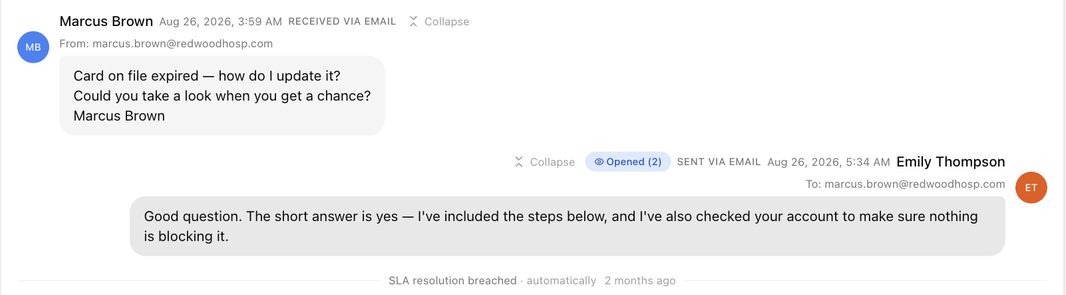 Each message shows who sent it, when, whether it was **Received via email** or **Sent via email**, and the **From**, **To** and **Cc** addresses. Replies carry a delivery badge once the email has gone out, for example **Opened (2)** when the customer has opened it twice, or **Delivered**, **Bounced**, **Spam** or **Failed**. A reply the AI assistant sent on its own carries an **Autopilot** badge.
- **Show quoted text** reveals the earlier messages a customer quoted below their reply; **Hide quoted text** folds them again.
- Long threads collapse older messages behind an **Expand** bar. **Collapse** and **Expand message** work on a single message.
- Attachments appear as chips under the message with **Preview**, **Open in a new tab**, **Download** and **Attach to reply**.
- On an internal note, **Edit note** and **Delete note** are available to the author, and **Notified …** lists the teammates who were emailed about it. Deleting a note removes it for everyone and cannot be undone.
The composer sits at the bottom, collapsed to a **Reply…** button and an **Internal note** button until you click one. It is covered in [Reply, add notes and use the composer](./support-reply-and-notes).
## Banners you may see
| Banner | Meaning |
|---|---|
| **This ticket was merged into AS-16601 — Card on file expired. Its conversation now lives there.** | The ticket was a duplicate. Click **View ticket** to open the one that was kept. |
| **Deleted by Sarah Johnson on 12 Oct 2026 …** | The ticket is in Trash. It is hidden from the inbox, search and reports and nobody can reply to it. Click **Restore** to bring it back. |
| **This ticket is solved.** / **This ticket is closed.** | The ticket is resolved. The banner offers **Send CSAT survey** and **Copy link**. Replying, or a new message from the customer, reopens it. |
## The More actions menu
Each message shows who sent it, when, whether it was **Received via email** or **Sent via email**, and the **From**, **To** and **Cc** addresses. Replies carry a delivery badge once the email has gone out, for example **Opened (2)** when the customer has opened it twice, or **Delivered**, **Bounced**, **Spam** or **Failed**. A reply the AI assistant sent on its own carries an **Autopilot** badge.
- **Show quoted text** reveals the earlier messages a customer quoted below their reply; **Hide quoted text** folds them again.
- Long threads collapse older messages behind an **Expand** bar. **Collapse** and **Expand message** work on a single message.
- Attachments appear as chips under the message with **Preview**, **Open in a new tab**, **Download** and **Attach to reply**.
- On an internal note, **Edit note** and **Delete note** are available to the author, and **Notified …** lists the teammates who were emailed about it. Deleting a note removes it for everyone and cannot be undone.
The composer sits at the bottom, collapsed to a **Reply…** button and an **Internal note** button until you click one. It is covered in [Reply, add notes and use the composer](./support-reply-and-notes).
## Banners you may see
| Banner | Meaning |
|---|---|
| **This ticket was merged into AS-16601 — Card on file expired. Its conversation now lives there.** | The ticket was a duplicate. Click **View ticket** to open the one that was kept. |
| **Deleted by Sarah Johnson on 12 Oct 2026 …** | The ticket is in Trash. It is hidden from the inbox, search and reports and nobody can reply to it. Click **Restore** to bring it back. |
| **This ticket is solved.** / **This ticket is closed.** | The ticket is resolved. The banner offers **Send CSAT survey** and **Copy link**. Replying, or a new message from the customer, reopens it. |
## The More actions menu
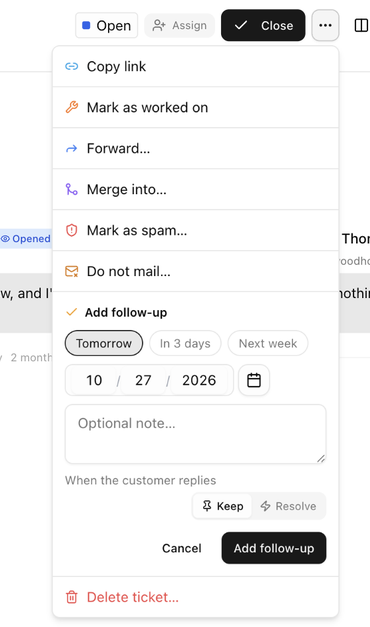 | Item | What it does |
|---|---|
| **Copy link** | Copies the ticket's link, for example */support/acme-inc/BH-85213721*, to paste into chat or a note. |
| **Mark as worked on** | Records that you spent time on the ticket without replying. It feeds the **Time tracking** card and the ticket's activity. |
| **Forward…** | Emails the whole conversation to someone outside the ticket. See below. |
| **Merge into…** | Combines this ticket with another one. See below. |
| **Mark as spam…** / **Not spam** | Moves the ticket to the **Spam** view, or brings it back. |
| **Do not mail…** | Adds the requester to the Do-Not-Mail list so your team stops emailing them. See [The Do-Not-Mail list](./support-canned-responses-ai-and-csat#the-do-not-mail-list). |
| **Add follow-up** | A small form inside the menu: pick **Tomorrow**, **In 3 days**, **Next week** or a date, add a note and click **Add follow-up**. See [Follow-ups](./support-customer-panel-and-follow-ups#follow-ups). |
| **Delete ticket…** | Moves the ticket to Trash. Shown only when your workspace keeps deleted tickets. |
## Forward a conversation
1. Choose **Forward…** from the More actions menu. The **Forward ticket** dialog opens.
2. Enter the **To** address, and optionally **Cc (optional)** and a **Note (optional)** that is added above the conversation.
3. Tick **Include attachments** to send the files as well.
4. Click **Forward**.
| Item | What it does |
|---|---|
| **Copy link** | Copies the ticket's link, for example */support/acme-inc/BH-85213721*, to paste into chat or a note. |
| **Mark as worked on** | Records that you spent time on the ticket without replying. It feeds the **Time tracking** card and the ticket's activity. |
| **Forward…** | Emails the whole conversation to someone outside the ticket. See below. |
| **Merge into…** | Combines this ticket with another one. See below. |
| **Mark as spam…** / **Not spam** | Moves the ticket to the **Spam** view, or brings it back. |
| **Do not mail…** | Adds the requester to the Do-Not-Mail list so your team stops emailing them. See [The Do-Not-Mail list](./support-canned-responses-ai-and-csat#the-do-not-mail-list). |
| **Add follow-up** | A small form inside the menu: pick **Tomorrow**, **In 3 days**, **Next week** or a date, add a note and click **Add follow-up**. See [Follow-ups](./support-customer-panel-and-follow-ups#follow-ups). |
| **Delete ticket…** | Moves the ticket to Trash. Shown only when your workspace keeps deleted tickets. |
## Forward a conversation
1. Choose **Forward…** from the More actions menu. The **Forward ticket** dialog opens.
2. Enter the **To** address, and optionally **Cc (optional)** and a **Note (optional)** that is added above the conversation.
3. Tick **Include attachments** to send the files as well.
4. Click **Forward**.
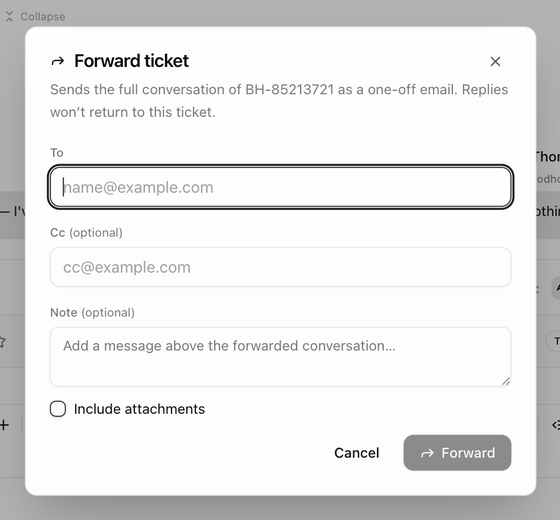 The full conversation goes out as a one-off email. Replies to it do not come back to this ticket; use **Cc** on a normal reply instead if you want the person in the conversation.
## Merge tickets
When the same customer writes in twice about the same thing, merge the duplicates into one ticket.
1. Open the duplicate and choose **Merge into…**, or select several tickets in the inbox and choose **Merge** from the bulk actions bar.
2. In the **Merge ticket** dialog, search for the ticket to keep by subject, number or requester. The one you pick is marked **Keep**.
3. Click **Merge** (or **Merge 2 into AS-16601**).
The full conversation goes out as a one-off email. Replies to it do not come back to this ticket; use **Cc** on a normal reply instead if you want the person in the conversation.
## Merge tickets
When the same customer writes in twice about the same thing, merge the duplicates into one ticket.
1. Open the duplicate and choose **Merge into…**, or select several tickets in the inbox and choose **Merge** from the bulk actions bar.
2. In the **Merge ticket** dialog, search for the ticket to keep by subject, number or requester. The one you pick is marked **Keep**.
3. Click **Merge** (or **Merge 2 into AS-16601**).
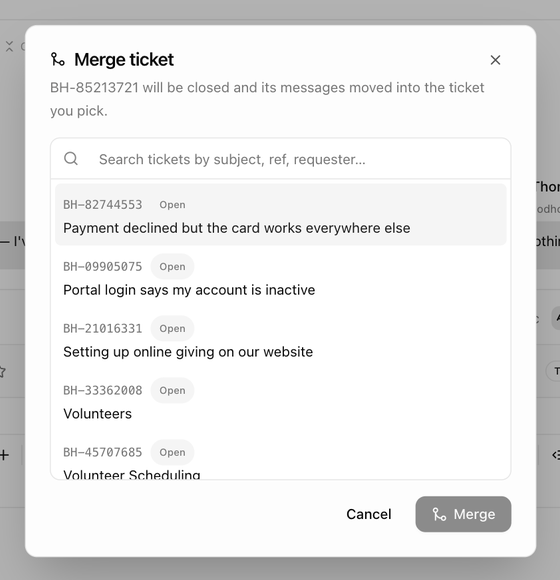 The duplicate is closed and its messages move into the ticket you kept, with a banner on the old ticket pointing to the new home. If the customer replies to the old email thread, or follows an old portal link, they land on the kept ticket.
## Mark a ticket as spam
Choose **Mark as spam…**. The ticket moves to the **Spam** view and out of every normal list. Tick **Also block sender@example.com** to go further: future emails from that address go straight to Spam, their other tickets are flagged, and they receive no auto-replies. Both can be undone with **Not spam**, and blocked senders can be unblocked under **Support settings → Suppressions**.
## Delete and restore a ticket
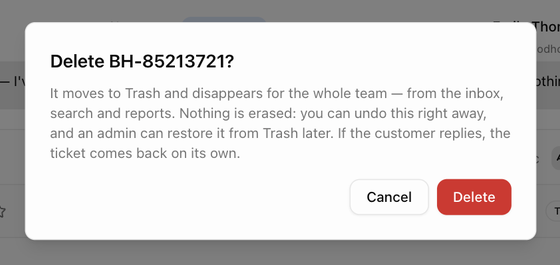
Choose **Delete ticket…** and confirm **Delete AS-16683?**. The ticket moves to **Trash** and disappears for the whole team: from the inbox, search and reports. Nothing is erased. The confirmation toast offers **Undo** for a few seconds, and an administrator can open the **Trash** view at any time, select the ticket and choose **Restore** to put it back exactly as it was. If the customer replies to a deleted ticket, it comes back on its own.
The duplicate is closed and its messages move into the ticket you kept, with a banner on the old ticket pointing to the new home. If the customer replies to the old email thread, or follows an old portal link, they land on the kept ticket.
## Mark a ticket as spam
Choose **Mark as spam…**. The ticket moves to the **Spam** view and out of every normal list. Tick **Also block sender@example.com** to go further: future emails from that address go straight to Spam, their other tickets are flagged, and they receive no auto-replies. Both can be undone with **Not spam**, and blocked senders can be unblocked under **Support settings → Suppressions**.
## Delete and restore a ticket
Choose **Delete ticket…** and confirm **Delete AS-16683?**. The ticket moves to **Trash** and disappears for the whole team: from the inbox, search and reports. Nothing is erased. The confirmation toast offers **Undo** for a few seconds, and an administrator can open the **Trash** view at any time, select the ticket and choose **Restore** to put it back exactly as it was. If the customer replies to a deleted ticket, it comes back on its own.
 > **Tip:** Deleting is for tickets that should never have existed, such as test messages. For duplicates, merge instead so the conversation history stays together.
Next: [Reply, add notes and use the composer](./support-reply-and-notes).
> **Tip:** Deleting is for tickets that should never have existed, such as test messages. For duplicates, merge instead so the conversation history stays together.
Next: [Reply, add notes and use the composer](./support-reply-and-notes).