# Create a page
> Source: https://support.usebluehill.com/wiki-create-a-page | Updated: 2026-10-27T15:21:53Z
## Where a new page goes
A new page is created in the knowledge base you are working in. Start it from a folder and it lands in that folder; start it from a page's **New subpage** and it sits under that page. You can move it later; see [Move a page](./wiki-manage-a-page#move-a-page).
## Start a blank page
1. Open **Navigation → Wiki** and click **New page** in the header.
2. The editor opens empty, at the top level of the active knowledge base.
 ## Start from a template
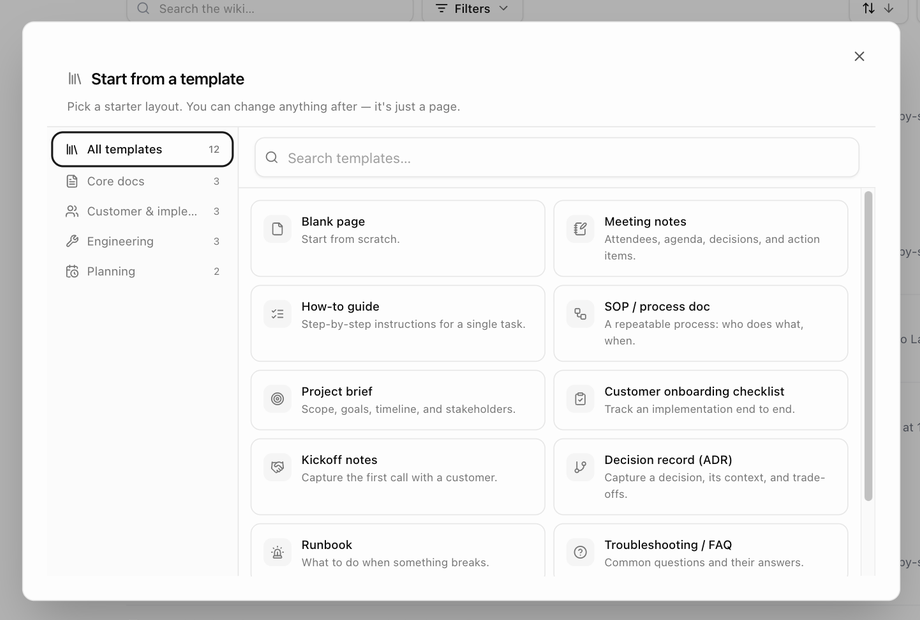 Every other way in opens the template picker first: the sidebar's **+** button, a folder's **New page here** or hover **+**, a page's **New subpage**, or **Start from template** in the editor of a new page. The dialog, **Start from a template**, says *Pick a starter layout. You can change anything after — it's just a page.*
1. Browse by category on the left, or type in **Search templates…**.
2. Click a template to preview it, then click **Use template**. **Blank page** opens the editor straight away.
| Category | Templates |
|---|---|
| **Core docs** | **Blank page**, **Meeting notes** (attendees, agenda, decisions and action items), **How-to guide** (step-by-step instructions for one task), **SOP / process doc** (a repeatable process: who does what, when). |
| **Customer & implementation** | **Project brief** (scope, goals, timeline and stakeholders), **Customer onboarding checklist** (track an implementation end to end), **Kickoff notes** (capture the first call with a customer). |
| **Engineering** | **Decision record (ADR)** (a decision, its context and trade-offs), **Runbook** (what to do when something breaks), **Troubleshooting / FAQ** (common questions and their answers). |
| **Planning** | **Retrospective** (what went well, what did not, what changes), **Status update** (where things stand, at a glance). |
If you apply a template to a new page that already has text, the editor asks **Replace the current content with this template?**.
## Fill in the header
At the top of the editor:
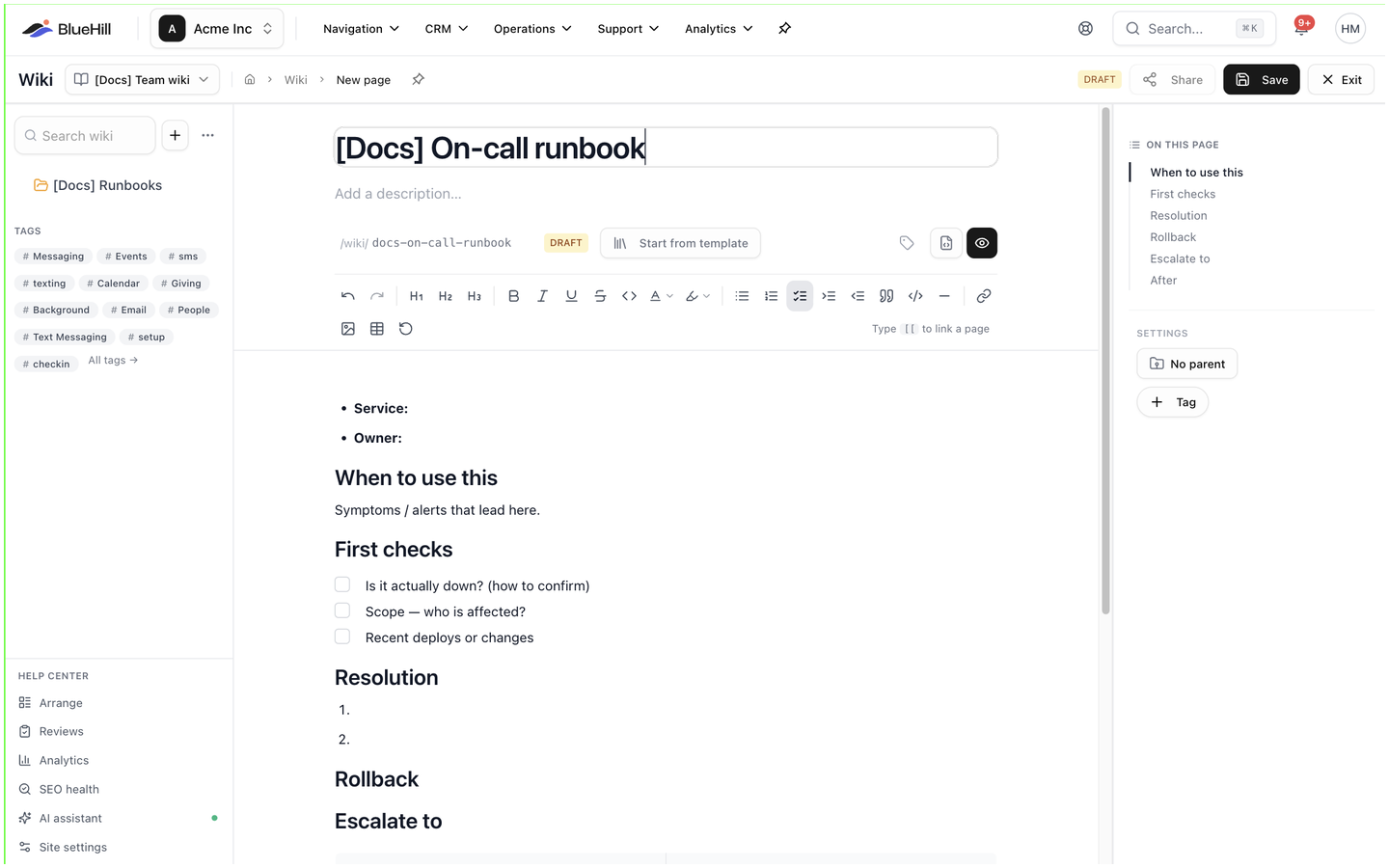
- **Page title** is required. Without it, **Save** says **Title is required**.
- **Add a description…** is an optional one-line summary, up to 500 characters, shown under the title when the page is read.
- The address chip, **/wiki/page-slug**, follows the title until you change it. Click it (**Edit URL slug**) to type your own, then press Enter.
- The tag icon, **Name this version (optional)**, lets you label the save that is about to happen, for example *Reviewed by legal*. The label shows in the version history. See [Name a version](./wiki-version-history#name-a-version).
Write the body as described in [Write and format a page](./wiki-write-and-format).
## Save the draft
Nothing is stored until you click **Save**. The first save creates the page as a draft (**Draft created**) and opens it in the reading view, where it carries a **draft** chip. Drafts are visible to the people the page is shared with, so you can keep working on it over several sittings. When it is ready, publish it; see [Draft, published or archived](./wiki-manage-a-page#draft-published-or-archived).
> **Tip:** The editor does not warn you when you leave. Click **Save** before **Exit**.
## Duplicate an existing page
To start from a page you already have, open it and choose **Duplicate** from its **⋯** menu (or from its **⋮** menu in the sidebar tree). The copy opens as a new draft with the same content and tags.
## From the mobile app
Tap **New page** on the mobile app's **Wiki** tab. The form has the same **Page title** and description, plus **Base** (the knowledge base), **Folder**, **Parent** and **Tags**, and offers **Start from a template**.
Next: [Write and format a page](./wiki-write-and-format).
Every other way in opens the template picker first: the sidebar's **+** button, a folder's **New page here** or hover **+**, a page's **New subpage**, or **Start from template** in the editor of a new page. The dialog, **Start from a template**, says *Pick a starter layout. You can change anything after — it's just a page.*
1. Browse by category on the left, or type in **Search templates…**.
2. Click a template to preview it, then click **Use template**. **Blank page** opens the editor straight away.
| Category | Templates |
|---|---|
| **Core docs** | **Blank page**, **Meeting notes** (attendees, agenda, decisions and action items), **How-to guide** (step-by-step instructions for one task), **SOP / process doc** (a repeatable process: who does what, when). |
| **Customer & implementation** | **Project brief** (scope, goals, timeline and stakeholders), **Customer onboarding checklist** (track an implementation end to end), **Kickoff notes** (capture the first call with a customer). |
| **Engineering** | **Decision record (ADR)** (a decision, its context and trade-offs), **Runbook** (what to do when something breaks), **Troubleshooting / FAQ** (common questions and their answers). |
| **Planning** | **Retrospective** (what went well, what did not, what changes), **Status update** (where things stand, at a glance). |
If you apply a template to a new page that already has text, the editor asks **Replace the current content with this template?**.
## Fill in the header
At the top of the editor:
- **Page title** is required. Without it, **Save** says **Title is required**.
- **Add a description…** is an optional one-line summary, up to 500 characters, shown under the title when the page is read.
- The address chip, **/wiki/page-slug**, follows the title until you change it. Click it (**Edit URL slug**) to type your own, then press Enter.
- The tag icon, **Name this version (optional)**, lets you label the save that is about to happen, for example *Reviewed by legal*. The label shows in the version history. See [Name a version](./wiki-version-history#name-a-version).
Write the body as described in [Write and format a page](./wiki-write-and-format).
## Save the draft
Nothing is stored until you click **Save**. The first save creates the page as a draft (**Draft created**) and opens it in the reading view, where it carries a **draft** chip. Drafts are visible to the people the page is shared with, so you can keep working on it over several sittings. When it is ready, publish it; see [Draft, published or archived](./wiki-manage-a-page#draft-published-or-archived).
> **Tip:** The editor does not warn you when you leave. Click **Save** before **Exit**.
## Duplicate an existing page
To start from a page you already have, open it and choose **Duplicate** from its **⋯** menu (or from its **⋮** menu in the sidebar tree). The copy opens as a new draft with the same content and tags.
## From the mobile app
Tap **New page** on the mobile app's **Wiki** tab. The form has the same **Page title** and description, plus **Base** (the knowledge base), **Folder**, **Parent** and **Tags**, and offers **Start from a template**.
Next: [Write and format a page](./wiki-write-and-format).