# Find a page: search, pins and tags
> Source: https://support.usebluehill.com/wiki-find-pages | Updated: 2026-10-27T15:21:53Z
## Search from the sidebar
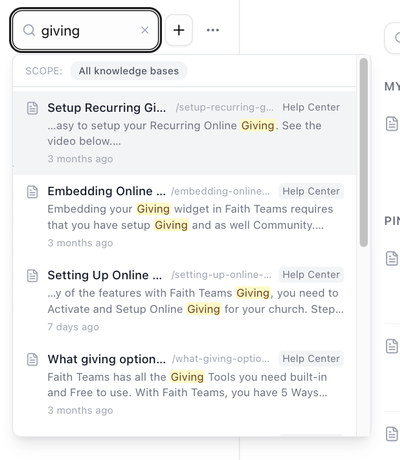 1. Click **Search wiki** at the top of the sidebar and start typing. Results appear as you type: up to eight pages, each with its title, address, a snippet with your words highlighted and when it was last updated.
2. Use **↑** and **↓** to move through the results and **Enter** to open one. Press **Esc** to close the list.
3. Click **See all results for "…"** at the bottom for the full list.
Before you type, the list shows your **Recent searches**, up to eight, kept in your browser.
Search looks only in the active knowledge base. The row at the top of the results says which one (**SCOPE: name**, with the hint **click to widen**); click it to search **All knowledge bases** instead, after which each result carries a knowledge base chip.
The **Search the wiki…** box above the page list works in exactly the same way.
## The search page
1. Click **Search wiki** at the top of the sidebar and start typing. Results appear as you type: up to eight pages, each with its title, address, a snippet with your words highlighted and when it was last updated.
2. Use **↑** and **↓** to move through the results and **Enter** to open one. Press **Esc** to close the list.
3. Click **See all results for "…"** at the bottom for the full list.
Before you type, the list shows your **Recent searches**, up to eight, kept in your browser.
Search looks only in the active knowledge base. The row at the top of the results says which one (**SCOPE: name**, with the hint **click to widen**); click it to search **All knowledge bases** instead, after which each result carries a knowledge base chip.
The **Search the wiki…** box above the page list works in exactly the same way.
## The search page
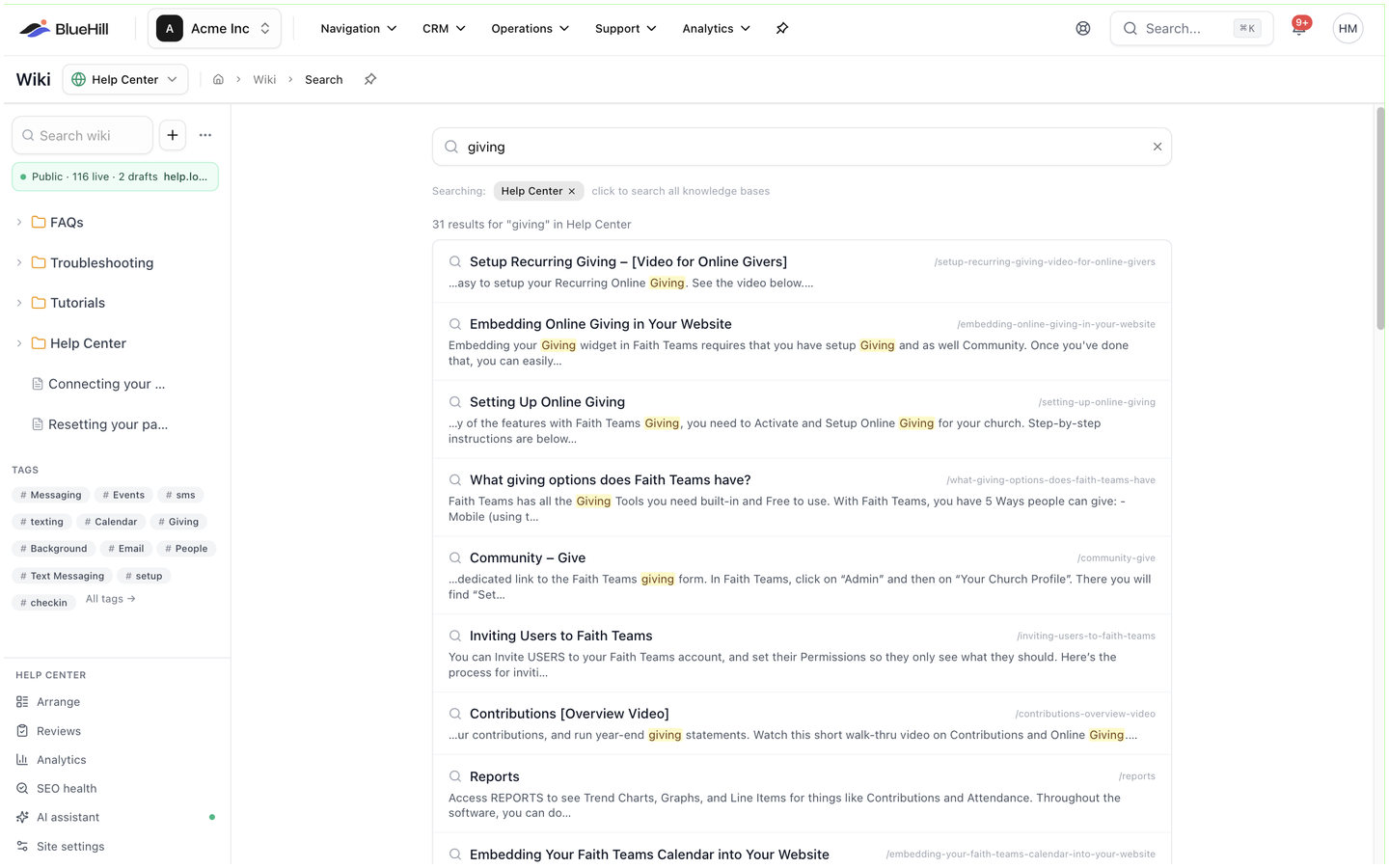 The full results page shows **N results for "…" in name**, each with its title, address and a longer snippet. The chip at the top, **Searching: name**, narrows the search to one knowledge base; click it (**click to search all knowledge bases**) to search all of them. If nothing matches, the page offers **Search all knowledge bases instead**. There are no other filters on this page.
## Search from anywhere
Press **⌘K** (or **Ctrl+K**) on any BlueHill page. Wiki pages appear in the results under **Wiki pages**. To search only the wiki, start your search with *w:* (for example *w: refund policy*), or press **Tab** to cycle through the search scopes until **Wiki** is selected.
## Filter and sort the page list
The full results page shows **N results for "…" in name**, each with its title, address and a longer snippet. The chip at the top, **Searching: name**, narrows the search to one knowledge base; click it (**click to search all knowledge bases**) to search all of them. If nothing matches, the page offers **Search all knowledge bases instead**. There are no other filters on this page.
## Search from anywhere
Press **⌘K** (or **Ctrl+K**) on any BlueHill page. Wiki pages appear in the results under **Wiki pages**. To search only the wiki, start your search with *w:* (for example *w: refund policy*), or press **Tab** to cycle through the search scopes until **Wiki** is selected.
## Filter and sort the page list
 The list on the Wiki page can be narrowed and ordered:
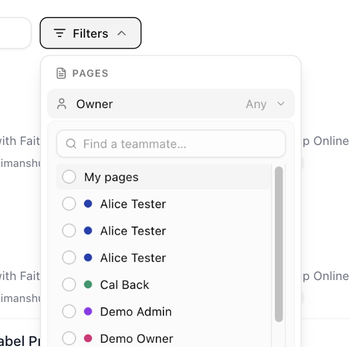
- **Filters → Owner** shows only pages owned by you (*My pages*) or by one teammate; it reads *Any* until you choose. Type in **Find a teammate…** to find them.
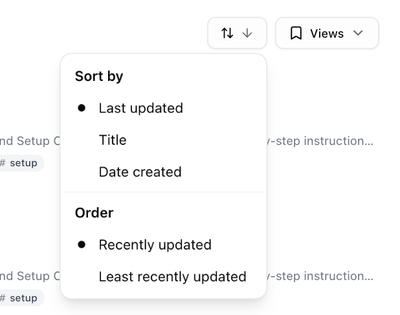
- The **sort** button (two arrows) opens a menu with **Sort by** (**Last updated**, **Title** or **Date created**) and **Order**. The heading above the list changes to match, for example **Title A–Z** or **Newest created**.
- **Views** saves the current owner filter and sort under a name so you can reapply them later.
The list on the Wiki page can be narrowed and ordered:
- **Filters → Owner** shows only pages owned by you (*My pages*) or by one teammate; it reads *Any* until you choose. Type in **Find a teammate…** to find them.
- The **sort** button (two arrows) opens a menu with **Sort by** (**Last updated**, **Title** or **Date created**) and **Order**. The heading above the list changes to match, for example **Title A–Z** or **Newest created**.
- **Views** saves the current owner filter and sort under a name so you can reapply them later.
 ## Pins
A pin keeps a page at the top of the Wiki page, above the sorted list.
- **Add to My pins** pins a page for you only. It appears under **My pins**, which only you can see.
- **Pin for everyone** pins it for the whole workspace. It appears under **Pinned** for everyone. You need edit access to the page.
Both options are in the page's **⋯** menu and in its **⋮** menu in the sidebar tree, and both can be undone from the same place (**Remove from My pins**, **Unpin for everyone**). Pins are an internal convenience; they have no effect on the help center, where articles are *featured* instead.
## Tags
A tag is a label you can put on any page and browse by. Tags can be grouped (for example a *Type* group holding *#runbook* and *#policy*) and coloured.
### Add a tag to a page
## Pins
A pin keeps a page at the top of the Wiki page, above the sorted list.
- **Add to My pins** pins a page for you only. It appears under **My pins**, which only you can see.
- **Pin for everyone** pins it for the whole workspace. It appears under **Pinned** for everyone. You need edit access to the page.
Both options are in the page's **⋯** menu and in its **⋮** menu in the sidebar tree, and both can be undone from the same place (**Remove from My pins**, **Unpin for everyone**). Pins are an internal convenience; they have no effect on the help center, where articles are *featured* instead.
## Tags
A tag is a label you can put on any page and browse by. Tags can be grouped (for example a *Type* group holding *#runbook* and *#policy*) and coloured.
### Add a tag to a page
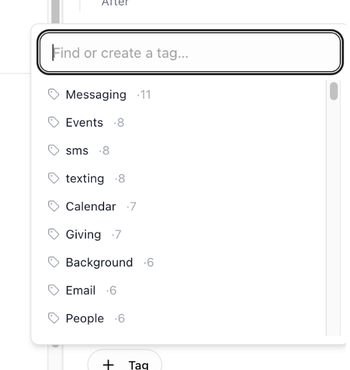 1. Open the page in the editor. In the rail on the right, under **Settings**, click **Tag**.
2. Type in **Find or create a tag…**. Click a tag to add it, or click it again to remove it.
3. If no tag matches what you typed, pick a **Color**, optionally a **Group (optional, e.g. Type, Owner)**, and click **Create "…"**.
Pages created in a folder inherit the folder's tags. See [The folder page](./wiki-knowledge-bases-and-folders#the-folder-page).
### Browse by tag
- The **Tags** section of the sidebar shows the twelve most-used tags in the workspace. Click one to open its page, which lists every page carrying that tag with the usual **Sort** and **Views** controls. **All tags →** opens the full list.
- Tags also appear as *#name* badges on page rows and in a page's header. Clicking one opens the same tag page.
### Manage tags
1. Open the page in the editor. In the rail on the right, under **Settings**, click **Tag**.
2. Type in **Find or create a tag…**. Click a tag to add it, or click it again to remove it.
3. If no tag matches what you typed, pick a **Color**, optionally a **Group (optional, e.g. Type, Owner)**, and click **Create "…"**.
Pages created in a folder inherit the folder's tags. See [The folder page](./wiki-knowledge-bases-and-folders#the-folder-page).
### Browse by tag
- The **Tags** section of the sidebar shows the twelve most-used tags in the workspace. Click one to open its page, which lists every page carrying that tag with the usual **Sort** and **Views** controls. **All tags →** opens the full list.
- Tags also appear as *#name* badges on page rows and in a page's header. Clicking one opens the same tag page.
### Manage tags
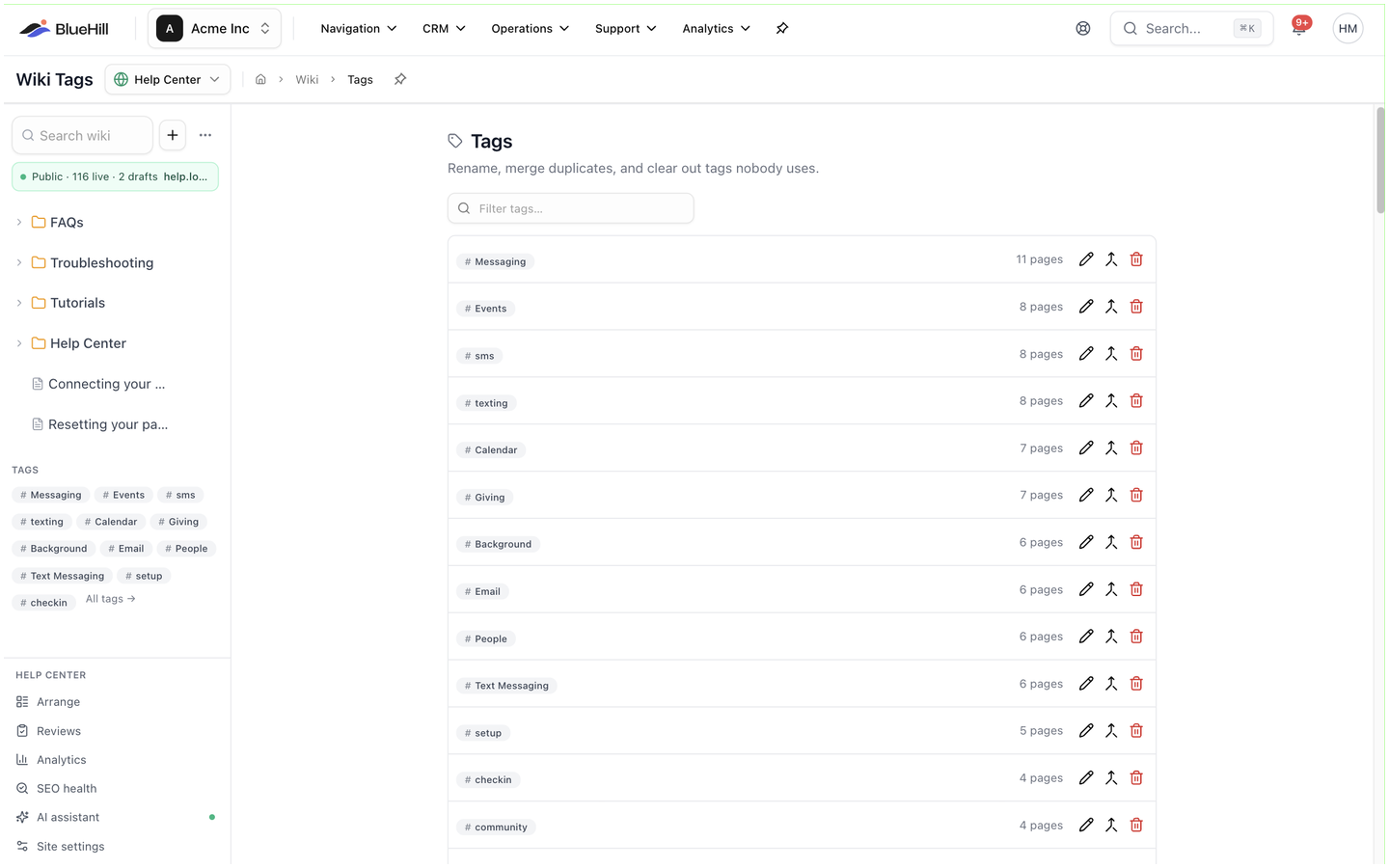 Click the **Tags** heading in the sidebar to open the tag management page. Each row shows the tag, its group, how many pages use it (an **unused** chip when none do) and three buttons:
| Button | What it does |
|---|---|
| **Rename** | Changes the tag's name everywhere it is used. |
| **Merge into another tag** | Moves every page from this tag to the one you pick, then deletes this tag. The confirmation, **Merge "a" into "b"?**, says how many pages are re-tagged. |
| **Delete** | Removes the tag. The confirmation, **Delete tag "name"?**, says how many pages lose it. |
**Filter tags…** narrows the list, and **Delete N unused** clears every tag that no page uses, after a confirmation listing them.
Next: [Create a page](./wiki-create-a-page).
Click the **Tags** heading in the sidebar to open the tag management page. Each row shows the tag, its group, how many pages use it (an **unused** chip when none do) and three buttons:
| Button | What it does |
|---|---|
| **Rename** | Changes the tag's name everywhere it is used. |
| **Merge into another tag** | Moves every page from this tag to the one you pick, then deletes this tag. The confirmation, **Merge "a" into "b"?**, says how many pages are re-tagged. |
| **Delete** | Removes the tag. The confirmation, **Delete tag "name"?**, says how many pages lose it. |
**Filter tags…** narrows the list, and **Delete N unused** clears every tag that no page uses, after a confirmation listing them.
Next: [Create a page](./wiki-create-a-page).