# Share a page and manage access
> Source: https://support.usebluehill.com/wiki-share-and-permissions | Updated: 2026-10-27T15:21:53Z
## Who can see a page by default
A new page is visible to **Everyone in org**: anyone in your workspace can open it, and everyone can view and edit it until you add specific grants. Narrow that from the **Share** dialog whenever a page should stay with a team or a few people.
## The Share dialog
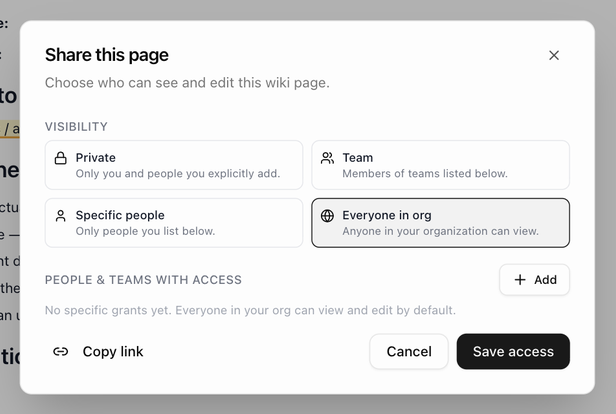 Click **Share** in the page header, in the reading view or in the editor. (On a page that has never been saved the button is greyed out: **Save the page first to share it**.) The dialog, **Share this page**, has two parts.
**Visibility** chooses who can open the page:
| Option | Who can see it |
|---|---|
| **Private** | Only you and the people you add below. |
| **Team** | Members of the teams you add below. |
| **Specific people** | Only the people you add below. |
| **Everyone in org** | Anyone in your organization. |
**People & teams with access** lists each person or team with a permission. Click **Add**, type in **Find people or teams…** and pick from **Teams** or **People**. A new entry starts at **View**; change it with the dropdown on its row and remove it with the **×**. When the list is empty it says **No specific grants yet** and reminds you what the visibility setting means.
Click **Save access** to apply your changes (**Access updated**), or **Cancel**. **Copy link** copies a link to the page that pastes as the page's title.
For a page in a public knowledge base the dialog ends with a readout saying whether the page is visible on the help center. See the Help Center guides.
## What each permission allows
| Level | Can |
|---|---|
| **View** | Open and read the page, follow its links, comment on it and request changes. Cannot tick checklist boxes or edit anything. |
| **Comment** | Everything above. (Commenting is open to anyone who can view the page, so this level reads the same as View today.) |
| **Edit** | Everything above, plus edit the page, publish and archive it, pin it for everyone, move it, manage its owners and change who has access. |
Owners and workspace admins can always edit a page.
## Owners
Click **Share** in the page header, in the reading view or in the editor. (On a page that has never been saved the button is greyed out: **Save the page first to share it**.) The dialog, **Share this page**, has two parts.
**Visibility** chooses who can open the page:
| Option | Who can see it |
|---|---|
| **Private** | Only you and the people you add below. |
| **Team** | Members of the teams you add below. |
| **Specific people** | Only the people you add below. |
| **Everyone in org** | Anyone in your organization. |
**People & teams with access** lists each person or team with a permission. Click **Add**, type in **Find people or teams…** and pick from **Teams** or **People**. A new entry starts at **View**; change it with the dropdown on its row and remove it with the **×**. When the list is empty it says **No specific grants yet** and reminds you what the visibility setting means.
Click **Save access** to apply your changes (**Access updated**), or **Cancel**. **Copy link** copies a link to the page that pastes as the page's title.
For a page in a public knowledge base the dialog ends with a readout saying whether the page is visible on the help center. See the Help Center guides.
## What each permission allows
| Level | Can |
|---|---|
| **View** | Open and read the page, follow its links, comment on it and request changes. Cannot tick checklist boxes or edit anything. |
| **Comment** | Everything above. (Commenting is open to anyone who can view the page, so this level reads the same as View today.) |
| **Edit** | Everything above, plus edit the page, publish and archive it, pin it for everyone, move it, manage its owners and change who has access. |
Owners and workspace admins can always edit a page.
## Owners
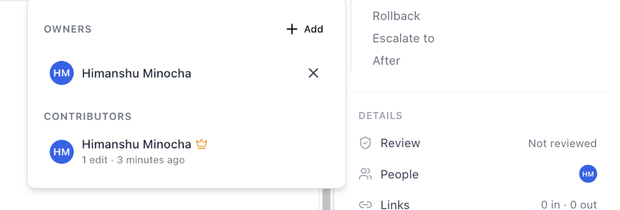 Owners are the people responsible for a page. A new page starts with no owners (**No owners yet.**), so add at least one. Owners can edit the page even when its visibility is narrow, and they are the ones a view-only reader should ask for access. The page's creator, once listed, carries a crown and cannot be removed.
1. Open the page and click **People** in the **Details** rail on the right.
2. In the **Owners** panel, click **Add**, type in **Find a teammate…** and pick a person.
3. To remove an owner, hover their row and click the **×**. The confirmation, **Remove owner?**, warns that **They'll lose edit access unless granted elsewhere**.
The panel also lists **Contributors**: everyone who has saved a version, with their number of edits and when they last did. Owners among them carry a crown.
## What a reader with view-only access sees
- The **Edit** button is greyed out, with the tooltip **You have view-only access to this page**.
- Opening the editor's address directly shows **You have view-only access to this page. Ask a page owner for edit access, or go back to the article.**
- They can still select text and leave a comment or a change request, and read the version history.
- Someone with no access at all sees **This page could not be found.**
## The visibility chip and rail row
When a page is not visible to everyone, its header shows a small chip naming the setting, and the **Visibility** row in the **Details** rail reads **Organization**, **Team** or **Private**. A page shared with specific people shows as **Private** there.
Next: [Publish, pin, archive, move and delete a page](./wiki-manage-a-page).
Owners are the people responsible for a page. A new page starts with no owners (**No owners yet.**), so add at least one. Owners can edit the page even when its visibility is narrow, and they are the ones a view-only reader should ask for access. The page's creator, once listed, carries a crown and cannot be removed.
1. Open the page and click **People** in the **Details** rail on the right.
2. In the **Owners** panel, click **Add**, type in **Find a teammate…** and pick a person.
3. To remove an owner, hover their row and click the **×**. The confirmation, **Remove owner?**, warns that **They'll lose edit access unless granted elsewhere**.
The panel also lists **Contributors**: everyone who has saved a version, with their number of edits and when they last did. Owners among them carry a crown.
## What a reader with view-only access sees
- The **Edit** button is greyed out, with the tooltip **You have view-only access to this page**.
- Opening the editor's address directly shows **You have view-only access to this page. Ask a page owner for edit access, or go back to the article.**
- They can still select text and leave a comment or a change request, and read the version history.
- Someone with no access at all sees **This page could not be found.**
## The visibility chip and rail row
When a page is not visible to everyone, its header shows a small chip naming the setting, and the **Visibility** row in the **Details** rail reads **Organization**, **Team** or **Private**. A page shared with specific people shows as **Private** there.
Next: [Publish, pin, archive, move and delete a page](./wiki-manage-a-page).