
Canned responses, inbound filters, AI assistant and CSAT
For administrators and team leads looking after the rest of Support settings: reusable replies, what gets filtered out of the inbox, who must never be emailed, the AI assistant, satisfaction surveys, knowledge-base analytics and the Freshdesk import.
These sections live under Support → Support settings in the Email & automation, Customer-facing and Data groups.
Canned responses
A canned response is a saved reply that agents insert from the composer with one click or by typing its shortcut. Open Canned responses (the page is headed Canned Responses).
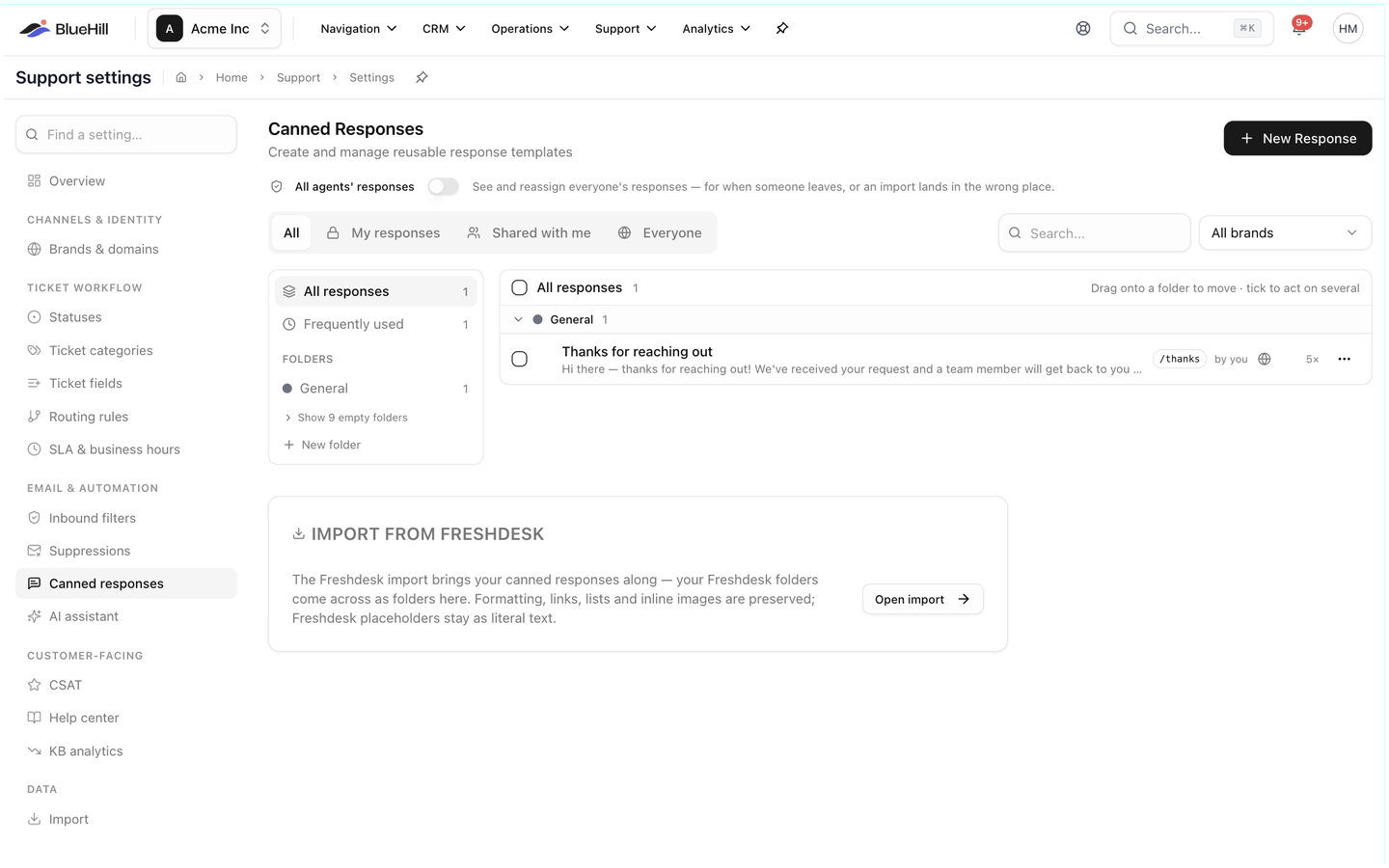
- The left rail lists All responses, Frequently used (kept up to date automatically) and your Folders. New folder adds one, and Show N empty folders reveals folders with nothing in them. Drag a response onto a folder to move it, or tick several to act on them together.
- Filter the list by visibility (All, My responses, Shared with me, Everyone) and by brand (All brands or one brand).
- Each response shows its name, a preview, its shortcut (such as /thanks), who wrote it and how often it has been used.
- Administrators can switch on All agents' responses to see and reassign everyone's responses, for example when someone leaves or an import lands in the wrong place.
Click New Response and fill in:
| Field | Meaning |
|---|---|
| Name | What the response is called in the picker. |
| Subject (optional) | A subject to apply when the response starts a new email. |
| Shortcut | Type this in the editor to insert the response without opening the picker, for example /refund. |
| Folder, Brand | Where it is filed and which brand it belongs to. |
| Content | The text. Variables such as the customer's first name are filled in when it is inserted. |
| Attachments | Files inserted along with the text. |
| Who can see it | Just you, chosen people, or everyone. |
An Import from Freshdesk card brings over canned responses from a Freshdesk export.
Inbound filters
Inbound filters are applied to incoming support email before it becomes a ticket. Mailbox warm-up emails ignores the automated traffic that email warm-up services generate (Apollo, Instantly, Smartlead and similar), which otherwise shows up as nonsense tickets. Add your own Warm-up identifiers if a service uses a different marker, check what has been Recently ignored, and use Find warm-up tickets to move the ones that already slipped through into Spam.
Suppressions
Suppressions lists addresses BlueHill will not send email to, grouped by reason: Bounced, Blocked by provider, Spam complaints and Blocked senders (people an agent blocked with Mark as spam → Also block). Each row shows Why it's suppressed and when it was Added. Choose Remove (or Unblock for a blocked sender) when the problem is fixed, for example a mailbox that was full. A row marked Locked can only be cleared by BlueHill support. Removing addresses needs the right permission; otherwise the page says Your account can't remove addresses.
The Do-Not-Mail list
Switch Which list to Do not mail. This is the list of people and domains your team has decided not to email. New emails, bulk runs, auto-replies and surveys to them are stopped. Agents can still reply on a ticket the person wrote in on, so a customer who asked not to be marketed to can still get support.
- Anyone on the team can add an entry; only an administrator can remove one.
- Click Add and enter an Email address or domain (a whole domain looks like @example.com). Choose which brands it Applies to (administrators can narrow it to chosen brands) and a Reason: Asked not to be contacted, Legal or compliance, Competitor or Other.
- Import pastes many entries at once, one per line.
- Agents can also add the requester of a ticket with More actions → Do not mail….
The AI assistant
The assistant reads new tickets and proposes a triage, a reply draft and related tickets or articles, which agents review in the Assistant card and the Needs review view. It is included in some plans; if yours does not have it, the page says AI features aren't included in this plan.
| Setting | What it does |
|---|---|
| Enable the assistant | Turns it on for the workspace. |
| Run when a ticket arrives / Run again when the customer replies | When the assistant analyses a ticket. |
| Notify the assignee | Email the assignee when there is something to review. |
| What it proposes | Triage, Reply drafts, Related tickets, articles and follow-ups. |
| Apply without approval | Let the assistant set Priority, Tags, Category, Ticket fields or Assignee itself, instead of proposing them. |
| Model | Quality or Fast. |
| Tone of reply drafts | Friendly, Professional or Concise. |
| Instructions for the assistant | Your own guidance, such as products to mention or things never to promise. |
| Daily analyses cap | A limit on how many tickets it analyses per day. |
Click Save assistant settings. A Last 30 days card shows how much it has done.
Autopilot goes one step further and sends replies on the assistant's behalf under rules you define: Shadow (draft only), Hold, then send (wait, so a teammate can stop it) or Send right away, with safety floors, send defaults and budgets. It is a separately enabled capability; the page says Not included until BlueHill turns it on for your workspace. Each brand can follow the workspace setting or switch autopilot on or off for itself.
CSAT surveys
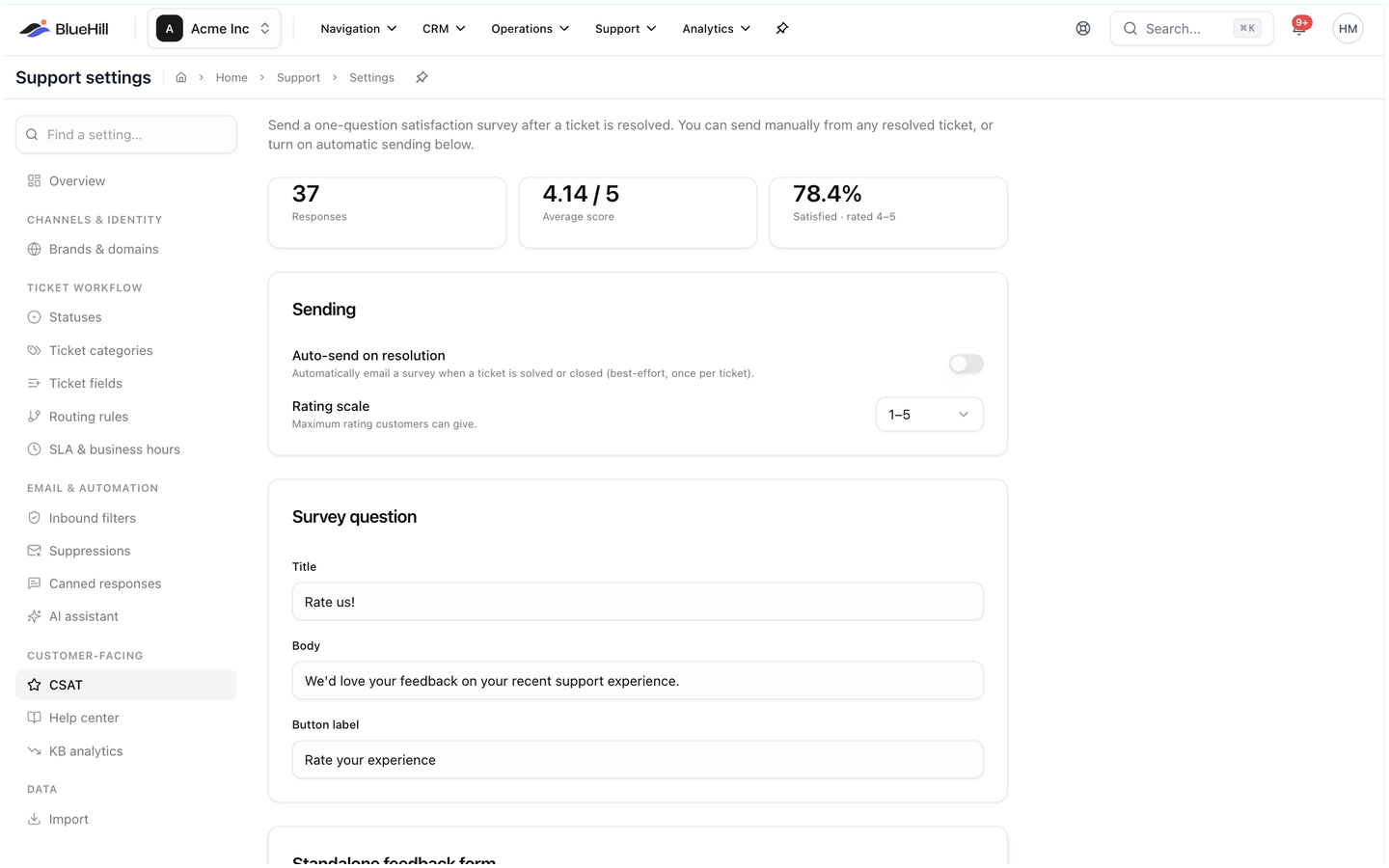
CSAT sends a one-question satisfaction survey after a ticket is resolved. The page shows the results so far (Responses, Average score and Satisfied, the share who rated 4 or 5), the settings below, and a list of Recent surveys with each customer's comment.
| Setting | What it does |
|---|---|
| Auto-send on resolution | Email a survey every time a ticket is solved or closed, once per ticket. Off, agents send surveys by hand with Send CSAT survey. |
| Rating scale | The maximum rating customers can give: 1–3, 1–5 or 1–10. |
| Survey question | The Title, Body and Button label of the email. The defaults are How did we do?, We'd love your feedback on your recent support experience. and Rate your experience. |
| Standalone feedback form | Enable a shareable form gives you a reusable public link to a survey that is not tied to a ticket, to put in a signature or on a website. Rotate replaces the link with a new one. |
Surveys are only sent from a brand with a verified domain.
KB analytics
KB analytics (headed Knowledge base impact) shows whether your help center is saving your team work over the Last 30 days, Last 90 days or Last year: Deflection rate, Article views, Self-serve tickets and Resolved via article, with the articles Most viewed (deflection) and Most linked by agents. Open full analytics opens the Knowledge base page under Analytics.
Import from Freshdesk
Import brings tickets, contacts and companies over from a Freshdesk export, linked together and fully reversible. The page walks through uploading the export, matching Freshdesk agents and senders to your team, and shows the history of previous imports. The Freshdesk API key, used to fetch attachments, is entered on the brand's Integrations tab.
Next: What your customers see.