
What your customers see
For anyone who wants to know what happens on the customer's side: how a request becomes a ticket, which emails the customer receives, how their replies get back to the right ticket and what the customer portal shows them.
Four ways a customer reaches you
| Channel | What happens |
|---|---|
| The customer writes to your support address (support@support.acme.com, or a mailbox you forward). A ticket is created under the brand that owns the address, with the sender as the requester. | |
| Contact form | The customer fills in the Contact support form on your help center. |
| Customer portal | A signed-in customer clicks New ticket in the portal. |
| Your team | An agent creates a ticket or new email by hand. See Create a ticket or a new email. |
Every channel ends in the same inbox and the same ticket. The Channel field on the ticket records which one it was.
The contact form
The help center's Contact support page is headed Tell us what's going on. We reply within one business day. The customer enters Your name, Email, a Subject and a Message, which has a small rich-text editor with bold, italic, underline, lists, links and Add screenshot (up to six images, pasted, dragged or picked). Signed-in visitors have their name and email filled in.
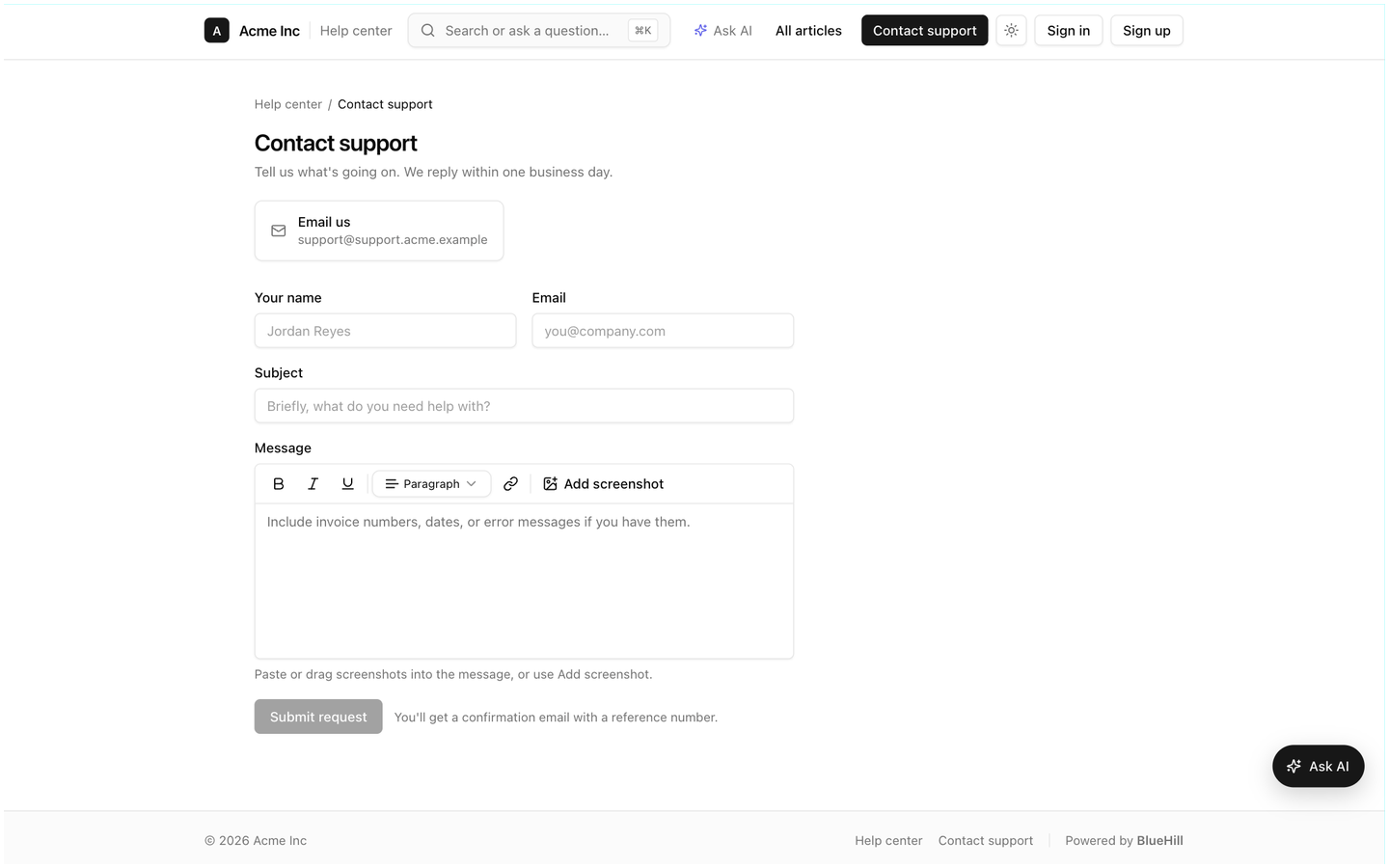
While the customer types, a Before you submit panel can suggest up to three published articles that might answer the question, and Get an instant answer asks the AI assistant when it is enabled for the site. If the brand has a support email or phone number set under Support settings → Help center → Contact channels, Email us and Call us cards appear above the form. The page footer reads Powered by BlueHill.
After Submit request, the customer sees Request received with the ticket's reference number, and the ticket appears in your inbox with the channel Portal. The form can be switched off per help center under Support settings → Help center → Features → Contact form.
The emails a customer receives
| When | |
|---|---|
| Auto-reply | As soon as a ticket is opened by email or the contact form, if the brand has Auto-reply on. The default says Thanks for reaching out — we've opened ticket #12345678 and a team member will reply soon. Administrators edit it on the brand's Identity tab. |
| Replies | Every reply an agent sends. The subject is Re: the original subject [AS-12345678]; the earlier message is quoted underneath, as in ordinary email. |
| Forwarded conversation | When an agent uses Forward… to send the conversation to another address. |
| Satisfaction survey | When an agent clicks Send CSAT survey, or automatically on resolution if your administrator has enabled it. The default subject is How did we do? |
Internal notes, status changes and assignments are never emailed to the customer. All outbound email needs a verified sending domain on the brand; see Add and verify a custom domain.
Ticket numbers
Each ticket has a number made of the brand's prefix and either an eight-digit reference (AS-54351077, the default) or a sequential number (AS-16683) if the brand uses sequential numbering. Emails show the full label in the subject line; the portal shows the number without the prefix.
Customers can quote either form, and so can your team: typing 54351077, AS-54351077 or #54351077 into the inbox search finds the ticket.
When a customer replies by email
A reply is matched to its ticket by the hidden email headers that every mail program adds, and as a fallback by the [AS-12345678] token in the subject. The match works even if the customer changes the subject line, and a reply from a new address (a colleague replying from their own mailbox, say) joins the ticket when it is clearly part of the same thread.
What the reply does to the ticket:
- It appears in the conversation and is marked Customer replied; the subject goes bold in the inbox.
- A ticket in a pending, solved or closed status moves back to Open, unless your administrator has limited this to solved and closed tickets. See Why a ticket reopened.
- A reply to a ticket that was merged lands on the ticket that was kept.
- A reply to a deleted ticket restores it.
If none of the matching rules fit, the email starts a new ticket. Merge it into the original with Merge into….
The customer portal
The customer portal is the signed-in part of your help center, where customers see their own tickets. People get in by invitation (Support → Portal users → Invite portal user) or, if you allow it, by creating their own account from the portal's Sign up link. Signing in uses a code emailed to them, so there is no password to forget.
What a customer sees depends on how their account is set up:
- A portal user linked to a customer sees every ticket of that customer, from any colleague.
- An unlinked portal user sees only the requests they submitted themselves, with the note Showing requests you've submitted.
- Portal access must include Support tickets (or Full portal). Otherwise the Tickets link is hidden.
The Support tickets page has All, Active and Solved tabs. Each ticket shows its subject, number, message count, status and last update. Customers see only the four buckets, Open, Pending, Solved and Closed, never your custom status names, and never internal notes or activity.
New ticket opens a dialog headed New support ticket with a Subject and a message editor. Inside a ticket, the customer reads the conversation as chat bubbles and replies in Write a reply…. On a solved or closed ticket the portal warns This ticket is solved — replying will reopen it. Tickets you merged or deleted are hidden, and an old link to a merged ticket redirects to the kept one.
Tip: Linking a portal user to their customer is what gives them the company-wide view. Unlinked users are fine for one-off requesters, but a customer's main contacts should be linked. The Customers guides cover inviting contacts and setting portal access.
Self sign-up
Under Support settings → Help center → Self sign-up, you can Let visitors create their own portal accounts. Restrict it with Allowed email domains, tick Auto-link customers to connect new accounts to the customer whose domain matches, and choose what self-signups can access: Support tickets, Onboarding & tasks or both.
The satisfaction survey
The survey email has a Rate your experience button. The survey page shows stars (for scales up to five) or numbered buttons, an Anything else? (optional) box and Submit feedback, and thanks the customer once. Scores appear under Support settings → CSAT. See CSAT surveys.
The help center itself
The public help center serves your published knowledge bases with search, categories, a Contact support page and, when enabled, an Ask AI chat. Its branding, custom domain, contact channels and AI settings are under Support settings → Help center, and its articles are written in the Wiki. The Wiki guides cover publishing articles; Insert a help article in the composer is how agents link to them from a reply.
Next: FAQ and troubleshooting.